Living Mindmap
approvedby Chansocheat Tieng
Turn Markdown headings and lists into polished, directly editable mindmaps. - This plugin has not been manually reviewed by Obsidian staff.
Living Mindmap
A polished, directly editable mindmap view for ordinary Obsidian Markdown notes.
Usage
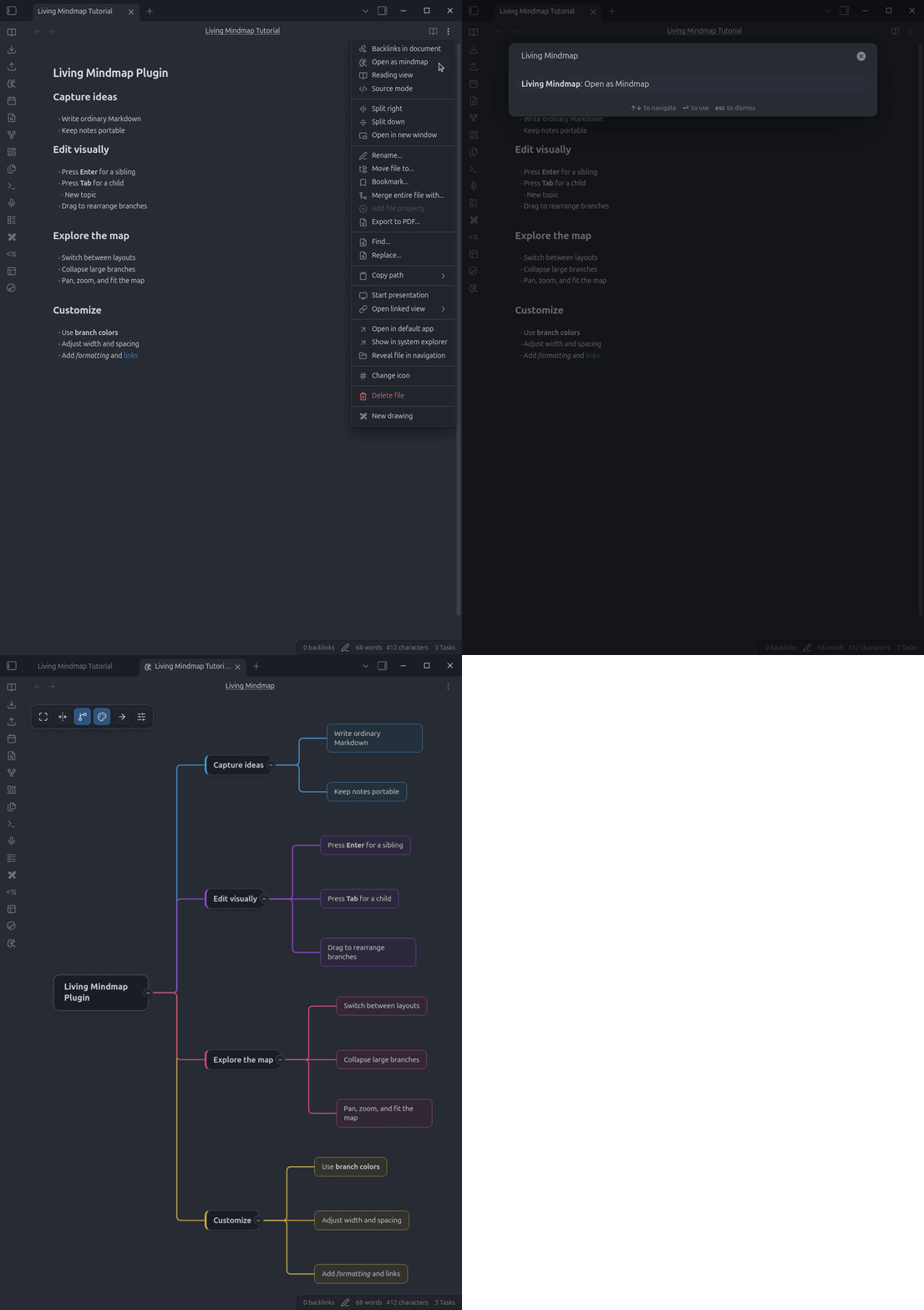
Open a Markdown note and run Living Mindmap: Open as Mindmap, or choose Open as Mindmap from the document's three-dot menu.
On desktop, use the ribbon's brain-circuit icon or the command palette. On mobile, open the ribbon from Obsidian's sidebar or use the command palette.
Commands and controls
Selected nodes
These commands apply after clicking a node. Use Shift-click or a selection rectangle to apply formatting and deletion to multiple nodes.
| Input | Action |
|---|---|
Double-click or F2 | Start editing the primary selected node |
Tab | Create a child |
Enter | Create a sibling at the same level |
Ctrl+B / Cmd+B | Toggle bold formatting on the selected nodes |
Ctrl+I / Cmd+I | Toggle italic formatting on the selected nodes |
Delete or Backspace | Delete the selected nodes and their descendants |
Ctrl+Z / Cmd+Z | Undo the latest mindmap change |
Ctrl+Y / Cmd+Y | Redo the latest mindmap change |
Inline editing
These commands apply while the text editor is visible inside a node.
| Input | Action |
|---|---|
Enter or Tab | Save the edit without creating another node |
Shift+Enter | Save and create a sibling |
Shift+Tab | Save and create a child |
Ctrl+B / Cmd+B | Toggle bold formatting on the selected text |
Ctrl+I / Cmd+I | Toggle italic formatting on the selected text |
Ctrl+Z / Cmd+Z | Undo |
Ctrl+Y / Cmd+Y | Redo |
Escape | Cancel editing |
On Linux and Windows, use Ctrl. On macOS, use Cmd.
Mobile and tablet
Tap a node to select it. The action rail appears along the upper-right edge of the screen.
| Input or control | Action |
|---|---|
| Tap a node | Select the node and show its actions |
| Double-tap a node | Edit its text |
| Drag an empty area with one finger | Pan the map |
| Pinch with two fingers | Zoom in or out |
| Edit | Open the selected node's text editor |
| Add child | Create and edit a child node |
| Add sibling | Create and edit a node at the same level |
| Delete | Delete the selected branch, with confirmation when it has descendants |
| Undo / Redo | Move backward or forward through mindmap changes |
+ / − on a node | Expand or collapse that branch |
While editing, use the on-screen controls for bold, italic, child, sibling, and Done. These controls work without a hardware keyboard.
Canvas navigation and selection
| Input | Action |
|---|---|
| Click a node | Select only that node |
| Shift-click a node | Add or remove it from the current selection |
| Left-drag an empty area | Select multiple nodes with a selection rectangle |
| Right-drag an empty area | Pan the view |
| Mouse wheel | Zoom in or out |
Drag and drop
Dragging a parent moves its complete descendant subtree. Dragging one node from a multi-selection moves the selected sibling branches together.
| Target area | Action |
|---|---|
| Center of a node | Make the moved branches children of that node |
| Top or bottom edge in Horizontal layout | Reorder siblings |
| Left or right edge in Vertical layout | Reorder siblings |
Context menu
Right-click a non-title node to convert it between a Markdown heading and regular list content.
Toolbar
| Control | Action |
|---|---|
| Fit map | Fit and center the complete mindmap in the viewport |
| Collapse/expand | Collapse every branch or expand them again |
| Compact branches | Toggle between globally aligned levels and local branch spacing |
| Branch colors | Toggle distinct colors for top-level branches |
| Layout | Switch between Horizontal and Vertical layouts |
| Dimensions | Adjust node width, hierarchy gaps, and sibling spacing |
Settings
Mind-map preferences are global and stored in the plugin's data.json, not in note frontmatter. Toolbar changes update the same global settings immediately.
| Setting | Purpose |
|---|---|
| Layout | Choose Horizontal or Vertical rendering |
| Maximum node width | Set the width at which node text wraps |
| Spacing mode | Align levels globally or compact each branch locally |
| Branch colors | Color top-level branches and their connectors independently |
| Horizontal hierarchy gap | Set the distance between hierarchy columns |
| Vertical hierarchy gap | Set the distance between hierarchy rows |
| Sibling gap | Set the minimum distance between sibling subtrees |
Node text always wraps at the configured maximum width. Shorter nodes keep their natural compact width.
Enable Compact branches in the toolbar to keep parent-to-child gaps fixed within each branch. Disable it to align every depth into global columns.
Enable Branch colors in the toolbar to give each top-level branch its own node and connector color.
Author
Created by Chansocheat Tieng.
For plugin developers
Search results and similarity scores are powered by semantic analysis of your plugin's README. If your plugin isn't appearing for searches you'd expect, try updating your README to clearly describe your plugin's purpose, features, and use cases.