Explorer Categories
approvedby ARPMAN
Assign categories to folders and files, and color the file explorer by category. A category carries the color, the marker and the icon, and everything in it follows. - This plugin has not been manually reviewed by Obsidian staff.
Explorer Categories
Give a folder a category. The category carries the color, the marker and the icon — and every folder in it looks the same. Change the category, and all of them follow at once.
That is the whole idea. You are not painting folders one by one; you are sorting them into groups that happen to be visible.
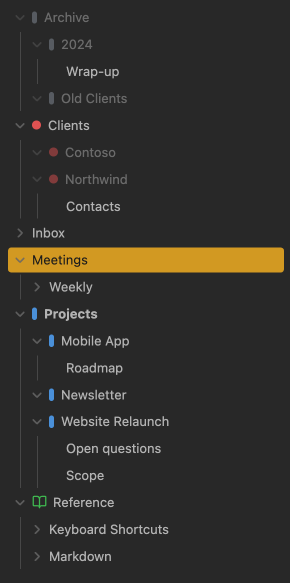
What a category holds
A category is a name plus an appearance, and the appearance is complete:
- a color
- a marker in front of the name — a bar, a dot, or an icon
- an optional background, colored text, bold text
- or the opposite: dim, which makes the whole row step back
Each category carries its own. One can be a quiet gray bar, the next a solid red background, a third just a bold blue name. You are not choosing one style for the whole vault.
Dim is there for the folders you are done with. "Archive", "Finished", "Old clients" — turning them louder is not what you want; turning them quieter is. The whole row fades together, marker and icon included, so a dot in full color cannot pull your eye back to the line that is meant to step aside.

One legend per part of the vault
The same color rarely means the same thing everywhere. Red is "software" in one corner of a vault and "cardiologist" in another. So categories are kept in groups, and a group is simply a legend: a set of categories that belong together. It carries no color and no icon of its own.
Groups are tabs along the top of the management window — you see one legend at a time instead of every category you have ever made. In the context menu each legend becomes its own submenu.
Until you create a second one, none of this is visible. One legend means one list and a flat menu, exactly as if groups did not exist.

Working with it
Assign a category. Right-click a folder — or a single note, canvas, PDF or image — and pick a category. Done.
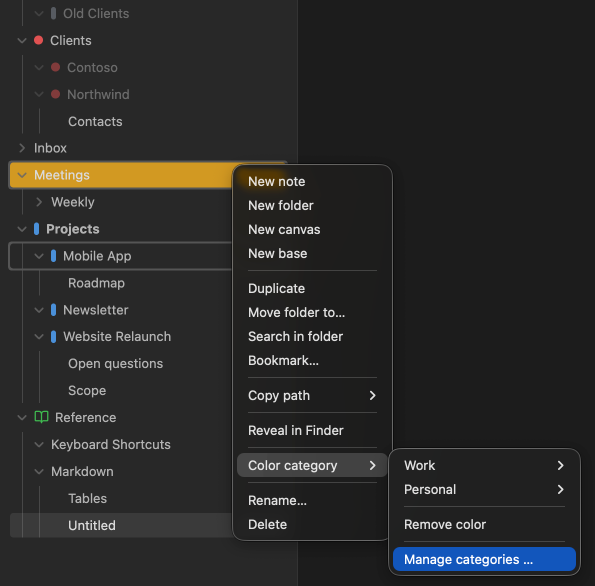
Assign many at once. Alt-click or shift-click several entries in the file explorer, then right-click. The menu title tells you how many you picked, and in which words: folders, files, or plain items for a mixed selection.
A file with its own category keeps it. Where a file has been given a category directly, that one wins over anything it would otherwise inherit from the folder above.
Let subfolders inherit. Turn on "Also applies to subfolders" for a category, and every folder in it passes its color down, including folders you create later. A subfolder with a category of its own keeps it.
Let the files inherit too. "Also applies to the files inside" is a second, separate switch. Turn it on and the files below those folders carry the color as well — and that means every file, not only notes: canvases, PDFs and images sit in the same list and are drawn the same way. It reaches the whole subtree, and a deeper folder with the same switch takes over from there.
It is deliberately not the same switch as the one above. Folding the two together would have turned every folder that already inherits colorful in one go, without anyone changing a setting.
Both switches sit in the management window, on the category — not on the single folder. Everything a category decides is decided in one place.
Manage categories. Right-click any folder and choose "Manage categories …", or run the command from the command palette. The window lists your categories on the left and the settings of the selected one on the right: color, name, marker, icon, the four extra switches and the two inheritance switches. The list on the left is the preview: every row shows its category exactly as the file explorer will, so you see all of them at once rather than only the selected one.
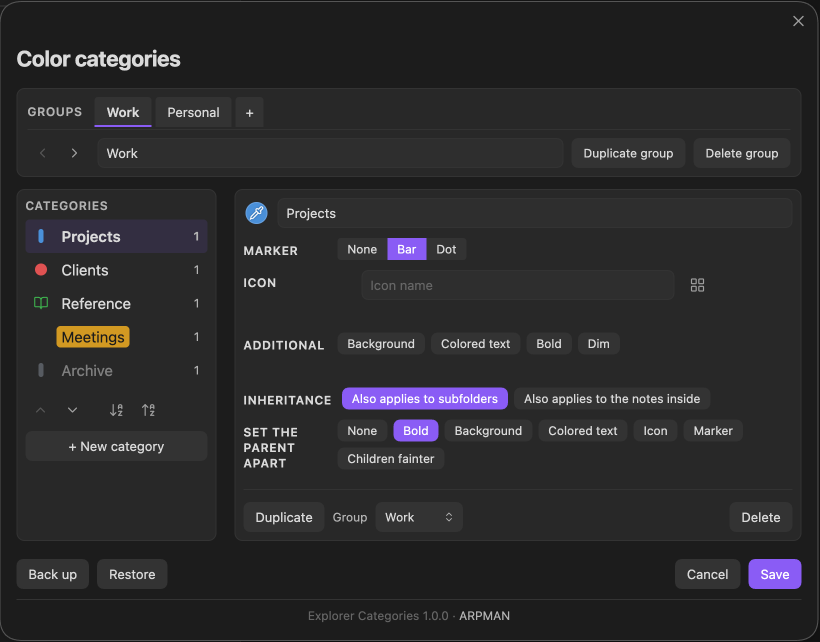
Icons come from Obsidian. "Icon" is the fourth marker, beside None, Bar and Dot, and exactly one of the four is on. Pick it and the row below says which icon: any icon Obsidian ships with, searchable, drawn in the category's colour. If the name is unknown — or none has been picked yet — the row falls back to the bar rather than going unmarked.
Renaming keeps the category. Move a folder or a file, rename it, rename a folder above it — the assignment follows.
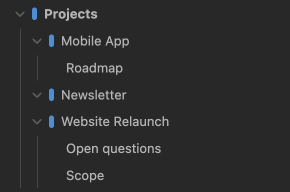
Give the children a look of their own. Where a category inherits, the panel gains a switch at the top: Parent or Children. Everything below it — marker, icon, background, colored text, bold, dim — is then set for that side alone.
So the folder carrying the category can have colored text and an icon while the folders below it carry neither, or only a quiet bar. Any combination works, not one difference at a time.
Children start out looking exactly like the parent, and "Same as parent" puts them back. What you do not set apart keeps following: change the category's color and both sides change with it.
Put the list in the order you want. Two arrows below the list move the selected category one place; two more sort the open group by name, A to Z or back. The same pair of arrows sits next to the group tabs and moves the whole group left or right. Sorting touches the open group only — the other legends keep their places.
Duplicate a category to start a new one from an appearance that already works, instead of setting seven things again.
Move a category to another group when a legend turns out to be the wrong one. The folders keep their color.
Move the window. On the desktop, grab the management window by its top strip and drag it aside, next to the file explorer for instance. The explorer shows every change as you make it. Next time the window opens in the middle again.
Settings
Settings → Explorer Categories holds one switch, and it has nothing to do with categories: Expand folders only with the arrow. Turn it on, and a click on a folder's name no longer opens or closes the folder. Only the arrow in front of it does. It is off by default.
One combination still opens a folder on a click. The Folder notes plugin opens the note that lives inside the folder, and if the file explorer is set to reveal the active file, Obsidian then expands the folders above that note. Closing a folder by its name stays blocked either way.
Nothing is written until you save
The window works on a draft. Change a color, rename, delete, restore a backup — none of it reaches your vault until you press Save. Cancel puts everything back the way it was, and closing the window counts as cancelling.
Back up your work. "Backup" writes your categories, groups and folder
assignments to a readable JSON file: into your downloads folder on the
desktop, into explorer-categories-backup/ inside the vault on a phone or
tablet, where no downloads folder worth the name exists. "Restore" reads
one back — through the system file dialog on the desktop, from a list of
what is in that folder on mobile.
A restore replaces everything at once, so it lands in the draft like any other change: Save keeps it, Cancel drops it. The file is checked before you are asked to confirm, so picking the wrong one costs a message, not your colors.
Privacy
The plugin makes no network requests. Nothing is sent anywhere, there
is no telemetry, no account and no paid tier. Your categories and folder
assignments live in data.json inside your vault, and that is the only
file the plugin reads or writes on its own.
Two actions leave the vault, and only when you ask for them. Pressing "Backup" on the desktop hands the file to your browser as a download, the way any web page does — it lands in your downloads folder. Pressing "Restore" opens the system file dialog and reads the one file you pick. The plugin has no access to your disk beyond those two dialogs; it uses no Node.js or Electron APIs, which is why it runs on mobile as well.
Interface language
The plugin follows the language set in Obsidian. English and German are built in; every other language gets English.
To add one, copy TEXTS_EN in main.js, translate the entries, and add
the list to LANGUAGES. Nothing else changes. Pull requests welcome.
Installing
From the community directory. In Obsidian, go to Settings → Community plugins → Browse, search for "Explorer Categories" and install it. Updates arrive the same way.
From a release. Download main.js, manifest.json and styles.css
from the latest release
into <vault>/.obsidian/plugins/explorer-categories/, then turn the
plugin on under Settings → Community plugins.
How it works
The plugin does not redraw the file explorer. It writes a single
<style> element into the document head and lets Obsidian do the
drawing — no MutationObserver, nothing running in the background, nothing
to slow the explorer down. Rules of the same kind are merged, so a vault
with several hundred colored folders still produces a short stylesheet.
The one exception is the arrow switch under Settings. While it is on, the plugin listens for clicks on folder names and tells Obsidian to ignore them. It changes nothing else in the explorer.
Requirements
Obsidian 1.12.0 or newer. Works on desktop and mobile.
License
MIT — see LICENSE.
Author: ARPMAN Built with AI assistance.
For plugin developers
Search results and similarity scores are powered by semantic analysis of your plugin's README. If your plugin isn't appearing for searches you'd expect, try updating your README to clearly describe your plugin's purpose, features, and use cases.