Folder Toolkit
approvedby Gabriel Bacha
Color, organize, hide, and temporarily focus folders in the file explorer. - This plugin has not been manually reviewed by Obsidian staff.
Folder Toolkit
Folder Toolkit makes Obsidian's file explorer easier to scan and temporarily simplify. It combines independent folder and note colors, cascading folder styles, subtree borders, permanent hiding, and session-only folder focus.
Screenshots
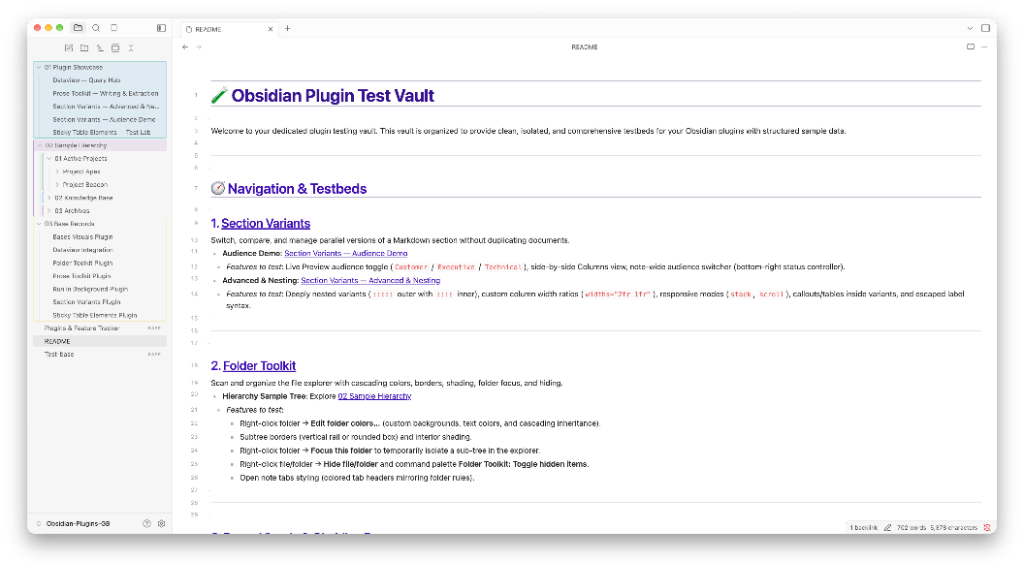
Features
- Independent text, background, and border colors for folders and notes
- Conditional font, background, and border colors plus bold and strikethrough styling by file or folder name, with exact, prefix, suffix, and contains matching
- Per-effect folder cascading with explicit inheritance blockers
- Rounded-box or vertical-rail borders around folder subtrees, with optional shaded interiors
- Alternating active-palette borders for direct subfolders
- Optional colored backgrounds or borders on open note tabs
- The same eight switchable palette templates as Bases Visuals, plus custom hex colors and adjustable color strength
- Permanent file and folder hiding with a searchable manager
- A temporary focused-folder view that presents any nested folder as the visible explorer root
- Segment-safe path updates when files and folders are renamed or deleted
- Multiple file-explorer panes, desktop, and mobile support
- Efficient differential explorer and tab updates that avoid rewriting unchanged DOM styles
Usage
Right-click or long-press a file or folder and use the actions in Obsidian's plugin-action group:
- Edit folder appearance… or Edit file appearance… opens a unified background, border, and text editor with bold, strikethrough, and folder descendant-inheritance controls. File borders enclose one explorer row; folder borders and optional shading enclose their subtree. Clear border returns to conditional or generated styling, while No border explicitly blocks it for that item. Direct subfolders can receive alternating colors from the active palette. Draft changes preview directly in the file explorer; Save keeps them and Cancel restores the saved rule.
- Hide file/folder permanently removes the item from the explorer until hidden items are shown or the path is unhidden.
- Focus this folder temporarily hides unrelated branches. Use Exit folder focus from a visible folder or the command palette to restore the explorer.
Use Folder Toolkit: Toggle hidden items to reveal hidden paths. The settings tab contains the palette selector and a searchable manager for all appearance and hidden-path rules.
Set Open note tabs to Colored background or Colored border to carry each open note's effective cascaded colors into its workspace tab. Text rules color the tab title, while background rules independently color the tab surface or border.
Use Conditional formatting in settings to style items by name anywhere in the vault. Choose files, folders, or both; match an exact name or a name that starts with, ends with, or contains a pattern; then enable font color, background color, border, bold, or strikethrough in any combination. Each color has independent palette, custom color, and strength controls. Matching is case-insensitive, and exact or suffix matches work with or without a file extension. Direct item overrides take priority, and the last matching conditional rule wins independently for text color, background color, border, bold, and strikethrough. Muted font rules for __system folders, __archive file prefixes, and _basefiles folder suffixes are enabled by default.
When a file or folder is renamed or moved, saved rules follow the path and open tabs immediately resolve their appearance from the new folder hierarchy.
Folder focus lasts only for the current Obsidian session. Permanent hiding and appearance settings persist.
Performance
Folder Toolkit updates explorer rows and open-note tabs only when their managed classes or colors actually change. Tab updates are driven by Obsidian workspace and vault events rather than observing every DOM mutation in the workspace, keeping typing and large file explorers responsive.
Installation
Community plugins
After approval, install Folder Toolkit from Settings → Community plugins → Browse.
Manual installation
Copy main.js, manifest.json, and styles.css into:
<vault>/.obsidian/plugins/folder-toolkit/
Reload Obsidian and enable Folder Toolkit.
Privacy
Folder Toolkit works entirely offline. It makes no network requests, collects no telemetry, and never modifies note content or frontmatter. Its stored data contains only vault-relative paths and visual preferences.
Development
npm install
npm run check
License and acknowledgements
Folder Toolkit is MIT licensed. Its independently implemented feature set was inspired by the MIT-licensed File Color and File Hider community plugins.
For plugin developers
Search results and similarity scores are powered by semantic analysis of your plugin's README. If your plugin isn't appearing for searches you'd expect, try updating your README to clearly describe your plugin's purpose, features, and use cases.