File Folder Status Sets
approvedby Dan
Traffic-light style status icons for files and folders in the file tree, with custom statuses, per-folder defaults, and persistent sort/group by status. - This plugin has not been manually reviewed by Obsidian staff.
File Folder Status Sets
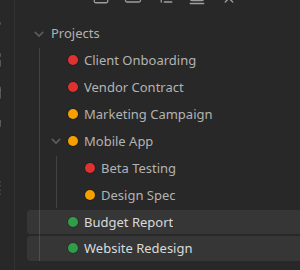
Reusable status sets — think ClickUp's status pills — applied to files and folders in Obsidian's file tree as traffic-light style icons.
Features
- Status dots in the file tree. Any file or folder can show a small colored status icon next to its name, right in the native file explorer.
- Custom statuses, custom colors. Define your own statuses (label + color) grouped into reusable status sets in Settings.
- Per-folder status sets and defaults. Right-click any folder → File and Folder Status Options → Enable statuses for this folder, pick a status set, and every item in that folder is assigned its default status. You can also assign folders directly from Settings.
- Click a dot to change it. Click any status icon to open a small popup, with a curated pastel color palette plus a fully custom color picker, and re-assign that file or folder's status. Clicking the icon never opens the file or expands the folder — only clicking its name does that.
- Choose how the popup opens. Settings → Behaviour → Open change status menu — left click (default), right click, long click (press and hold), or double click.
- Group by status. Enabled folders automatically sort their contents by status, and that order persists across restarts — even if a folder relying on an ancestor's settings gets moved elsewhere.
- Completed and cancelled statuses. Mark any status "completed" or "cancelled" (a status is one or the other, not both) and hide items in either state from the tree per folder, toggleable from Settings or a right-click.
- Apply to files or folders independently. Each folder assignment has separate Files / Folders toggles (both on by default) — turn either off and that type sorts alphabetically below the other, instead of taking part in the status grouping.
- Truncate large groups. Collapse 2+ items sharing a status into one summary row (e.g. "3 Ideas"), with an optional custom label. Click the row to expand it, double-click any status dot in the expanded group to collapse it again.
- Glow. An optional neon glow around status dots in the file tree, toggleable from Settings → Design. The dot itself never changes size.
- Nothing touches your notes. All assignments live in the plugin's own data file — no frontmatter is ever written. The plugin itself never makes network requests in the background — the only network activity it can ever trigger is opening your browser to a GitHub or Buy Me a Coffee page, and only when you click one of the buttons in Settings → Support to do exactly that. It does read your vault's list of folder paths (never file contents) to power the "Assign a folder" autocomplete.
Usage
- Open Settings → Status Sets and create a status set (e.g. "Not started" / "In progress" / "Done") with a color for each.
- Right-click a folder in the file explorer → File and Folder Status Options → Enable statuses for this folder → pick the status set and a default status.
- Click any status dot in the tree to change that item's status.
- Right-click an enabled folder again (same submenu) to change its default status or turn statuses off (existing assignments are kept, so re-enabling restores them).
Installation
From Obsidian
Settings → Community plugins → Browse → search "File Folder Status Sets" → Install → Enable.
Manually
Copy main.js, manifest.json, and styles.css from a
release
into <your-vault>/.obsidian/plugins/file-folder-status-icons/, then
enable the plugin from Community plugins.
Development
npm install
npm run dev     # watch build
npm run build   # typecheck + production build
npm run lint
License
MIT
For plugin developers
Search results and similarity scores are powered by semantic analysis of your plugin's README. If your plugin isn't appearing for searches you'd expect, try updating your README to clearly describe your plugin's purpose, features, and use cases.