Flexible Tasks
approvedby KB Benton
Interactive task checkboxes in Markdown table cells and lists, with custom statuses such as done, in progress, cancelled, forwarded, and more, styled by your theme. - This plugin has not been manually reviewed by Obsidian staff.
Flexible Tasks
An Obsidian plugin for interactive task checkboxes inside Markdown table cells — and custom task statuses everywhere, rendered by your theme.
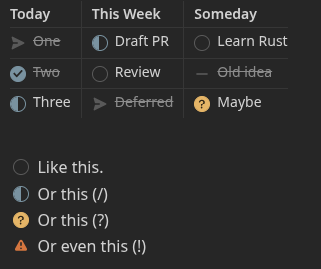
Why
A Markdown table cell is inline-only, so a task like - [ ] One written in a cell renders as dead text: Obsidian never turns it into a checkbox, and task plugins skip it. Flexible Tasks turns those cell tasks into real, interactive checkboxes and writes toggles back to the source file. It also adds a right-click status menu to ordinary block-list tasks, so you can set any status without retyping the marker.
Features
- Checkboxes in table cells — the thing the Markdown format won't do. Click to toggle, right-click to set any status.
- Custom statuses —
[ ],[x],[/],[-],[>],[?],[!], and any other single character round-trip faithfully in the source. - Renders in both Reading view and Live Preview.
- Defers to your theme. The plugin puts a real checkbox carrying
data-task="<char>"in place; your checkbox theme draws the status icon. Nothing is overridden. - Off-book statuses stand out. A character the plugin doesn't plan for is shown with the Important indicator instead of a plain check, so an unusual status never masquerades as done.
Themes
Status icons are drawn by your checkbox theme, not by the plugin. Flexible Tasks puts a real checkbox carrying data-task="<char>" in place; any theme that styles task statuses from data-task renders the icons.
- Minimal — works out of the box. This is the theme the plugin is developed against.
- Other checkbox themes — many render custom statuses too, but some ship the feature turned off. For example, Prism renders them once you install the Style Settings plugin and enable Prism → "Enable Prism Alternative Checkboxes" (it defaults to off). Other themes have their own equivalent toggle. These aren't officially tested, but the standard
data-taskmechanism means they generally work once their alternative-checkbox styling is enabled. - Default theme / no checkbox styling — statuses still round-trip in the source and appear on hover, but render as plain checkboxes without a per-status glyph.
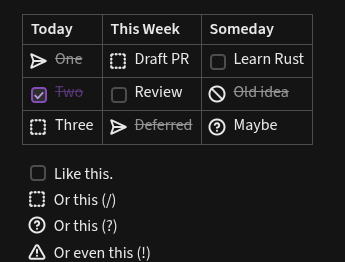
Whatever the theme, the status character is always preserved in your Markdown — only the rendered glyph depends on the theme.
Usage
Write a table whose cells contain tasks:
| Today       | This Week      | Someday          |
| :---------- | :------------- | :--------------- |
| - [>] One   | - [/] Draft PR | - [ ] Learn Rust |
| - [x] Two   | - [ ] Review   | - [-] Old idea   |
| - [/] Three | - [>] Deferred | - [?] Maybe      |
Each - [ ] becomes a clickable checkbox.
Setting a status
Every status beyond a plain done/to-do toggle lives on the right-click — on both surfaces, so nothing is hidden behind a hotkey or command palette entry:
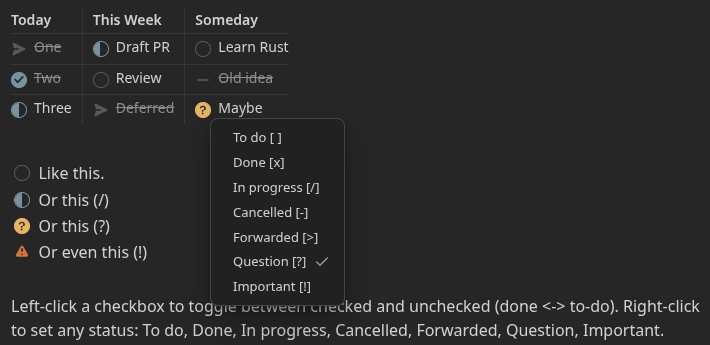
- Reading view — left-click a checkbox to toggle done ↔ to-do; right-click it to open the status menu and choose any status (
[ ],[x],[/],[-],[>],[?],[!]). - Editor (Live Preview / source) — right-click anywhere on a task line and choose Checkbox choices, then pick a status.
In short: left-click is the quick done/to-do toggle; right-click is how you reach the full status set.
Settings
- Style block-list tasks too — also add the right-click status menu to ordinary (non-table) list tasks in Reading view. On by default.
Development
npm install
npm run dev     # watch build -> main.js
npm run build   # type-check + production bundle
For a live dev loop, symlink this folder into a test vault's plugin directory:
ln -s "$(pwd)" /path/to/TestVault/.obsidian/plugins/flexible-tasks
Then enable Flexible Tasks in the vault's community-plugin settings and use "Reload app without saving" (or the Hot-Reload plugin) after each build.
Contributing
Bug reports, ideas, and pull requests are welcome — see CONTRIBUTING.md for the dev loop, the UAT plan, and the defer-to-theme architecture to keep in mind.
License
GPL-2.0-only. See LICENSE.
For plugin developers
Search results and similarity scores are powered by semantic analysis of your plugin's README. If your plugin isn't appearing for searches you'd expect, try updating your README to clearly describe your plugin's purpose, features, and use cases.