by Alessandro Abrami
Visualize and edit notes in a 2D card tree layout using standard Markdown heading hierarchy.
Fractal




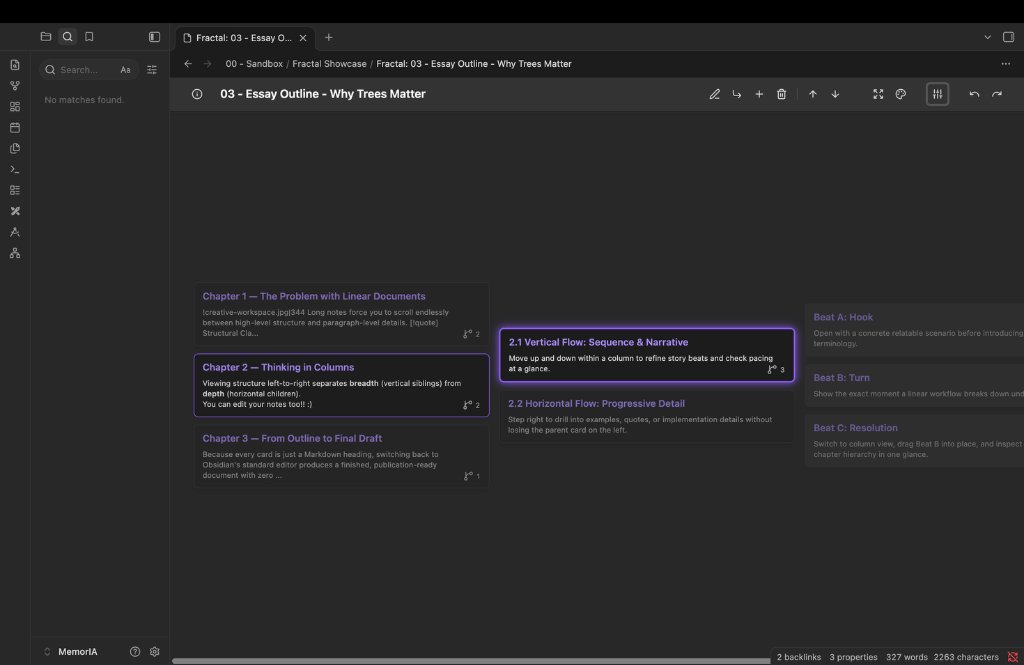
Fractal lets you visualize and edit standard Markdown notes in a column-based card tree layout (inspired by Gingko), mapped directly to your note's Markdown heading hierarchy (# through ######) without modifying your underlying file format.
Why Fractal?
Long Markdown documents force you to choose between keeping high-level structure in view or focusing on paragraph-level writing. Fractal turns any note's heading outline into synchronized left-to-right columns:
- See breadth and depth together: Parent sections stay visible on the left while subsections expand on the right.
- Zero lock-in: Every card is a standard Markdown heading section in your
.mdfile. Switch freely between Obsidian's normal editor and Fractal anytime. - Built for desktop and mobile: Uses only standard Obsidian and browser APIs with no Node.js or Electron dependencies.
Visual Walkthrough
Column Navigation & Inline Card Editing
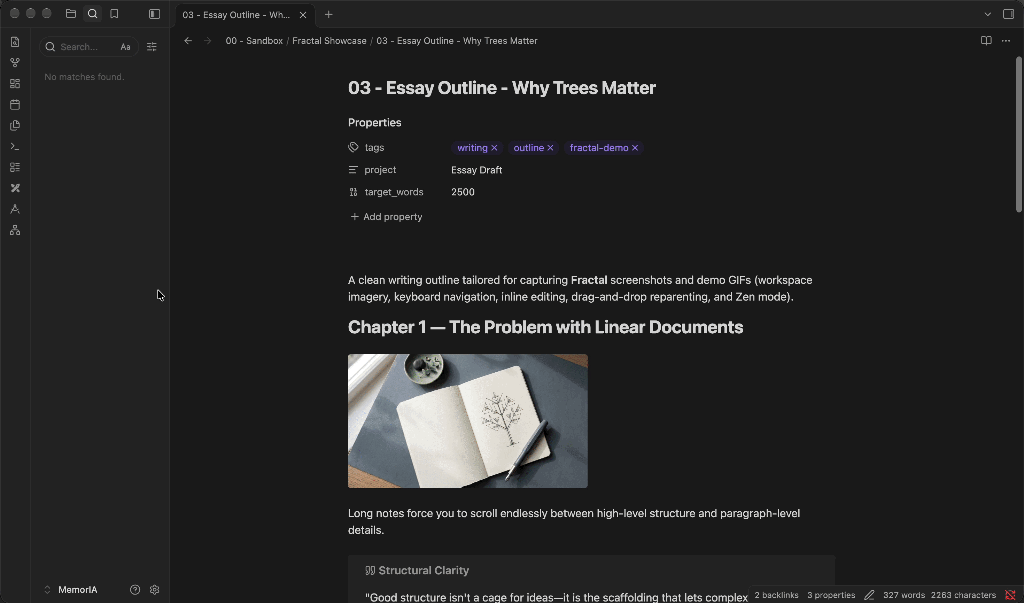
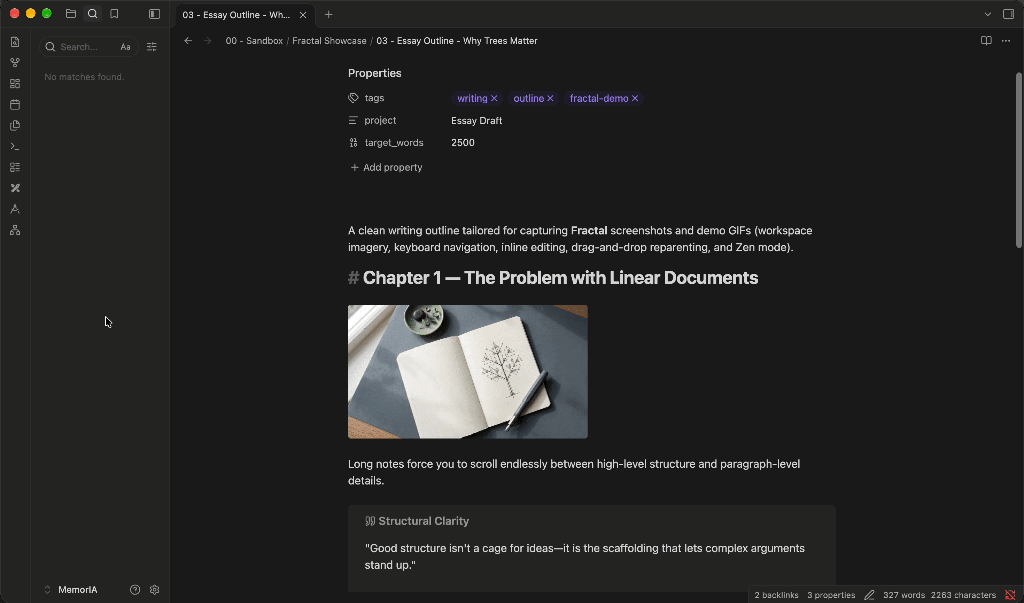
Browse branches left-to-right, expand active cards, edit directly in place with Obsidian's editor, and switch back to standard Markdown at any time with zero export or conversion.
Rich Markdown Rendering & Layout Workflow
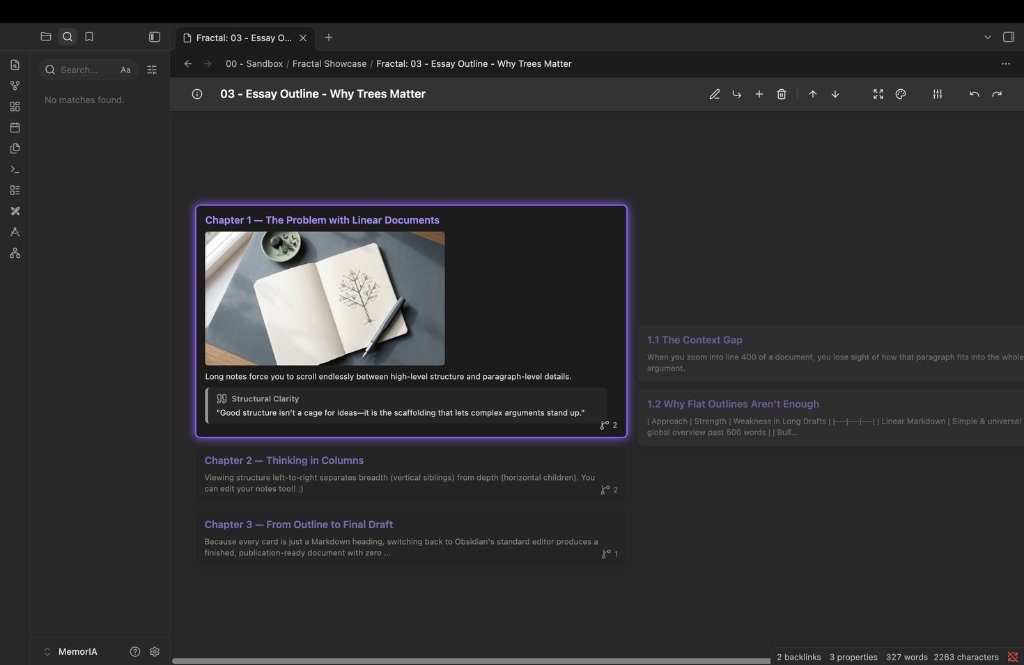
Active cards and illuminated ancestor paths render full Obsidian Markdown—including embedded vault images, callouts, tables, fenced code blocks, and internal links—while unselected sibling cards collapse into concise previews.
Features
- Standard Markdown Storage: Every card maps 1:1 to a Markdown heading (
#through######). Your vault remains 100% portable plain Markdown. - Multi-Column Tree Navigation: Illuminated ancestor paths, automatic focus scrolling, and optional centered navigation keep your active branch in clear view.
- Properties & Introduction Panel: Toggleable header panel for editing YAML frontmatter properties and introductory prose above the first
# H1heading. - Inline Card Editing: Double-click any card, press
Enter, or use the toolbar edit button to edit title and body directly inside the card, complete with a quick Markdown formatting bar. - Drag & Drop Structuring: Reorder sibling cards within a column, or drop onto another card or adjacent column to reparent branches and automatically adjust heading levels.
- Themes & Visual Customization: Inherit your active Obsidian theme (
Obsidian thememode withH1–H6styling) or switch toCustompalette colors, plus controls for zoom, column width, inactive card height, grid overlay, and spacing. - Per-Note Accents & Branch Folding: Right-click cards or columns to apply color accents or collapse branches.
- Zen Mode: Expand the Fractal canvas across the workspace by collapsing Obsidian's sidebars.
Quick Start
- Open any Markdown note in Obsidian.
- Click the network icon in the left ribbon (or open the Command Palette and run Fractal: Toggle view).
- Navigate branches with the arrow keys or mouse, press
Enterto edit a card, and pressEscapeto save and return to tree navigation. - Optionally enable Open notes in Fractal view by default in Settings → Fractal.
Keyboard Shortcuts
When browsing cards in Fractal view (not actively typing inside a card editor):
| Shortcut | Action |
|---|---|
Arrow Up / Arrow Down | Move to previous or next sibling card (creates a new card at boundaries) |
Arrow Left / Arrow Right | Move to parent or child column (creates a child card if none exists) |
Enter | Edit the selected card |
Escape | Save changes and exit editing mode |
Ctrl + N / Alt + N | Insert a sibling card below |
Ctrl + Shift + N / Alt + Shift + N | Insert a child card |
Ctrl/Cmd + C / Ctrl/Cmd + X / Ctrl/Cmd + V | Copy, cut, or paste card & subtree (Shift + V pastes as child) |
Ctrl/Cmd + Z / Ctrl/Cmd + Y (or Ctrl/Cmd + Shift + Z) | Undo / Redo structural changes |
Ctrl/Cmd + Mouse Wheel | Zoom in / out |
Installation
From Obsidian Community Plugins
- Open Settings → Community plugins in Obsidian.
- Select Browse and search for Fractal.
- Click Install, then Enable.
Manual Installation
- Download
main.js,manifest.json, andstyles.cssfrom the latest GitHub Release. - Copy them into
<your-vault>/.obsidian/plugins/fractal/. - Reload community plugins in Obsidian settings and enable Fractal.
Privacy & Local-First Design
- 100% offline & local: Fractal makes zero network requests, collects zero telemetry or analytics, and sends no data outside your device.
- Your notes stay untouched: Structural edits update your Markdown file directly via Obsidian's Vault API, while visual preferences (theme overrides, zoom, card accents, collapsed branches) are saved locally in Obsidian's standard plugin
data.json.
Support
If Fractal helps your writing, research, or planning workflow, you can support ongoing development on Ko-fi:

Author
Developed by Alessandro Abrami (GitHub).
License
Licensed under the GNU Affero General Public License v3.0 (AGPL-3.0).
For plugin developers
Search results and similarity scores are powered by semantic analysis of your plugin's README. If your plugin isn't appearing for searches you'd expect, try updating your README to clearly describe your plugin's purpose, features, and use cases.