by theluckystrike
Quote complete wiki links in raw frontmatter after a checked repair preview.
Frontmatter Link Repair
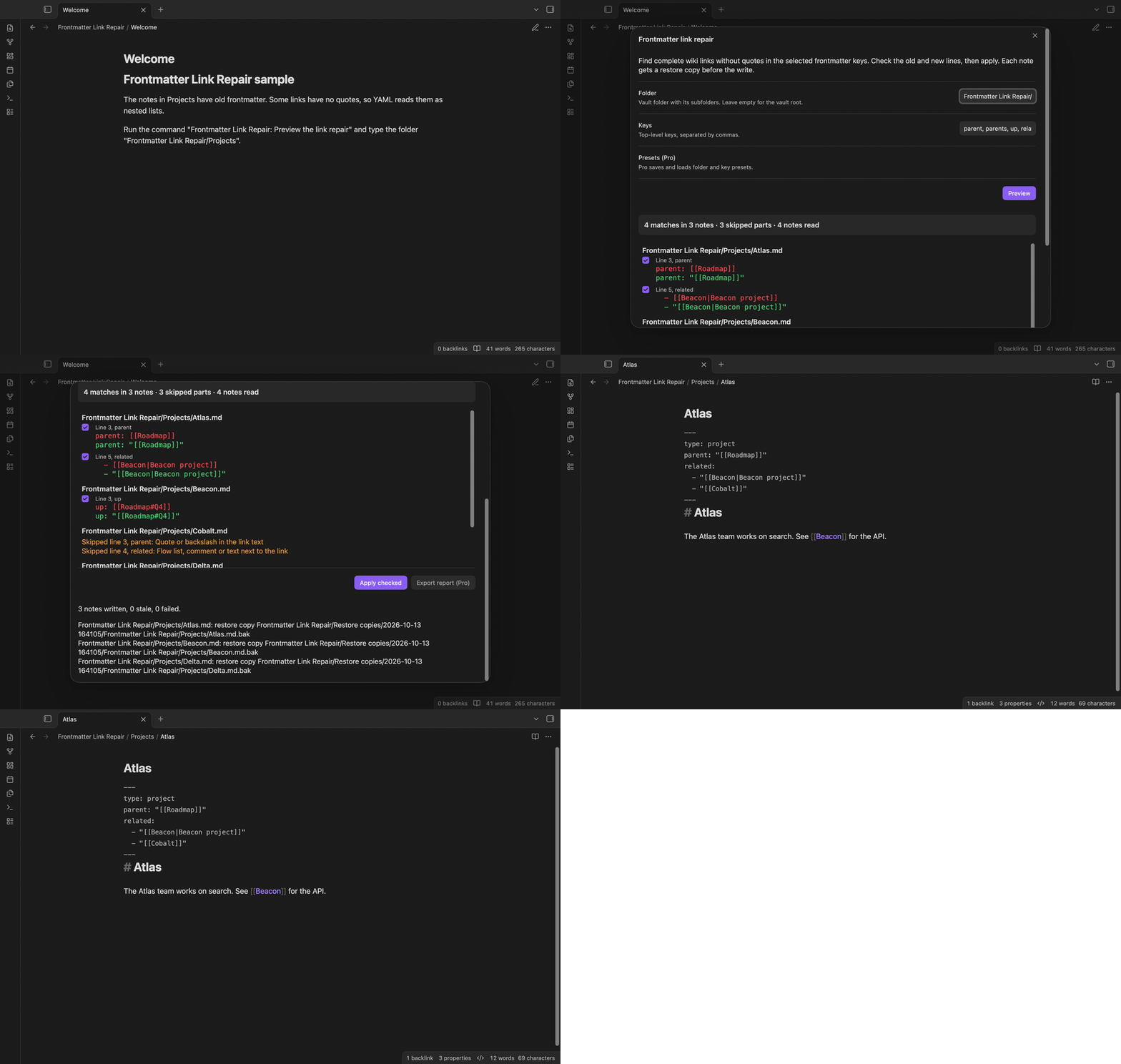
Frontmatter Link Repair finds wiki links without quotes in the raw frontmatter of your notes and puts double quotes around them. It shows the old and new line of each match first. You check the matches, select Apply, and the plugin saves a restore copy of each note before it writes the note.
The tests include raw frontmatter such as parent: [[Some note]]. The repair changes it to parent: "[[Some note]]". This plugin is for raw files that you wrote by hand, imported or made with a template.
Features
Preview with the old and new line
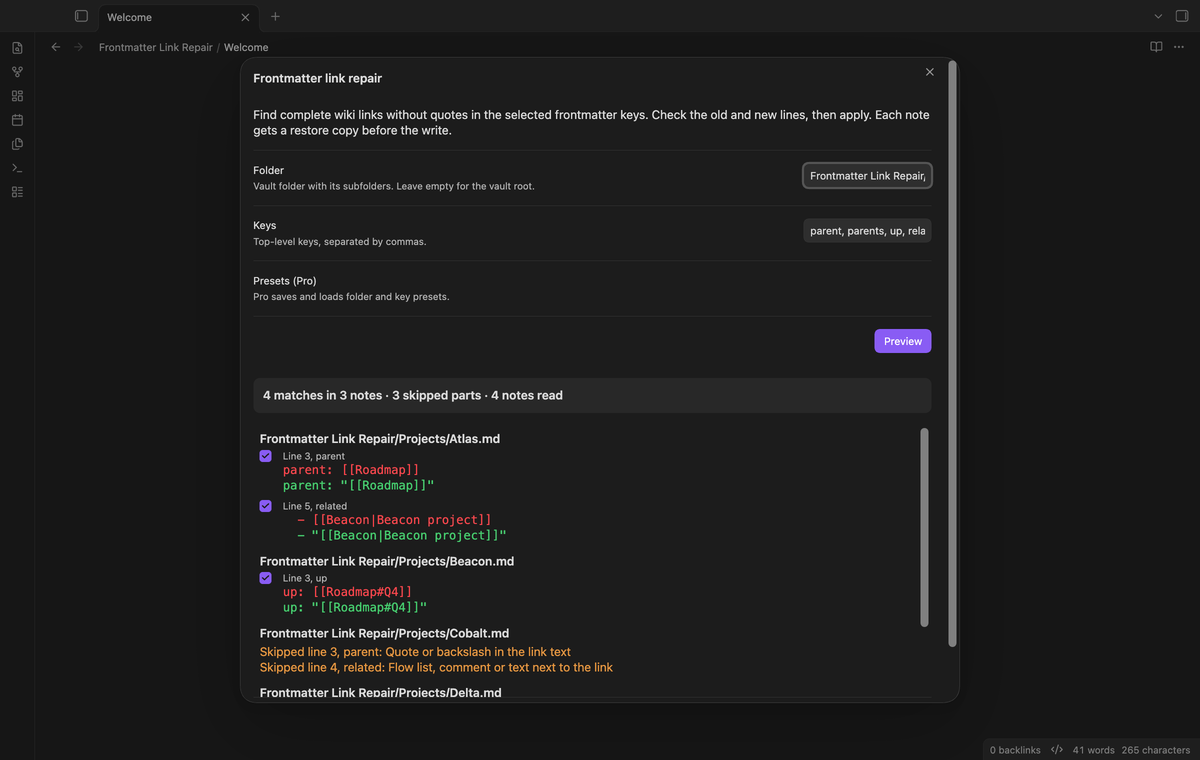
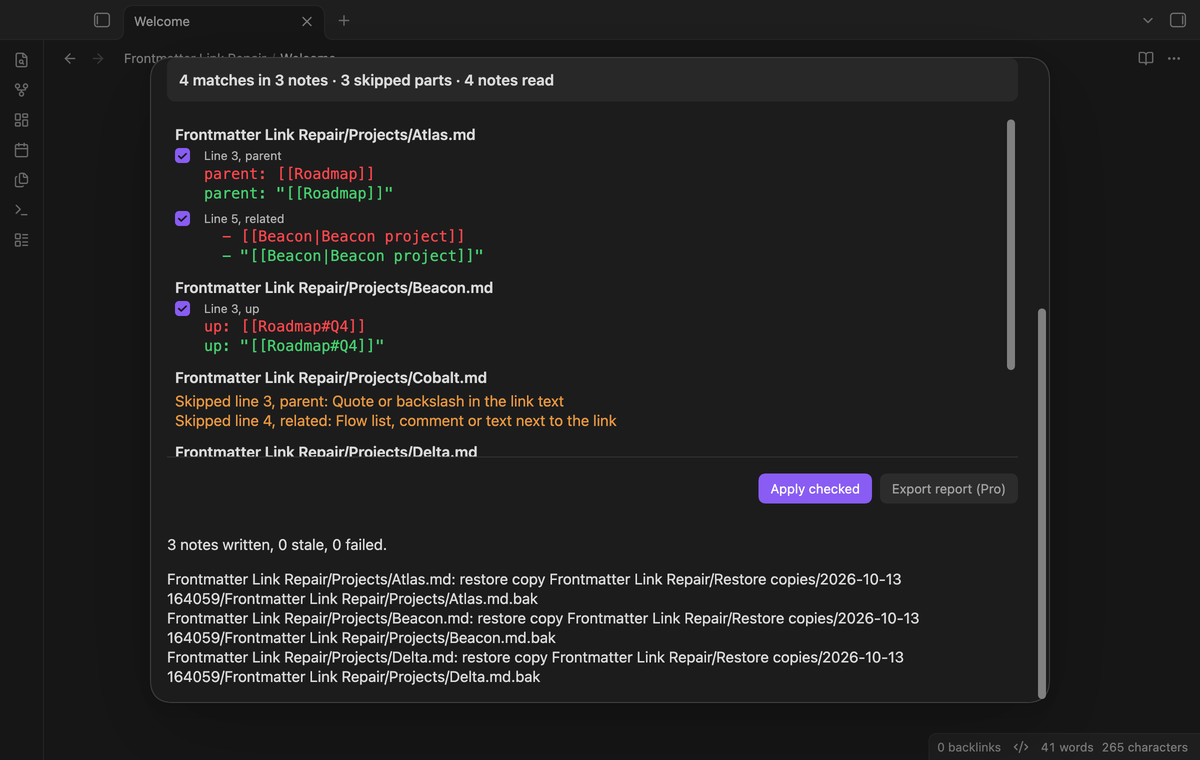
The preview reads the Markdown notes in one folder and its subfolders. For each visible match it shows the note path, the line number, the key, the old line and the new line. Each visible match has a checkbox, and each checkbox starts checked. The preview does not change note text.
Only complete links in the keys that you select
You type the top-level keys to repair, for example parent, parents, up, related. The plugin changes a value only when the complete value is one wiki link, on the key line or as an item of a simple block list under the key. It keeps the indentation of a list item, the link text, the alias, the heading and the block reference. It does not change other keys or the note body.
Skip ambiguous YAML with a reason
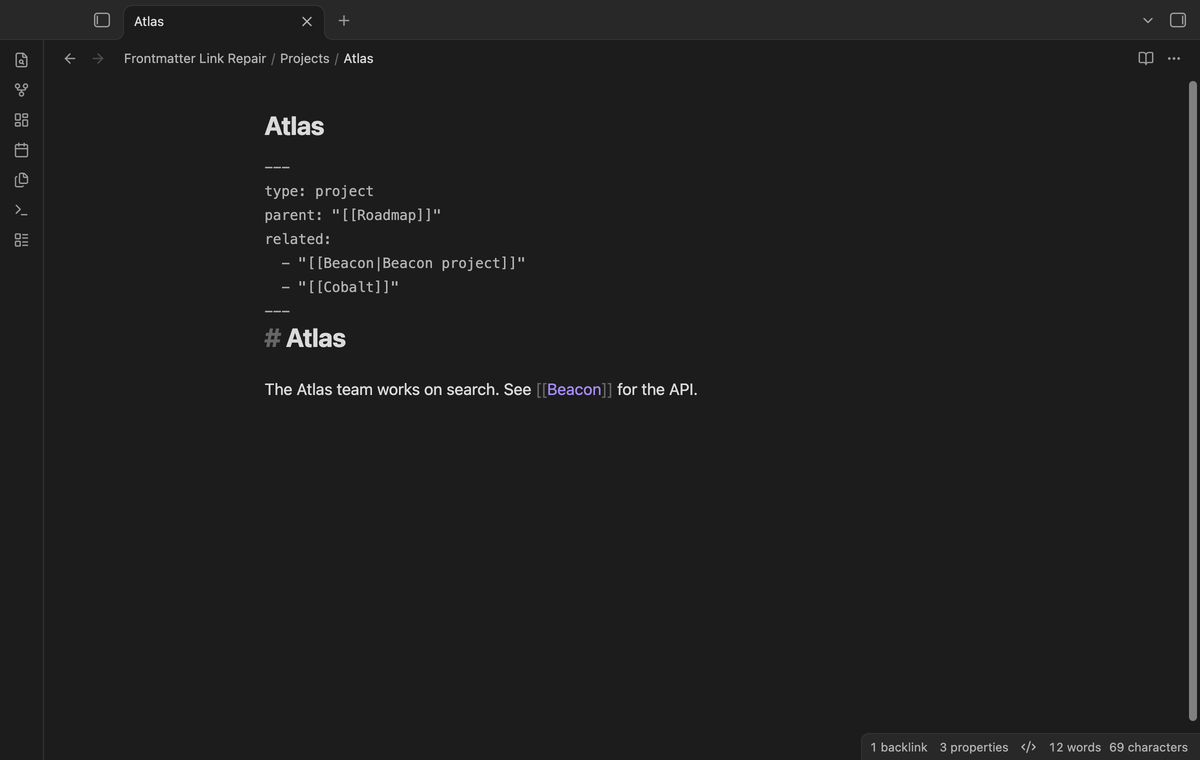
The scanner does not guess. It skips a value and tells you why when the YAML is not simple. Examples are a quote in the link text, a flow list with more than one link, a comment after the link, a nested mapping, a multiline value, a duplicate key, a tab in the indentation and a file without a closing --- line.
Restore copy and stale preview check
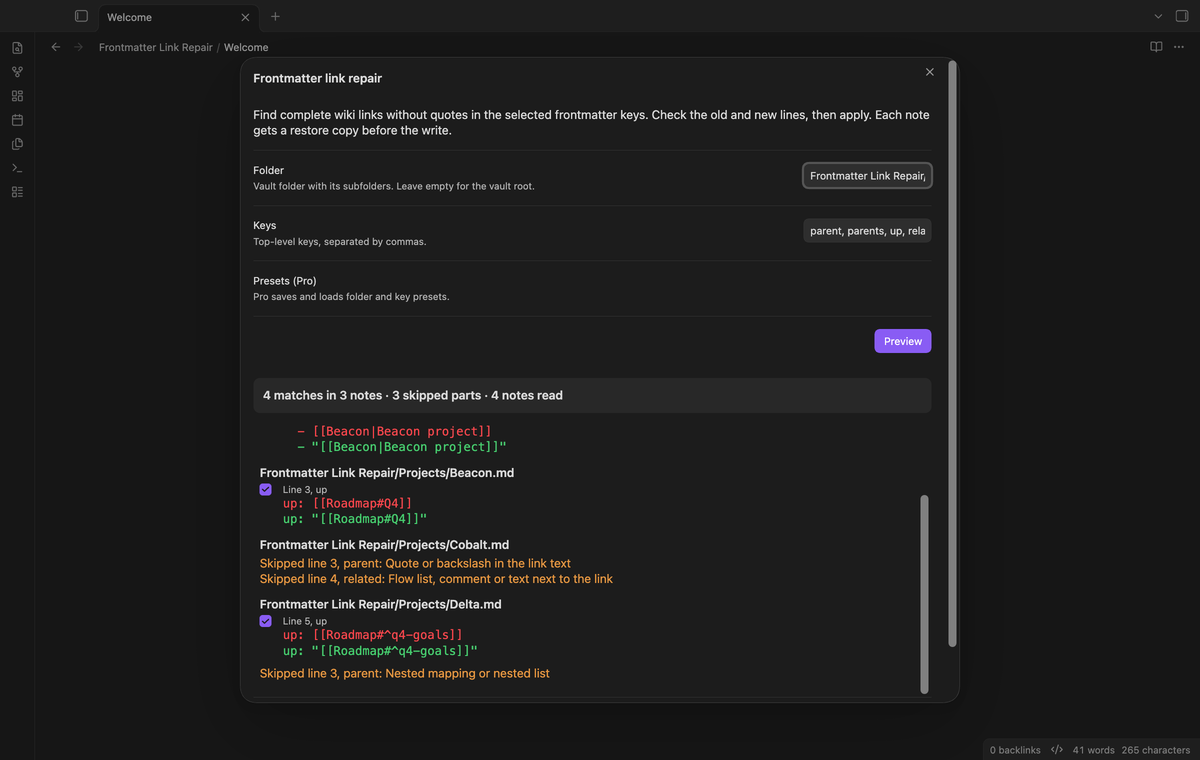
Before the plugin writes a note, it saves the original text of that note in a new file in the restore copy folder, Frontmatter Link Repair/Restore copies by default. Each apply uses a subfolder with the date and time, and the copy keeps the path of the note with the extension .bak. If the name is in use, the plugin adds a number. The plugin does not read .bak files in the next preview.
When you select Apply, the plugin reads each note again. If the text is not the same as at the preview, it does not write that note and it shows a stale preview warning. The write uses Vault.process, which compares the text one more time.
Saved folder and key presets (Pro)
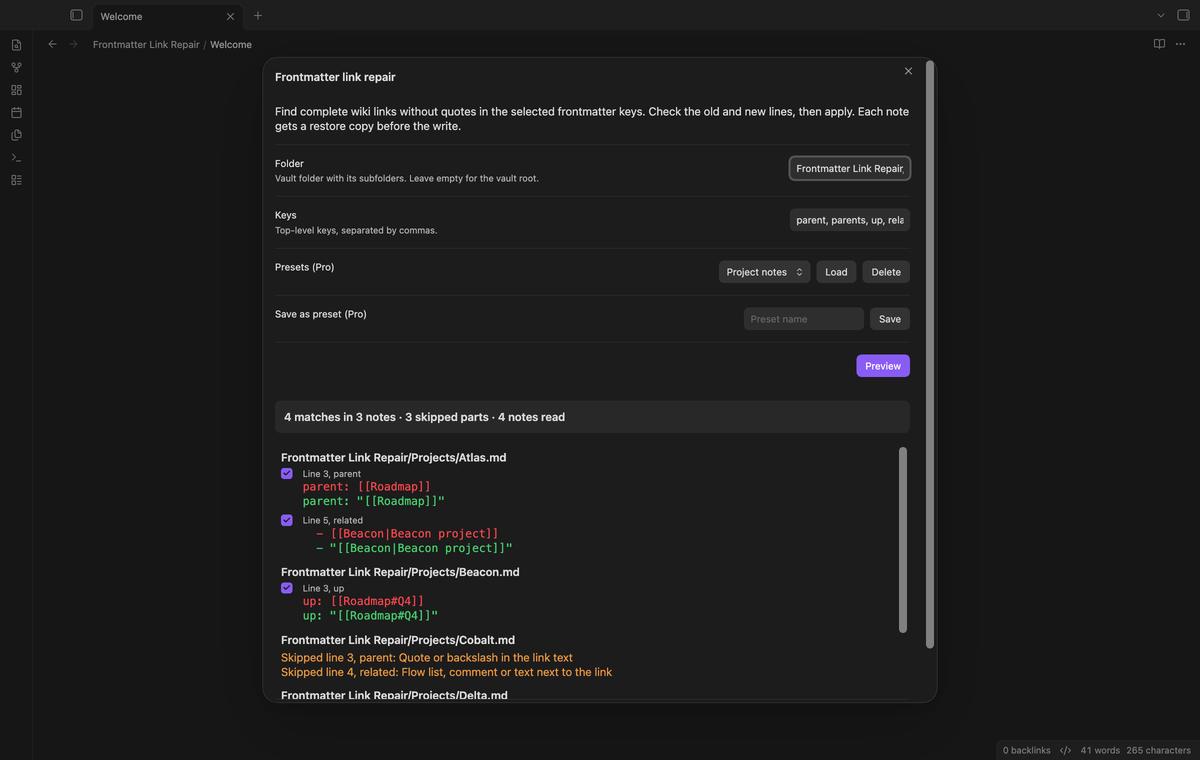
With Pro, you can save the folder and the keys as a named preset in the preview window, load it later and delete it. Presets stay in the plugin data after sign out, but the preview shows them only while Pro is on.
Export the repair report (Pro)
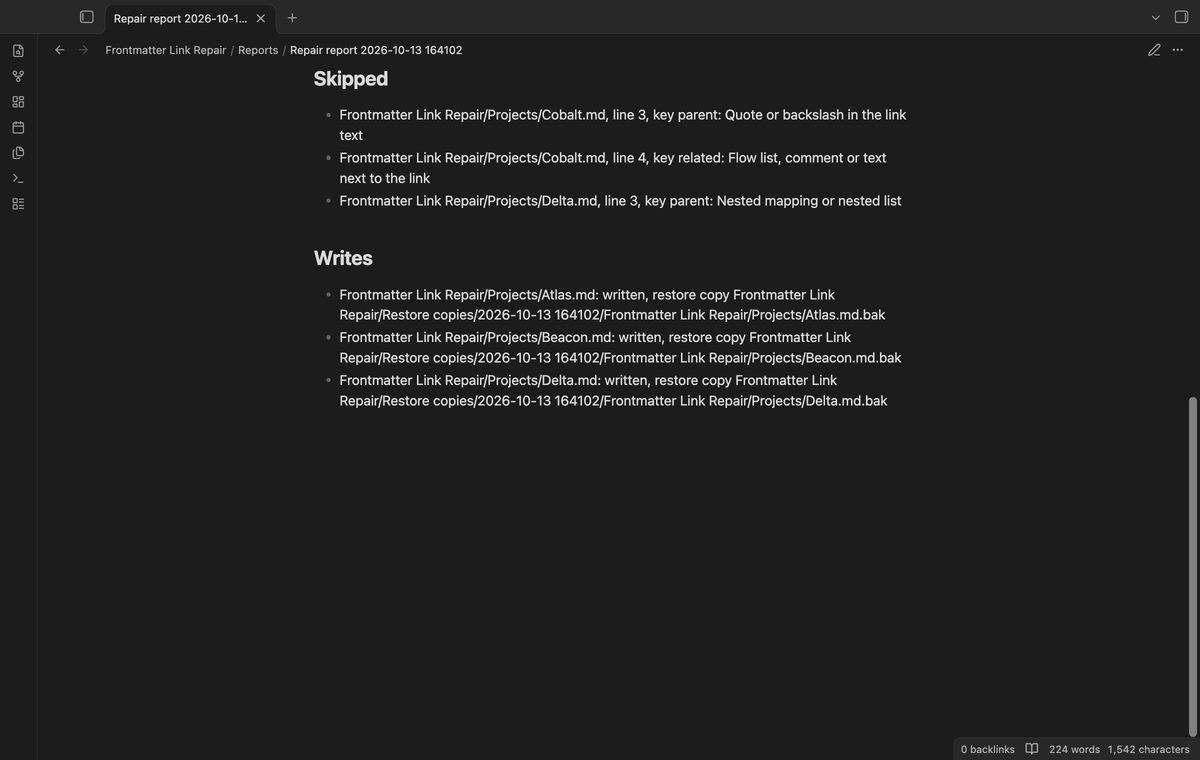
With Pro, Export report writes a new Markdown note in Frontmatter Link Repair/Reports. The report lists the folder, the keys, each match with its old and new line, each skipped part with its reason, and the result of each write with its restore copy.
Install
Until the plugin is in the Community plugins list, install it by hand:
- Get
main.js,manifest.jsonandstyles.cssfrom a plugin build or, after release, from the release files. - Make the folder
.obsidian/plugins/frontmatter-link-repair/in your vault and put the three files in it. - In Obsidian, open Settings, then Community plugins, and turn on Frontmatter Link Repair.
When the plugin is in the list, search for Frontmatter Link Repair in Settings, Community plugins, Browse.
Usage
- Make a backup of your vault.
- Open the command palette and run "Frontmatter Link Repair: Preview the link repair".
- Type the folder. Leave it empty to read the whole vault.
- Type the keys, separated by commas.
- Select Preview. Read the old and new line of each match and the skipped parts.
- Clear the checkbox of a match that you want to keep as it is.
- Select Apply checked. The result shows the number of notes written, stale and failed, and the restore copy of each note.
The plugin saves the folder and the keys of the last preview. To undo a write, open the restore copy with a text editor and copy its text back into the note.
Settings
- Folder: the vault folder to read, with its subfolders. Empty means the vault root.
- Keys: the top-level frontmatter keys to repair, separated by commas.
- Restore copy folder: the vault folder for the restore copies.
- Saved presets (Pro): a list of your presets. You save, load and delete them in the preview window.
- Pro: sign in with GitHub, the sponsorship status and the Refresh and Sign out buttons.
FAQ
Why quotes and not a YAML list?
The repair puts double quotes around the complete link token. The tests check that the link text stays the same.
Does it change values that the Properties view already changed?
No. If the Properties view saved [[A]] as a nested list, the plugin cannot tell the old link text with certainty, so this version does not rebuild it. A value in flow list format like [[[A]], [[B]]] is skipped with a reason.
Why does it skip a link with a comma or a quote?
YAML reads [[A, B]] as a list with two items. A double quote or a backslash in the link text would need an escape inside the new quotes, which changes the text in the file. You can fix them by hand.
Does it keep my line endings?
Yes. The scanner changes only the matched lines and keeps the line ending of each line, including CRLF. The note body after the closing --- line is not changed. Unit tests check both.
What did you not test?
The unit tests use a mock vault. The end-to-end tests pass in Obsidian 1.13.4 and 1.14.4 on macOS. Pro tests use a local sponsorship answer. I did not test a real GitHub sign in, a phone or tablet, or a vault with thousands of notes. I did not measure speed or test files with a byte order mark. Unit tests cover a change between the read and write. I did not run that case with a second plugin in the app. The preview shows up to 200 notes. Apply uses only their checked matches. Choose a smaller folder to review the other notes.
Can I undo a repair?
There is no restore button in this version. Each restore copy has the original text of the note. Open it with a text editor or rename it to .md, then copy the text back.
Payment, account and network
The core features are free. Pro features need a GitHub Sponsors sponsorship of theluckystrike: $5 a month or more, or $15 once. A total payment of $15 meets the payment requirement for Pro without further payment. Sign-in and the checks below still apply. Your notes stay readable and editable with or without Pro.
GitHub handles the payment. Sponsor at https://github.com/sponsors/theluckystrike. You need no account for the free features. Pro needs the GitHub account that sponsors.
Until you select "Sign in with GitHub" in the settings, Frontmatter Link Repair makes no network requests. Sign in uses the GitHub device flow. Frontmatter Link Repair sends its public client ID and the scope read:user to https://github.com/login/device/code and shows you a code. While you enter the code at https://github.com/login/device, it asks https://github.com/login/oauth/access_token every few seconds to check the sign-in status. The scope permits profile reads only. GitHub needs this access to show the sponsorship tier. It grants no repository scope and no write access.
After sign in, Frontmatter Link Repair sends one query to https://api.github.com/graphql. It checks if the signed-in account sponsors theluckystrike. It asks for the tier and the total payment to theluckystrike. The plugin reuses a successful check for 7 days. Failed checks can retry after 6 hours. Select Refresh to request an earlier check. It sends no note content, file names or other vault data, and it has no telemetry.
After a successful check, Pro can work offline for up to 14 days. Sign out or a negative sponsorship answer turns Pro off. The plugin stores the GitHub token through the secret storage API of Obsidian. It does not put the token in its saved settings or its local sponsorship data. The local storage of this device keeps your GitHub login, the tier and the time of the last check. Sign out clears the token. You can also revoke the access in your GitHub settings, under Applications.
Support
Report problems to the publisher, theluckystrike, at notemods.com or through the public repository issues after release. Include the app version, the error text and a small made-up note that shows the problem. Remove private note content and account tokens before you share an example.
For plugin developers
Search results and similarity scores are powered by semantic analysis of your plugin's README. If your plugin isn't appearing for searches you'd expect, try updating your README to clearly describe your plugin's purpose, features, and use cases.