by Gabriel Leuenberger
Turn your notes into Google Keep: a board of coloured cards with pins, labels, archive and reminders, and Keep's checklists, where ticked items move down and items can be dragged and indented.
Full Keep Mode for Obsidian
It's just like Google Keep, but in Obsidian, with your notes as plain Markdown files that you own.
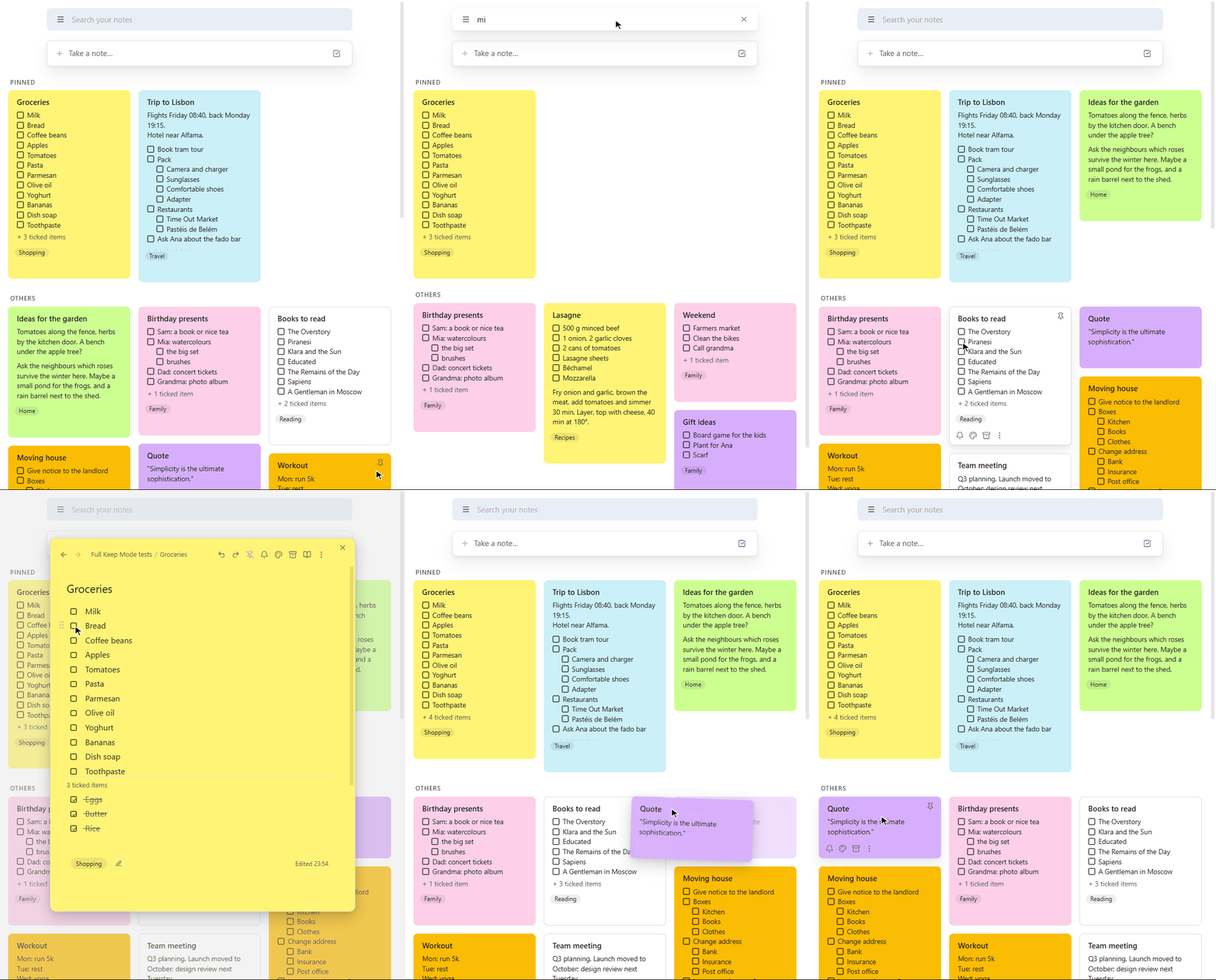
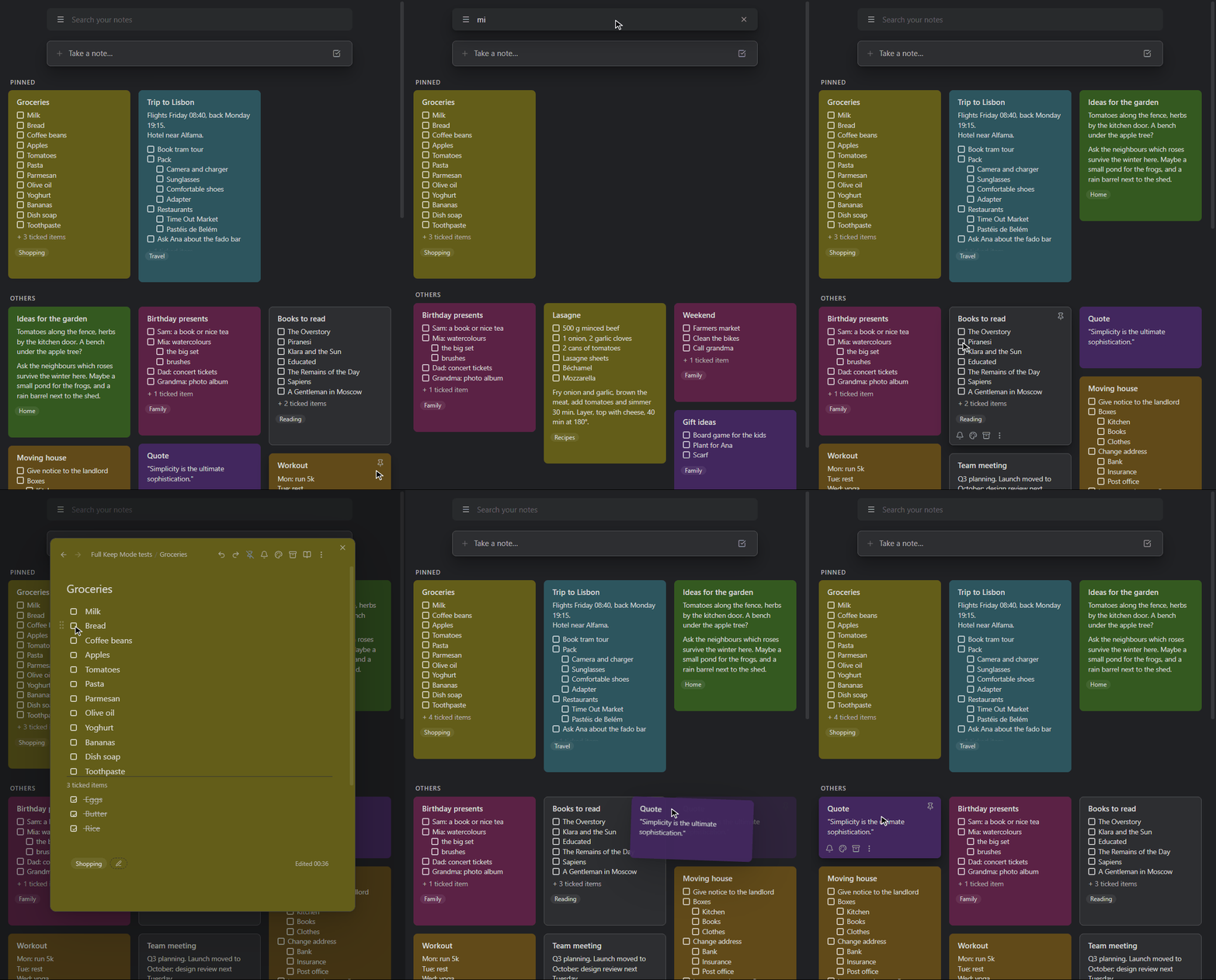
The board of coloured cards, pins, labels, the archive, reminders, "Take a note…", and Keep's checklists, where ticked items drop to the bottom and sub-items follow their parent. If you know Keep, you already know how to use it.
New to Obsidian and only ever used Keep? This plugin is made for you. Install it, import your Keep notes, and you're on a board that looks and works like the one you're used to. Nothing to learn first; the rest of Obsidian is there whenever you want it.
In dark mode
Why Full Keep Mode
- Just like Google Keep, on your computer and in Obsidian's phone app: same board, colours, pins, labels, side menu and checklists; notes open full screen on a phone with Keep's top and bottom bars.
- Faster than Keep. Everything is on your device, so the board opens and searches instantly. In daily use it feels quicker than Keep itself.
- Your notes stay yours. Every note is an ordinary Markdown file, synced however you like; with Obsidian Sync your board is the same on your phone and computer.
- Works offline. One plugin, nothing else to install.
Keep, feature by feature
| In Google Keep | In Full Keep Mode |
|---|---|
| Board of cards, "Pinned" and "Others" | ✓ two columns on phones, pinned first |
| Note colours | ✓ Keep's colours, light and dark |
| Pin, archive (with Undo), reminders | ✓ on the card and in the note |
| Labels, side menu (☰), "Edit labels" | ✓ |
| Search bar, "Take a note…", "New list" | ✓ |
| Drag cards to reorder, tick items on a card | ✓ |
| Checklists: ticked items move down, sub-items, two levels | ✓ Keep's exact rules |
| Drag items, swipe sideways to indent (phone) | ✓ |
| Note opens over the board (full screen on phones) | ✓ |
| Your notes from Keep | ✓ imported with their order, colours, labels and sub-items |
Checklists, just like Keep's
Everything checklists do
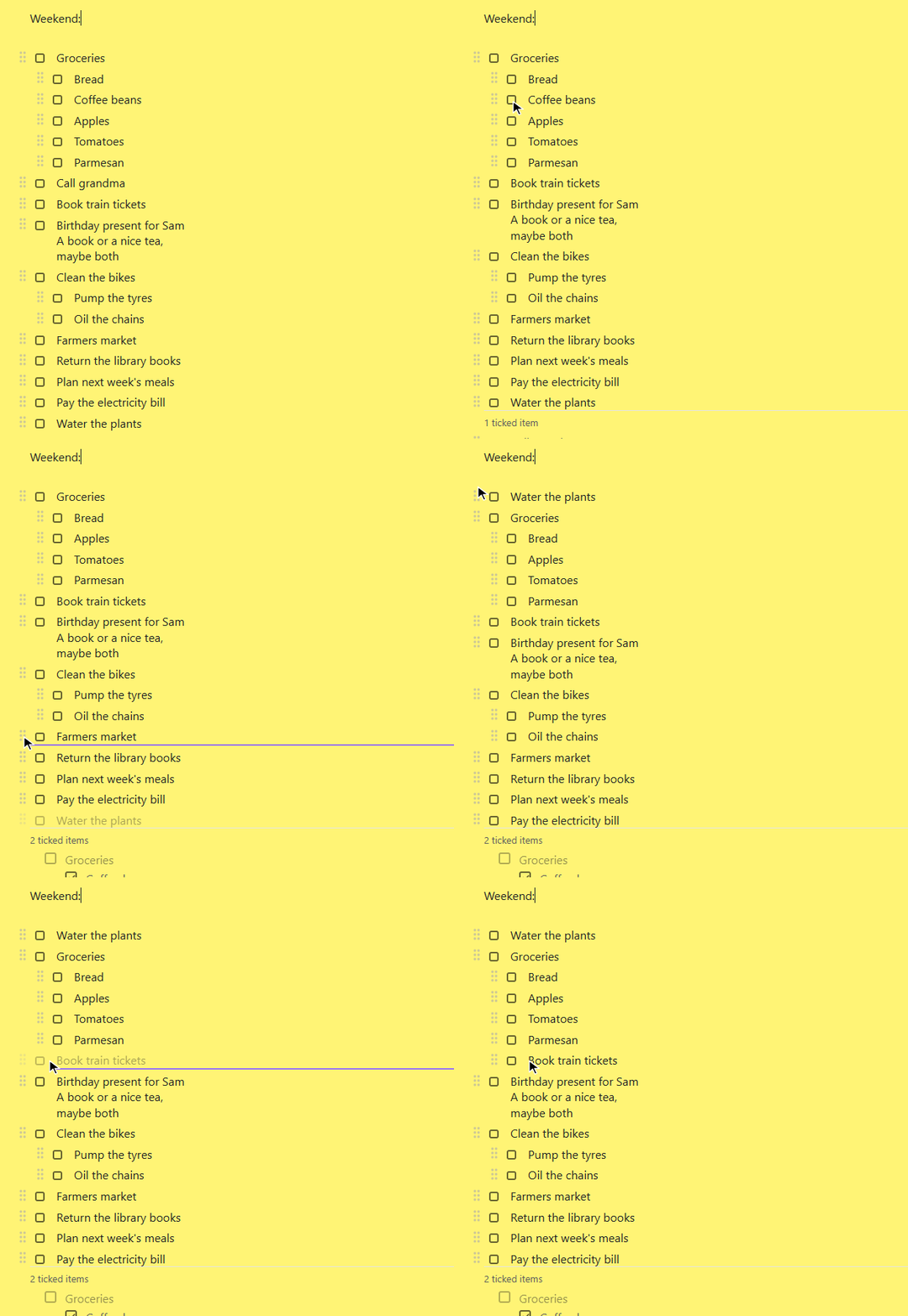
- Ticked items move down below a "N ticked items" divider, with their sub-items. Untick one and it moves back up.
- Ghost parents. A ticked sub-item of an unfinished item shows in the ticked section under a faded copy of its parent, like in Keep.
- Drag and drop. Drag an item's grip up or down to move it (with its sub-items), sideways to indent or outdent it. On a phone you can also swipe an item sideways, anywhere on it.
- Two levels, like Keep (three or unlimited in the settings). Tab indents; Enter at the end of an item with sub-items starts a new sub-item.
- Multi-line items (Shift+Enter), wrapped lines and pasted lines line up under the item's text.
- Checkboxes stay checkboxes. The cursor never lands inside
- [ ]; Backspace and Delete join items like in Keep. - Undo and redo buttons. A tick and its move are one step.
| You do | Result |
|---|---|
| Drag an item elsewhere | It moves with its sub-items; dropped below an item with sub-items, it lands after them |
| Drag a sub-item out to the top level, in place | The sub-items below it become its own |
| Drag right, swipe right or press Tab | Indented under the item above, sub-items included |
The board and notes in detail
- Cards show the colour, title, text or unticked items ("+ 3 ticked items"), first image, reminder and labels. Hover a card for Keep's buttons; right-click it (or hold it on a phone) for its menu.
- Click a card to open the note over the board. On a computer it covers just the board's tab, so you can switch tabs and come back to it.
- The board is your home screen: it opens when Obsidian starts.
- "Take a note…" opens a new note with the title ready to type; closed untouched, it's thrown away.
- Notes have pin, colour, reminder and archive buttons in the top bar, hidden properties, and their labels and "Edited …" below the text.
- Keep titles can have characters a file name can't ("Sept/Oct 2026").
- Reminders pop up in Obsidian (plus a system notification on a computer).
Moving from Google Keep
Run Import from Google Keep (or use the button in the plugin's settings) and choose an export of your notes. There are two ways to get one:
- Google Takeout (easy). At takeout.google.com
select only Keep, download and unzip it, and choose its
Keepfolder. You get your notes, ticks, colours, pins, archive, labels and images, but not the order of your notes (newest come first) and not checklist sub-items (they come in flat). - The export script (everything). Also keeps the order of your notes and the sub-items. It needs Python and a one-time sign-in code; see below.
How to use the export script
- Install Python, then:
pip install gkeepapi gpsoauth requests - Download
tools/keep_export.py. - Get a one-time sign-in code: open
https://accounts.google.com/EmbeddedSetup, sign in and click "I agree"
(the page may keep loading; that's fine). Then open the browser's developer
tools → Application (Chrome) or Storage (Firefox) → Cookies →
accounts.google.com, and copy the value of
oauth_token. - Run
python keep_export.py you@gmail.comand paste the code when asked. It's typed invisibly, used once to sign in, and never saved. - In Obsidian, run Import from Google Keep and choose the
keep-exportfolder the script made.
The script only reads from Keep. Google has no official way for apps to read Keep, so it uses gkeepapi, the unofficial library other Keep tools use too.
Either way, notes in Keep's trash are left out, and reminders aren't in Google's exports. Import on a computer; the notes then reach your phone like any others.
Getting started
- Install Full Keep Mode (Settings → Community plugins → Browse) and enable it. It needs Obsidian 1.10 or later; nothing else.
- Run Create a Keep board (Ctrl/Cmd+P), or use the button in the settings.
- Optional: import your notes from Keep (above).
To install by hand, put main.js, manifest.json and styles.css from the
latest release into
<your vault>/.obsidian/plugins/full-keep-mode/.
Good to know: reminders show up while Obsidian is open, and missed ones appear when you open it. Obsidian doesn't let plugins schedule notifications, so a reminder can't reach your phone while Obsidian is closed.
Settings, commands and how notes are stored
Every feature can be turned off in the plugin's settings (all on by default;
checklists have two levels, like Keep). To keep the checklist features out of
one note, give it the property full-keep-mode: false.
Commands: Take a note, Take a note as a checklist, Labels of this note, Show or hide checkboxes in this note, Open the labels side menu, Create a Keep board, Import from Google Keep, and Move ticked items down in this note.
Everything is plain Markdown: ordinary - [ ] / - [x] lists, and
properties in each note: keep_pinned, keep_color, keep_order (the place
on the board), keep_archived, keep_reminder, keep_title and tags (the
labels). The board is an Obsidian Bases file (.base) with views of type
keep-board.
Development
There's no build step: main.js is the plugin as it ships. The tests in
tests/live_test.py run against a real Obsidian, with real mouse and key
events:
# Start Obsidian with its debugging port (close it first). Windows:
"%LOCALAPPDATA%\Programs\Obsidian\Obsidian.exe" --remote-debugging-port=9222
# macOS:
open -a Obsidian --args --remote-debugging-port=9222

pip install websocket-client pillow
python tests/live_test.py                 # the tests (keep the Obsidian window visible)
python tests/record_board_demo.py         # re-records docs/board.gif (--dark: board-dark.gif)
python tests/record_demo.py               # re-records docs/demo.gif
Support
If Full Keep Mode made your move from Keep easier, you can buy me a coffee on Ko-fi or star this repo. Thank you!
License
For plugin developers
Search results and similarity scores are powered by semantic analysis of your plugin's README. If your plugin isn't appearing for searches you'd expect, try updating your README to clearly describe your plugin's purpose, features, and use cases.