Notekeeper
approvedby philemonchiro
Browse your vault as a Google Keep-style masonry of cards. Quick capture, pin, color, archive, and filter notes by labels — sticky-note style. - This plugin has not been manually reviewed by Obsidian staff.
Notekeeper
A Google Keep–style wall of sticky notes for your Obsidian vault. Browse, capture, pin, color, and curate your notes on a sticky-note wall — or switch to a denser card grid when you need more density.
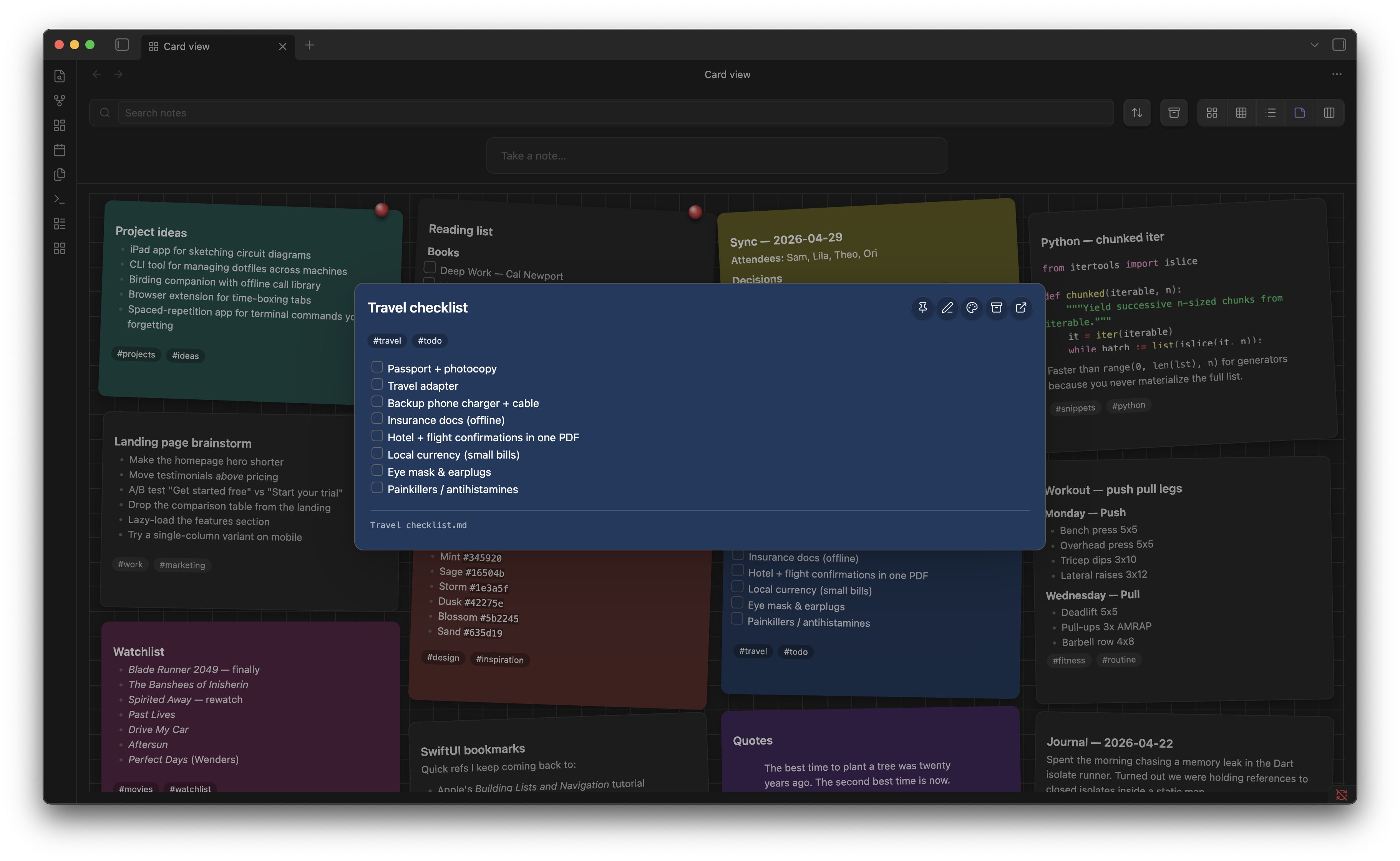
Capture a note with a title, body, optional pin, and color — saved to the wall in one click:
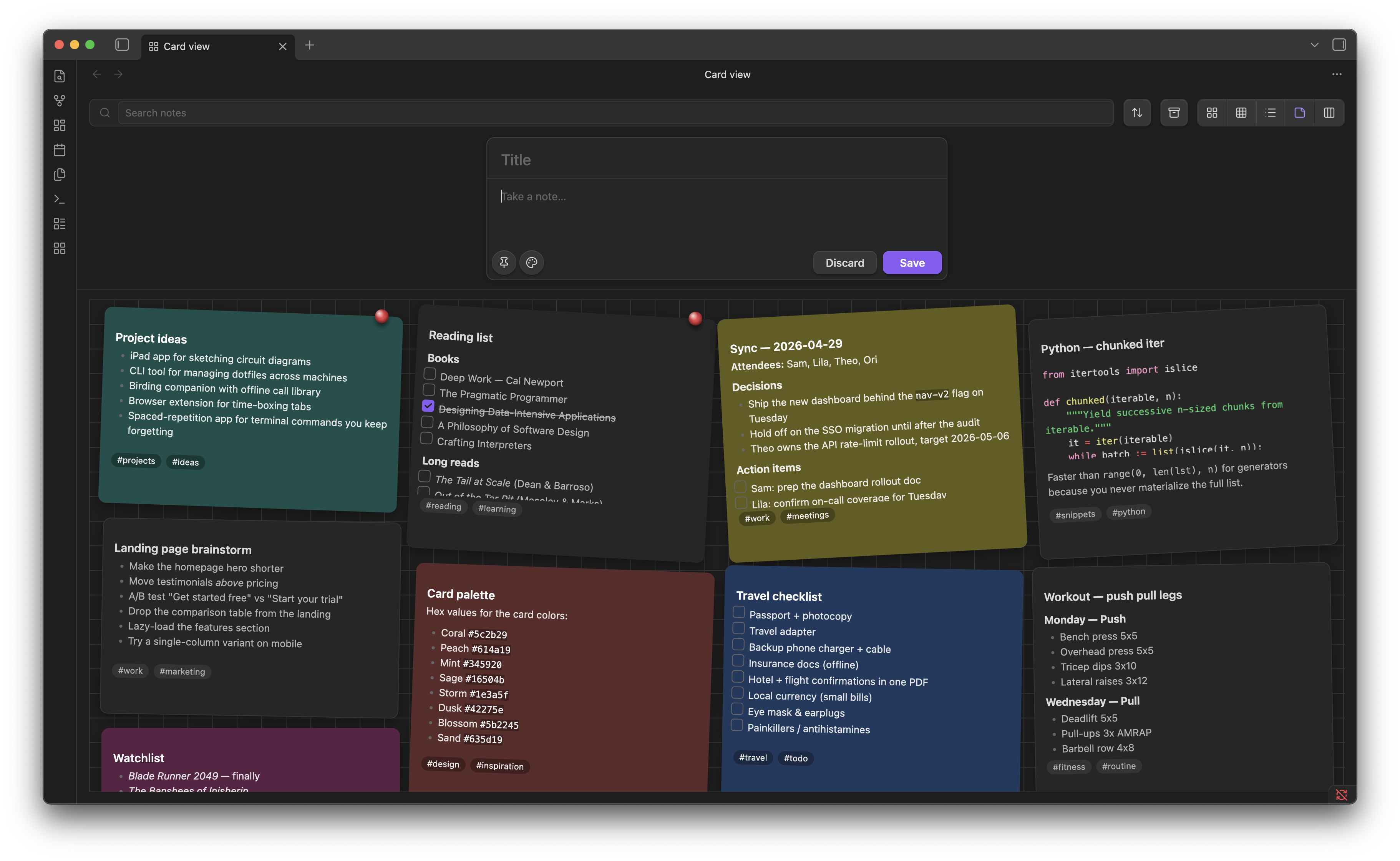
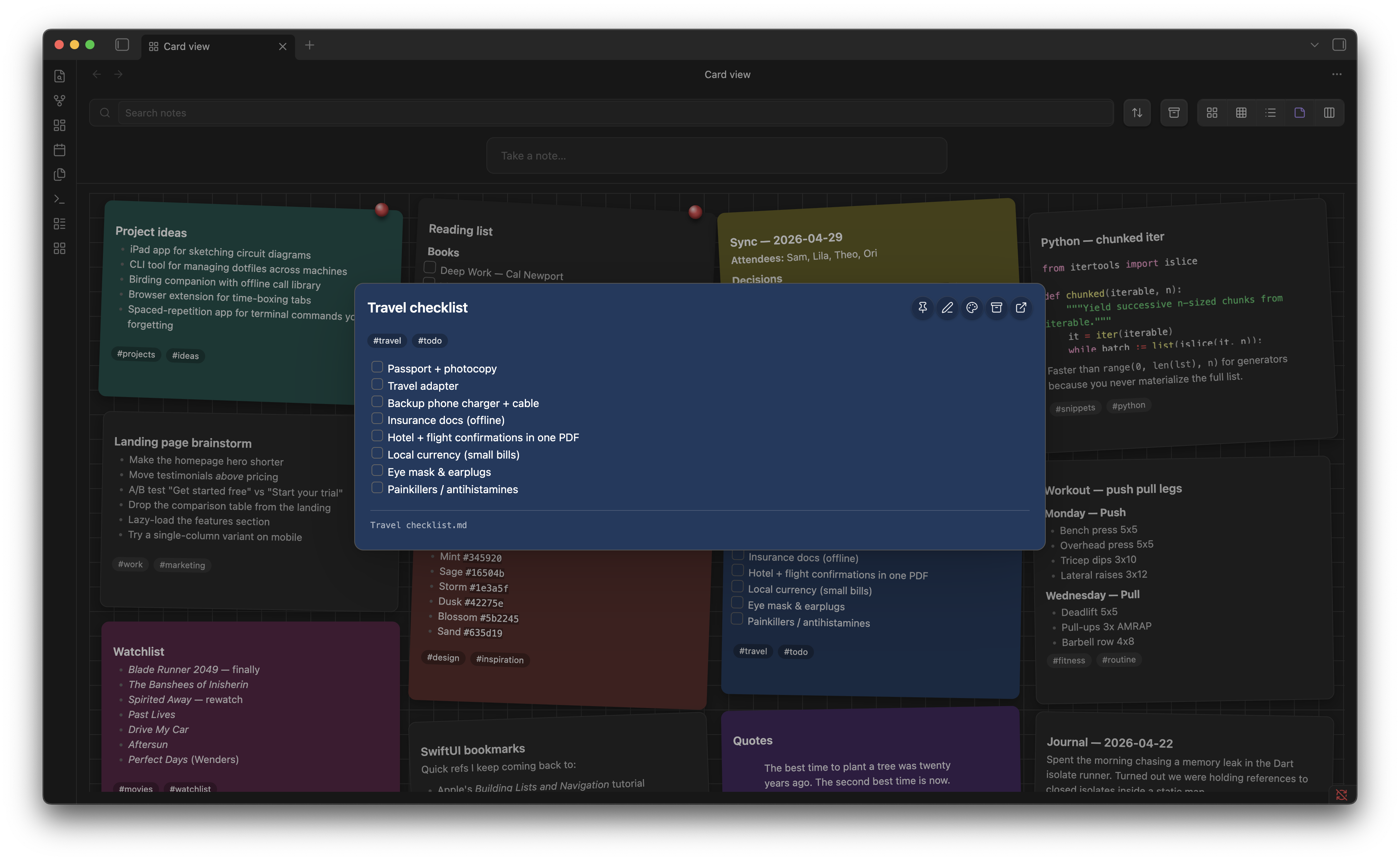
Click any sticky for a full markdown-rendered preview that inherits the note's color:
Features
- Masonry card layout — every note as a card, sized to its content, balanced across columns
- Quick capture — type into the centered input, hit Enter to create a note
- Inline edit — click the pencil to edit a card without leaving the view
- Note preview modal — click any card to open a full markdown-rendered preview with one-click pin / color / archive / open-in-tab actions
- Pin, color, archive — per-card hover actions; 12-color palette
- Drag pinned cards to reorder them
- Multi-select — shift- or cmd-click to select multiple cards; bulk pin / archive / color / delete from a floating action bar
- Right-click context menu — rename, copy link, copy embed, open in new pane, delete
- Inline checkboxes —
- [ ]items render as live checkboxes that update the source file - Image thumbnails — first attached image surfaces at the top of each card
- Backlinks badge — count of incoming links on each card
- Smart search — combine free text with
tag:,pinned:,archived:,color:,path:,is:filters - Sort by modified, created, or title — pinned cards always float to the top
- Three densities — comfortable, compact, list view
- Lazy infinite scroll — fast on vaults with thousands of notes; cards populate only as they scroll into view
- Auto-collapse side panes — Obsidian's left and right sidebars collapse while the card view is active and restore when you leave
- Keyboard navigation — arrow keys,
Enter,e(edit),p(pin),a(archive),x(select),/(focus search) - Tag chips are clickable — filter by any label with one click; clear with the active-filter chip's
× - Manage labels command — rename a tag across the whole vault and assign per-tag colors
Frontmatter conventions
Cards read these fields from each note's YAML frontmatter:
---
pinned: true
color: "#5c2b29"
archived: false
tags: [ideas, work]
pinOrder: 1
---
pinned: truefloats the card to the topcolorpaints the card background (or a left border, depending on settings)archived: truehides the card from the default view; toggle the archive button in the toolbar to see ittagspopulate the searchable label listpinOrder(number) controls the order among pinned cards; updated automatically when you drag
By default Notekeeper stores pinned, archived, and color in its own data.json keyed by file path — not in your notes' frontmatter — so toggling them doesn't touch the file or bump its mtime. Frontmatter values are still read as a fallback so notes you've authored manually with these fields keep working.
Search syntax
Type any of these in the search box:
| Token | Meaning |
|---|---|
tag:foo | Notes carrying the foo tag (frontmatter or inline) |
pinned:true / pinned:false | Filter by pin state |
archived:true | Show only archived notes |
color:#5c2b29 | Notes with this exact color |
path:Inbox | Notes whose path includes "Inbox" |
is:archived, is:pinned | Shortcuts for the above |
| Free text | Matches title and path |
Combine freely: tag:work pinned:true urgent
Keyboard shortcuts
When the card view has focus:
| Key | Action |
|---|---|
/ | Focus the search box |
↑ ↓ ← → | Move focus between cards |
Enter | Open the focused card in the preview modal |
e | Begin inline edit on the focused card |
p | Toggle pin |
a | Toggle archive |
x | Toggle selection |
Esc | Clear selection / exit edit mode |
Settings
- Notes folder — limit the card view to a single folder (leave empty for the entire vault)
- Preview lines — body lines visible on each card
- Color as left border — show note color as a 4px left border instead of the full card background
- Pinned section header — group pinned cards under a "PINNED / OTHERS" divider
- Show image thumbnails — render the first attached image on each card
- Auto-collapse sidebars in card view — collapse Obsidian's side panes while the card view is active
Commands
- Open card view — opens the masonry view in a new tab (also accessible via the ribbon icon)
- Manage labels — opens a modal listing every tag in your vault, with rename and color actions
Installation
From the community plugin store (after approval)
Open Obsidian → Settings → Community plugins → Browse, search "Notekeeper", install, and enable.
Manual install
- Download
main.js,manifest.json, andstyles.cssfrom the latest release - Copy them into
<vault>/.obsidian/plugins/notekeeper/ - Reload Obsidian and enable Notekeeper in Settings → Community plugins
Development
Source lives in main.ts. The committed main.js is what Obsidian loads at runtime; rebuild it with esbuild after editing main.ts:
npm install
npm run build      # type-check + bundle to main.js
npm run dev        # rebuild on save
main.ts, manifest.json, and styles.css are the authored sources. The main.js artifact is produced by the build and committed alongside (so manual installs work without a build step).
PRs welcome. The codebase is single-file by design — keep it that way unless the addition is large enough to warrant its own module.
License
MIT — see LICENSE.
For plugin developers
Search results and similarity scores are powered by semantic analysis of your plugin's README. If your plugin isn't appearing for searches you'd expect, try updating your README to clearly describe your plugin's purpose, features, and use cases.