Goto Position
approvedby Wanten
Jump to the top or bottom of the current note with commands, ribbon buttons, or a floating button. - This plugin has not been manually reviewed by Obsidian staff.
Goto Position
Jump to the top or bottom of your notes with a single command, a click on the ribbon, or a floating button that appears while you scroll.
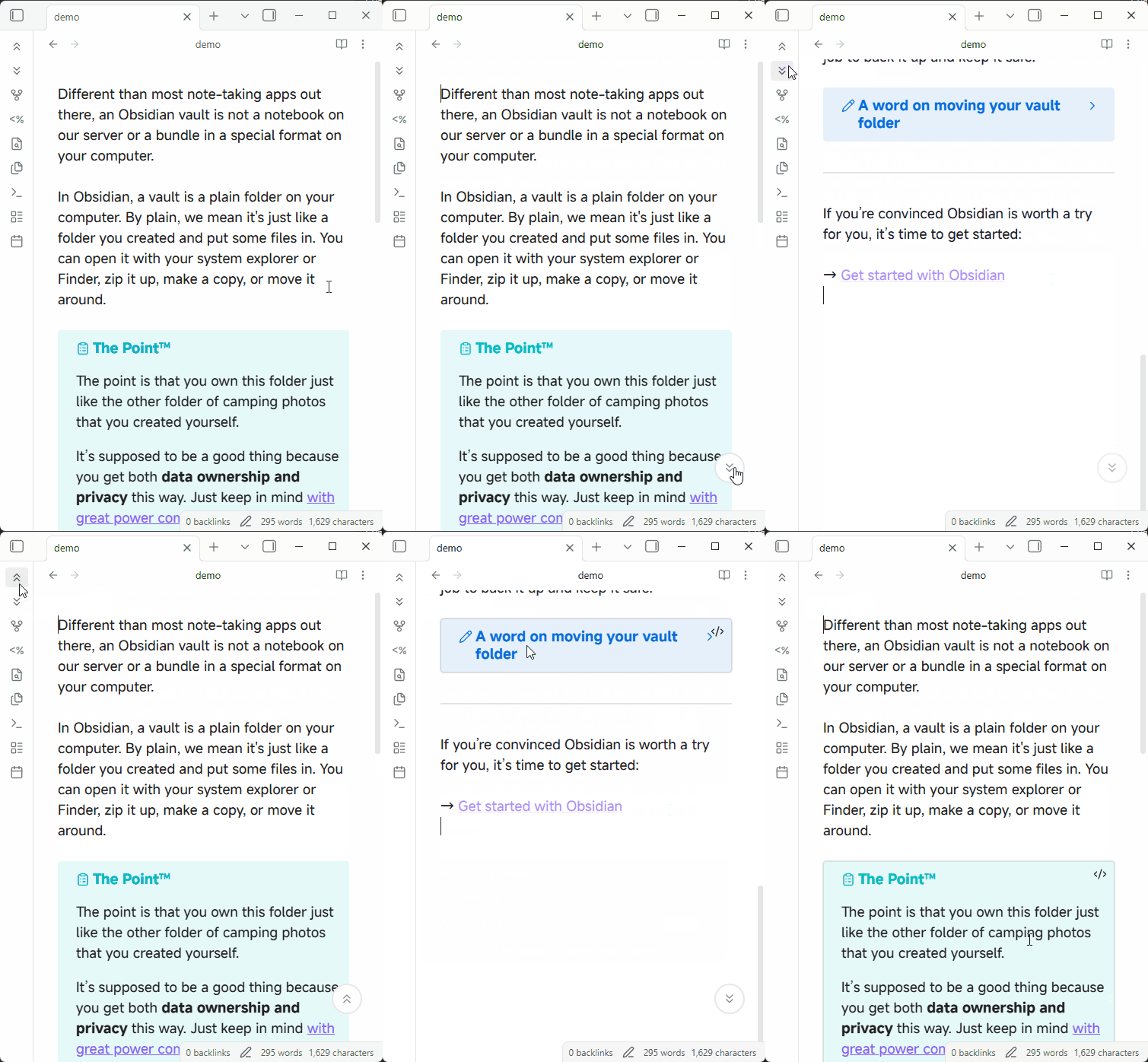
Commands
The plugin provides two commands, available whenever you are editing a note:
- Go to top — moves the cursor to the first line of the note and centers it on screen, so the beginning of the note is right in front of you.
- Go to bottom — moves the cursor to the last line of the note and centers it on screen, so you can keep editing without scrolling further.
Both commands work from the command palette, hotkeys, and the mobile toolbar. You can assign your own hotkeys in Settings → Hotkeys.
Floating jump button
While scrolling a note in edit mode, a circular button appears at the bottom of the screen:
- Scrolling up shows an up arrow; tapping it jumps straight to the top.
- Scrolling down shows a down arrow; tapping it jumps straight to the bottom.
- The button hides automatically shortly after you stop scrolling, and stays out of the way while you type — edits that cause the page to scroll never summon it.
- Hovering over the button (desktop) keeps it visible.
- After a jump, the arrow flips direction immediately, ready for the next jump.
- On mobile, the button stays above the toolbar and the on-screen keyboard.
Settings
Open Settings → Community plugins → Goto Position:
- Top button — show a ribbon button on the left sidebar for the Go to top command.
- Bottom button — show a ribbon button on the left sidebar for the Go to bottom command.
- Floating jump button — enable or disable the floating button entirely.
Each setting row also has a hotkey icon button (⌘) that opens the hotkeys settings and pre-fills the search with the matching command, so you can bind a hotkey in one click.
Installation
Manual install: copy main.js, manifest.json, and styles.css into VaultFolder/.obsidian/plugins/goto-position/, reload Obsidian, and enable the plugin in Settings → Community plugins.
License
For plugin developers
Search results and similarity scores are powered by semantic analysis of your plugin's README. If your plugin isn't appearing for searches you'd expect, try updating your README to clearly describe your plugin's purpose, features, and use cases.