Handwriting and Image to LaTeX
approvedby ChongCyrus
Draw math formulas by hand or import from album, then convert them to LaTeX using AI APIs (SimpleTex / Custom). - This plugin has not been manually reviewed by Obsidian staff.
Handwriting and Image to LaTeX
Handwriting and Image to LaTeX is an Obsidian plugin that lets you draw mathematical formulas directly on a canvas, or import images from your gallery, and convert them into LaTeX code using optical character recognition (OCR). It supports multiple API backends, with SimpleTex as the recommended (and free) option.
✨ Features
- ✍️ Handwriting canvas – draw with your finger or mouse, with pen/eraser/pan modes.
- 📷 Image import – load images from your device’s photo gallery.
- 🧠 Formula recognition – powered by:
- SimpleTex (recommended, free UAT token)
- Custom APIs (JSON or multipart/form-data)
- (Experimental) Mathpix, OpenAI GPT-4o Vision
- 🎯 Crop window – select exactly the region you want to recognize.
- 🌀 Infinite canvas (rewritten) – viewport-based infinite canvas in the style of Tldraw/Excalidraw; strokes live in world coordinates and only visible content is rendered, so large drawings stay fast.
- 🔲 Selection recognition – rectangle, lasso, or tap-to-add polygon selection. Strokes are treated as whole objects: any stroke intersecting a selection is included in full, and each selected group is recognized independently into its own result slot. Selected strokes get a subtle accent halo. Recognition history stores canvas snapshots, so back/forward restores both result and drawing.
- ✂️ Smart crop – automatic tight cropping before upload, plus image rotation and enhancement filters (auto enhance, grayscale, sharpen, binarize) in the crop window.
- 📐 Math mode – insert as inline (
$...$), display ($$...$$), or raw LaTeX. - 📱 Mobile friendly – fully optimized for touch devices.
- 🎨 Customizable – stroke color/width, grid, default canvas size.
Sample images
Canvas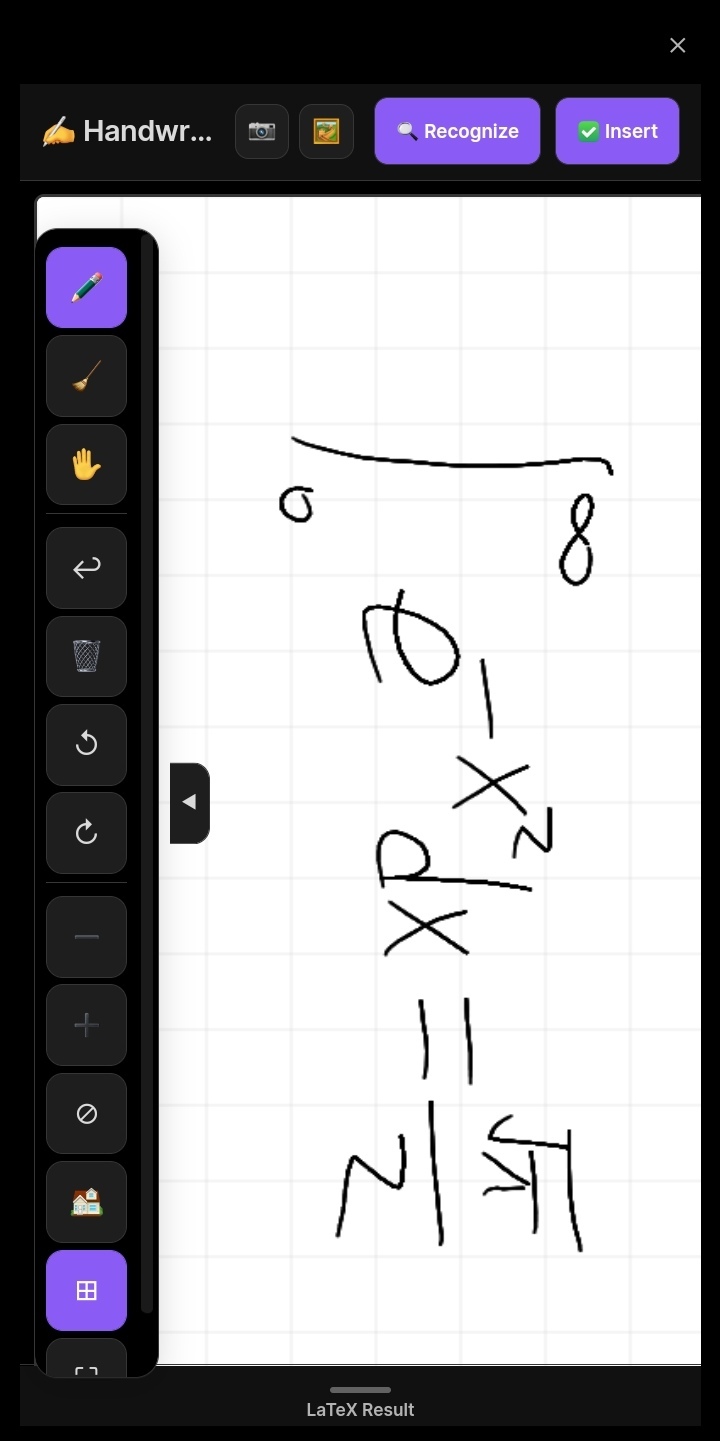 | Handwriting Recognition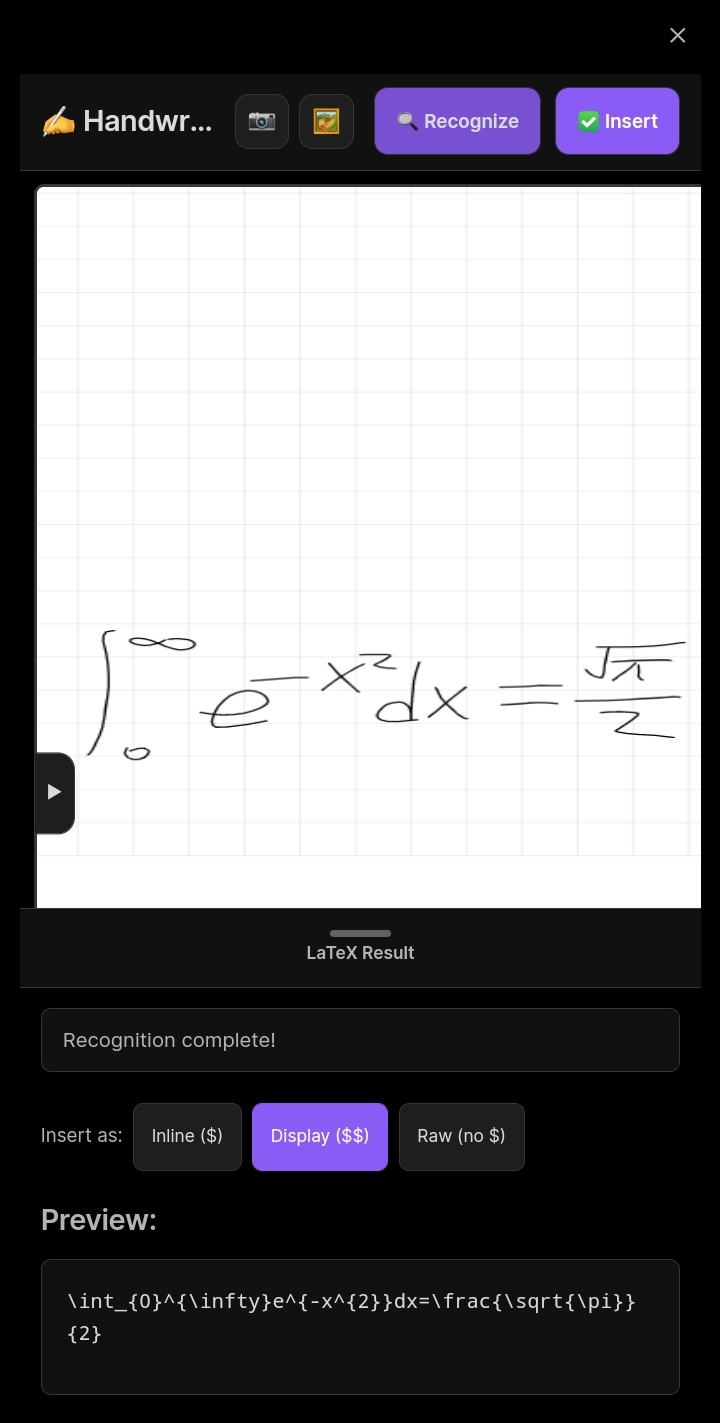 | Image Recognition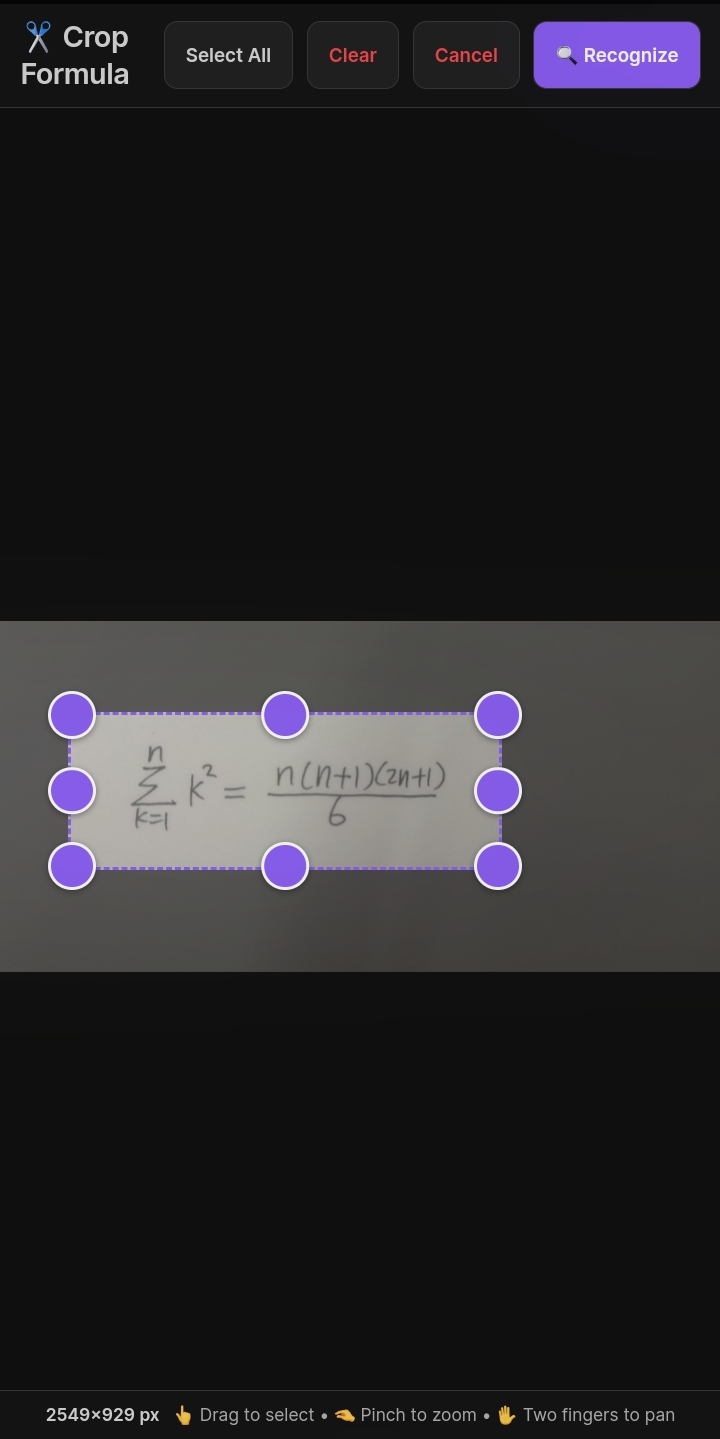 | Inserted Result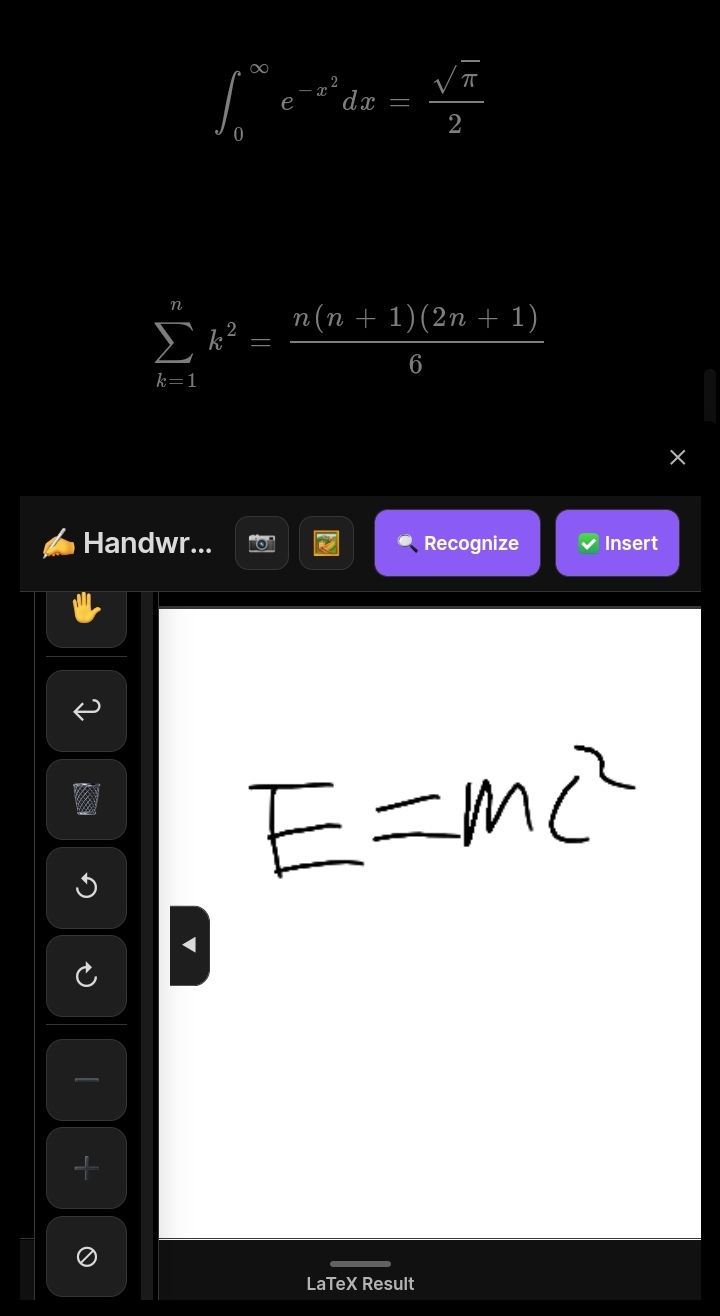 |
📦 Installation
From Obsidian Community Plugins
- Open Settings → Community Plugins.
- Disable Safe Mode.
- Click Browse and search for “Handwriting to LaTeX”.
- Install and enable the plugin.
Manual (BRAT)
- Install the BRAT plugin.
- Add this repository:
https://github.com/ChongCyrus/handwriting-latex. - Enable the plugin.
🚀 Usage
Open the handwriting modal
- Click the pencil icon in the ribbon (left sidebar).
- Or run the command: “Open handwriting canvas” from the Command Palette (
Cmd/Ctrl+P).
Drawing on the canvas
- Pen mode (✏️) – draw freely.
- Eraser mode (🧹) – tap/click strokes to remove them.
- Hand mode (✋) – pan around the canvas.
- Rect select (▭) – drag a rectangle to select strokes for recognition.
- Lasso select (◯) – draw a freehand circle to select strokes.
- Polygon select (🔷) – tap to place vertices; tap the first vertex again to close the polygon.
- Clear selections (❎) – clear all selection regions.
- Zoom – pinch on touch, or use mouse wheel.
- Undo (↩️) – remove the last stroke.
- Clear (🗑️) – erase everything.
- Rotate (↺/↻) – rotate all strokes by 90°.
- Fit view (⊘) – zoom to fit all content.
- Reset view (🏠) – return to default zoom/pan.
- Grid toggle (⊞) – show/hide background grid.
Recognizing a formula
- Draw your formula (or import an image via the 📷 or 🖼️ buttons).
- Optionally use ▭ / ◯ / 🔷 to select one or more regions; each selection is recognized independently.
- Click the “🔍 Recognize” button (top‑right or inside the crop window).
- Each recognition writes into its own result card; use the card’s “✅ Insert” button, or select a result in the preview and use the header Insert button.
- Choose your insert mode (inline/display/raw).
Importing images
- Camera (📷) – experimental; opens the device camera when Obsidian has camera permissions. Many mobile builds block this, so prefer Album.
- Album (🖼️) – opens your file picker to select an image.
- After importing, you can rotate, enhance, and crop the image to the formula area before recognition.
⚙️ Configuration
Go to Settings → Handwriting to LaTeX to configure:
| Setting | Description |
|---|---|
| API Provider | Choose SimpleTex, Mathpix, OpenAI, or Custom API. |
| API Key | Your API token/key. For SimpleTex, use your UAT (User Authorization Token). |
| API Endpoint | Required for Custom APIs (and optional for OpenAI). |
| Custom Prompt | Prompt sent to OpenAI or Custom JSON APIs. |
| Response Field | For Custom Form API: JSON field that contains the LaTeX result. |
| API Key Header | For Custom Form API: HTTP header name for your API key. |
| Image Field Name | For Custom Form API: form‑data field name for the image. |
| Math Insert Mode | Default insert style: inline, display, or raw. |
| Show Grid | Toggle background grid on the canvas. |
| Stroke Color | Pen color. |
| Stroke Width | Pen thickness. |
| Tight Crop Padding | Extra white margin (px) kept around formulas after automatic tight cropping. |
| Default Image Enhancement | Image filter applied by default in the crop window. |
| Canvas Width/Height | Default canvas size in pixels. |
| Max History Size | Maximum number of recognition results to keep (0 disables history). |
🔐 API Setup Guides
SimpleTex (Recommended)
- Register at SimpleTex.
- Go to User Center → User Authorization Token.
- Create a token (UAT) and copy it.
- Paste it into the API Key field.
Custom API (JSON)
- Your endpoint should accept a
POSTrequest with JSON body:{ "image": "data:image/png;base64,...", "prompt": "your prompt" }
For plugin developers
Search results and similarity scores are powered by semantic analysis of your plugin's README. If your plugin isn't appearing for searches you'd expect, try updating your README to clearly describe your plugin's purpose, features, and use cases.