by Moy
A browser-like home tab with instant file search, starred and recent files, and an optional interactive particle wordmark.
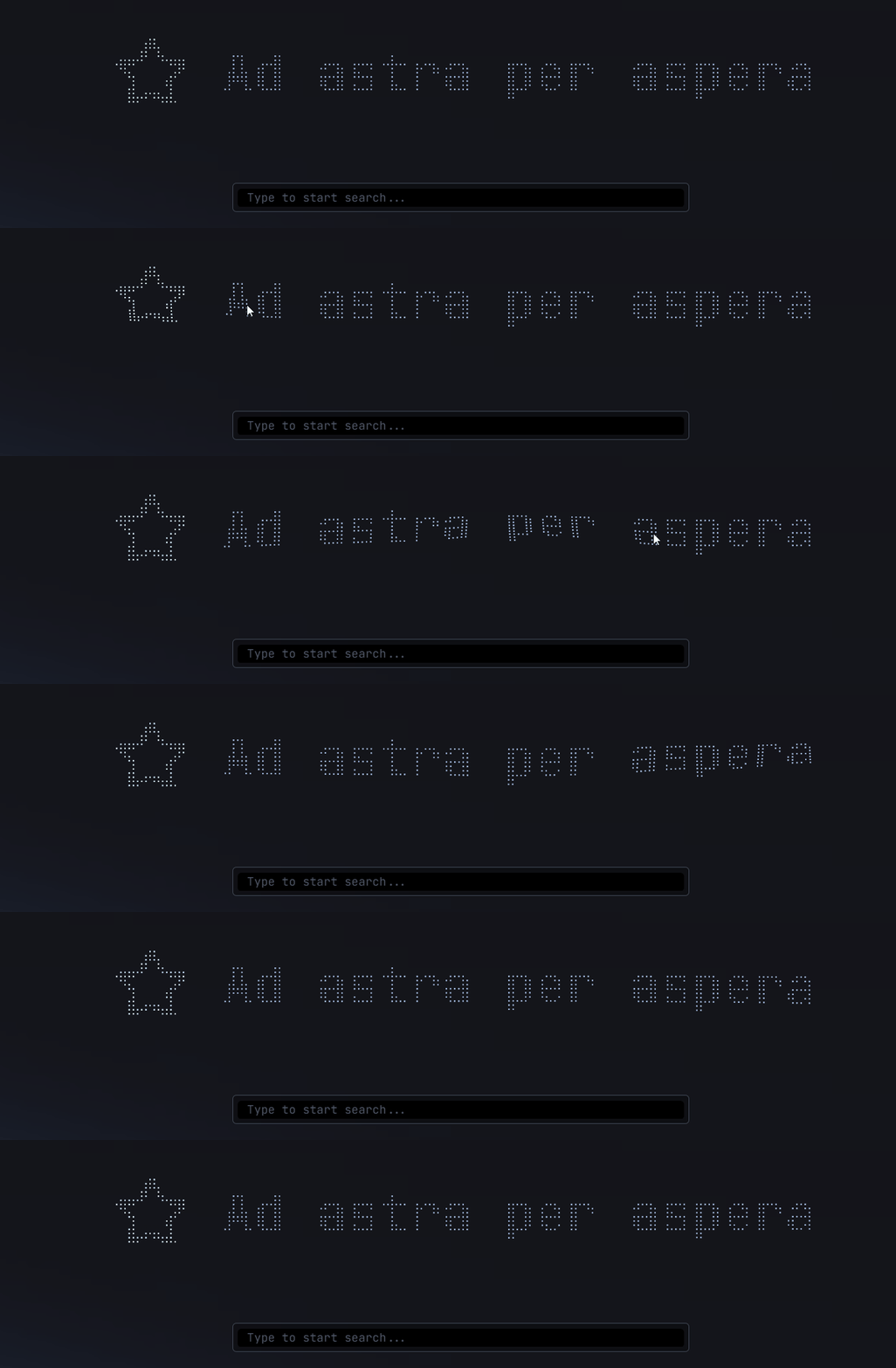
A harbor for every note.
Harbor Tab
English | 中文文档




Harbor Tab is an Obsidian plugin that brings a browser-like home experience to your default new tab, with a search bar, recent notes, bookmarked notes, and more.
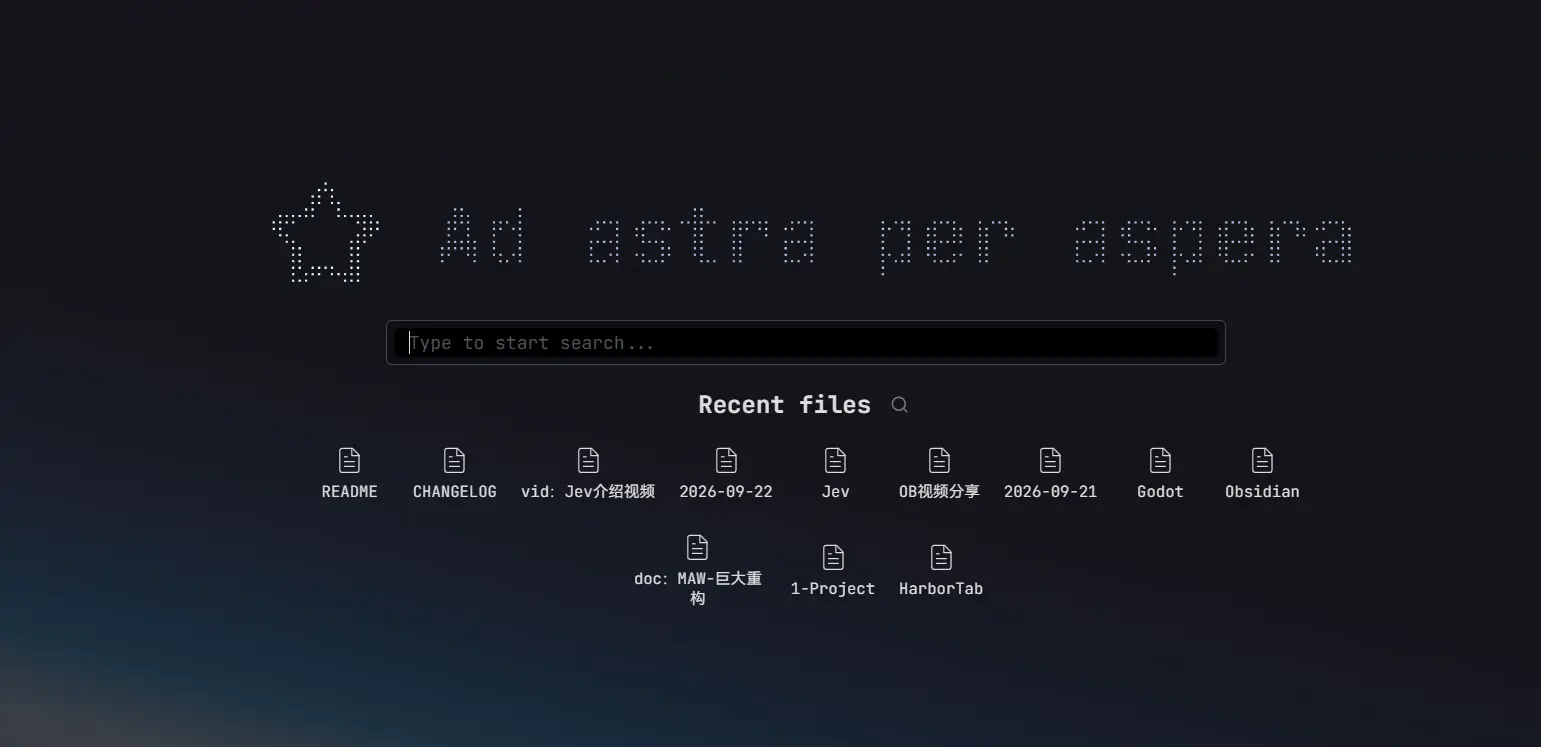
A continuation of the Home tab plugin by olrenso, with ongoing updates and new features built on top of it.
How to use
Once enabled, every new empty tab is automatically replaced with the Harbor Tab view.
You can disable this behavior in the settings and manually open a new Harbor Tab through the command palette with the commands Harbor Tab: Open new tab or Harbor Tab: Replace current tab.
Highlights
Instant search
You can search any local file in your vault, including markdown notes and attachments.
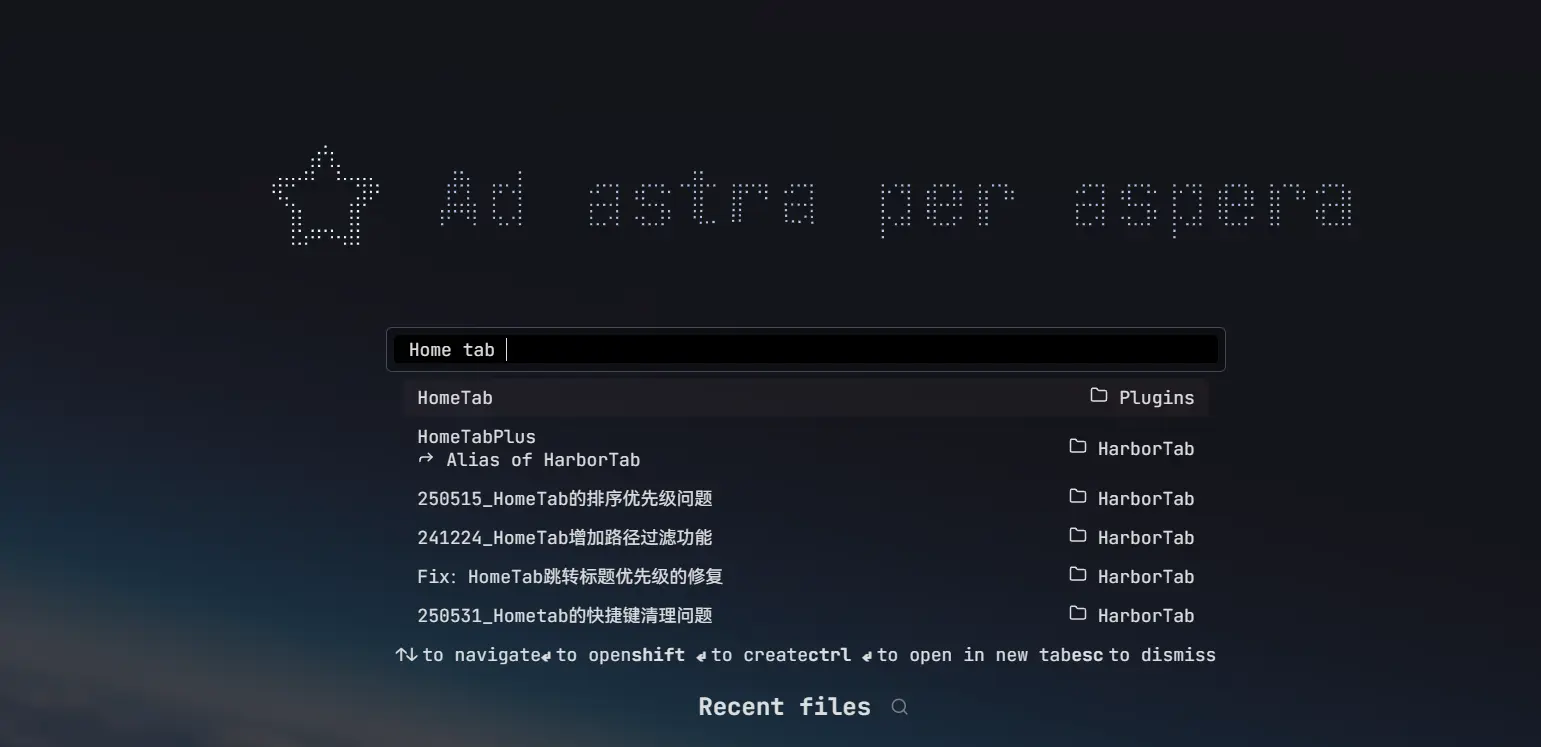
Open a new tab, type a note name, press Enter and set sail — like boarding one "note ship" after another in the harbor.
Worth mentioning — besides note names, the plugin also supports searching title properties and any headings inside notes.
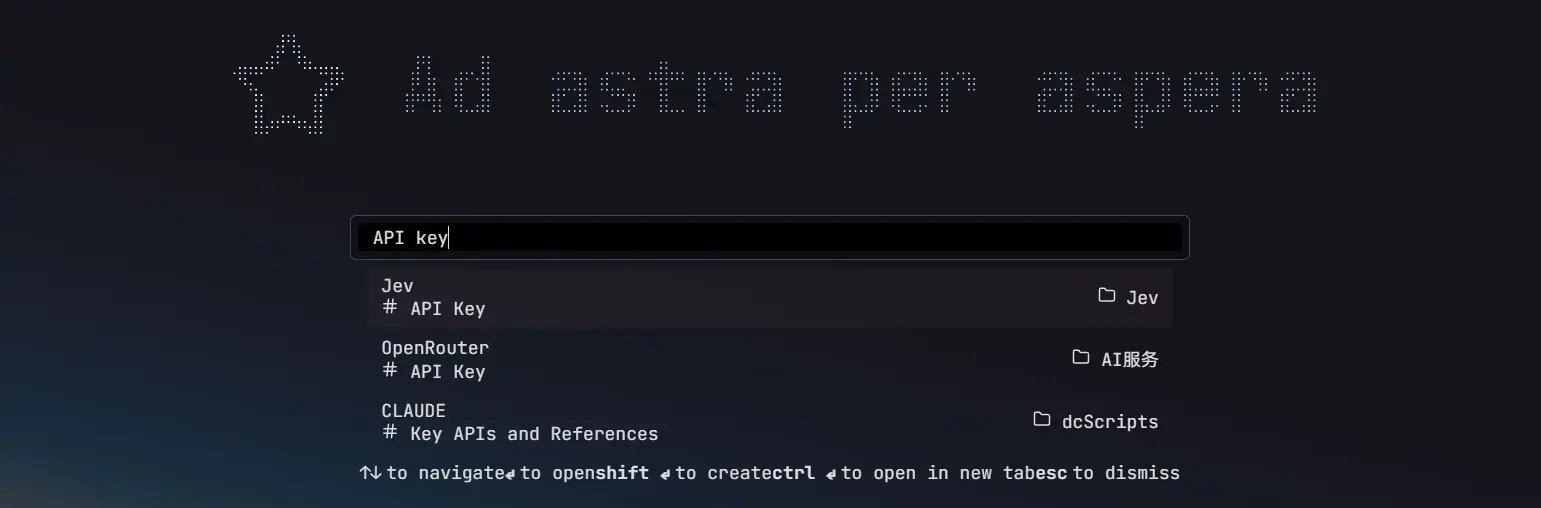
After selecting a result, it jumps straight to the corresponding heading.
Recent notes
Recently viewed notes are shown below the search bar, so you can quickly pick up where you left off.
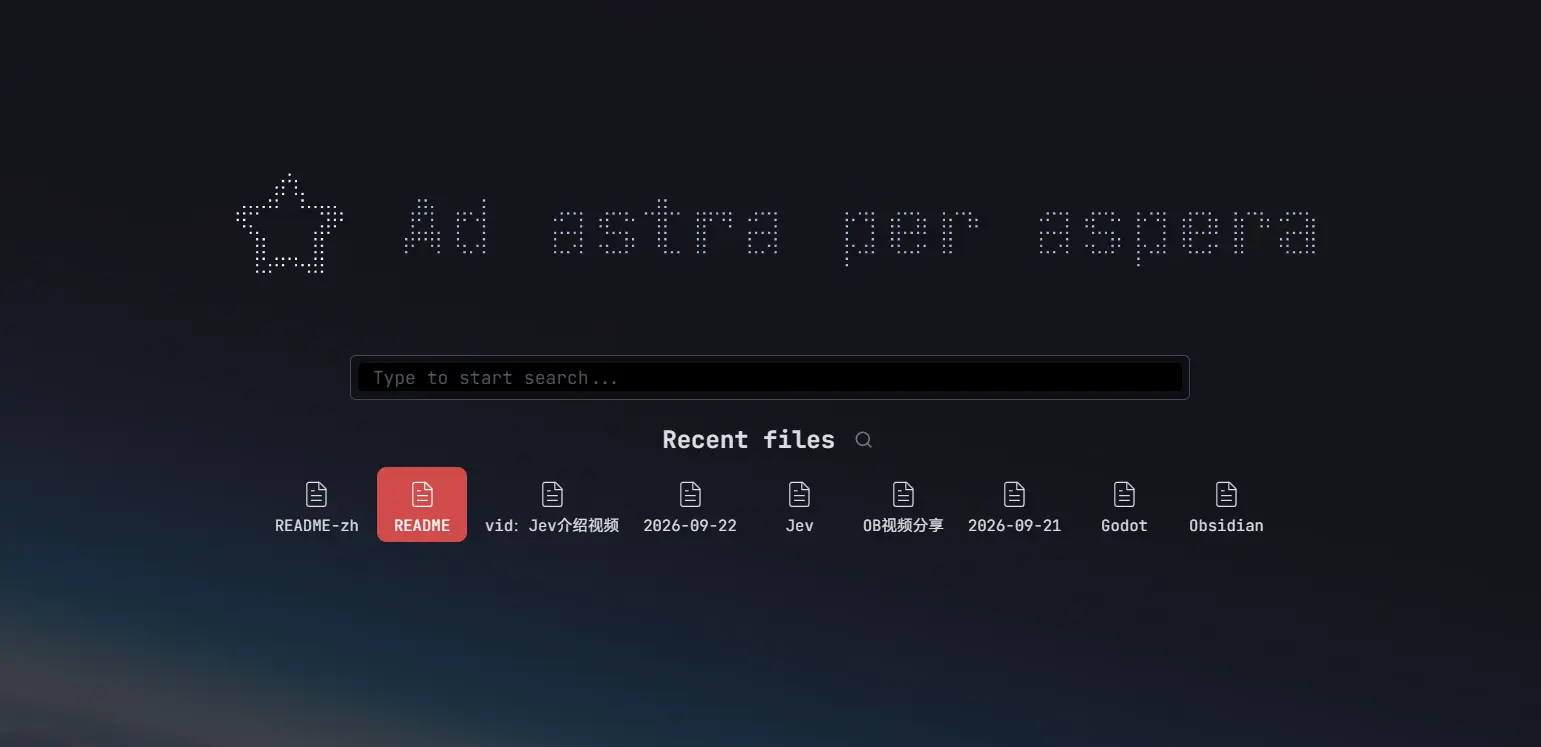
Bookmarked notes can likewise be displayed below for quick jumping.
Custom logo and title
Both the icon and the text above the search box are customizable:
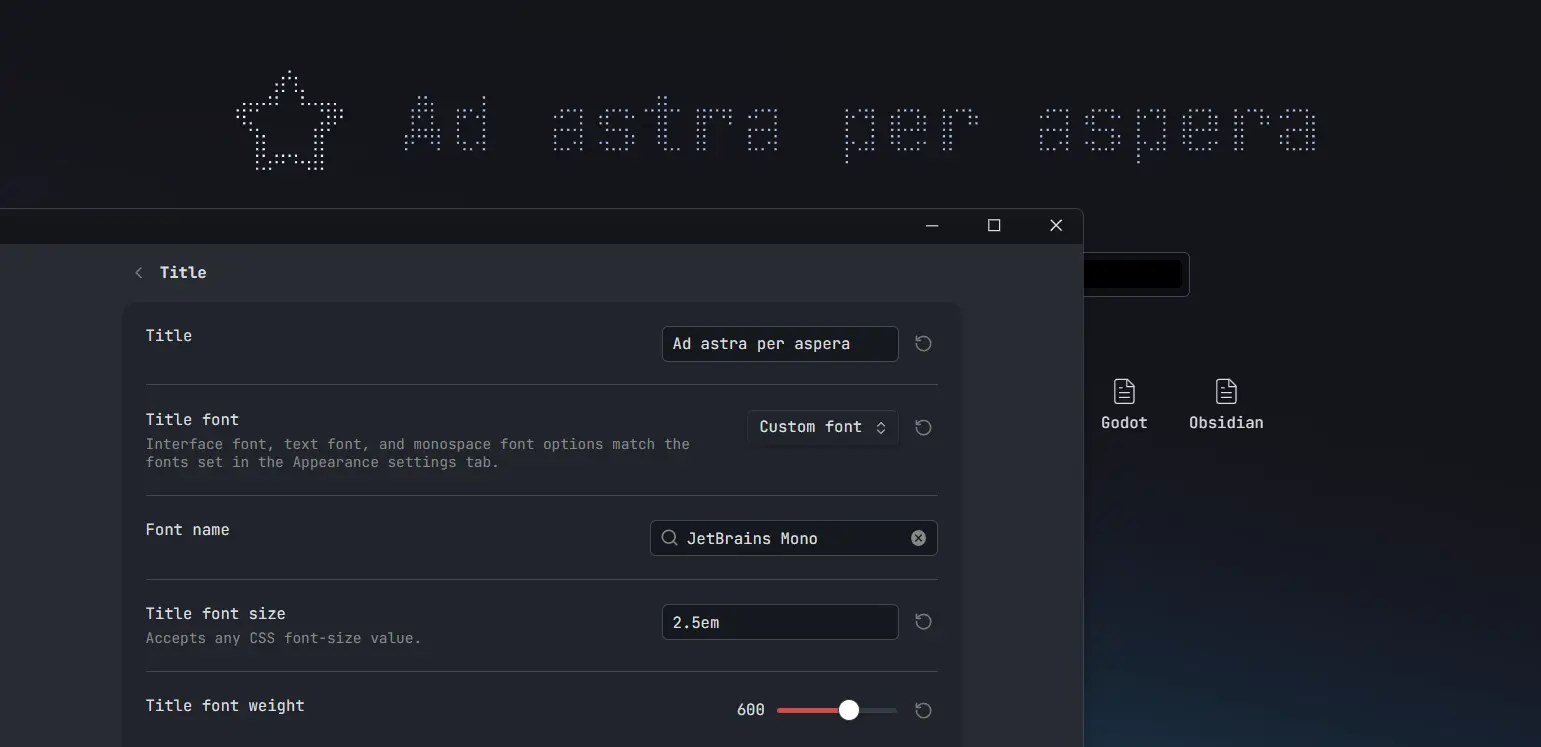
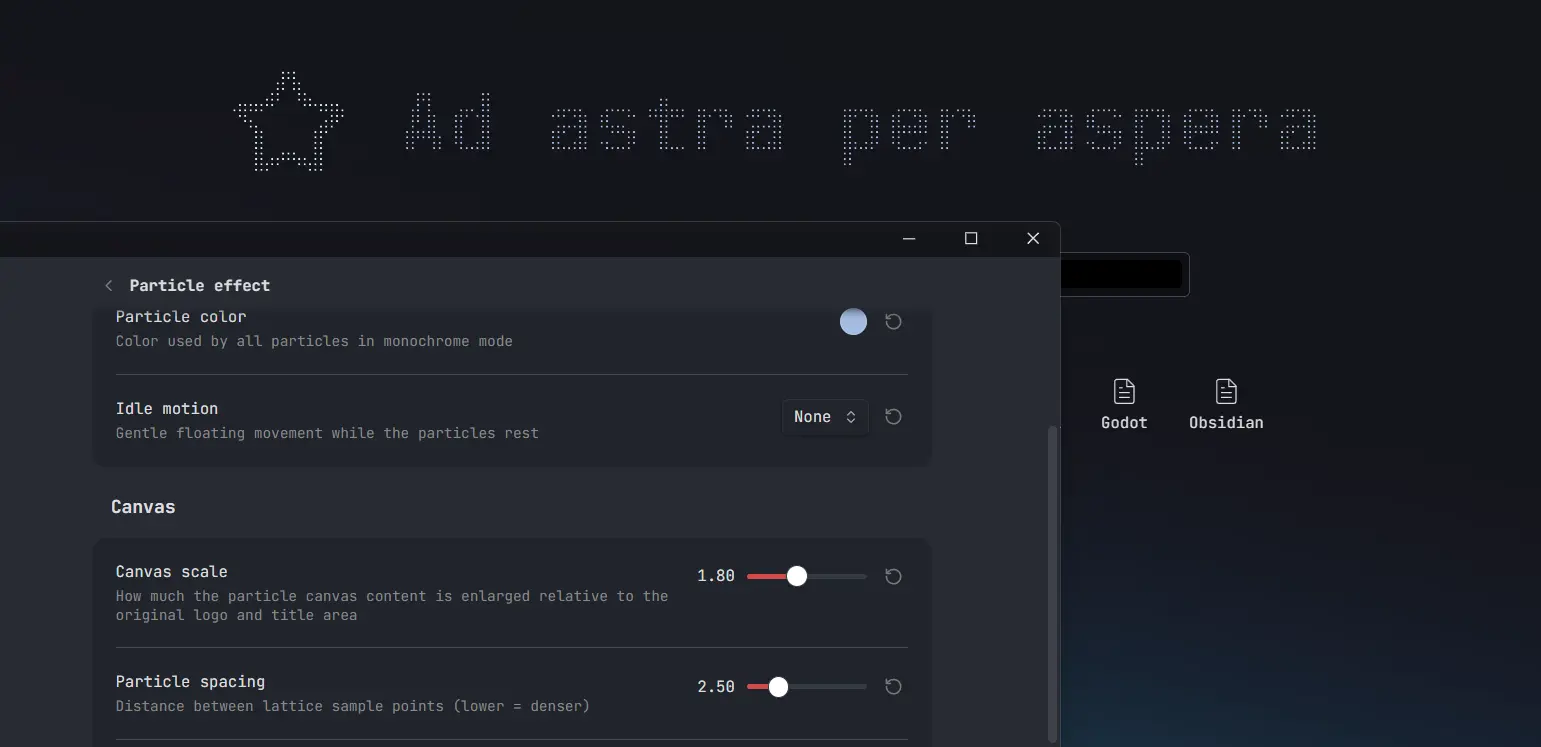
A particle effect can be enabled, turning it into cool, mouse-interactive particles:
What's new
Compared to the original Home tab, this fork continues development with:
- Heading search & jump — search through document headings and automatically jump to the matched one, with a smart jump strategy
- Web link suggestions — detect web addresses typed in the search bar and offer to open them with the Web Viewer core plugin
- Localization — English and Simplified Chinese
- Particle wordmark — render the logo and title as an interactive particle grid that ripples around the cursor
- Modernized settings tab — rebuilt on Obsidian's declarative settings API, organized into sub-pages
Features
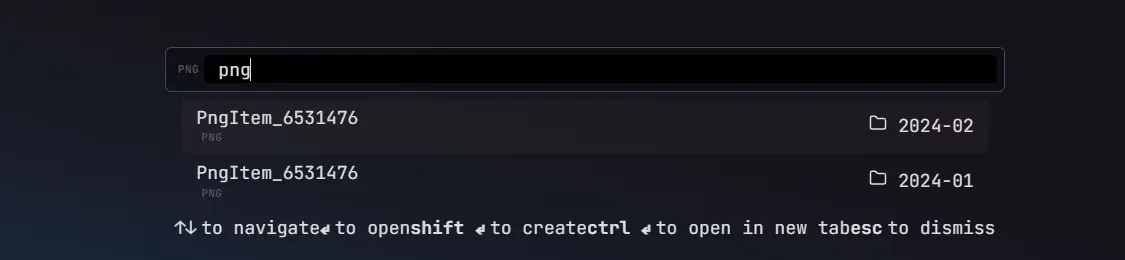
Filter search by file type or extension
To easily find a file you can filter the search by using filters for the file type or the file extension.
You can activate a filter by writing the filter key (see table below) and pressing tab. To remove the filter press backspace.
Filter keys
The following filters are available:
| File type | File extension |
|---|---|
markdown | md |
image | png, jpg, jpeg, svg, gif, bmp |
video | mp4, webm, ogv, mov, mkv |
audio | mp3, wav, m4a, ogg, 3gp, flac |
pdf | pdf |
canvas | canvas |
Display and search styles
Use Displayed content → Display to drag periodic notes, recent files, and bookmarks into your preferred order, enable collapsible sections, or turn on Compact mode for small icons beside single-line file names at every width. Compact items are centered and wrap across rows, with multiple items per row when space allows. The default order is periodic notes → recent files → bookmarks, and keyboard navigation follows the chosen order.
Use property as name defaults to title. Enter comma-separated properties such as title, aliases to try each in order, using the first value of a list and falling back to the original file name. Leave empty to use file names. Custom periodic-note labels retain their priority; file-name mode follows this general setting.
File list layout defaults to Centered rows. Choose Aligned grid for up to four equal-width columns in recent files and bookmarks, with fewer columns on narrow panes and support for Compact mode.
In Search → Style, choose Modern (the default rounded, translucent input with a thick translucent outer ring), Classic (the original appearance), Transparent (medium-sized, with no input background, border, or blur), or Minimal (a smaller Classic variant with square corners, no border, less padding, and a smaller font). The new-note button remains beside the input. Each period also has its own settings group under Periodic notes.
Particle settings use Color, Effects, Canvas, and Interaction groups. Base color pairs with Gradient color; the gradient color area defaults to 15% (10–90%), and the transition range defaults to 30% (0–100%). Both spatial controls apply to static/cycling gradients. Spacing is 1–3 (step 0.1), and size is 0.2–1 (step 0.05); Adaptive particle size preserves gaps and shrinks edge dots to follow the logo/title shape.
Adaptive particle size is disabled by default for uniform particle radii; enable it to preserve gaps and shrink edge dots, with a minimum radius of 0.2 before zoom. Spatial gradients follow the actual logo/title particles rather than canvas whitespace: a static gradient places the second color toward the chosen angle (90° right, 180° down), while a cycling color band travels across that range. Page spacing remains outside the scaled canvas, and logo/title margins still adjust their placement.
Canvas padding has independent top and bottom sliders, defaulting to 40px above and 0px below the particles (0–150px per side, step 5), independent of canvas scale. Existing shared padding values are preserved for both sides. The settings preview grows to include this space.
New installations use a cycling particle gradient with wave motion, spacing 1.3 and size 0.45. The title uses the vault text font at 3.5em, and Compact mode starts enabled with centered rows. Vault stats are shown by default; periodic notes remain disabled and custom image sources start empty.
Preserve source shading is enabled by default in monochrome and gradient modes, retaining image and SVG brightness variations. Turn it off to use the selected colors directly. Paused cycling rests on Base color, with source shading applied when enabled.
The built-in modern and old Obsidian logos use separated-facet SVGs only with particles in monochrome/gradient mode and source shading disabled. With shading enabled, the original logo artwork supplies its brightness variations.
Logo scale controls logo size independently. Changing Title font size resizes only the title, including when using built-in, Lucide, image, or pasted SVG logos.
Pause interval appears below Animation frequency for Cycling gradient and Breathing light (0–10 seconds, step 0.25, default 0). With a pause, cycling sweeps the color band completely across the particles and then rests on the base color; breathing holds each color before fading to the other. Frequency changes the animation speed while the pause stays the selected number of seconds. 0 keeps the animation continuous.
In Logo → Logo, choose SVG code to paste a complete SVG directly into the multiline field. Valid SVG updates the logo; invalid markup shows a warning and keeps the previous image. Clearing the field removes the image. Pasted SVG also works with the particle effect.
Glow is opt-in and disabled by default. Enabling it reveals Glow strength (0–100, default 40). It adds crisp core brightness and translucent outer halos, with significant rendering cost on large canvases.
Particle interaction
Pointer parallax, disabled by default, tracks the entire Obsidian window and moves opposite to the cursor with a 3D tilt and smoothly recenters on leave. It applies to desktop only and respects reduced motion.
Under Particle effect → Interaction, Disturbance radius ranges from 5–100 px (default 40), and disturbance strength defaults to 1. Disturbance falloff (0.1–2.0, step 0.1) controls how softly the cursor and touch influence fades outside that radius; its default is 0.8. Recovery speed defaults to 1.5. Recovery damping (0–100, default 60) reduces overshoot independently of recovery speed: higher values give a smoother return.
Embedded search bar
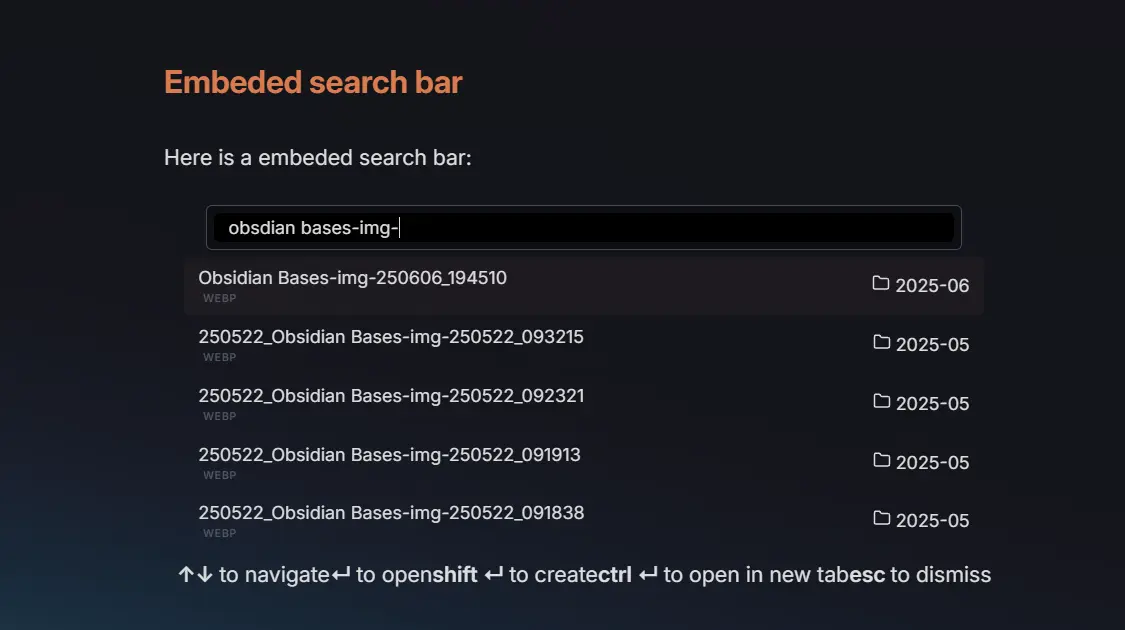
Search → Dropdown display defaults to Overlay, covering the content below without changing the page height. It works in both standalone tabs and embedded blocks, including blocks that clip their own content. Expand height retains the inline layout. Nonempty queries with no matches show No results; clearing the query dismisses the list. You can embed the Harbor Tab view in any note with options to show recent files, starred files, or only the search bar.
To embed the search bar to a note, you have to create a search-bar code block (see the following example).
To show only the search bar, without the title and the logo/icon, add (in a new line) only search bar.
To show the starred and recent files add, respectively, show starred files and show recent files.
Periodic notes (if enabled in the settings) can be added with show periodic notes.
For example, the following code block will render the search bar and the starred files.
```search-bar
only search bar
show starred files
```
Installation
The plugin will be available directly from the Obsidian plugin browser.
Alternatively, you can install with BRAT by using the following links: https://github.com/Moyf/harbor-tab or Moyf/harbor-tab.
Acknowledgments
- The original Home tab plugin by olrenso ❤️
- Continued development is permitted by the original author — see olrenso/obsidian-home-tab#65
- The particle wordmark effect is inspired by Arknights-FlowingPoints by BlackCoder0 — our implementation is an independent rewrite of that idea
- Background image is implemented using the style context plugin
Support
If you like Harbor Tab, consider buying me a coffee on Ko-fi ☕
For plugin developers
Search results and similarity scores are powered by semantic analysis of your plugin's README. If your plugin isn't appearing for searches you'd expect, try updating your README to clearly describe your plugin's purpose, features, and use cases.