Task Manager Bases View
approvedby vastea
Kanban, timeline and weekly-log views for tasks stored in your notes, powered by Bases. - This plugin has not been manually reviewed by Obsidian staff.
Task Manager Bases View
A lightweight task‑management plugin for Obsidian Bases. It only renders — your task data lives in your own markdown frontmatter / note body, and all grouping and filtering is done by Bases. The plugin owns no data model and hard‑codes no field names. Everything uses the tm- prefix.
Requires Obsidian 1.10.2+ (the Bases view API). Desktop only.
Views
| View | Type | What it does |
|---|---|---|
| tm-kanban | Bases view | Columns from a Bases group‑by (or predefined columns), drag cards to change status, right‑click to move/archive. |
| tm-timeline | Bases view | Gantt‑style bars / milestones from start‑end date properties, drag to reschedule, grouped or flat lanes. |
| tm-calendar | Leaf view | Weekly time grid that renders daily‑note log blocks; drag to create, right‑click to delete. |
The plugin is a thin renderer: change frontmatter / Bases config / drag → Bases re‑queries → the view re‑renders. It never keeps a long‑lived reference to the query result.
Features
Kanban (tm-kanban)
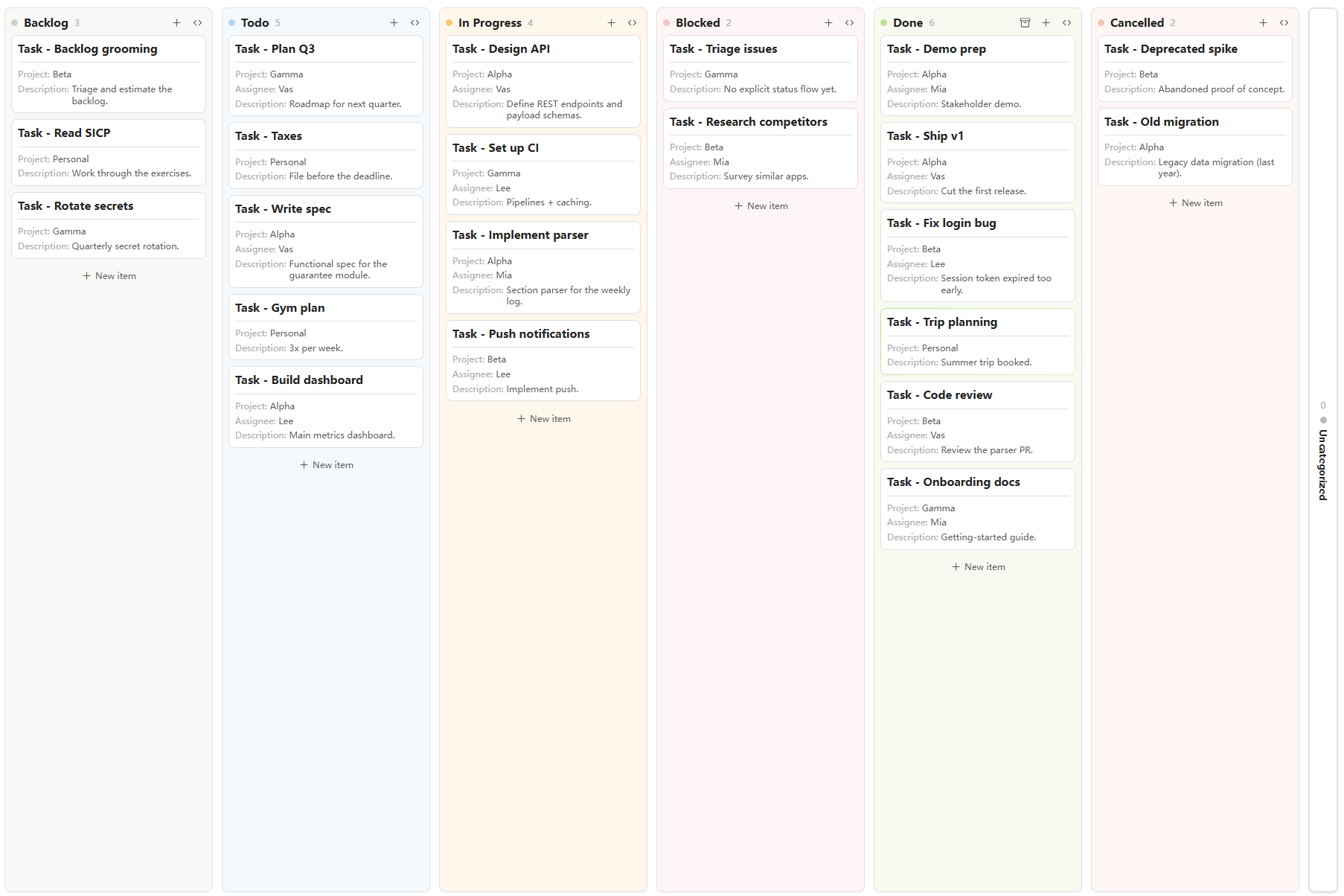
- Grouping is all Bases. Columns come from the Bases group‑by. Filters and sort are Bases' too.
- Predefined columns (view option): list the column values in order, each with an optional colour —
todo|#6b7280,doing|blue, … Values match the Bases group‑by keys; unmatched/empty groups fall into a collapsed Uncategorized column. - Done columns:
doneStatusesmarks which column values count as done; that column gets an Archive‑all button to archive every card in one click. - Drag a card between columns to rewrite its group property (only writable
note.*properties). Click opens the note in a reused right split; mod‑click opens a new tab. Dragging never triggers a click‑open. - Right‑click a card → move to any column, or Archive (writes the configured archive value).
- Record changelog (view option, off by default): when on, moving a card appends a
- yyyy-MM-dd old->newlist item under a configurable body section (Changelog section heading, defaultChangelog), creating the section if absent — so each note keeps a history of its status changes. Unchanged moves write nothing. - Plane‑style columns: full height, header with title + count on the left and add / collapse on the right, columns collapse to a vertical bar, soft per‑column tint, in‑flow “new item” button.
Timeline (tm-timeline)
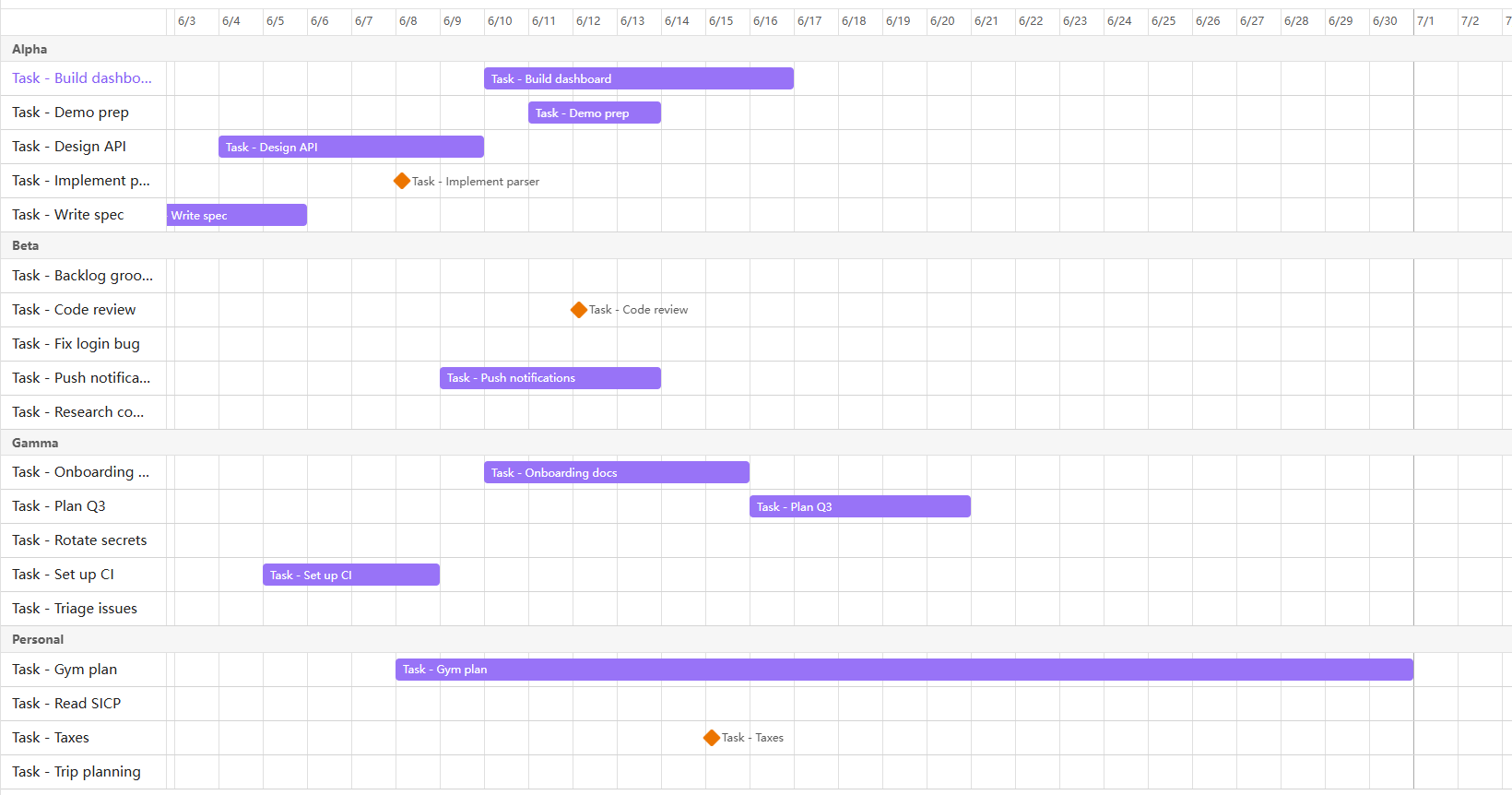
- Start / end date properties chosen in view options;
scale= day / week / month / quarter / year (coarser scales keep multi‑year plans on screen). - Property-based labels (optional): enable Use the visible property as item labels, then select exactly one entry in the Bases Properties menu. Its rendered value — including
file.*,note.*and formula properties — replaces the filename in both the sticky label column and timeline bar. Empty or invalid values stay visible as warnings; use a Bases filter to exclude them when appropriate. Label width adjusts the sticky column per view. - Lanes follow Bases group‑by (one lane per group) or a flat list when ungrouped.
- Bars for start+end and milestone dots for a single date. Items without dates are hidden by default; enable Include items without dates to show them as temporary milestones at the range start, then drag one to assign its start date.
- Multi‑tier header — a stacked, cumulative header (year → quarter → month → week → day, coarsest on top); each cell shows only its own unit, centered, and grid lines follow the finest tier.
- Padding — which time range is shown:
default(unchanged),moderate(one whole scale unit each side), orfit(trim to whole scale units around the items). Partial first/last cells are widened just enough for their header label to fit. - Zoom — how densely that range is drawn (independent of padding). Auto zoom derives the density from the pane width so the whole range fits without horizontal scrolling; with it off, a Zoom slider sets the density as a percentage of the scale's default (100 % = the default look, higher values zoom in).
- Max cells — how many cells a header may draw, a plugin setting (120 by default, 48 the lowest accepted). When a range needs more, the window holding the most items whole is shown, and items beyond it are drawn at the edge with a warning and an arrow, their real date in the tooltip. Raise it for wider — and heavier — timelines, or let a single timeline waive it with Ignore the max cells constraint in its view options.
- Drag the bar to shift both dates, drag an edge to change one end (writeback to
note.*). With Snap to grid (a plugin setting) on, drag/resize snaps to the current scale's unit — drag only; existing dates are never changed otherwise. - Colours (view options): three independent rule lists — Colour rules (bar fill), Text colour rules (label colour) and Text rules (label style). Each line is either
property|value|output(matches when the note's property equals the value; case‑insensitive, list membership) or a bareproperty(the note's own value of that property is the output). Rules are read top→bottom and the first match wins per list. Colour/text‑colour output is a colour name, hex, orrgb(...)(ornonefor the default); text output is any ofstrike underline bold italic, space‑separated (ornonefor plain). Example — bars for closed tasks grey and struck through:status|closed|grayin colours,status|closed|strikein text.
Weekly‑log calendar (tm-calendar)
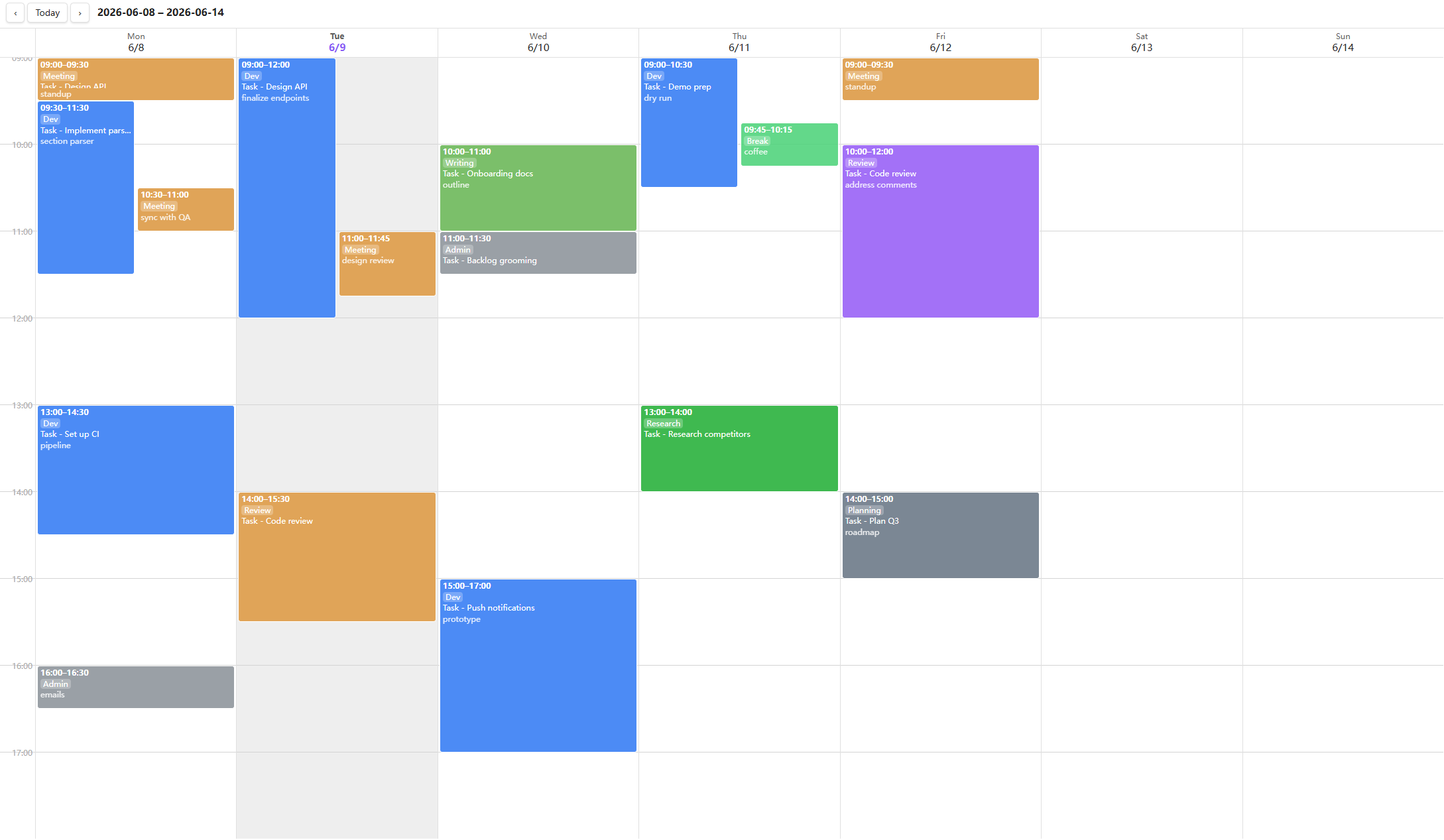
- A 7‑day time grid built from your daily notes. The only body convention is one configurable section (default
Log) whose list items are time blocks:## Log - 14:00-15:00 (Dev) [[Some task]] notes - 16:00-16:30HH:MM-HH:MM→ optional(Category)→ optional[[wikilink]]→ optional note. - Overlapping blocks render side‑by‑side. Drag (up or down) on empty grid to create a block via a modal — its start/end time is editable (pre‑filled from the drag, so an imprecise drag can be corrected) alongside description + optional
[[task]]link + category. Right‑click a block to delete it. Click opens that day's journal at the log line. - Current‑time indicator: a now‑line is drawn across today's column, updating every minute (hidden when the week has no today or now is outside the day window).
- Jump to date: click the toolbar title to open a date picker and jump to any week (respects the week‑start setting).
- Categories / colours: optional, enabled in settings. Define
name|color(a colour name, hex, orrgb(...)), or put the colour inline in the line —(Dev|blue)— exactly like the kanbanvalue|colorscheme. - Back‑reference (optional): when a block links a task, append a dated record under a heading inside that task's note.
- Custom day window (settings): default
00:00–24:00, but narrow it (e.g.09:00–18:00) to focus on working hours — the grid then splits the visible hours to fill the height, so blocks render larger.
Other
- Click a task → right split. Kanban/timeline items open the note in a reused detail pane (view on the left, note on the right). No custom detail view — the note is the detail.
- i18n: English / 中文 / Deutsch, switchable in settings (in-view strings update live).
Install
Manual
- Download
main.js,manifest.json,styles.cssfrom a release (or build them, below). - Copy them into
<Vault>/.obsidian/plugins/task-manager-bases-view/. - Reload Obsidian and enable the plugin under Settings → Community plugins.
Build from source
npm install
npm run dev      # watch build → main.js
npm run build    # svelte-check + production bundle
Outputs main.js (+ manifest.json, styles.css) in the project root.
Usage
- Create a Bases
.basefile over your task notes. - Add a tm-kanban or tm-timeline view; configure it from the Bases toolbar:
- Kanban: set Group by (e.g.
status); optionally enable Use predefined columns and fill the column values / colours / done statuses / archive value. - Timeline: pick the start / end date properties and a scale.
- Kanban: set Group by (e.g.
- The calendar stores entries in your daily notes, so it needs the core Daily notes plugin enabled (Settings → Core plugins → Daily notes). Run the command Open weekly log (or the ribbon clock icon); you can turn the view off under Settings → Task Manager Bases View.
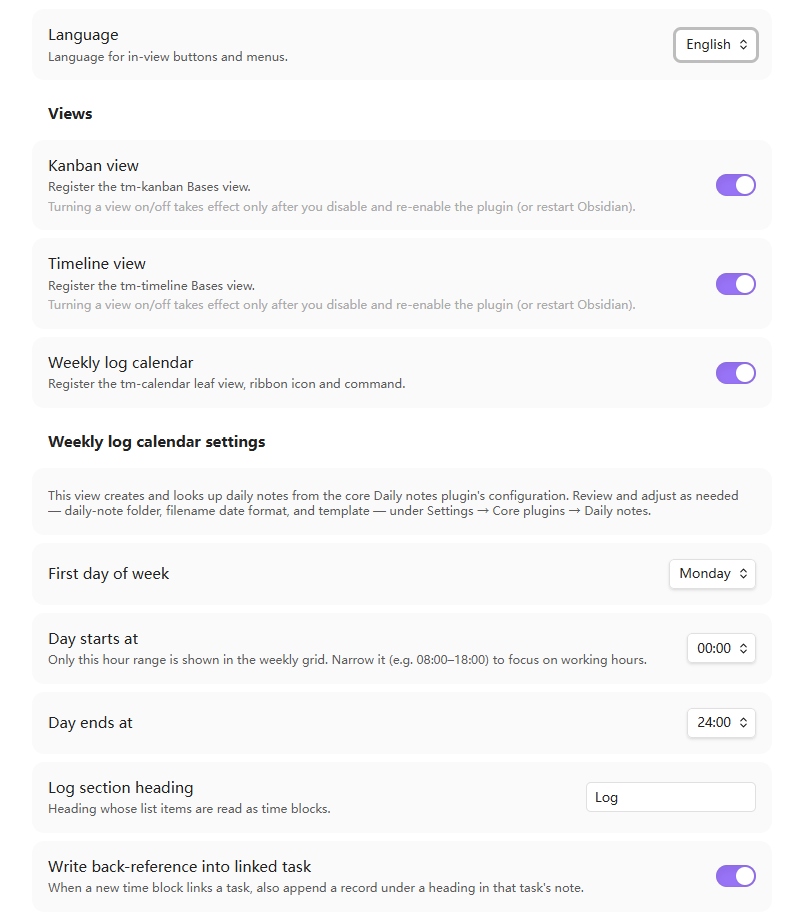
- Global, cross‑file conventions (week start, day window, log section, categories, back‑reference, timeline snap‑to‑grid) live in Settings → Task Manager Bases View. The daily‑note folder, filename format and template are taken from the core Daily notes plugin (Settings → Core plugins → Daily notes) — no duplicate config here.
Toggling a view on/off in settings takes effect only after you disable and re‑enable the plugin (or restart Obsidian) — Bases has no per‑view unregister API.
Each view can be turned off independently, and the calendar's settings appear only while its view is enabled, keeping the page tidy:
View options reference
| View | Option | Meaning |
|---|---|---|
| kanban | usePredefinedColumns | Use ordered, coloured predefined columns instead of raw Bases groups. |
| kanban | predefinedValues | value or value|color lines; match the group‑by keys. |
| kanban | doneStatuses | Column values treated as “done” (gets the archive‑all action). |
| kanban | archiveValue | Value written by right‑click → Archive / Archive‑all. |
| timeline | startProp / endProp | Date properties for the bar ends. |
| timeline | usePropertyDisplay / labelWidth | Use exactly one Bases-visible property for labels and set the sticky label-column width. |
| timeline | includeUndated | Show otherwise-hidden undated items as draggable milestones at the range start. |
| timeline | scale | Header tick granularity: day / week / month / quarter / year. |
| timeline | rangePadding | Empty time around the items: default / moderate / fit. |
| timeline | autoZoom | Derive density from the pane width so the whole range fits (hides the zoom slider). |
| timeline | zoom | Density as a percentage of the scale's default (10 – 200, 100 = default). |
| timeline | ignoreMaxUnits | Draw the whole range regardless of the Max cells plugin setting, at the render cost. |
| timeline | colorRules / textColorRules / textRules | First-match rules for bar fill, label colour and label style. |
Example vault
A separate, ready‑to‑open demo vault lives in its own repo — obsidian-task-manager-example-vault — with a multi‑project dataset and several .base files (group‑by board, predefined‑colour pipeline, per‑project boards via filters, flat/grouped timeline, archive workflow) plus journals for the calendar.
Development notes
- Svelte 5 + esbuild. Entry
src/main.ts→ rootmain.js(CJS, single file). src/shared/is the three‑view kernel (entry access, frontmatter write, value render, section parser, open‑detail, palette, i18n).- No telemetry, no network requests; everything is local.
Feedback & issues
Found a bug, hit a rough edge, or have an idea? Please open an issue — bug reports, feature requests, and questions are all very welcome. A screenshot and your Obsidian version help a lot. See the changelog for what's new.
License
MIT © vastea
For plugin developers
Search results and similarity scores are powered by semantic analysis of your plugin's README. If your plugin isn't appearing for searches you'd expect, try updating your README to clearly describe your plugin's purpose, features, and use cases.