Knowledge Graph Analysis
approvedby luolanaatud
Analyze your vault using graph algorithms with Rust WASM for high-performance insights into note structure and relationships. - This plugin has not been manually reviewed by Obsidian staff.
Knowledge Graph Analysis
Turns your Obsidian vault into a knowledge graph, computes real graph-theory metrics locally (degree, betweenness, closeness, eigenvector centrality), and feeds those metrics to AI (Google Gemini) to produce semantic analysis, structural analysis, evolution tracking, and one-click actionable suggestions.
Open the plugin by clicking the plugin icon  in the left ribbon.
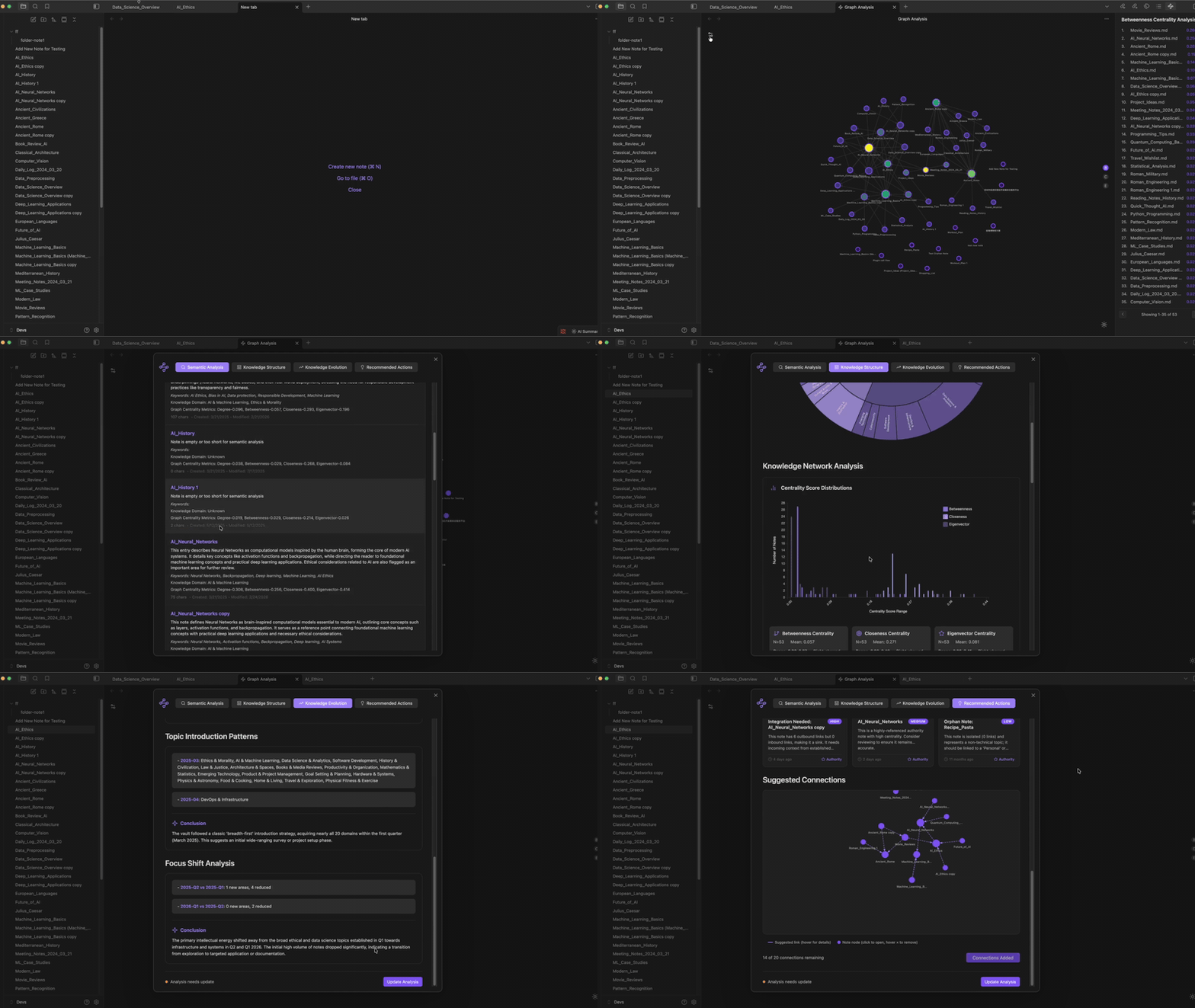
Why This Plugin Exists
AI has made it dramatically faster to acquire knowledge — reading, summarizing, and searching are no longer bottlenecks. But acquisition was never the hard part. The step that can't be skipped is internalization: turning a large, fast-growing pile of notes into an actual structure you understand and can act on.
That step gets harder, not easier, as input volume grows. A vault of a few dozen notes can be understood by skimming. A vault of a few thousand notes, growing daily, cannot — no amount of reading speed fixes that, because the bottleneck isn't reading, it's seeing the shape of the whole.
This plugin's premise: making sense of a large, fast-growing vault requires graph structure and AI working together, not either one alone.
- Graph algorithms (centrality, betweenness, closeness) tell you the objective shape of your vault — which notes are hubs, which are bridges, where the structure is thin. This is reproducible and doesn't hallucinate.
- AI alone, reading note text, can summarize content but can't tell you which notes hold your thinking together or where the structural gaps are — it has no view of the whole network.
- Combined: the graph gives AI quantitative, structural context instead of raw text, so the output is grounded in your vault's actual topology, not just keyword similarity.
Pipeline: graph metrics (local WASM) → structured context → AI reasoning → concrete actions.
Who This Is For
Good fit:
- Vaults large enough (hundreds of notes+) that manual browsing no longer reveals the overall structure
- Users who want to know which notes are structurally load-bearing (hubs/bridges), not just which notes are topically related
- Users willing to obtain and use a Google Gemini API key
Not a fit:
- Small vaults (a few dozen notes) — manual review is faster and the graph adds little
- Users who need zero cloud AI calls under any circumstance — local graph visualization still works without an API key, but AI analysis features do not
- Mobile users — desktop only, no mobile support
Features
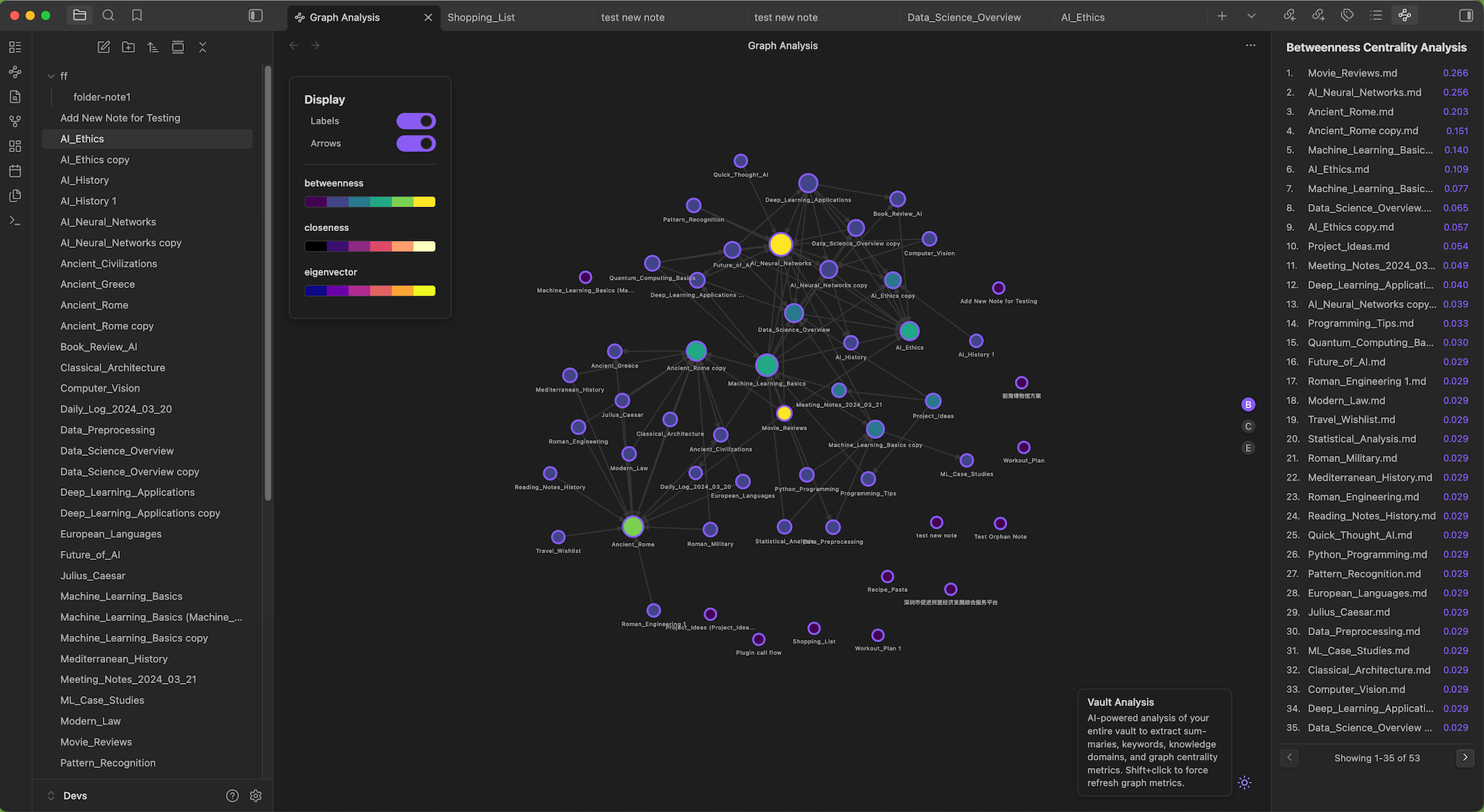
- Interactive Graph View — Force-directed visualization with centrality-based node sizing, color coding, and hover details
- Four-Tab Vault Analysis — Semantic Analysis, Knowledge Structure, Knowledge Evolution, and Recommended Actions
- Suggested Connections — AI-identified links you can add to your vault in one click
- Priority Review Cards — Surface hubs, bridges, and authorities that need attention
- Exclusion Rules — Filter out folders and tags; the graph refreshes automatically
Interactive Graph View
The graph renders your vault as a network — notes are nodes, links are edges. Node size reflects degree centrality (more connections → larger node), and color can encode betweenness, closeness, or eigenvector centrality.
- Settings panel (top-left): Toggle node labels, connection arrows, and color strip
- Hover: Highlights adjacent connections and shows centrality scores
- Drag: Reposition nodes; the force layout updates in real time
Vault Analysis
Open the Vault Analysis modal from the status bar or command palette. The plugin first computes graph metrics in WASM, then runs AI analysis via Google Gemini. Results are organized into four tabs — Semantic Analysis produces the base data, and the other three tabs build on it independently.
Semantic Analysis
The foundation layer. The AI processes each note alongside its graph metrics and produces:
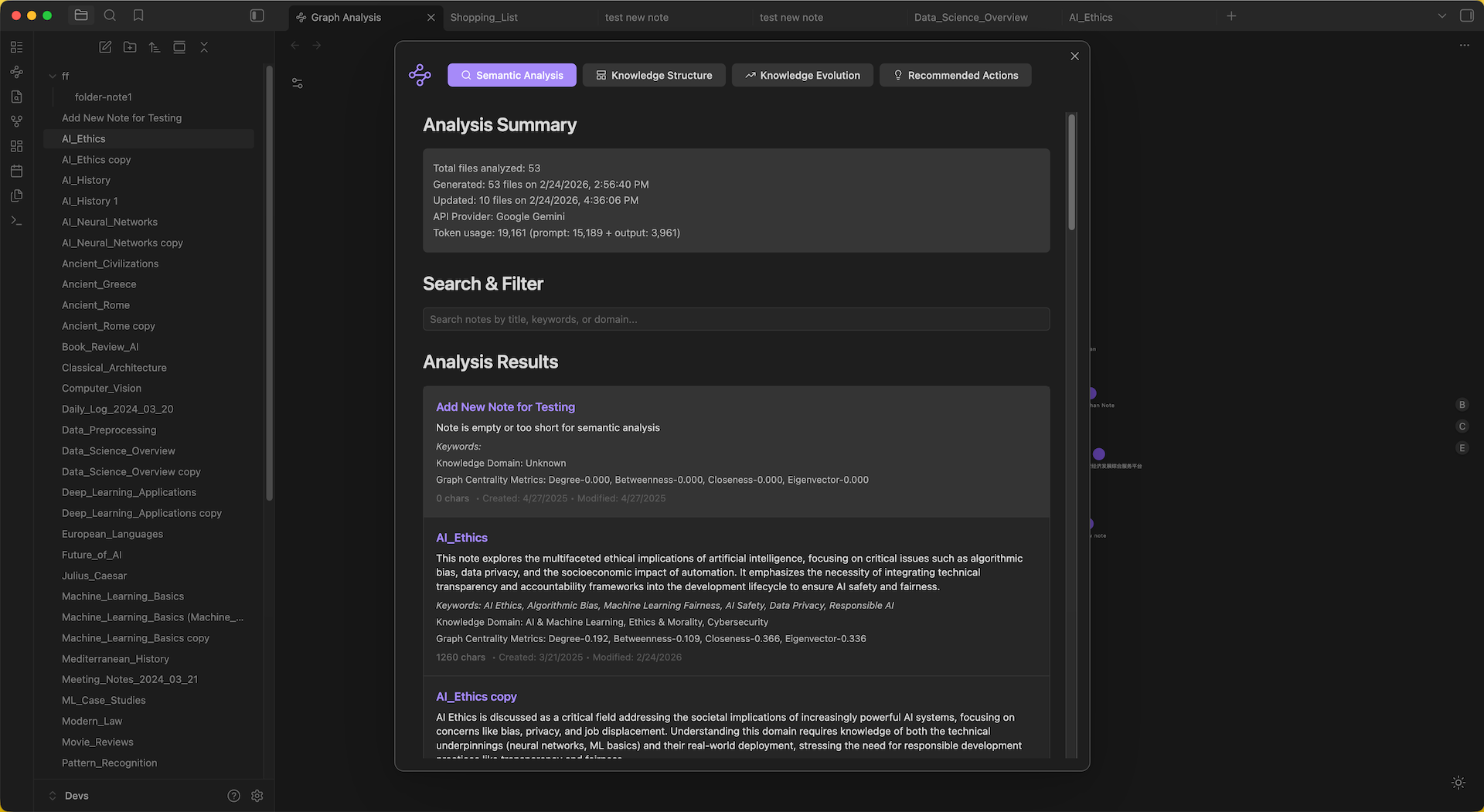
- Summary — One-sentence description of the note's core concept
- Keywords — 3–6 key terms
- Knowledge Domains — 2–4 academic or professional fields
Results are searchable, paginated, and update incrementally — only changed or new notes are re-analyzed.
Knowledge Structure
Reveals how your knowledge is organized by combining domain analysis with graph topology.
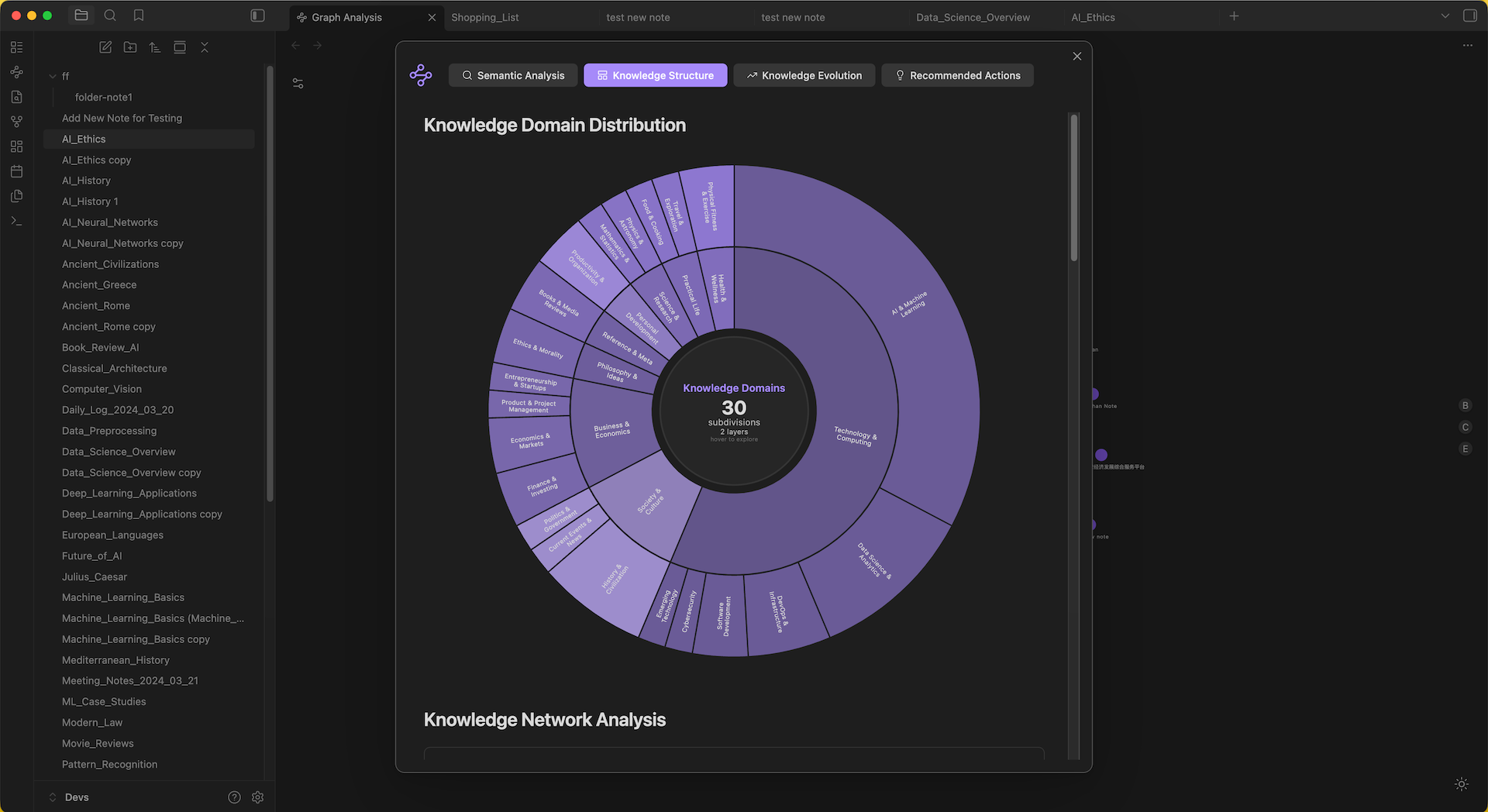
- Domain Distribution — Sunburst chart of knowledge domains across your vault
- Network Analysis — KDE centrality distributions plus AI-identified Knowledge Bridges (high betweenness), Foundations (high closeness), and Authorities (high eigenvector)
- Knowledge Gaps — Areas the AI identifies as underdeveloped based on graph structure and domain coverage
Knowledge Evolution
Tracks how your vault grows and shifts over time.
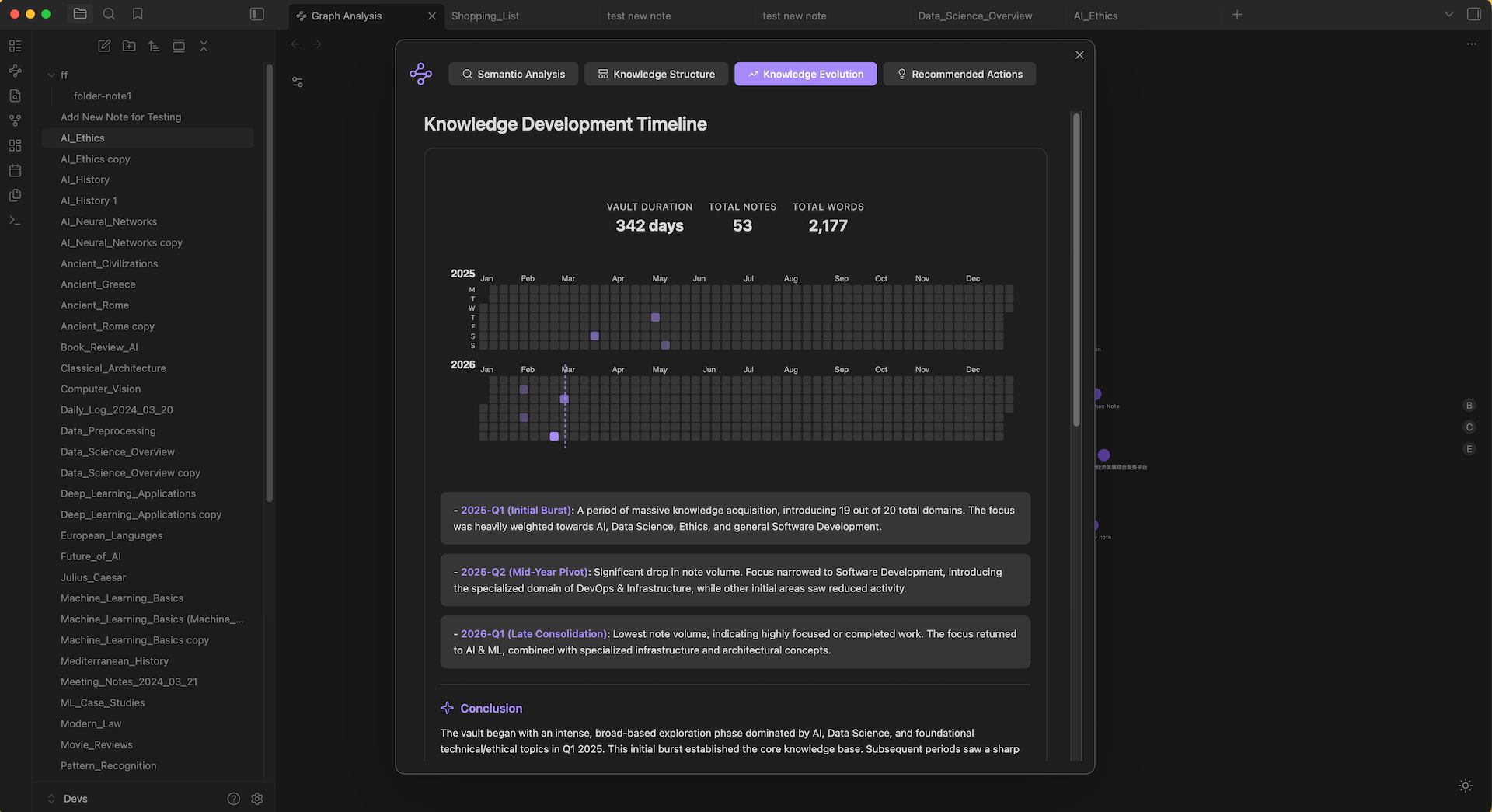
- Development Timeline — Calendar heatmap of note creation with AI-generated phases and narrative
- Topic Introduction Patterns — When new topics and domains first appeared
- Focus Shift Analysis — Compares recent activity against historical patterns to surface notable shifts
Recommended Actions
Turns analysis into concrete next steps.
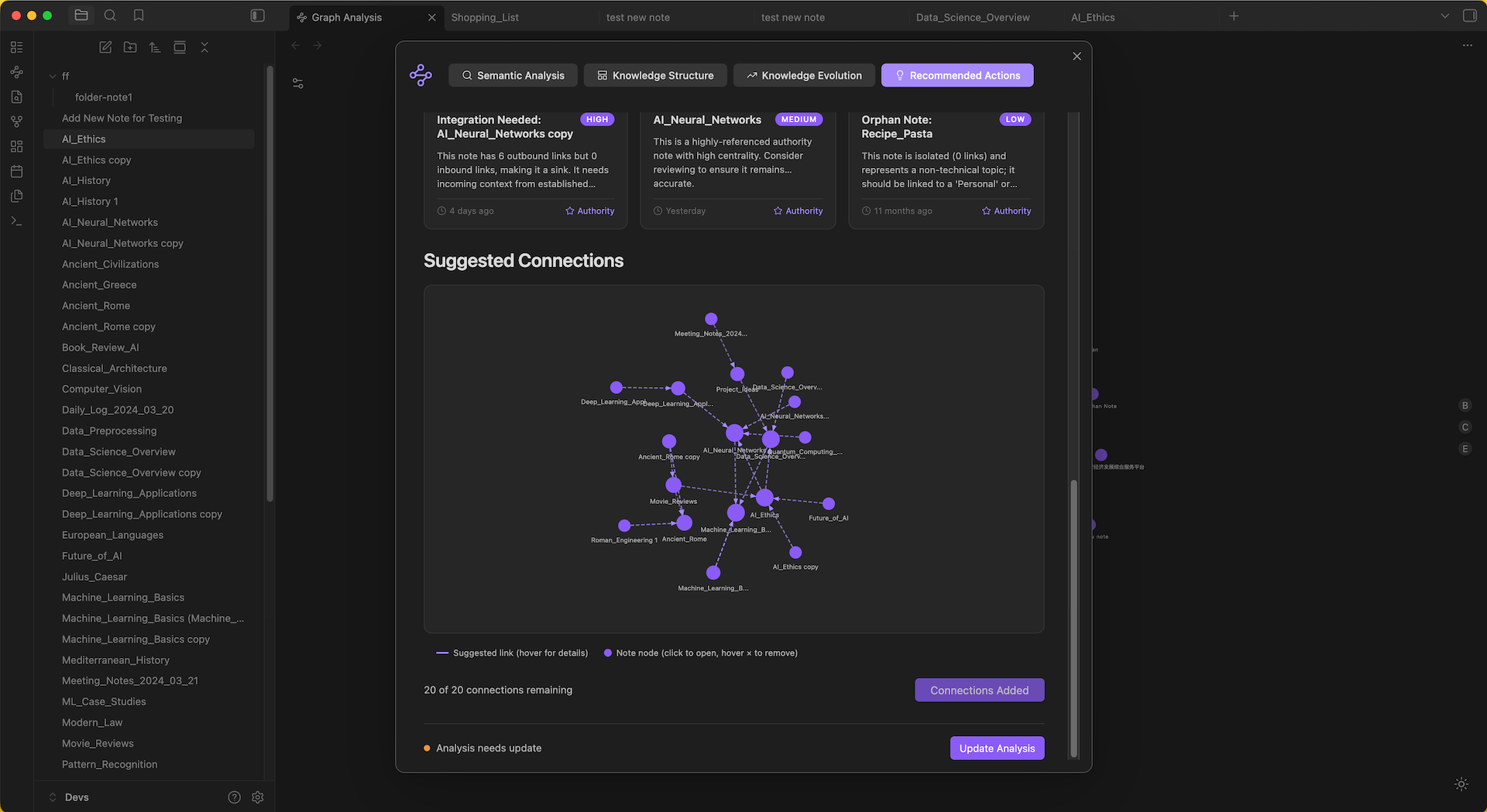
- Network Metrics — Scatter plots of Inbound vs Outbound links and Betweenness vs Eigenvector centrality
- Notes Needing Review — Priority cards (high / medium / low) for hubs, bridges, and authorities that may be stale or under-connected
- Suggested Connections — An interactive sub-graph of notes the AI recommends linking. Remove unwanted suggestions, then click Add to Main Graph to write
[[links]]directly into your notes
Settings
Under Obsidian settings → Knowledge Graph Analysis:
| Setting | Description |
|---|---|
| Exclude Folders | Comma-separated paths (e.g. Archive, daily-notes). Real-time stats show excluded vs included counts. |
| Exclude Tags | Comma-separated tags without # (e.g. private, draft). |
| Gemini API Key | Required for vault AI analysis. Visit Google AI Studio to create a key, then paste it under "LLM Model Configuration". |
| Visualization | Graph appearance options in the graph view settings panel. |
Pricing
| Item | Cost |
|---|---|
| Plugin itself | Free, open source (MIT License) |
| Google Gemini API | Requires your own key from Google AI Studio |
| Gemini free tier | 250K TPM, 500 requests/day per official docs — generally sufficient for summaries, keywords, and domain extraction |
| Beyond free tier | Billed at Google's standard Gemini rates; see Google AI pricing (subject to change) |
The plugin batches Tabs 2–4 into a single consolidated AI call, reducing token usage by ~75% — this materially affects whether a large vault stays within the free daily quota.
Compatibility & Installation
| Item | Detail |
|---|---|
| Obsidian version | 1.7.2+ |
| Platforms | Desktop only (Windows / macOS / Linux) — no mobile support |
| Install (recommended) | Settings → Community plugins → search "Knowledge Graph Analysis" |
| Install (manual) | Download from GitHub Releases → extract into .obsidian/plugins/ → enable in settings |
| Prerequisite for AI features | A Gemini API key; not required for local graph visualization |
Privacy & Network
The plugin makes no network calls on load. Requests only fire when you trigger Vault Analysis or a tab's AI action.
| Scenario | What leaves your device |
|---|---|
| Vault Analysis / tab AI actions | Note text and prompts sent to Google Gemini (generativelanguage.googleapis.com), using your own API key |
| Graph view / WASM metrics | Fully local — never leaves your device |
No plugin-owned backend server. All caches (semantic results, derived charts, tab analyses) live in Obsidian's local plugin data. HTTP requests go through Obsidian's own requestUrl API — no bundled Google SDK.
Performance
| Operation | Benchmark |
|---|---|
| Graph metrics computation (degree, betweenness, closeness, eigenvector centrality) | ~60ms for a 1,000-note vault, computed locally via Rust → WASM |
| AI semantic analysis (first run, full vault) | Bound by Gemini's free-tier daily request cap (500/day) rather than by graph computation — large vaults may need multiple days for a full first pass, or a paid tier |
| AI semantic analysis (subsequent runs) | Incremental — only changed/new notes are re-analyzed, so ongoing use is much lighter than the first pass |
(Note: the 60ms figure is an official benchmark measured at 1,000 notes. Performance at 5,000+ or 10,000+ notes has not been benchmarked — any expectation of similar speed at that scale is an inference, not a reported fact. Test on a subset before running full analysis on a very large vault.)
Technical Details
- Rust → WebAssembly: Graph algorithms (degree, betweenness, closeness, eigenvector centrality, force-directed layout) run in Rust compiled to WASM via rustworkx, delivering native-speed computation in the browser
- Google Gemini 3.1 Flash Lite: Structured JSON output with temperature 0.3 — 250K TPM, 500 requests/day on the free tier, sufficient for summaries, keywords, and domain extraction. Responses match each note's language.
Build
Prerequisites: Node.js, npm, Rust, and wasm-pack.
git clone https://github.com/luolanaaTUD/obsidian-graph-analysis.git
cd obsidian-graph-analysis
npm install
npm run build
npm run build runs three steps in order:
- typecheck — TypeScript type checking
- build-wasm — Compiles the Rust graph library to WebAssembly via
wasm-pack build --target web - build:ts — Bundles the plugin with esbuild, outputs to
dist/, and embeds the WASM binary inmain.js
To install into a vault, copy dist/ contents into .obsidian/plugins/knowledge-graph-analysis/, or use npm run copy-to-vault if configured.
Lint (Obsidian community guidelines)
This project uses eslint-plugin-obsidianmd. Before submitting to the community plugin directory:
npm run lint:submission # errors only (recommended before release)
npm run lint # full report including UI sentence-case warnings
npm run lint:fix # auto-fix where supported
Contributing
Contributions are welcome. Open issues or pull requests on github.com/luolanaaTUD/obsidian-graph-analysis.
License
MIT — see the LICENSE file for details.
Acknowledgments
For plugin developers
Search results and similarity scores are powered by semantic analysis of your plugin's README. If your plugin isn't appearing for searches you'd expect, try updating your README to clearly describe your plugin's purpose, features, and use cases.