by Jared Winslow
Preview docx/xlsx/pptx and 130+ code files. Selectable pptx text, zoom, edit and save, and Word-style margin comments stored as markdown in your vault, on PDFs too.
Lectern
Read your lecture files inside Obsidian, select and copy the text, and leave margin comments that live in your vault as plain markdown.



What it does
- Opens Office and code files.
.pptx,.docx,.xlsx,.xls, and 130+ code and text formats, with syntax highlighting, zoom and pan. - Slide text is real text. Drag-select and
Ctrl+Cwork on slides. Other preview plugins draw slides to a canvas, which is just pixels. - Copies a deck out as markdown.
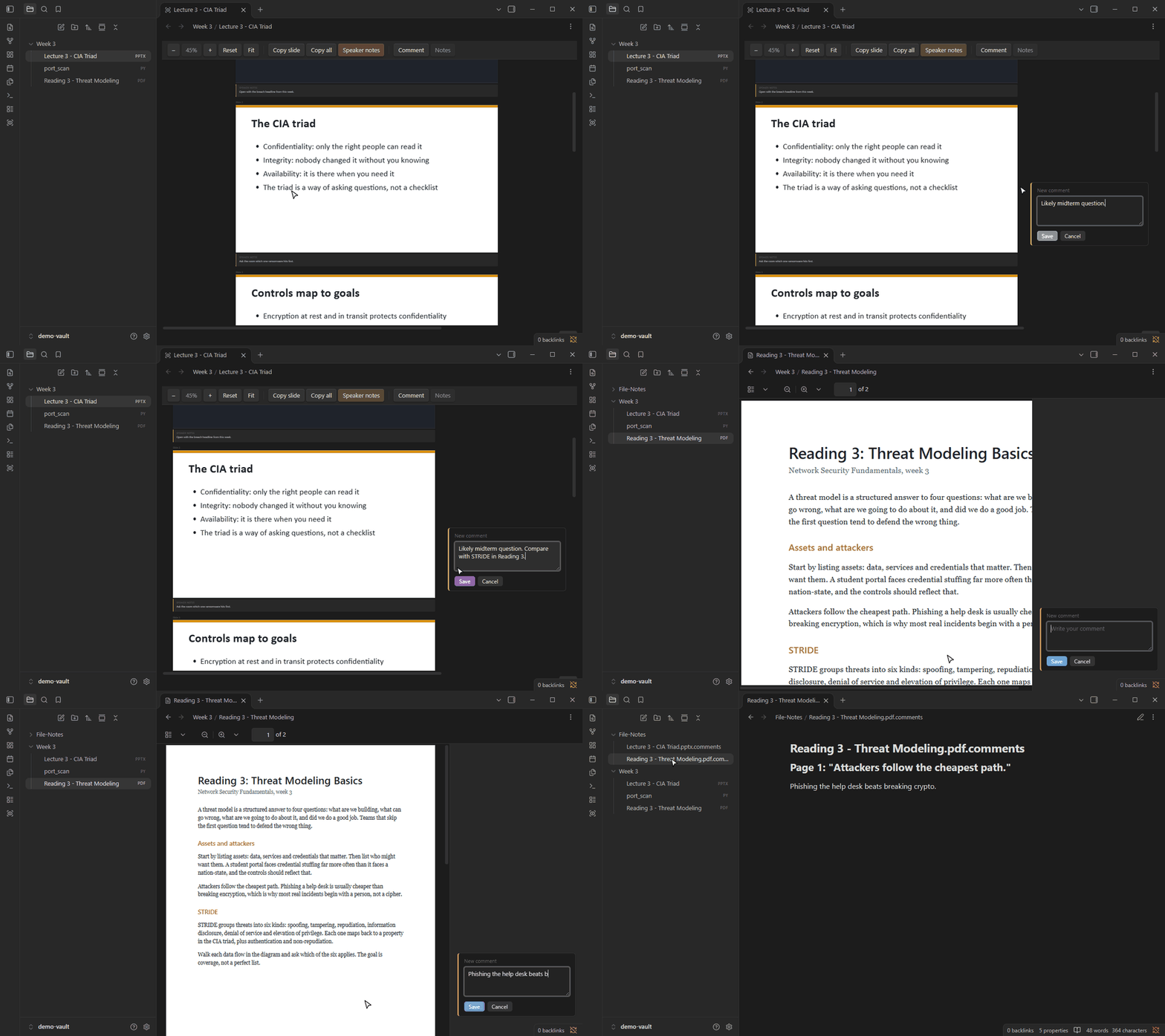
Copy slidegrabs one slide;Copy allexports the whole deck with one heading per slide. Speaker notes show under each slide. - Word-style margin comments. Select text, run Comment on selection (or your hotkey for it), write a note. Cards sit in a right-hand margin with a line to the highlight.
- Comments on PDFs too, inside Obsidian's own PDF viewer. Right-click a selection and pick Highlight and comment. Page links, search and thumbnails keep working.
- Your files are never modified. Comments go to a sidecar note in
File-Notes/, so they show up in search, backlinks and sync like any other note.
Install
From a release (recommended). Download main.js, manifest.json and styles.css from the latest release into:
<your vault>/.obsidian/plugins/lectern/
Then fully quit and reopen Obsidian, and enable Lectern under Settings → Community plugins. A plugin reload is not enough the first time, because Obsidian only registers new file types at startup.
Set a hotkey. Lectern ships without one so it can't clash with yours. Go to Settings → Hotkeys, search "Lectern: Comment on selection", and bind it. Ctrl+Alt+M is the one the author uses, and the one Word uses for a new comment.
Desktop only. Lectern needs Obsidian 1.14 or later on Windows, macOS or Linux.
From source.
git clone https://github.com/Sqxirts/lectern.git
cd lectern
npm install
npm approve-scripts esbuild   # npm blocks postinstall scripts by default
cp .env.example .env.local    # set LECTERN_OUT to <vault>/.obsidian/plugins/lectern
npm run build
Without LECTERN_OUT the build goes to ./dist.
Usage
| To | Do |
|---|---|
| Comment on a selection | The Comment toolbar button, or the Comment on selection command |
| Comment on a PDF selection | Right-click → Highlight and comment, or the same command |
| Copy one slide / the whole deck | Copy slide / Copy all in the toolbar |
| Zoom / pan | Ctrl+scroll or the toolbar; middle-drag to pan |
| Hide a finished comment | Resolve on the card |
| Edit a text or code file | Edit, then Save in the toolbar |
Settings cover the comment folder, default zoom, speaker notes, showing resolved comments, PDF comments on or off, and per-file-type toggles for when another plugin already handles a format.
A comment card and its sidecar entry look like this:
## Slide 2: "The triad is a way of asking questions, not a checklist"

Likely midterm question. Compare with STRIDE in Reading 3.
Each comment remembers the exact quote plus the text around it. If the file changes, Lectern finds the quote again; if it can't, the card is flagged orphaned instead of disappearing. Details in docs/comments.md.
What it touches outside your vault
On Windows only, slides that contain old Windows vector images (EMF/WMF), which browsers can't display, are converted to PNG through PowerShell and the built-in .NET imaging library. Each image is written to a temporary folder in your system temp directory (lectern-emf-*), converted, and the folder is deleted straight away. On macOS and Linux those images show a labelled placeholder instead. Nothing else leaves the vault, and Lectern makes no network requests.
Known limits
- Slide fidelity is practical, not pixel-perfect. No SmartArt, animations, embedded media or 3D, and fonts are not embedded. That is the trade for selectable text.
- PDF comments need a text layer, so scanned PDFs can't be commented. One comment can't span two pages, and PDF embeds inside notes (
![[x.pdf]]) aren't covered. - PDF comments use Obsidian internals that aren't public API (tested on Obsidian 1.14.4). If an update breaks them, the feature switches itself off with a notice and the viewer keeps working. It also stays off while PDF++ is enabled.
- Code files can be commented in read mode only.
- Spreadsheets are capped at 5,000 rows and 256 columns per sheet.
Development
npm run dev        # rebuild on save
npm test           # vitest
npm run typecheck
After the first launch you can pick up a rebuild by toggling the plugin off and on. Test fixtures are generated, not committed: python fixtures/make_fixtures.py (needs python-pptx, python-docx, openpyxl).
- docs/architecture.md: how the code is laid out, the PDF internals, HTML sanitising, dependencies
- docs/comments.md: the sidecar format and how anchors are resolved
- tools/demo/: re-records the GIF above
Licence
For plugin developers
Search results and similarity scores are powered by semantic analysis of your plugin's README. If your plugin isn't appearing for searches you'd expect, try updating your README to clearly describe your plugin's purpose, features, and use cases.