Lemons Search
approvedby Moritz Jung
A blazingly fast fuzzy finder with file preview.
Lemons Search
A fast fuzzy finder based quick switcher with preview.
The plugin adds a new quick switchers to make finding the files you want even easier and faster. The quick switchers lets you easily search all files in your vault and offers a quick preview of the selected search result.
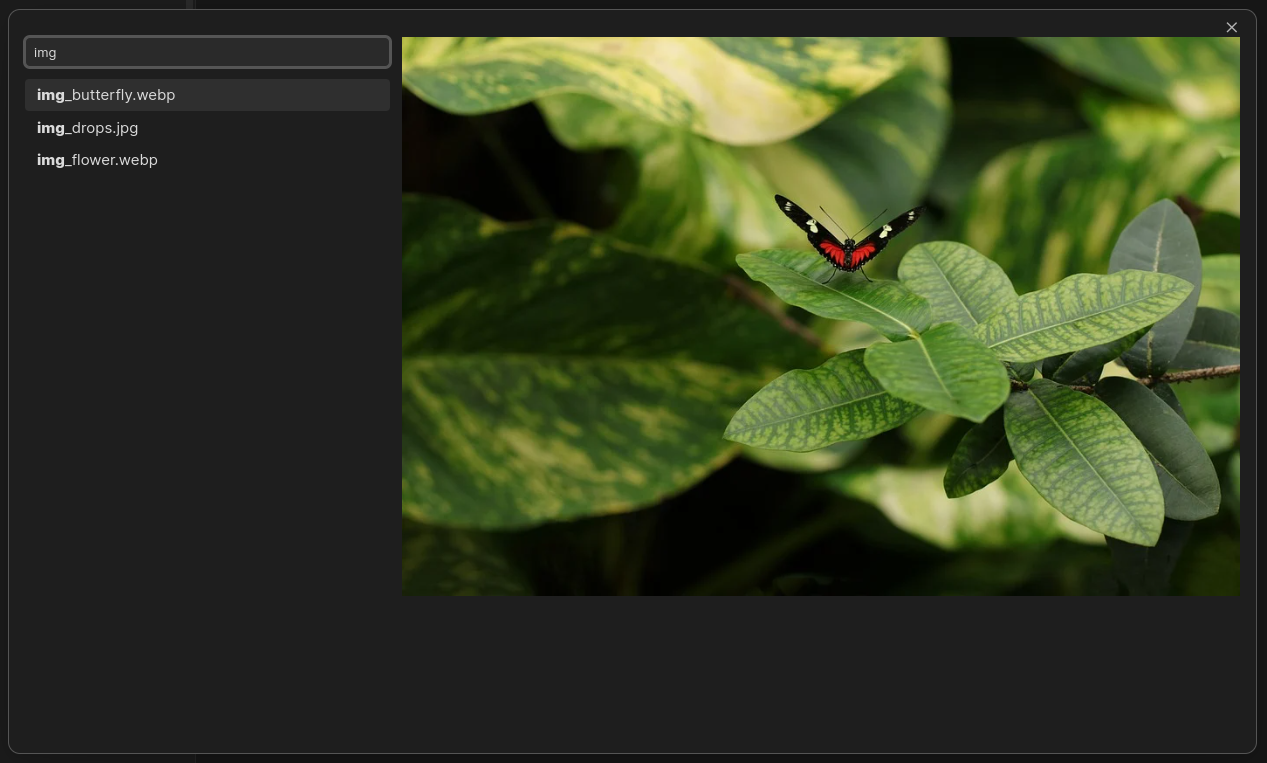
To ensure top performance and high-quality results, the plugin is written in Rust using the nucleo-matcher create running in a web worker. This ensures that the majority of the computational load is taken off the main thread for a smoother feel.
Commands
Lemons Search: Open searchA quick switcher that lets you all files in your vault by file path.Lemons Search: Open alias searchA quick switcher that lets you all files in your vault by file names and aliases.Lemons Search: Command paletteA command palette.
Special Search Commands
Every query consists of search atoms separated by spaces. Spaces can be escaped using \.
In the following illustration, each underlined part is a separate search atom.
movie Star\ Wars
----- ----------
Search atoms can be modified using special characters to change their behavior.
- Substring: prefix with
'- will require search results to contain the search atom as a continuous sequence
- e.g.
'foowill only matchyummy foodbut notfunny doodle - use
!to negate, e.g.!foo
- Prefix: prefix with
^- will require search results to have the search atom as a prefix
- e.g.
^foowill only matchfoodbut notyummy food - use
!^to negate, e.g.!^foo
- Postfix: postfix with
$- will require search results to have the search atom as a postfix
- e.g.
.md$will only matchfoo.mdbut notfoo.txt - use
!<search atom>$to negate, e.g.!.md$
- Exact: prefix with
^and postfix with$- will require search results to equal the search atom
- e.g.
^foo.md$will only matchfoo.mdand nothing else - use
!^<search atom>$to negate, e.g.!^foo.md$
Lower case search atoms will ignore casing, but as soon as a search atom contains an upper case letter, it becomes case sensitive.
Keyboard Navigation
While the input field is focused, you can use the following keyboard short-cuts.
↑Move selection up by one↓Move selection down by oneHomeMove selection to the first itemEndMove selection to the last itemEnterOpen selection in same tabCtrl + EnterOpen selection in a new TabTabCopy the current selection into the search barEscapeCancel the search
Some of these short-cuts can be configures in the plugin's settings.
Mouse Navigation
- Clicking on a suggestion that is not selected will select the clicked suggestion
- Clicking on the selected suggestion will open the suggestion in the same tab
- Ctrl-clicking on the selected suggestion will open the suggestion in a new tab
For plugin developers
Search results and similarity scores are powered by semantic analysis of your plugin's README. If your plugin isn't appearing for searches you'd expect, try updating your README to clearly describe your plugin's purpose, features, and use cases.