Library
approvedby kigrok
Organize movies, series, books, anime, comics, games, and music into a visual card gallery inside Obsidian. Auto-fetch metadata, track progress, and graph everything. - This plugin has not been manually reviewed by Obsidian staff.
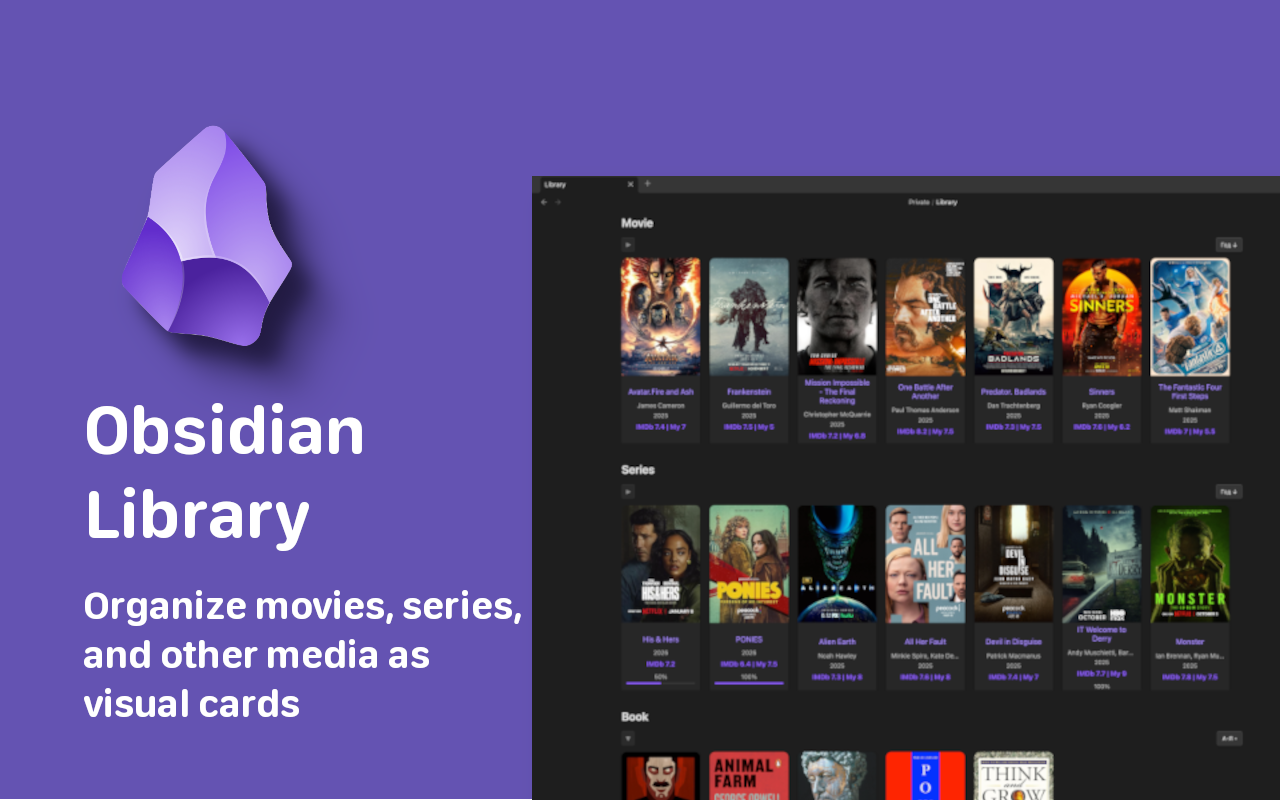
Library




Organize your movies, series, books, and more into a visual gallery — right inside Obsidian.
Search and add titles in-app, auto-fetch metadata, track progress, and wire everything into your graph.
View on the Obsidian Community Plugins directory
Key Features
- Visual Card Grid — A dedicated Library tab renders your collection as a gallery of cover-art cards.
- Built-in Search — Search and add titles right inside the app: OMDb for movies and series, Open Library or Google Books for books, RAWG for games, Deezer for music, AniList for anime, Comic Vine for comics.
- Smart Series Tracking — Seasons and episode totals are fetched automatically and kept in sync.
- Progress Indicators — Visual progress bars on cards and note headers show how much you've watched or read.
- Rich Note Headers — Every content note gets an auto-generated header with all key metadata.
- Custom Categories — Create categories for Movies, Series, Anime, Comics, Books, Games, Music, or anything else via the manual source.
- Share Cards — Turn any content note into a shareable card image (poster, title, year, genre, IMDb score, and your rating) and post it to X, Telegram, Reddit, WhatsApp, Facebook, LinkedIn, VK, Bluesky, or Pinterest — share it straight to your device's apps, or copy/save the image to use anywhere.
- AniList Sync — Push your anime progress, status, and rating straight to your AniList account, or pull your list back into your notes.
- Graph Links — A
Relatedfrontmatter property links every note to its category, genres, and creators, kept in sync automatically for a beautiful graph. - Sorting & Collapsing — Sort cards by name, year, rating, or date; collapse any category.
- Statistics — Top genres, top creators (movies & series only), and top items per category with medal rankings.
- Duplicate Detection — Automatically prevents adding the same title twice by URL. A built-in command finds and removes existing duplicates.
- Multilingual — the plugin interface is translated into every language Obsidian supports (70+), so it always matches your Obsidian language. Full README translations are available for 30 of them (see the language bar at the top).
Quick Start
1. Installation
Install Library from the Obsidian Community Plugins directory (Settings > Community plugins > Browse > search "Library"), or install it manually via the GitHub Releases.
2. Basic Setup
- Go to Settings > Library.
- Add your Categories — select a predefined type (Movies, Series, Books, Comics, Games, Music, Anime, or Manual) from the dropdown and click Add category. Each category has a display name (translated to your language), a
Typevalue (always English, e.g.Movie), a source, and an optional folder for storing notes. - (Optional) Enter API keys for the services you use: OMDb for movies/series, RAWG for games, Comic Vine for comics. Anime (AniList) and music (Deezer) require no key.
3. Add a Card by Title
No more filling in frontmatter by hand — add a movie, series, book, anime, or comic just by searching its name:
- Open the Library tab from the ribbon icon (or run
Open Library). - Click the + button in the top-right of the Library page (or run
Add content). - Pick a category, type the title into the search box, and select a result.
- A card is created instantly, with poster, year, genre, creators, and rating filled in automatically.
The Search button next to + searches titles already in your library.
For Manual categories you just type a title and fill in the cover, year, and other fields yourself.
Statistics
The Library tab includes a collapsible Statistics section at the top:
- Top Genres — ranked by frequency across your entire library.
- Top Creators — ranked by number of movies and series they appear in.
- Top per Category — for each category (Movies, Series, Books, etc.), the top 3 items by rating with small cover thumbnails.
Duplicate Detection
Library prevents duplicate entries by checking the URL field:
- On add — if a note with the same URL already exists, it opens the existing note instead of creating a duplicate.
- Find & Remove Duplicates — run this command from the palette to scan all notes, group by URL, and selectively remove duplicates via a modal.
Sources
Each category is bound to a source that powers its search:
| Source | Content types | API key |
|---|---|---|
| OMDb | Movies, Series | Free key required — omdbapi.com |
| Books | Books | Open Library (no key) + Google Books (optional free key). Results are merged — Google Books first, Open Library below. |
| RAWG | Games | Free key required — rawg.io/apidocs |
| Deezer | Music (albums) | None |
| AniList | Anime | None — free AniList GraphQL API, no key needed |
| Comic Vine | Comics | Free key required — comicvine.gamespot.com/api |
| Manual | Anything else | None — you type the title and fill fields yourself |
Privacy & Network Use
Library is offline-first. The plugin only contacts the network when you actively search for a title to add, and only with the search terms you type:
| Service | When | What is sent | Why |
|---|---|---|---|
www.omdbapi.com | You search an OMDb-backed category | The title you type and your OMDb API key | Fetch movie/series metadata (year, genre, cast, rating, poster, episode counts) |
openlibrary.org | You search an Open Library category | The title you type | Fetch book metadata (author, year, subjects, cover id) |
covers.openlibrary.org | A book card has a cover | The Open Library cover id | Load the cover image |
www.googleapis.com | You search a Google Books category | The title you type and your Google Books key | Fetch book metadata (author, year, categories, page count, cover, ISBN) |
api.rawg.io | You search a RAWG game category | The title you type and your RAWG key | Fetch game metadata (year, genre, developer, cover) |
api.deezer.com | You search a Deezer music category | The album or artist you type | Fetch album metadata (artist, year, genre, track count, cover) |
graphql.anilist.co | You search an anime category | The title you type | Fetch anime metadata (title, year, genre, episodes, AniList score, studio, poster) |
graphql.anilist.co | You run an AniList sync command | Your AniList access token and the note's progress, status, and rating | Read or update your AniList anime list |
comicvine.gamespot.com | You search a comics category | The title you type and your Comic Vine key | Fetch comic metadata (title, year, publisher, issue count, cover) |
No other data ever leaves your vault. The plugin has no telemetry, no analytics, and no self-update mechanism. API keys (OMDb, Google Books, RAWG, Comic Vine) are stored only in your local plugin settings and are sent only to their respective services. Cover images load directly from the URLs returned by each source.
Frontmatter Schema
The plugin reads and writes to standard YAML frontmatter. Notes are created for you, but every field is editable. Source and Source ID let the plugin refresh metadata later.
Movie
---
Type: Movie
Name: Inception
Year: 2010
Genre:
    - Action
    - Sci-Fi
Creator:
    - Christopher Nolan
Rating IMDB: 8.8
My Rating: 9
Cover: https://m.media-amazon.com/images/...
URL: https://www.imdb.com/title/tt1375666/
Progress: 1/1
Complete: true
Date: 01.03.2026
Source: omdb
Source ID: tt1375666
---
Series
---
Type: Series
Name: Stranger Things
Year: 2016
End Year: 2025
Season: 5
Genre:
    - Drama
    - Fantasy
    - Horror
Creator:
    - The Duffer Brothers
Rating IMDB: 8.7
My Rating: 9
Cover: https://m.media-amazon.com/images/...
URL: https://www.imdb.com/title/tt4574334/
Progress: 25/42
Complete: false
Date: 01.03.2026
Source: omdb
Source ID: tt4574334
---
Series auto-update: Run
Refresh metadata for current note(or just open the note) and the plugin updates the total episode count inProgress(e.g.,25/42to25/50) and theSeasoncount, while keeping your watched count intact.
Book
---
Type: Book
Name: Dune
Year: 1965
Genre:
    - Science Fiction
Creator:
    - Frank Herbert
Cover: https://covers.openlibrary.org/b/id/...-L.jpg
ISBN: 9780441013593
My Rating: 9
Progress: 412/688
Complete: false
Date: 01.03.2026
Source: openlibrary
Source ID: /works/OL893415W
---
Anime
---
Type: Anime
Name: Steins;Gate
Year: 2011
Genre:
    - Sci-Fi
    - Thriller
Creator:
    - White Fox
Rating AniList: 9.1
Status: FINISHED
Cover: https://s4.anilist.co/file/anilistcdn/media/anime/cover/...
URL: https://anilist.co/anime/9253
Progress: 0/24
Complete: false
Date: 01.03.2026
Source: anilist
Source ID: 9253
---
Comic
---
Type: Comic
Name: Watchmen
Year: 1986
Genre:
    - Comics
Creator:
    - DC Comics
Cover: https://comicvine.gamespot.com/a/uploads/...
URL: https://comicvine.gamespot.com/watchmen/4050-33819/
Progress: 0/12
Complete: false
Date: 01.03.2026
Source: comicvine
Source ID: 33819
---
Graph Links
Each content note gets a Related frontmatter property, kept up to date automatically — the note body is never touched:
Related:
    - "[[Movie]]"
    - "[[Action]]"
    - "[[Sci-Fi]]"
    - "[[Christopher Nolan]]"
These links connect your notes through shared categories, genres, and creators, so the Obsidian graph view forms clean clusters. A real hub note is created per category (e.g. Movie) so clusters show even with unresolved links hidden. The property is written when a note is created and refreshed whenever its metadata changes — run Rebuild graph links only if you want to force a full rebuild.
Sharing
Every content note gets a Share button in its header (or run Share current note). It renders a card image — poster, title, year, genre, IMDb/AniList score, and your rating — that you can post anywhere:
- On mobile — the Share… button opens your device's native share sheet with the card image attached directly, so you can send it straight to any app.
- X, Telegram, Reddit, WhatsApp, Facebook, LinkedIn, VK, Bluesky, Pinterest — opens the network's composer with a prefilled caption (title, your rating, the source link, and a link to this plugin). The card image is copied to your clipboard at the same time, so you just paste it (Ctrl/Cmd+V) into the post.
- Copy image / Copy text / Save image — copy the rendered card or the caption to the clipboard, or save the image into your vault's attachment folder to attach manually.
Sharing is fully local: the card is drawn in-app from the note's own metadata and cover. Nothing is uploaded — the plugin only opens the composer URL you choose in your browser.
AniList Sync
Keep your anime progress in sync with your AniList account.
Setup — in Settings → Library → AniList sync:
- Register a free API client at anilist.co/settings/developer, with the redirect URL set to
https://anilist.co/api/v2/oauth/pin. - Paste the Client ID, click Connect, and authorize.
- AniList shows you an access token — paste it into the plugin. Click Test connection to confirm.
Then use the commands:
- Push current note to AniList — sends the active anime note's progress (watched episodes), status (watching / completed / planning), and your rating to your AniList list.
- Pull progress from AniList — fetches your AniList anime list and updates matching notes. Pull is forward-only: it never regresses a note that's locally further along or already complete, and it leaves your personal
My Ratinguntouched.
Only notes with Source: anilist (added via the AniList anime source) are synced. Your token is stored locally in the plugin settings and is sent only to AniList.
Commands
| Command | Description |
|---|---|
Open Library | Open the Library gallery tab. |
Add content | Search a source and create a content note (or type a title for Manual). |
Search your library | Fuzzy-search and open any note already in your library. |
Refresh metadata for current note | Re-fetch metadata for the active note; updates series episode totals. |
Rebuild graph links | Wire every content note to its category, genres, and creators. |
Find & remove duplicates | Scan all notes by URL, show duplicates, and remove selected ones. |
Share current note | Render the note as a card image and share it to X, Telegram, Reddit, WhatsApp, Facebook, LinkedIn, VK, Bluesky, or Pinterest. |
Push current note to AniList | Send the active anime note's progress, status, and rating to your AniList account. |
Pull progress from AniList | Fetch your AniList list and update matching notes (forward-only). |
Contributing & Support
- Found a bug? Open an Issue.
- Have a feature idea? Start a Discussion.
- Love the plugin? Consider starring the repository to show your support!
Thank You
If you find this plugin useful, consider supporting its development:
| Network | Address | |
|---|---|---|
 | EVM | 0xf9B4807E107f6f8Db79D86aCef6072A31d570201 |
 | Sui | 0x1d6989810ee7e55d43f65398253b02462b921e9ce8ad626b542929f02c3d3e9a |
 | Sol | 2jmrmQrLVeUDFgHzSkHvHKBrmRJXes5X8h3GHXxrLaX6 |
 | BTC | bc1q4pdlj35uev8r0rgncpmn999n3jvj472pppds6r |
 | TON | UQCphscY14j0AiRY1lGPciQjd9_XcRbUDyPLDxG4O1unEpgM |
 | Tron | TYhmDLfx7aGHL1ikmNN3t72oGB3DjBjydR |
For plugin developers
Search results and similarity scores are powered by semantic analysis of your plugin's README. If your plugin isn't appearing for searches you'd expect, try updating your README to clearly describe your plugin's purpose, features, and use cases.