by cyber-bike01
Bridge your notes to AI agents — rich markdown and linked context replace the single prompt box, with local and remote terminal sessions.

LingXi1949
English / 简体中文
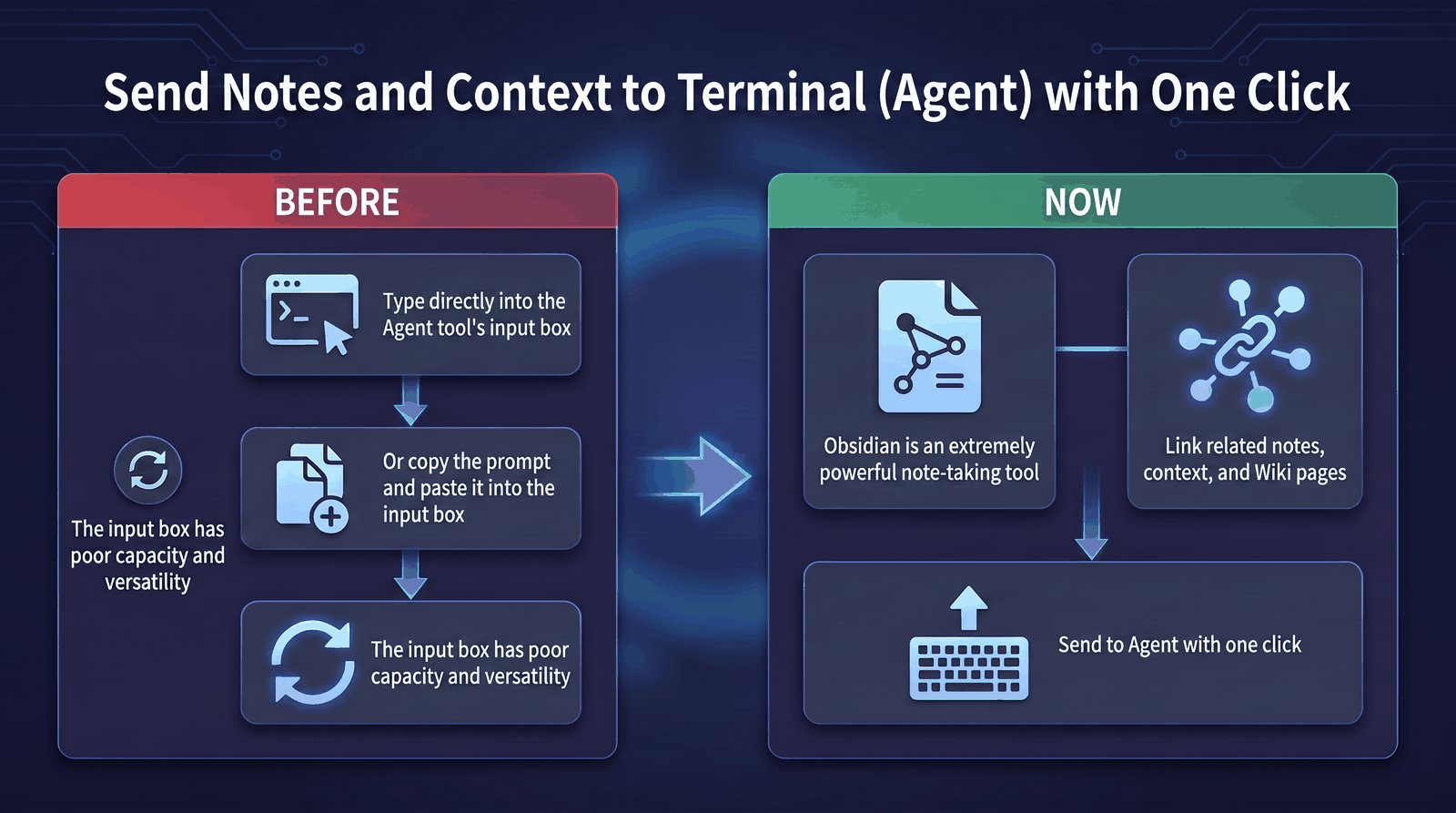
Stop moving context by hand: send notes to your agent in one click.
|
|
Features
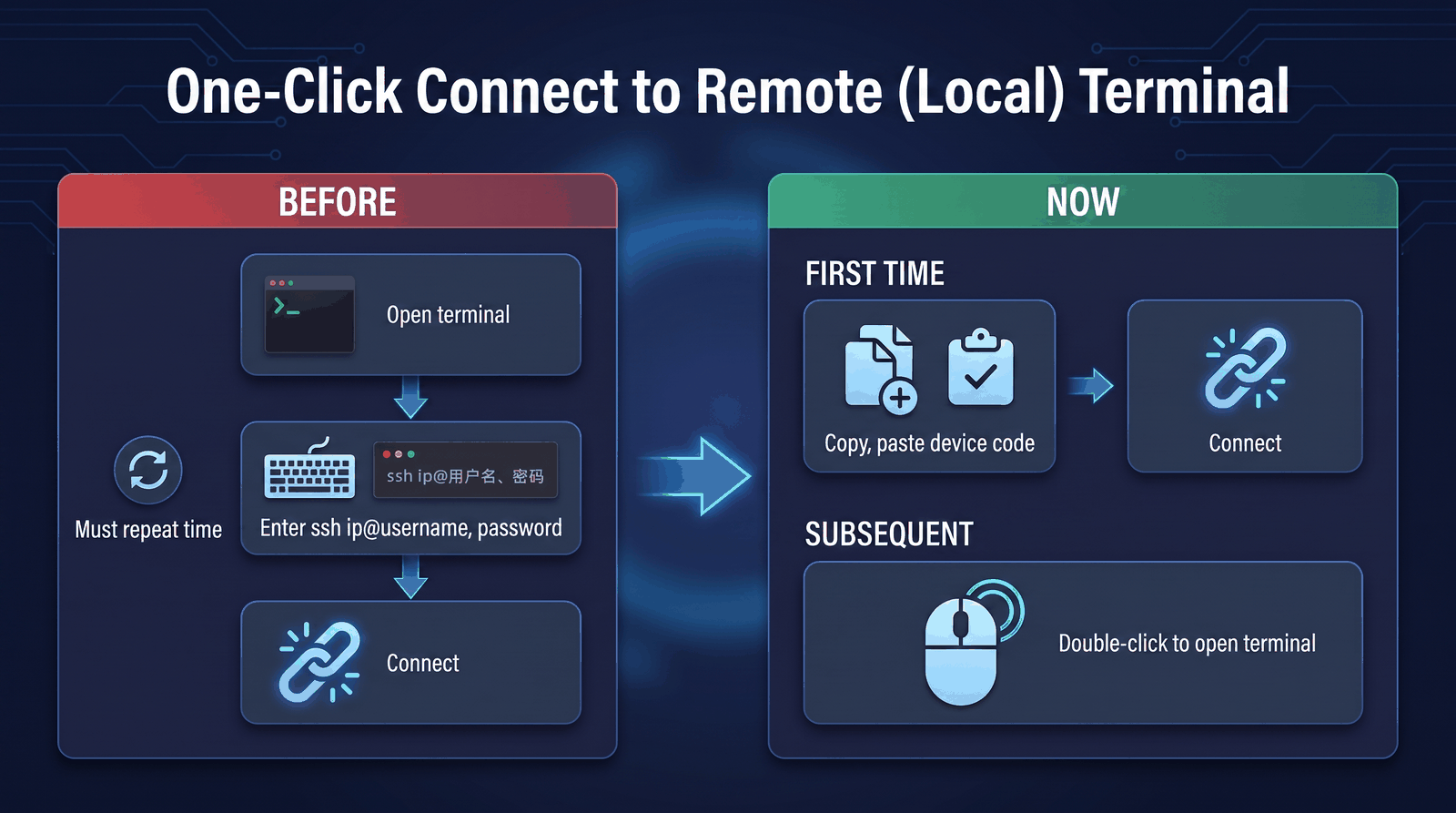
- Reach another computer without network setup: pair a Windows or Linux device with a connection code—no account, public IP, or inbound port required. Connections prefer peer-to-peer and use an encrypted relay only when necessary.
- Keep every task in its own terminal: work across several devices and independent terminal sessions without one disconnected or closed session interrupting the others.
- Stop hunting for paths: double-click a directory to make the terminal enter it; double-click a file to insert its path at the AI TUI cursor. Dragging works too.
- Put notes where the work is: drag a note into the terminal or its directory tree and keep its Vault-relative structure. Per-file receipts and modification markers show what actually arrived.
- Give the agent complete context: send the current note, selection, or path in one action, with optional linked notes and recursively collected backlinks.
- Avoid repeating terminal routines: review session input, save useful steps as a device-specific shortcut group, and replay them later. LingXi1949 pauses instead of guessing when completion is uncertain.
- Use your preferred AI CLI: launch Claude Code, Codex, or OpenCode from one place and see availability before starting.
- Keep private work private: offline mode suppresses optional network checks, and LingXi1949 includes no client-side telemetry, usage analytics, or error-reporting beacon.
New in 2.1
Update the plugin and its local backend or remote Agent together to use the new file operations.
- Preview built-in Claude Code, Codex, and OpenCode installation command groups for the selected platform and shell, or copy them into an editable custom group.
- Delete entries with confirmation and move entries by dragging within the directory tree when the connected local backend or remote Agent supports file operations.
- Open Feedback & suggestions from the device home header. The browser form supports Chinese and English, with feedback type, content, optional contact details, and images. The link includes the plugin version, language, and local operating system; version and system are saved with submitted feedback. No title or confirmation checkbox is required.
Installation
LingXi1949 supports Obsidian Desktop only.
Install the plugin
The recommended route is Obsidian Community Plugins:
- Open Settings → Community plugins and turn off Restricted mode if it is enabled.
- Select Browse and search for
LingXi. - Install and enable LingXi1949.
For earlier access to the latest tagged build, install BRAT and add Cyber-bike1949/LingXi1949.
Use a local terminal
Run LingXi1949: Open terminal from the Obsidian command palette and choose This device. Install and sign in to AI CLI tools such as Claude Code, Codex, or OpenCode separately on this computer.
Connect a remote Linux Agent
The installer in the current source tree targets Linux x64 with systemd (Ubuntu 22.04/24.04 or Debian 12) and downloads the pinned 2.1.0 Agent release. That release and its checksum assets must exist before this installer can succeed. For a published older version, use the installation instructions at its matching Git tag.
Download the script to a file, then select the ordinary account that will own the remote shell:
curl -fsSL https://raw.githubusercontent.com/Cyber-bike1949/LingXi1949/main/agent/packaging/install-linux.sh -o install-linux.sh
sudo bash install-linux.sh --user agentuser
Replace agentuser with the intended account. The installer creates it if needed, verifies the download, starts a systemd user service, and prints a connection code for Add device. Omitting --user selects monkey; the Agent itself runs as the selected ordinary user. Re-running for the same account preserves its identity. Run ~/.local/bin/lingxi1949 status as that account to inspect its status.
For a locally compiled Agent, follow the development guide.
Connect a remote Windows Agent
Download the Windows x64 Agent and its SHA-256 checksum, or run this block in PowerShell:
$baseUrl = 'https://github.com/Cyber-bike1949/LingXi1949/releases/latest/download'
Invoke-WebRequest "$baseUrl/lingxi1949-win32-x64.exe" -OutFile 'lingxi1949.exe'
Invoke-WebRequest "$baseUrl/lingxi1949-win32-x64.exe.sha256" -OutFile 'lingxi1949.exe.sha256'
$expectedHash = (Get-Content 'lingxi1949.exe.sha256').Split()[0]
$actualHash = (Get-FileHash '.\lingxi1949.exe' -Algorithm SHA256).Hash
if ($actualHash -ne $expectedHash) { throw 'SHA-256 verification failed' }
.\lingxi1949.exe run
Keep the Agent running, then add the device with its connection code. Before using real content, verify hostname and pwd (Get-Location in PowerShell) and transfer a sample note that contains no personal information.
For build and test instructions, see the development guide.
Be water, my friend! — Bruce Lee(活得像水一样吧,朋友。)
For plugin developers
Search results and similarity scores are powered by semantic analysis of your plugin's README. If your plugin isn't appearing for searches you'd expect, try updating your README to clearly describe your plugin's purpose, features, and use cases.