Light Mindmap
approvedby ninglg
Auto-renders markdown headings as a colorful, interactive mindmap — no extra syntax required. - This plugin has not been manually reviewed by Obsidian staff.
Light Mindmap
English | 简体中文
Feature-rich mindmap plugin — multiple layouts, themes, node shapes & line styles, wikilink support, node collapse, PNG export — all from plain markdown headings, no custom syntax needed.
Preview
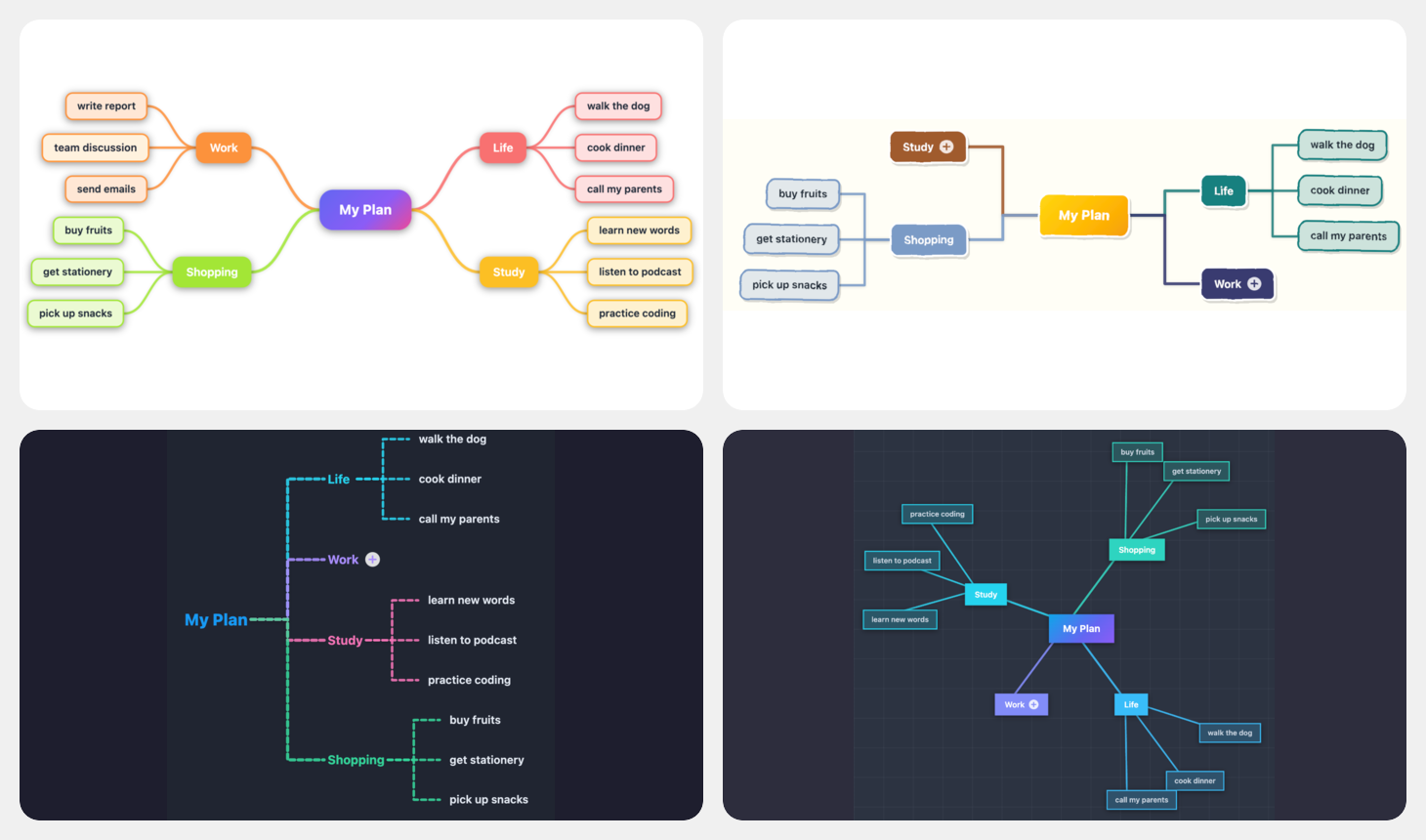
How It Works
Add type: mindmap to any note's frontmatter. The plugin replaces the editor/reading view with a live mind map built from the note's heading hierarchy.
You can also right-click a folder in the file explorer and select Create light mindmap to quickly create a new mindmap file in that folder.
---
type: mindmap
---

# My Plan
## Life
### walk the dog
### cook dinner
### call my parents
## *Work*
### write report
### team discussion
### send emails
## *Study*
### learn new words
### listen to podcast
### practice coding
## Shopping
### buy fruits
### get stationery
### pick up snacks
The mind map updates in real time as you edit the source.
Features
Auto-Render from Headings
- Parses all heading levels (
#through######) into a tree - Strips inline markdown (bold, italic, links, wikilinks, code) from node labels
- When multiple top-level headings exist, a virtual root node (named after the file) is created automatically
- Fenced code blocks are skipped during parsing
Layouts
Five layout modes, switchable from the toolbar dropdown or via command:
| Layout | Description |
|---|---|
| Balanced | Children are distributed to both sides of the root, weighted by subtree height |
| Right | All branches expand to the right |
| Left | All branches expand to the left |
| Tree | Top-down tree — root at the top, branches expand downward |
| Radial | Root at the center, branches radiate outward in a circle |
Themes
Seven built-in color palettes:
| Theme | Style |
|---|---|
| Vibrant | Indigo/violet/pink gradient — the default |
| Classic | Earth tones on a warm cream background |
| Fresh | Greens and teals on a light mint background |
| Ocean | Blues and indigos on a pale blue background |
| Sunset | Reds, oranges, and pinks on a warm background |
| Midnight | Neon accents on a dark slate background |
| Slate | Cool blue-grey with a subtle tech grid pattern |
Themes adapt automatically to Obsidian's dark/light mode.
Connection Line Styles
| Style | Shape | Dash |
|---|---|---|
| Smooth | Cubic Bézier curve | Solid |
| Smooth Dashed | Cubic Bézier curve | Dashed |
| Straight | Direct line | Solid |
| Right Angle | Horizontal + vertical segments | Solid |
| Right Angle Dashed | Horizontal + vertical segments | Dashed |
Node Shapes
| Shape | Appearance |
|---|---|
| Rounded | Rounded rectangle (default) |
| Square | Sharp corners |
| Borderless | No border or background on leaf nodes |
| Pill | Fully rounded capsule |
| Doodle | Hand-drawn style with slight rotation |
Pan & Zoom
- Drag the canvas background to pan (mouse or touch)
- Pinch to zoom on touch devices
- Scroll to pan vertically/horizontally
- Ctrl/Cmd + Scroll to zoom in/out around the cursor
- Toolbar buttons: Fit (fit all nodes into view), + / − (step zoom)
Node Editing
Nodes can be edited directly on the canvas — changes are written back to the markdown file:
| Action | Gesture / Key |
|---|---|
| Select node | Click |
| Edit node text | Double-click or F2 |
| Confirm edit | Enter |
| Confirm edit + add child | Tab |
| Cancel edit | Escape |
| Add sibling (without editing) | Select node, press Enter |
| Add child (without editing) | Select node, press Tab |
| Delete node | Select node, press Delete or Backspace |
| Collapse / expand node | Select node, press Space |
| Drag node (change parent) | Drag node to center of another node |
| Drag node (reorder) | Drag node to top/bottom of another node |
| Right-click context menu | Right-click on node |
- The root node cannot be deleted.
- Pressing Enter on the root node has no effect (no sibling can be added above root).
- Pressing Tab on a collapsed node auto-expands it and adds a new child.
- Double-clicking or pressing F2 on a collapsed node auto-expands it and enters edit mode.
- Collapsed nodes display a + badge after the text. The badge is also rendered in exported PNGs.
Right-Click Context Menu
Right-click on any node to open the context menu with quick actions:
| Action | Description |
|---|---|
| Edit | Enter edit mode for the node |
| Add Sibling | Insert a sibling node (not available on root) |
| Add Child | Create a child node (auto-expands if collapsed) |
| Collapse | Toggle collapsed state (only for nodes with children) |
| Delete | Delete the node (not available on root) |
The context menu automatically displays in Chinese or English based on Obsidian's language setting.
Persisted Settings
All per-file display preferences are written to frontmatter and restored on next open:
| Frontmatter key | Values |
|---|---|
mindmap-layout | balanced / right / left / tree / radial |
mindmap-theme | vibrant / classic / fresh / ocean / sunset / midnight / slate |
mindmap-line | curve / straight / polyline / polyline-dashed / curve-dashed |
mindmap-node | rounded / square / borderless / circle / doodle |
Toggle Source View
- Edit Markdown button in the toolbar hides the mind map and shows a floating Light Mindmap button
- Returning from source view auto-fits the mindmap to the viewport
- Command palette: Toggle mindmap / source view
- Command palette: Cycle mindmap layout (balanced / right / left / tree / radial)
Links & Wiki-links
Markdown links ([text](url)) and wiki-links ([[Note]], [[Note|Alias]]) in heading text are rendered as clickable links on the mindmap canvas.
- External links (
http://...) open in the default browser - Internal links (relative paths like
./note.md) open in a new Obsidian tab - Wiki-links (
[[Note]]) open the target note in a new Obsidian tab — supports shortest paths, relative paths, and aliases natively
During node editing, typing [[ triggers an autocomplete popup that searches all vault notes. Use ↑↓ to navigate, Enter to insert, Escape to dismiss. Links are shown as plain text while editing for easy modification.
Export PNG
Click the Export PNG button in the toolbar to save the current mindmap as a high-resolution PNG image (2x scale). A system file dialog will let you choose the save location.
Installation
From Obsidian Community Plugins (recommended)
- Open Settings → Community plugins → Browse
- Search for Light Mindmap
- Click Install, then Enable
Manual
- Download
main.js,manifest.json, andstyles.cssfrom the latest release - Copy the three files into
<vault>/.obsidian/plugins/obsidian-light-mindmap/ - Reload Obsidian and enable the plugin in Settings → Community plugins
Example Frontmatter
---
type: mindmap
mindmap-layout: balanced
mindmap-theme: vibrant
mindmap-line: curve
mindmap-node: rounded
---
Compatibility
- Minimum Obsidian version: 1.4.0
- Desktop and mobile supported
- Works with both light and dark Obsidian themes
License
MIT
English | 简体中文
功能丰富的思维导图插件——多种布局、主题、节点形状与连线样式,支持双向链接、节点折叠、PNG 导出——基于纯 Markdown 标题渲染,无需任何自定义语法。
预览
使用方法
在笔记的 frontmatter 中添加 type: mindmap,插件会自动将编辑/阅读视图替换为实时思维导图,导图内容来自笔记的标题层级。
也可以在文件资源管理器中右键点击文件夹,选择 新建轻量级脑图,快速在该文件夹下创建一个新的脑图文件。
---
type: mindmap
---

# My Plan
## Life
### walk the dog
### cook dinner
### call my parents
## *Work*
### write report
### team discussion
### send emails
## *Study*
### learn new words
### listen to podcast
### practice coding
## Shopping
### buy fruits
### get stationery
### pick up snacks
编辑源文件时,思维导图会实时更新。
功能特性
从标题自动生成导图
- 解析所有标题层级(
#到######)为树状结构 - 自动去除节点文本中的行内 Markdown 格式(粗体、斜体、链接、Wiki 链接、行内代码)
- 当存在多个顶级标题时,会自动创建以文件名命名的虚拟根节点
- 解析时自动跳过围栏代码块
布局模式
五种布局,可通过工具栏下拉菜单或命令切换:
| 布局 | 说明 |
|---|---|
| 均衡 | 子节点分布于根节点两侧,按子树高度加权分配 |
| 向右 | 所有分支向右展开 |
| 向左 | 所有分支向左展开 |
| 树形 | 自上而下树状布局,根节点在顶部,分支向下展开 |
| 放射 | 根节点居中,分支沿圆周向外辐射 |
主题
七套内置配色方案:
| 主题 | 风格 |
|---|---|
| 活力 | 靛蓝/紫罗兰/粉红渐变——默认主题 |
| 经典 | 暖色大地色调,奶油色背景 |
| 清新 | 绿色与青色,薄荷色背景 |
| 海洋 | 蓝色与靛色,浅蓝色背景 |
| 日落 | 红、橙、粉暖色调,温暖背景 |
| 午夜 | 深色底板搭配霓虹色彩 |
| 石板 | 冷灰蓝色调,带淡雅科技网格纹理 |
主题会自动适配 Obsidian 的深色/浅色模式。
连线样式
| 样式 | 形状 | 虚线 |
|---|---|---|
| 平滑 | 三阶贝塞尔曲线 | 实线 |
| 平滑虚线 | 三阶贝塞尔曲线 | 虚线 |
| 直线 | 直线段 | 实线 |
| 直角 | 水平 + 垂直折线 | 实线 |
| 直角虚线 | 水平 + 垂直折线 | 虚线 |
节点形状
| 形状 | 外观 |
|---|---|
| 圆角 | 圆角矩形(默认) |
| 方角 | 直角矩形 |
| 无边框 | 叶子节点无边框和背景 |
| 胶囊 | 完全圆角的胶囊形 |
| 涂鸦 | 手绘风格,带轻微随机旋转 |
平移与缩放
- 拖拽 画布背景进行平移(支持鼠标和触屏)
- 捏合 进行触屏缩放
- 滚轮 上下/左右平移
- Ctrl/Cmd + 滚轮 以光标为中心缩放
- 工具栏按钮:适配(将所有节点适配到视窗)、+ / −(步进缩放)
节点编辑
可直接在画布上编辑节点,修改会回写到 Markdown 源文件:
| 操作 | 手势 / 按键 |
|---|---|
| 选中节点 | 单击 |
| 编辑节点文字 | 双击或按 F2 |
| 确认编辑 | Enter |
| 确认编辑并添加子节点 | Tab |
| 取消编辑 | Escape |
| 添加同级节点(无需编辑) | 选中节点后按 Enter |
| 添加子节点(无需编辑) | 选中节点后按 Tab |
| 删除节点 | 选中节点后按 Delete 或 Backspace |
| 折叠/展开节点 | 选中节点后按 Space |
| 拖拽节点(改变父节点) | 拖拽节点到另一个节点的中心区域 |
| 拖拽节点(调整顺序) | 拖拽节点到另一个节点的上方或下方区域 |
| 右键上下文菜单 | 右键点击节点 |
- 根节点不可删除。
- 在根节点上按 Enter 无效(根节点上方无法添加同级节点)。
- 在已折叠节点上按 Tab 会自动展开并添加子节点。
- 双击或按 F2 已折叠节点会自动展开并进入编辑模式。
- 已折叠节点的文字后会显示 + 标记,导出 PNG 时也会保留该标记。
右键上下文菜单
右键点击任意节点可打开上下文菜单,提供快捷操作:
| 操作 | 说明 |
|---|---|
| 编辑 | 进入节点编辑模式 |
| 创建同级节点 | 在当前节点同级插入新节点(根节点不可用) |
| 创建下级节点 | 创建子节点(已折叠时自动展开) |
| 折叠/展开 | 切换折叠状态(仅对有子节点的节点可用) |
| 删除 | 删除节点(根节点不可用) |
上下文菜单会根据 Obsidian 的语言设置自动显示中文或英文。
持久化设置
所有单文件显示偏好会写入 frontmatter,下次打开时自动恢复:
| Frontmatter 字段 | 可选值 |
|---|---|
mindmap-layout | balanced / right / left / tree / radial |
mindmap-theme | vibrant / classic / fresh / ocean / sunset / midnight / slate |
mindmap-line | curve / straight / polyline / polyline-dashed / curve-dashed |
mindmap-node | rounded / square / borderless / circle / doodle |
切换源码视图
- 工具栏中的 Edit Markdown 按钮可隐藏思维导图并显示浮动的 Light Mindmap 按钮
- 从源码视图返回时会自动适配导图到视窗
- 命令面板:Toggle mindmap / source view
- 命令面板:Cycle mindmap layout (balanced / right / left / tree / radial)
链接与双向链接
标题中的 Markdown 链接([文本](url))和 Wiki 链接([[笔记]]、[[笔记|别名]])会直接在思维导图画布上渲染为可点击的链接。
- 外部链接(
http://...)在默认浏览器中打开 - 内部链接(相对路径如
./note.md)在新的 Obsidian 标签页中打开 - Wiki 链接(
[[笔记]])在新的 Obsidian 标签页中打开目标笔记——原生支持最短路径、相对路径和别名
编辑节点时,输入 [[ 会触发自动补全弹窗,搜索所有 vault 笔记。使用 ↑↓ 导航、Enter 插入、Escape 关闭。编辑模式下链接显示为纯文本以便修改。
导出 PNG
点击工具栏中的 Export PNG 按钮,将当前思维导图保存为高清 PNG 图片(2 倍分辨率)。系统文件对话框允许你选择保存位置。
安装
通过 Obsidian 社区插件安装(推荐)
- 打开 设置 → 社区插件 → 浏览
- 搜索 Light Mindmap
- 点击 安装,然后 启用
手动安装
- 从 最新版本 下载
main.js、manifest.json和styles.css - 将这三个文件复制到
<vault>/.obsidian/plugins/obsidian-light-mindmap/目录下 - 重新加载 Obsidian,在 设置 → 社区插件 中启用该插件
Frontmatter 示例
---
type: mindmap
mindmap-layout: balanced
mindmap-theme: vibrant
mindmap-line: curve
mindmap-node: rounded
---
兼容性
- 最低 Obsidian 版本:1.4.0
- 支持桌面端和移动端
- 兼容 Obsidian 深色和浅色主题
许可证
MIT
For plugin developers
Search results and similarity scores are powered by semantic analysis of your plugin's README. If your plugin isn't appearing for searches you'd expect, try updating your README to clearly describe your plugin's purpose, features, and use cases.