Margin Notes
approvedby Abdul Majeed
Add literal book-margin notes with per-file selective activation, plus an optional AI notes agent that suggests and places them for you. - This plugin has not been manually reviewed by Obsidian staff.
Margin Notes
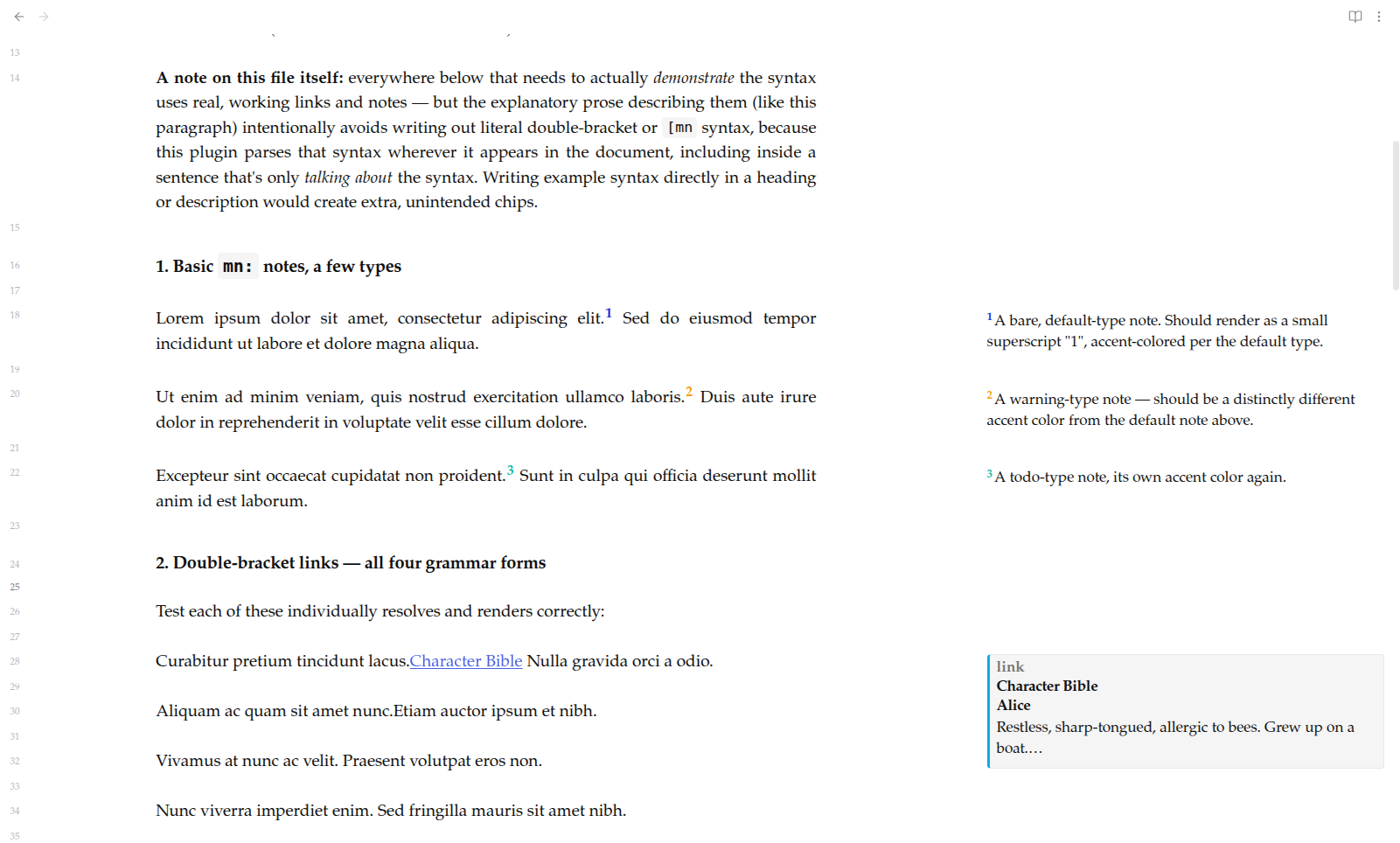
Literal book-margin notes for Obsidian — jot a quick note next to any paragraph, the same way you'd scribble in the margin of a physical book. Turn it on per file, per folder, or vault-wide. Comes with an optional AI notes agent that can suggest and place notes for you.
Getting started
- Settings → Community plugins → enable "Margin Notes".
- Turn margin notes on for a file: add
margin-notes: trueto that file's frontmatter (or set a folder rule / "every file" in the plugin's settings, if you'd rather not add it per file). - Run Insert margin note (Cmd/Ctrl+P) with your cursor in a
paragraph, or type
[mn.to pick a note type as you write. - That's it — the note shows as a small superscript marker inline, with its full content in a chip in the margin.
Writing a note directly
You can also just type the syntax yourself instead of using the command:
| You type | What you get |
|---|---|
[mn: a quick note] | a plain margin note |
[mn.question: why does this happen?] | a note tagged with a type (color-coded in the margin) |
Links
A normal [[wikilink]] in a file with margin notes turned on renders as
plain, clickable text — same syntax you already know. Clicking it opens
the target note in a new tab, so you never lose your place in the
document you're reading or annotating.
The AI notes agent (optional)
Beyond writing notes yourself, you can ask an AI agent to read a file (or your whole vault) and suggest notes for you — continuity issues, line edits, or whatever a custom agent profile asks it to look for. It's entirely opt-in: nothing runs until you explicitly trigger it.
Set it up in Settings → Margin Notes:
- Pick a provider (Claude, OpenAI, Gemini, or a local Ollama instance) and add your API key, or point at Ollama for a fully local setup.
- Pick an agent profile — two are bundled (continuity checker, line editor), or drop your own markdown file into the configured agents folder to define more.
- Pick a scope: current selection, current file, or the whole vault.
- Run it from the command palette or the settings-tab button.
Every AI-suggested note is clearly marked ([mn.ai: ...]) and never edits
your existing prose — it only adds notes alongside it.
Network use
The core margin-notes feature (writing [mn: ...] and [[link]] markers
yourself) makes no network calls at all. The AI agent above is the only
feature that does:
- What's sent: the text of the current file, the current selection, or every enabled file in the vault — whichever scope you pick — plus your chosen agent profile's instructions. Nothing else (no telemetry, no usage analytics, no vault metadata beyond that text).
- Where it's sent: whichever provider you configure and give an API key to — Anthropic (Claude), OpenAI, or Google (Gemini) — or a locally running Ollama instance you point at yourself, in which case nothing leaves your machine. You choose the provider; nothing is contacted by default.
- When it's sent: only when you explicitly run the agent — never automatically, never on a timer, never on file open/save.
- API keys: stored through Obsidian's own built-in secret storage
(
app.secretStorage, added in Obsidian 1.11.4) when your Obsidian is that version or newer — encrypted at rest via your OS's own secret store (macOS Keychain / Windows Credential Manager / Linux secret service under the hood), vault-scoped, and never written intodata.jsonor any other plugin file at all. The settings tab tells you plainly which case applies; it never claims stronger protection than what's actually happening.- On Obsidian 1.11.4 or later: keys live entirely in Obsidian's native secret storage. There's no separate key file to gitignore and nothing plugin-specific for a sync tool to carry — Obsidian owns where and how this is persisted. If you're curious where that actually lives on disk, or want to know its own sync/backup behavior, see Obsidian's own documentation for the Secret Storage feature; this plugin has no control over that beyond calling the API.
- On Obsidian older than 1.11.4: the native API doesn't exist yet
on your version, so keys fall back to being stored in plain text in
this plugin's normal
data.json(.obsidian/plugins/margin-notes/data.json) — the settings tab shows a warning to this effect next to the key field. Upgrading Obsidian moves the key into encrypted storage automatically the next time you re-save that field; nothing else about the plugin's behavior changes.- If your vault is a git repository and you're on this older
path: keep in mind
data.json(which now holds every plugin setting, keys included, rather than keys living in a separately gitignorable file) would need to be excluded from version control to avoid committing a plaintext key — or simply upgrade Obsidian, which removes the issue entirely. - If you sync this vault (Obsidian Sync, Dropbox, Syncthing,
iCloud, etc.) while on this older path, the plaintext key travels
with
data.jsonwherever that sync goes.
- If your vault is a git repository and you're on this older
path: keep in mind
Installing (no build needed)
- Create
<your-vault>/.obsidian/plugins/margin-notes/(.obsidianis the default name for a vault's config folder — if yours was renamed, use that folder instead). - Copy
manifest.json,main.js, andstyles.cssinto that folder. - In Obsidian: Settings → Community plugins → reload, then enable "Margin Notes".
Known caveats
- Selection scope needs a live editor — running the AI agent on just your current selection only works on the file you currently have open, not when scope is set to "vault."
More
- Building from source, how the plugin is put together internally, and
ideas being considered for the future all live in
docs/DEVELOPMENT.md— useful if you're modifying the plugin or just curious, not needed to use it.
For plugin developers
Search results and similarity scores are powered by semantic analysis of your plugin's README. If your plugin isn't appearing for searches you'd expect, try updating your README to clearly describe your plugin's purpose, features, and use cases.