Media Quick Edit
approvedby oisngodr
Manage media in Obsidian Bases, edit ratings and statuses, and add entries from TMDB or Open Library. - This plugin has not been manually reviewed by Obsidian staff.
Media Quick Edit
Media Quick Edit is an Obsidian plugin that turns Obsidian Bases into an editable media library. It provides both a table-based Media Quick Edit view and a cover-based Bookshelf view, with ratings, two-state reading/watching status, auto-saved comments, status history, TMDB movie/TV search, and Open Library book search.
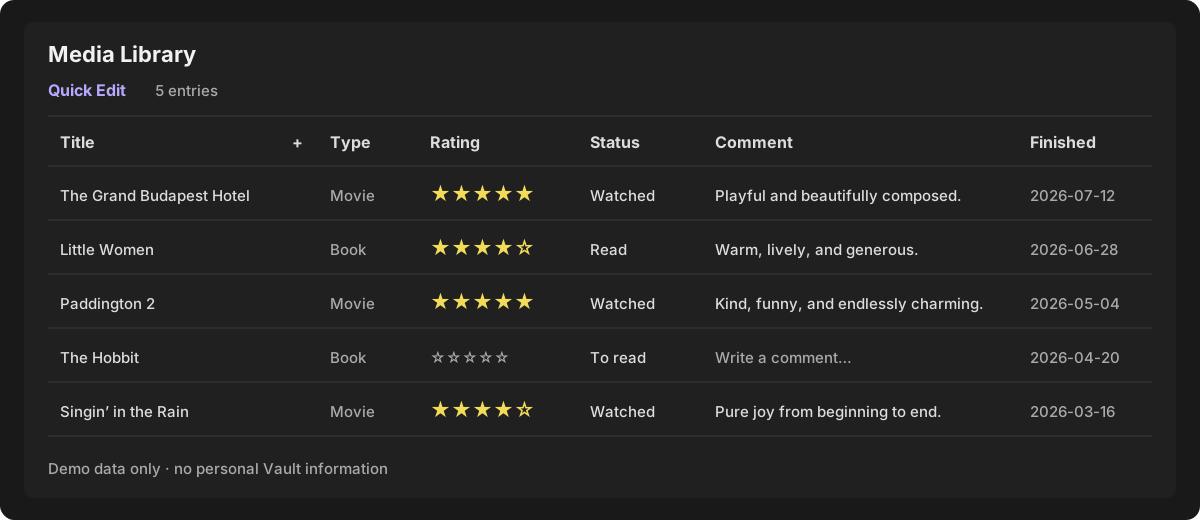
Requirements
- Obsidian 1.10.2 or newer.
- Obsidian Bases enabled.
- A TMDB v3 API key for movie and TV search.
- Open Library book search does not require a key.
Installation
Manual installation
- Download
main.js,manifest.json, andstyles.cssfrom a GitHub Release. - Create
<vault>/.obsidian/plugins/media-quick-edit/. - Copy the three files into that directory.
- Restart Obsidian, then enable Media Quick Edit under Settings → Community plugins.
BRAT
After a GitHub repository is published, add its repository URL in BRAT and install the latest release. BRAT installation requires the repository releases to include main.js, manifest.json, and styles.css.
Initial setup
Open Settings → Community plugins → Media Quick Edit and configure:
- TMDB API Key: stored only in this Vault's local plugin
data.json. - Movie / TV folder: destination for TMDB entries.
- Book folder: destination for Open Library entries.
- Default Base: opened by the ribbon shortcut. The shortcut first reveals an existing tab for that Base; if it was closed, it restores the last selected view for that Base.
- Automatically open new entry.
- Default add type: movie/TV or book.
- Movie and book status labels.
To obtain a TMDB v3 API key, create a TMDB account, open the API section of the account settings, complete TMDB's API application, and copy the API Key (v3 auth) value into the plugin setting. Then use Test connection before searching. The key is sent only to TMDB when making TMDB requests and is not required for Open Library searches.
The folder and Base settings include Vault-local pickers. No personal Vault paths are compiled into the plugin.
Create a compatible Base
- Create or open the Base used for the media library.
- Add Base filters for Markdown files in the configured movie/TV and book folders. With the default settings, use
Media DB/moviesandMedia DB/books. - Select that
.basefile as Default Base in the plugin settings. - The plugin automatically adds Bookshelf to that Base's view list. There is no need to choose Add view manually. Existing quick-edit, gallery, and other views are preserved, and reloading the plugin does not create duplicates.
The plugin does not guess which Base represents your library. This explicit selection prevents it from opening or editing an unrelated Base. The custom view still respects the filters of the Base in which it is used.
Adding entries
Click the + button in the Title column header.
- Choose Movie / TV to search TMDB.
- Choose Book to search Open Library.
- Select a result and its initial planned/completed status.
- The note is created in the configured folder and is picked up by any Base whose filters include that folder.
Open Library results show title, author, and first publication year. When available, the cover is written to image; otherwise the field is left empty and the Bookshelf view generates a designed fallback using the title, author, and a stable color palette.
Bookshelf view
- Books, movies, and TV series can share one responsive shelf, with compact media-type badges.
- Each cover naturally leads into the title, author or year, editable five-star rating, and 10-point score.
- Add or edit a comment with the pencil button at the bottom-right of the cover, the card context menu, or the editor that appears after rating an entry.
- The comment editor remains open while the bookshelf refreshes after a rating is saved.
- Filter by all media, books, movies, or series; search locally; and sort by recently finished, rating, or title.
- Cover fields are resolved in this order:
image,cover,poster,thumbnail,coverUrl, andcover_url. Remote URLs, Markdown image syntax, Obsidian wiki links, and Vault-local images are supported. - Missing or failed cover images fall back to a deterministic, designed cover generated from the record title.
- After a remote cover is displayed successfully, it is resized to a WebP thumbnail with a maximum edge of 540px and stored in
.obsidian/plugins/media-quick-edit/cover-cache/. Cached covers are preferred on later loads and remain available offline. - Large libraries use lazy image loading and batched rendering instead of requesting every remote cover at once.
- The bookshelf waits until Obsidian injects the Base configuration and query result before initializing its UI, preventing an empty view when configuration is not ready during construction. Later Base updates refresh it automatically.
Editing entries
- Five stars write scores
2, 4, 6, 8, 10. - Rating an entry marks it completed and updates
finished_date. - Status has two internal values:
plannedandcompleted. - Status labels are configurable separately for movies and books.
- Comments save automatically; adding a comment marks the entry completed.
- Bookshelf comments save on blur or Enter and can be cancelled with Escape; a failed save keeps the editor open for retry.
- Editing a media note's detail page updates
last_updatedafter 1.2 seconds of inactivity. The date is written at most once per entry per local calendar day. - Column widths and sorting are saved in the Base view configuration.
- Unrated entries always sort after rated entries.
- Entries sharing the same completion date use file modification time as the secondary sort key.
Status history
Actions that overwrite finished_date are appended to status_history:
status_history:
  - 2026-07-25 | 想看
  - 2026-07-26 | 评分:8分
The last_updated property uses the local date in YYYY-MM-DD format and is added automatically to newly created entries. Existing entries receive it the first time their detail page is edited.
The plugin migrates media notes in the configured folders to schema 2:
completedremainscompleted.in-progress,on-hold,dropped, missing, and unknown statuses becomeplanned.- Missing
status_historyis initialized as an Obsidian-compatible list of text values. mediaQuickEditSchema: 2prevents repeated migration.
Back up the Vault before enabling a new plugin version that performs a schema migration.
Privacy
- The plugin has no developer-operated server.
- Settings, including the TMDB API key, stay in the Vault-local plugin
data.json. data.jsonis excluded by.gitignoreand must never be committed.- Movie and TV search terms are sent directly to TMDB.
- Book search terms are sent directly to Open Library.
- Posters and covers are first loaded from TMDB, Open Library, or another URL stored in the note. A local thumbnail is cached in the current Vault's plugin directory after the image is displayed successfully.
- The cover cache contains thumbnails only, never the TMDB API key or note content. Deleting
cover-cachedoes not delete media entries; it is rebuilt as covers are viewed online again.
Data sources and attribution
Movie and TV metadata is provided by The Movie Database (TMDB). This product uses the TMDB API but is not endorsed or certified by TMDB. Users are responsible for complying with the current TMDB API terms and attribution requirements.
Book metadata and covers are provided by Open Library, a project of the Internet Archive. Open Library content and API availability are governed by their respective terms and policies.
Media Quick Edit does not own or redistribute the metadata returned by these services.
Troubleshooting
The ribbon button cannot find my Base
Choose a valid .base file in the plugin settings. If no Base is configured, the plugin uses the currently active Base when possible.
New entries do not appear in the Base
Make sure the Base filters include the configured movie/TV and book folders. Reopen the Base after changing its filters.
A large Vault initially shows zero entries
Obsidian Bases performs an initial Vault-wide scan before delivering filtered results to custom views. A Vault containing many generated files or dependency folders can therefore show zero entries for a while on first open. Wait for the scan to finish; if appropriate, add generated or archive folders to Obsidian's excluded-files settings so Bases does not repeatedly index them.
TMDB search fails
Use the Test connection button in settings. Check the v3 API key and network connection.
Open Library search times out
Open Library requires direct network access. Retry later or check whether openlibrary.org is reachable from the current network.
A view still shows an old plugin version
After replacing main.js, fully restart Obsidian and reopen the Base. A rapid disable/enable cycle can leave an already-open Base using its previous custom-view instance.
If the Vault uses Lazy Loader or a similar delayed-loading plugin, make sure Media Quick Edit is not configured as Disabled there. Otherwise it can override Obsidian's enabled state on the next startup.
Development
npm install
npm run typecheck
npm test
npm run build
Run the complete local verification pipeline with npm run check. The automated tests cover empty-Vault startup, safe bookshelf initial-render timing, portable English and Chinese paths, legacy-status migration, missing TMDB keys, Open Library timeouts, and history updates.
Development watch mode:
npm run dev
Prepare local release files:
npm run release:prepare
This creates release/<version>/main.js, manifest.json, and styles.css without uploading anything.
The current 0.6.2 release includes the Bookshelf view, editable comments, finished-date sorting, latest-updated metadata fixes, and Community Directory review fixes. Publish the prepared files as GitHub Release assets with a tag matching manifest.json before submitting or publishing the plugin in the Obsidian Community Directory.
License
Author
FlyingNeko
For plugin developers
Search results and similarity scores are powered by semantic analysis of your plugin's README. If your plugin isn't appearing for searches you'd expect, try updating your README to clearly describe your plugin's purpose, features, and use cases.