Memodack
approvedby memodack
Your second language memory tool
Memodack
Forget expensive apps like Quizlet, Readlang, and others. Memodack is a simpler, free alternative built just for memorizing language parts. Learn anytime, anywhere — offline, on mobile or desktop.
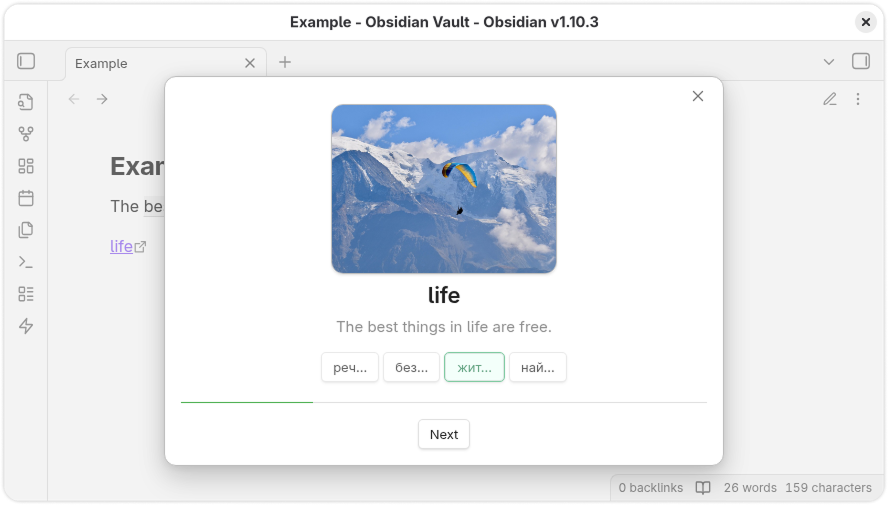
Content
Installation
- Launch Obsidian.
- Navigate to
Settings>Community Plugins. - Search for
Memodack. - Install and enable the plugin.
Hotkeys
For quick translation and conversion into the plugin’s syntax, set up hotkeys for the Memodack: Translate command. For example, you can assign Alt + T. After that, select a word or several words and activate the shortcut.
Syntax
The plugin uses its own syntax:
{value|translation}
If you want to provide multiple translations, separate them with a semicolon ;:
{value|translation; translation; translation}
If you want to attach an image to a word, simply create a link to the image directly in the document, as shown in the Example. This can be either a file stored in Obsidian itself or a link to an external resource.
The link name must be exactly the same as the word:
[<value>](...)
Practice
To activate Practice mode, click the lightning icon in the left ribbon menu.
You can also select at least 4 words and then press the lightning icon to work exclusively with those words.
Settings
Open the plugin settings.
General
General settings are essential for translation and voiceover to function properly.
Provider
Providers supply translation and text-to-speech services.
To use Google services, you need to register on GCP and enable the following APIs:
Api Key
After registering in GCP, create an API Key in the Credentials section.
Paste it into the corresponding field in the plugin settings.
Custom
To connect your own free service, run Translator.
Api URL
Once Translator is running, copy its address and paste it into the appropriate field in the plugin settings (if it is not already there).
Connection
After configuring the connection, press the Check button to test it. Notification messages will inform you of the connection status.
Language
Configure the languages you want to work with.
Native
Select the language you understand.
Document
Choose the language of the document.
Voiceover
Sound settings.
Playback
Adjust the playback speed here.
Actions
Actions related to parts of speech.
Pressing
When clicking on a part of speech, you can enable voiceover.
Extra
Additional options.
Divider
Translations may include multiple variants separated by ;. When this option is enabled, only one translation will be randomly selected.
Truncate
Trim part of the translation output.
Optimization
All voiceovers are cached.
Cache
You can clear the cache by pressing the Clear button.
For plugin developers
Search results and similarity scores are powered by semantic analysis of your plugin's README. If your plugin isn't appearing for searches you'd expect, try updating your README to clearly describe your plugin's purpose, features, and use cases.