by TeamOnTrack, LLC
Turn a note into a one-page report that people can read, edit in place and share.
MyOnePage
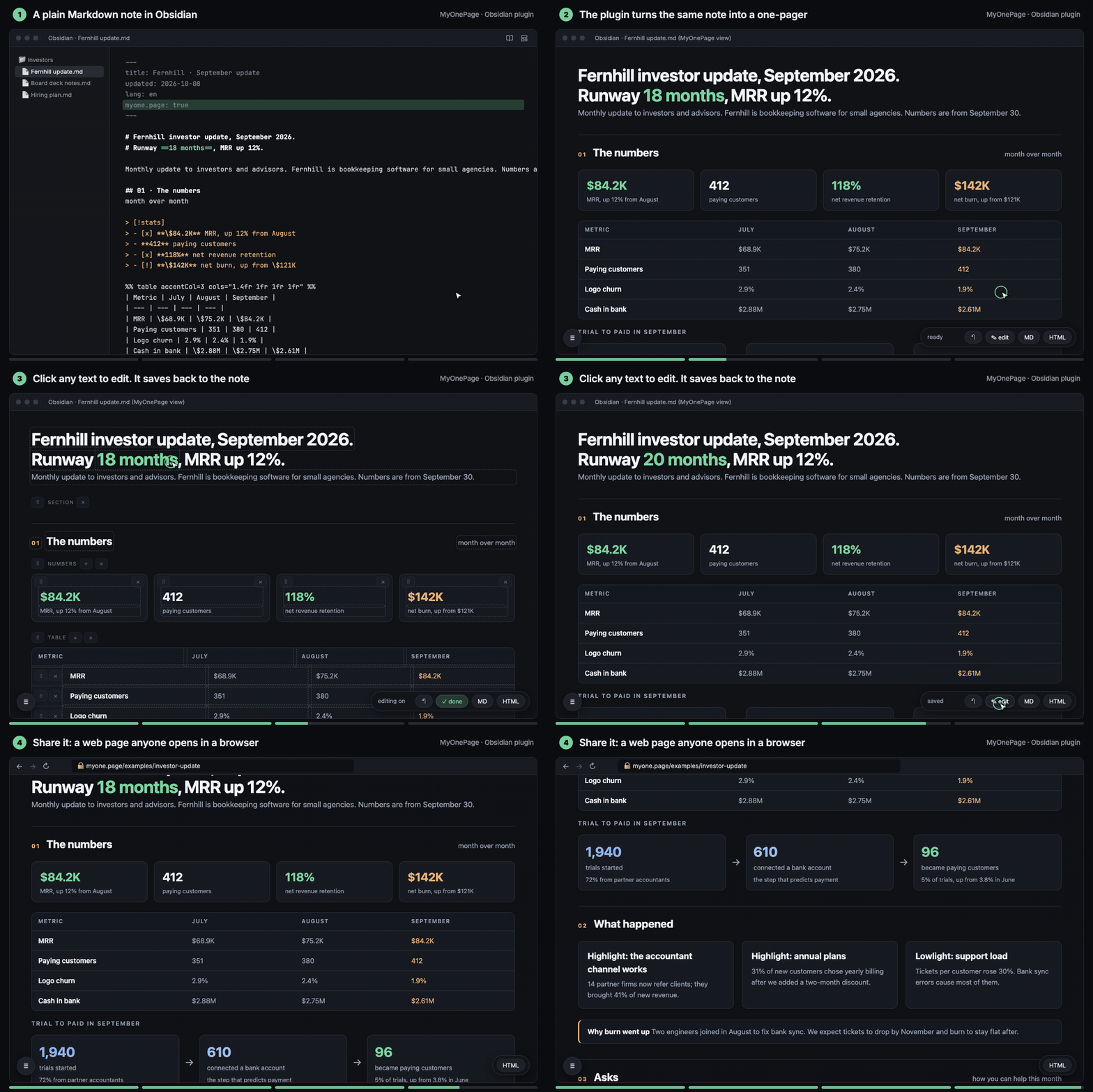
Stop rewriting your notes for your team. Add myone.page: true to a note and it opens as a styled one-page report:
big numbers, cards, funnels, tables, a Gantt timeline. Click any text to edit it, and the edit is saved back to the
note. It stays a plain Markdown note you can still open, search and link.
See finished pages first (each one is a single note, open in a browser, no sign-in): investor update · board pre-read · client proposal · client results report · strategy memo · product brief · Obsidian plugin market analysis
The plugin is free. Pages, editing on the page, HTML export and writing pages with AI work without an account, with no time limit. Sharing is optional: publish a page to myone.page and your team edits it in the browser, with their edits back in your note within 60 seconds, end-to-end encrypted. Your first 3 shared pages are free (the people you share with sign in); a paid plan adds unlimited pages and links open to anyone. Readers don't need Obsidian and pay nothing. See Share on the web.
Get started
- Install. On the plugin's page, click Install: it opens Obsidian on MyOnePage. Click Install, then Enable. (In Obsidian itself: Settings → Community plugins → Browse → MyOnePage.) If Obsidian first asks you to turn on community plugins, that is its own one-time switch for every plugin from outside Obsidian, not something MyOnePage needs: plugins run with access to your notes, so Obsidian keeps them off until you choose.
- Make your first page. Click the page icon in the left ribbon (New MyOnePage) and pick a template to write over, or With AI, from your notes. Or, on any note, choose Make a page with AI in its ⋯ menu (top right) or its right-click menu.
- Share it (optional). The share button at the top of the page publishes it and copies the link.
Start from a template
Run New page from template (or the ribbon's page icon, New MyOnePage… on a folder in the file explorer, or
the button in the plugin's settings) and pick one. You get a new note with the outline of that kind of page, open at
once: the parts, numbers, cards and timeline it needs, each field saying what goes there ([Company], \$0, "One
line, with a number"). Click any text and write your own, or click Fill it with AI above the page to have an AI
chat fill it from your notes (see Write pages with AI).
| Template | For | Follows |
|---|---|---|
| Investor update | investors and advisors, monthly | YC's format: numbers, highlights, lowlights, asks, goals |
| Board pre-read | the board, two days before each meeting | Sequoia's board deck: big picture, numbers against plan, one deep dive |
| Client proposal | a client, before the contract | the options as cards, the timeline, the price |
| Client results report | a client, each quarter | a quarterly business review: results against goals, the next 90 days |
| Product brief | the team building it | a Shape Up pitch: problem, appetite, solution, rabbit holes, no-gos |
| Strategy memo | the team and the board, yearly | Rumelt's kernel: diagnosis, guiding policy, coherent actions |
| Blank | anything | a title, a hero line and one part |
To see one finished first, open its example on myone.page (the links above). Use this template at the top of an example opens Obsidian with a new note from the matching template, if the plugin is installed.
Use
Add myone.page: true to a note's frontmatter. The note then opens as a page. You can also open any note as a page
with Open current note as a one-pager, or from the file menu.
---
myone.page: true
title: Q4 plan
---

# Ship the ==new onboarding== by December

## 01 · Where we are

> [!stats]
>
> - **42%** finish setup today
> - [x] **3** teams on board

**Rule:** one owner per part.
- Click any text on the page to edit it. Drag items to reorder them.
- Open as Markdown at the top of the tab shows the note itself, and the page button at the top of the note brings the page back. Cycle view: editing, reading, one-pager does the same from the command palette.
- HTML saves
<note>.html: one read-only file you can send to anyone. It goes next to the note, or to the folder set in HTML export folder in the plugin settings. - The page follows Obsidian's light or dark theme.
Blocks
| Block | Markdown |
|---|---|
| Part | ## 01 · Title |
| Small heading | ### Text |
| Rule | **Lead:** text |
| Numbered list | 1. **Lead.** text |
| Table | a Markdown table |
| Callout box | > [!lineage] Lead |
| Cards, small cards | > [!cards], > [!uc] with > - **Title** text |
| Big numbers | > [!stats] with > - **42** label |
| Funnel | > [!cascade] with > - **85** label |
| Steps | > [!flow] with > - step |
| Command columns | > [!cmdcols] |
| Lean canvas | > [!canvas] |
| Timeline | a ```mermaid block starting with gantt |
Anything else is shown as plain text, exactly as written.
Write pages with AI
The AI writes the page; the plugin shows it, lets you edit it and shares it. Three ways, from no setup to most automatic:
- Any AI chat, no setup. On any note, choose Make a page with AI (in its ⋯ menu or right-click menu, under the New MyOnePage ribbon icon, or as a command). Copy the request copies the page format and the note; paste it into Claude, ChatGPT or any AI chat. Paste the answer back into Paste the AI's answer and click Make the page: the page opens as a new note next to yours, which stays as it is. Whatever the page can't read stays as plain text, and a notice says how many parts that is. Start from picks a template for the AI to follow (the one a page was made from, on Fill it with AI; while that page is still the bare outline, the answer replaces it). Works on mobile too.
- The Claude app (claude.ai, Claude desktop). Give Claude the whole format once as a skill: download
myone-page-skill.zipfrom myone.page/ai and upload it in Claude under Customize → Skills → + → Create skill → Upload a skill (code execution must be on, in Settings → Capabilities). On a paid plan, Customize → Plugins → Add marketplace →itsdionis/MyOnePagedoes the same and keeps it up to date. Then ask Claude for a one-pager and paste its answer into Make a page with AI, or let Claude write the note straight into your vault if it can open the folder. - Coding agents in the vault (Claude Code, Codex, Cursor). In the plugin settings, Set up Claude Code, Codex
and Cursor writes the skill into the vault (see Files); the plugin refreshes it on update unless you
edited it. Outside Obsidian:
npx skills add itsdionis/MyOnePage, or in Claude Code/plugin marketplace add itsdionis/MyOnePagethen/plugin install myone-page@myonepage.
skills/myone-page/ is the skill: SKILL.md (the whole page format), check.mjs and md.js (the checker),
example.md (a page that uses every block type), templates/ (the outlines above, which the AI starts from). check.mjs checks a page and rewrites it in the canonical form the
page saves (Node 18 or later, no install):
node check.mjs path/to/note.md          # errors, warnings, and blocks that fell back to plain text
node check.mjs --fix path/to/note.md    # rewrite it canonically
Share on the web (optional)
You can publish a page so that other people can read or edit it in a browser. Nothing is sent anywhere until you click share. Everything above (pages, editing, HTML export, writing pages with AI) is free and works without an account.
- An account is required to publish (made for you); payment for more than 3 pages. Sharing needs an account on a sharing server, myone.page unless you set another. The first time you click share, the plugin makes a random token and registers it as a new account, with no sign-up. You sign in (Google or an email link) only when you want to: the globe button on a shared page opens it signed in as its owner. 3 shared pages are free, shared with people who sign in. A paid plan adds unlimited pages and pages open to anyone with the link (founding price $1.99/month for the first 100 members, then $3.99; $19/year; $49 lifetime; 30-day refund). The people you share with sign in with Google or any email address, or not at all for a page open to anyone. The server is a separate service and is not part of this repository.
- Network use. From your first share (or once you enter a token), the plugin talks to the sharing server and
nothing else. It sends only notes that have
share:in their frontmatter, and syncs them both ways (every 60 seconds by default, and a few seconds after you stop typing in a shared note). Notes withoutshare:never leave your device. - Files and clipboard. The plugin reads and writes your notes only through Obsidian's vault API. It lists the
vault's Markdown files to find the notes with
share:(to sync them and list them under Shared pages). It writes the clipboard when you copy a link or a request for an AI chat, and reads it only when you click Paste the answer in Make a page with AI. It never uses Node'sfs: the one placefsappears inmain.jsischeck.mjs, the page checker, which Set up (Install for coding agents) writes into your vault as a text file for a coding agent to run; the plugin itself never runs it. - End-to-end encrypted. A shared note is encrypted on your device (AES-GCM) before it is sent. The key is the
part of the link after
#, which browsers never send to the server, so the server stores only ciphertext. Besides that, it receives theeditors:andviewers:lists, so it can check who may open the page. - The token is kept in the plugin's settings (
.obsidian/plugins/myone-page/data.json), so every device that syncs the vault shares one account. The vault already holds each page's key (in itsshare:link); keep both out of a public repository. A note shared from another account is left alone, never moved.
To share a note, click the share button on the page (or run Share current note on the web). The plugin adds
share: new, publishes the note, writes the link into share: and copies it. Add emails, @domains or anyone to
editors: and viewers: to let people in (anyone needs a plan). Remove share: to take the page offline. A
note the free plan has no room for gets share: waiting and is published by itself once there is room (a page taken
offline, or a plan).
How it's built
MyOnePage is built by a three-time CTO, to the standard of software a team trusts with its plans:
- Tested end to end. Before a change to sharing ships, 100+ automated checks drive a real Obsidian (this plugin, freshly built, in a temp vault) and a real Chrome against a fresh copy of the server: the first share, edits syncing both ways, conflicts, sign-in, the free limit, restarts.
- End-to-end encrypted with standard cryptography. AES-256-GCM through Web Crypto (
engine/seal.js), with the page's address bound into the ciphertext as additional data. The key never leaves the link's#fragment. - No silent overwrites. Every web save carries the version it started from (
If-Match); a stale save is refused. A note changed on both sides keeps the web version next to it as a separate file. - Checked on every release. TypeScript, ESLint with Obsidian's review rules, Prettier, and
check.mjson every example and template (pnpm verify); the release itself is built by GitHub Actions from the tagged code. - Runs everywhere Obsidian does, including Obsidian mobile on older iPhones: no Node APIs in the engine.
Files
The plugin writes only to your vault: to the notes you edit on a page, to <note>.html when you click HTML, to
the new notes New page from template and Make a page with AI make (or the bare template page Fill it with AI
fills), and, when a shared note was changed on both sides, to
<note> (web version).md. When you click Set up under Coding agents (desktop only), it writes SKILL.md,
check.mjs, md.js, example.md and templates/ to .claude/skills/myone-page/ (Claude Code, Cursor) and
.agents/skills/myone-page/ (Codex), and rewrites them on a plugin update unless you edited them. Errors are also
logged to log.txt in the plugin folder.
Build
pnpm install
pnpm build     # main.js: src/main.ts bundled by esbuild, with the engine files (engine/) as text
pnpm dev       # rebuild on change
pnpm skill     # copy check.mjs, md.js and the example into skills/myone-page/ (node skill.mjs --zip <out>: the zip)
pnpm verify    # Prettier, ESLint (Obsidian's rules), the sample page, the skill copies, the build: what a release runs
The engine (engine/) is classic browser scripts. The plugin runs it inside a sandboxed iframe; check.mjs loads
md.js in Node.
License
For plugin developers
Search results and similarity scores are powered by semantic analysis of your plugin's README. If your plugin isn't appearing for searches you'd expect, try updating your README to clearly describe your plugin's purpose, features, and use cases.