SlideDope
approvedby Russ
Make slide decks as single-file HTML presentations: PPTX-like editing with drag-to-reorder, inline text with a format toolbar, image paste/drag/resize, and a built-in player with fullscreen and PDF export. - This plugin has not been manually reviewed by Obsidian staff.
SlideDope
English | 繁體中文
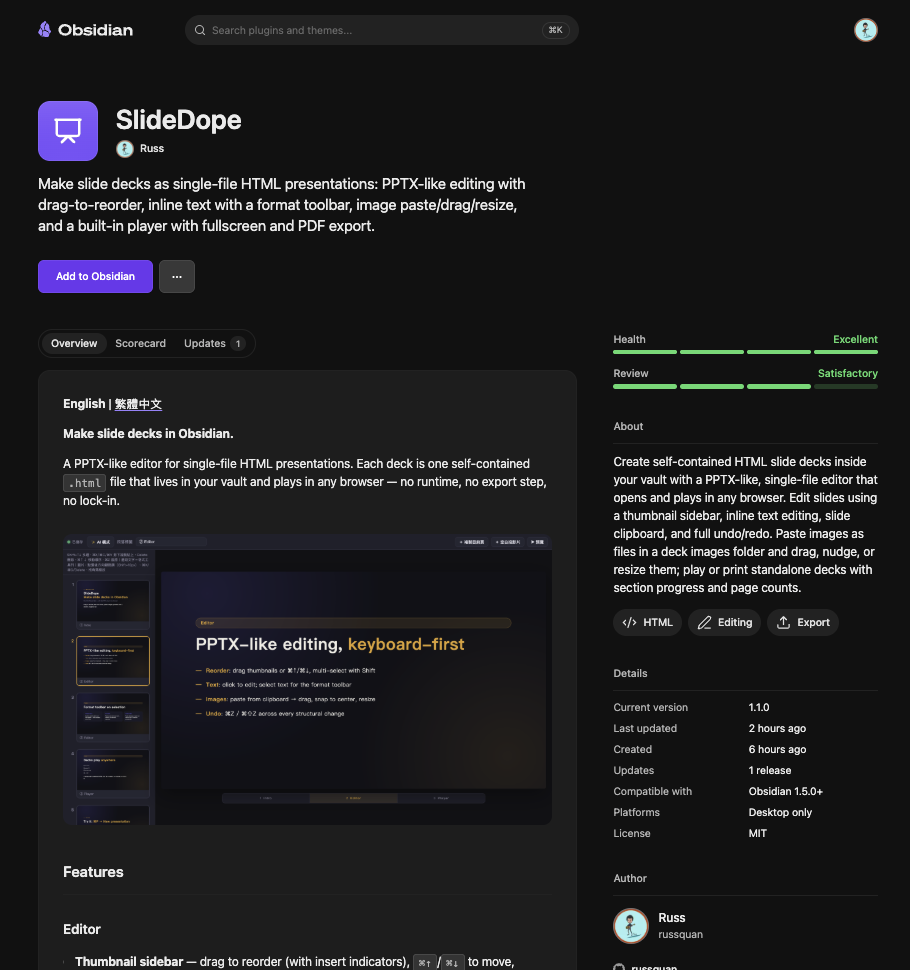
Now on the Obsidian community directory — search for "SlideDope" in Settings → Community plugins, or hit Add to Obsidian on the listing.
Make slide decks in Obsidian.
A PPTX-like editor for single-file HTML presentations. Each deck is one self-contained .html file that lives in your vault and plays in any browser — no runtime, no export step, no lock-in.
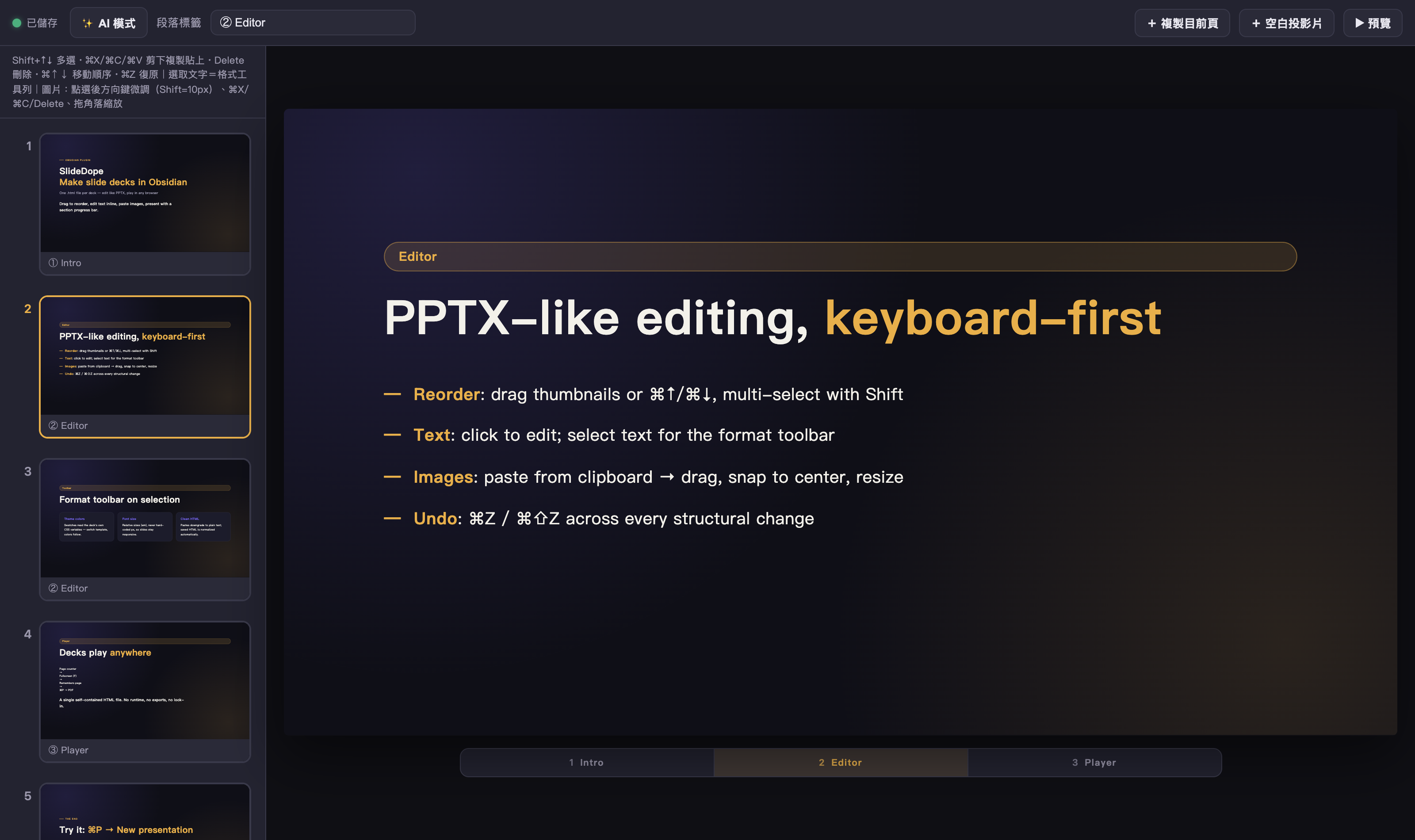
Features
Editor
- Thumbnail sidebar — drag to reorder (with insert indicators),
⌘↑/⌘↓to move,Shift+↑↓to multi-select - Slide clipboard —
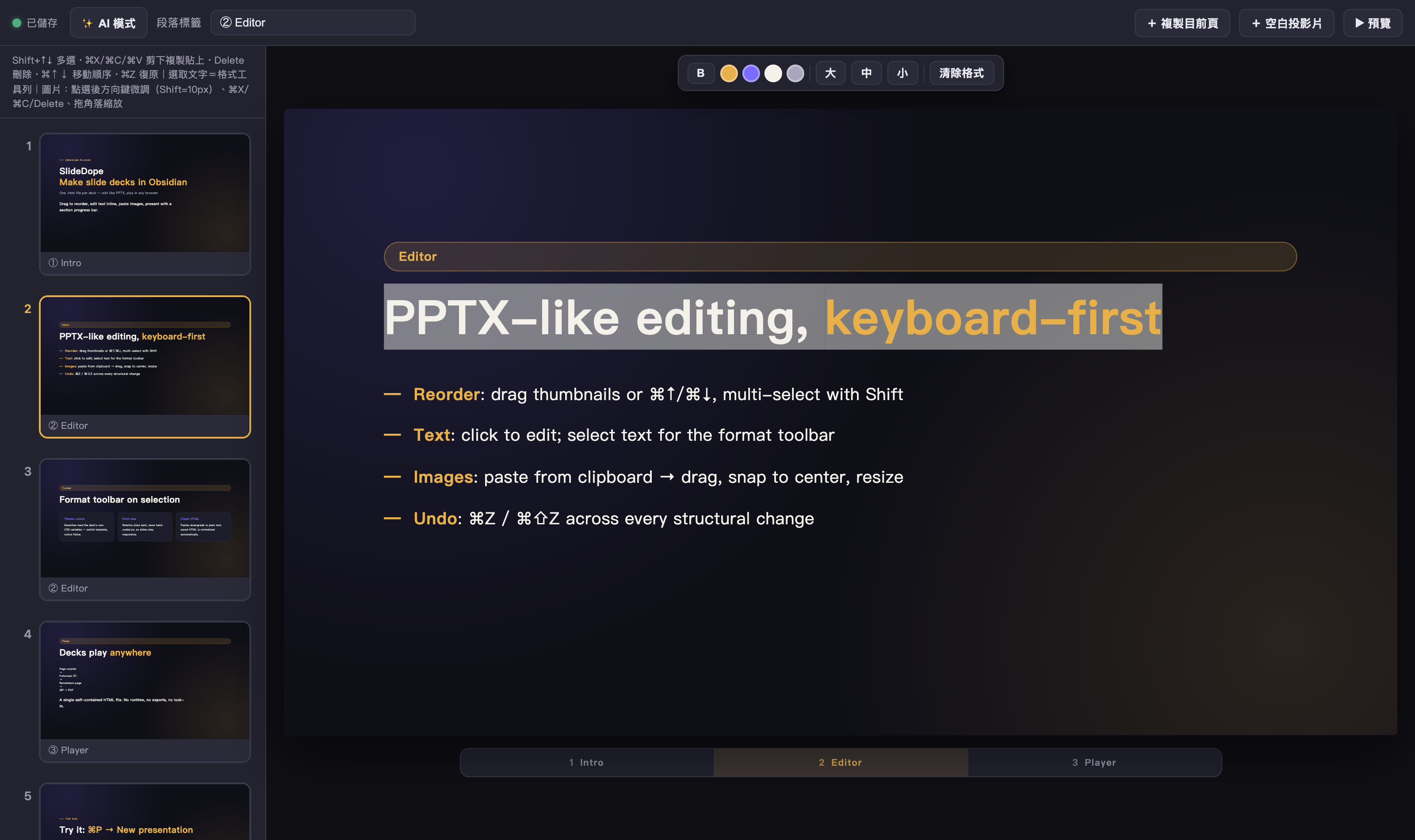
⌘X/⌘C/⌘Vcut, copy, and paste slides (and images) across the deck - Inline text editing — click any text on the canvas and type; select text to get a floating format toolbar (bold, theme colors, font size, clear formatting)
- Clean HTML, always — the color swatches read the deck's own CSS variables, font sizes are relative (
em), pastes are downgraded to plain text, and serialized HTML is normalized (<font>tags, empty spans, and browser-extension junk are stripped on save) - Images, WYSIWYG — paste from the clipboard (saved to
<deck folder>/images/, never inlined), then drag with center snap guides, nudge with arrow keys (Shift= 10px), resize with the corner grip. Positions are stored as percentages, so slides look the same in the editor and at any playback window size - Undo/redo everywhere —
⌘Z/⌘⇧Zcovers text edits, image paste/move/resize, and every structural change, from the canvas or the sidebar - Section labels — tag slides with
data-partlabels; the editor previews the same section progress bar the player shows
Player
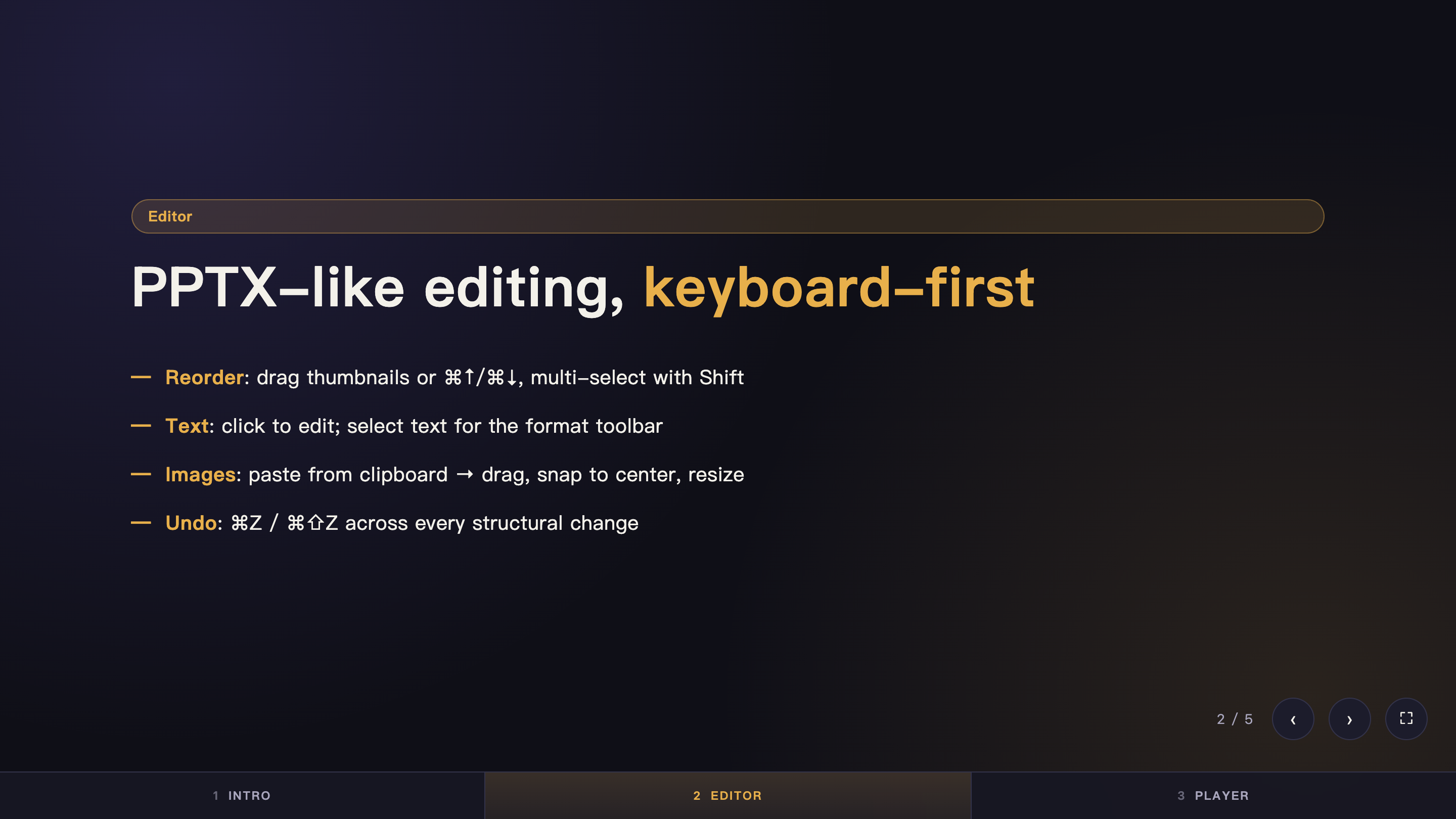
Every deck plays standalone in a browser (the editor's ▶ button opens it for you):
- Keyboard / touch / button navigation with a section progress bar
- Page counter (
2 / 5) and fullscreen (F) - Remembers your page across reloads (URL hash)
⌘P→ PDF — print CSS renders one slide per page at 1280×720
Templates
Run New presentation from the command palette to scaffold a deck from four built-in templates (dark gold, cream orange, minimal white, blank). Or open any HTML file containing <div id="deck"> with <section class="slide"> children — SlideDope edits it in place. Non-deck HTML files fall back to a read-only preview and round-trip byte-identical on save.
AI mode (optional)
The ✨ AI mode panel sends the selected slide + the deck's CSS + your instruction to a local Claude Code CLI (claude -p) and swaps in the regenerated slide. Fully optional — the plugin works without it. Configure the command and model in settings.
Disclosure — external command execution: AI mode spawns the CLI configured in settings (default
claude) as a local shell process and pipes it the selected slide's HTML, the deck's CSS, and your instruction. That CLI may send this content to its AI provider (for Claude Code, Anthropic's API) under your own account. Nothing runs and nothing leaves your machine unless you click send in the AI panel. The rest of the plugin makes no network requests and executes no external commands.
Installation
From the community directory (recommended)
Install directly from community.obsidian.md/plugins/slidedope, or in Obsidian: Settings → Community plugins → Browse → search SlideDope.
Manual
- Download
main.js,manifest.json, andstyles.cssfrom the latest release - Copy them into
<your vault>/.obsidian/plugins/slidedope/ - Reload Obsidian and enable SlideDope in Settings → Community plugins
Via BRAT
Add this repository in BRAT and enable the plugin.
Note: SlideDope registers itself as the viewer for
.htmlfiles. If another plugin already handles.html, disable that plugin first, then re-enable SlideDope.
Commands
| Command | What it does |
|---|---|
| New presentation (choose template) | Create a new deck from a template |
| Save presentation | Save immediately (edits also autosave). No default hotkey — bind one (e.g. ⌘S) in Settings → Hotkeys |
| Duplicate current presentation | Duplicate the open deck as <name>-copy.html |
| Upgrade deck player | Upgrade an older deck's player to the latest (page counter / fullscreen / hash memory / PDF). Idempotent. |
Settings
| Setting | Default | Description |
|---|---|---|
| claude command | claude | CLI command used by AI mode (run via login shell) |
| claude model | (empty) | Optional --model override (e.g. sonnet) |
| New deck folder | presentations | Where new decks are created |
Deck file format
A deck is a plain HTML file:
<div class="deck" id="deck">
  <section class="slide active" data-part="① Intro">…</section>
  <section class="slide" data-part="② Content">…</section>
</div>
Slides are styled by the deck's own <style> — SlideDope never injects styling into your file (editor chrome is stripped on save). Slides sharing a data-part label are grouped into one segment of the section progress bar. See demo/demo-deck.html for a complete example.
Notes
- Desktop only (uses iframes, the local filesystem, and optionally a local CLI)
- UI language follows Obsidian's interface language: English by default, Traditional Chinese when Obsidian runs in Chinese — more languages welcome via PR
- Requires Obsidian 1.5.0+
License
For plugin developers
Search results and similarity scores are powered by semantic analysis of your plugin's README. If your plugin isn't appearing for searches you'd expect, try updating your README to clearly describe your plugin's purpose, features, and use cases.