by Losk
Slides mode for deck notes: an immersive, editable card view with a slides bar for properties and PPT-style navigation, driven by one deck property.
Native Slides — Slides Mode for Deck Notes
English | 简体中文
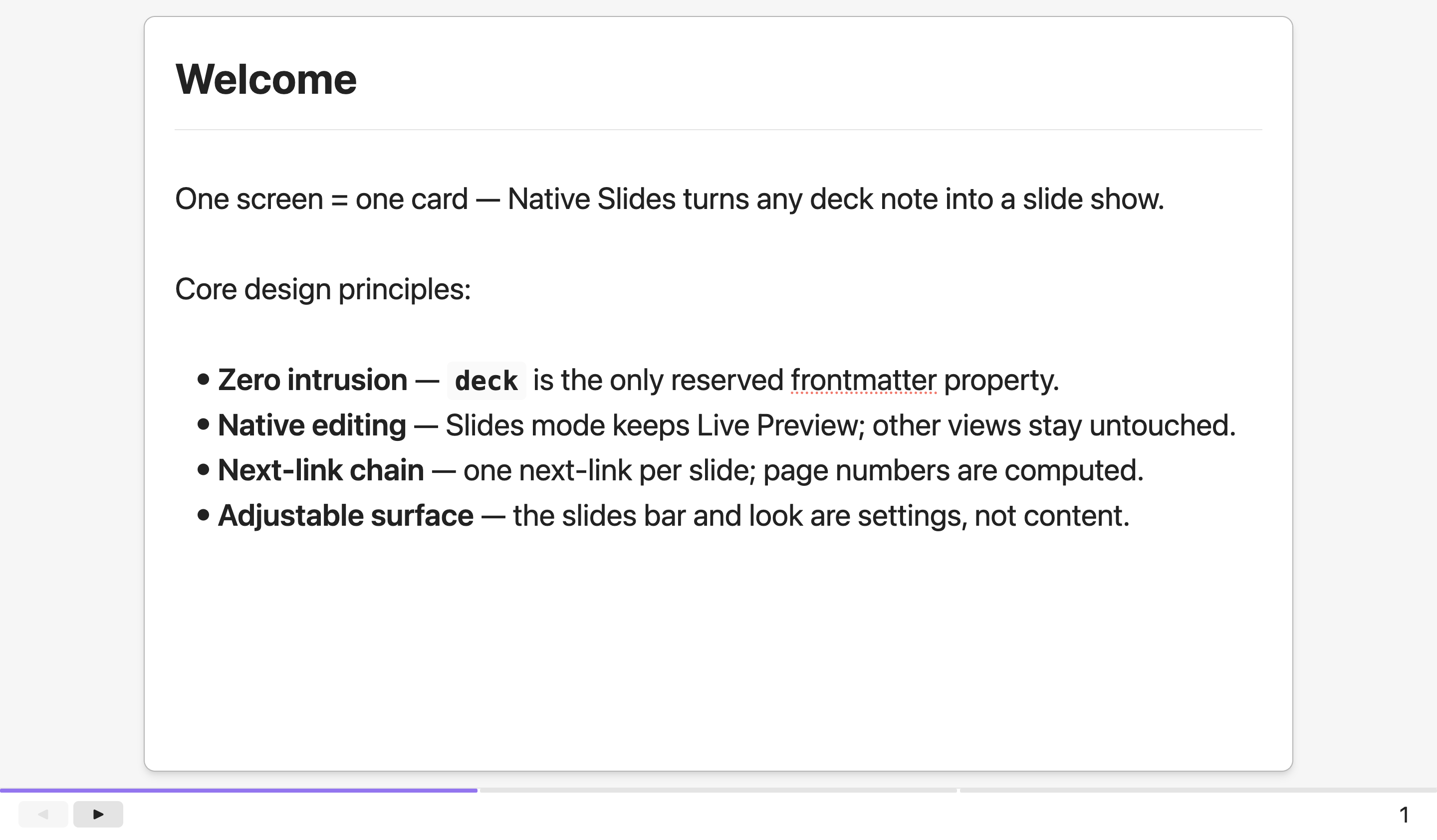
An Obsidian plugin that turns deck notes into Slides: an immersive, editable (Live Preview) "one screen = one card" view with a slides bar for properties and PPT-style navigation — driven by a single frontmatter property.
Install
Requires Obsidian 1.7.2 or later, on desktop.
- From the community catalogue: Settings → Community plugins → Browse, search for Native Slides, then Install and Enable.
- Manually: download
main.js,manifest.jsonandstyles.cssfrom the latest release into<your vault>/.obsidian/plugins/native-slides/, then enable Native Slides under Settings → Community plugins.
Quick start
- In a note, add the reserved property
deck: []to its frontmatter, or run the Initialize slides with this note command. The note is now a one-slide deck. - Press
Cmd/Ctrl+Shift+E(Toggle slides mode) to enter Slides mode, and again to leave it. - Press
Cmd/Ctrl+Shift+N(Create next slide) to add a slide after the current one. Thedecklinks are wired for you. - Flip with
Cmd/Ctrl+Shift+←/→, and run Show slides panel to see and reorder the whole deck.
To see a finished deck first, open the repository's example-vault/ as a vault, turn on community plugins and enable Native Slides there once (details), then read Welcome.md.
Features
- Slides mode (deck notes only): an immersive, editable card view, one screen per card, with six style templates and an optional card title taken from any property.
- Native modes untouched: Source, Live Preview and Reading keep Obsidian's behaviour. Slides mode is the plugin's only surface.
- One property,
deck: each slide links to the next, so the chain is the deck. Page numbers are computed, never stored. - Slides bar: configurable property columns, ◀ ▶ buttons and the page number.
- Slides panel: a sidebar list of the whole deck. Create, delete and drag slides to reorder them.
- Presenting: park the caret, hide the mouse pointer, and copy a layout-aware prompt for an AI assistant.
- Context-aware commands: each command appears in the palette only where it applies.
The details of every feature, the command table and the settings are in the usage guide.
Documentation
- Usage guide (简体中文): every feature, command and setting, the slides panel, the example vault and the known limitations.
- Design principles & how it works (简体中文): the four principles behind every change, and the mechanics of Slides mode, the deck chain and the create commands.
- Development (简体中文): building, the dev loop, testing in
example-vault/and the agent skills. - Contributing and the changelog.
Known limitations
- Desktop only. Mobile is not supported.
- Slides mode applies only to deck notes; every other note stays native.
- Properties come from frontmatter; inline
key:: valueproperties are not read. - A move in the slides panel writes frontmatter, so
Cmd/Ctrl+Zdoes not undo it.
The full list is in the usage guide.
License
Released under the MIT License. Copyright (c) 2026 Yuanhui Luo.
Credits
- Lecture (jyy) style template: modeled after the slideshow cards of jyywiki.cn by Yanyan Jiang. The card geometry (80vw width, soft shadow, thin bottom rule on headings, disc bullets with constant marker-to-text gap, list item spacing) is adapted from Jiang's lecture notes design.
For plugin developers
Search results and similarity scores are powered by semantic analysis of your plugin's README. If your plugin isn't appearing for searches you'd expect, try updating your README to clearly describe your plugin's purpose, features, and use cases.