canvas-deck
A fully vibe-coded Obsidian plugin I made for myself, built with contexture.
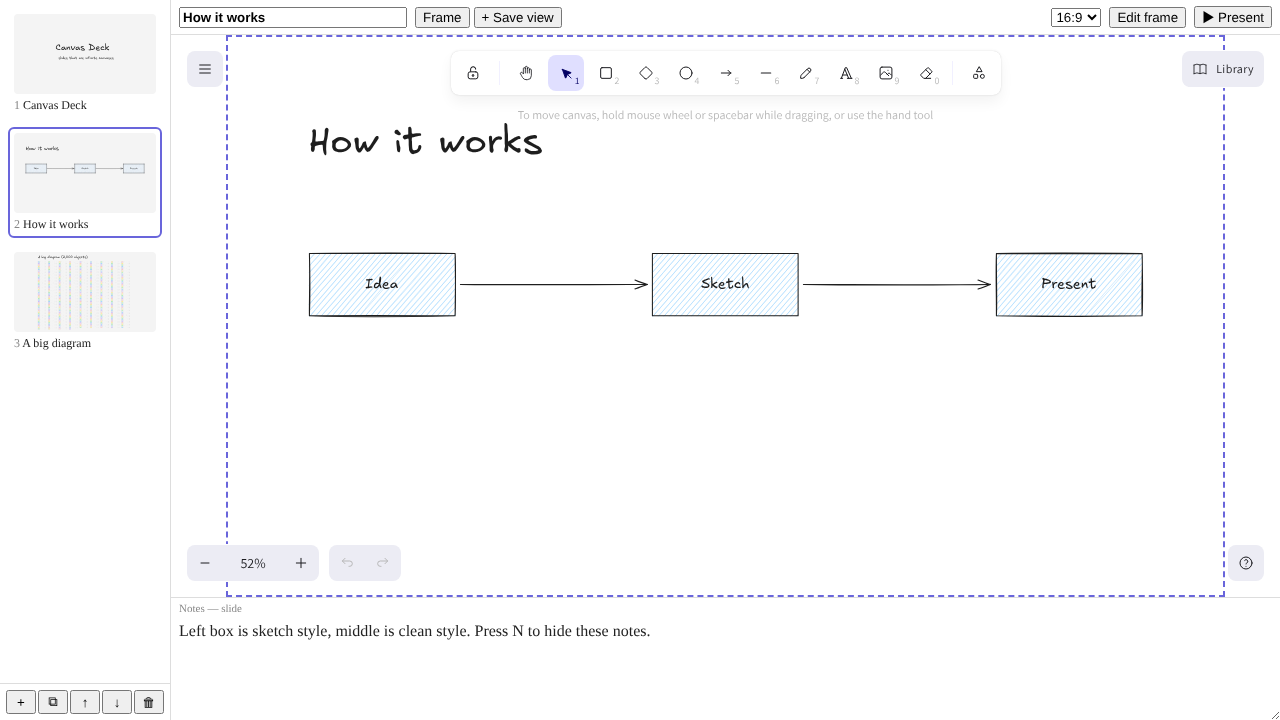
Canvas Deck makes slide decks in Obsidian where each slide is an infinite canvas. You draw on an Excalidraw canvas, mark a start frame, and save views on it. In present mode the deck steps through the slides and the views. A deck is a normal markdown note, so its titles and speaker notes stay searchable.
Features
- Every slide is its own infinite Excalidraw canvas.
- A start frame per slide (the dashed box). Pick 16:9, 4:3, 1:1, 9:16 or Free. Edit frame lets you move and resize it.
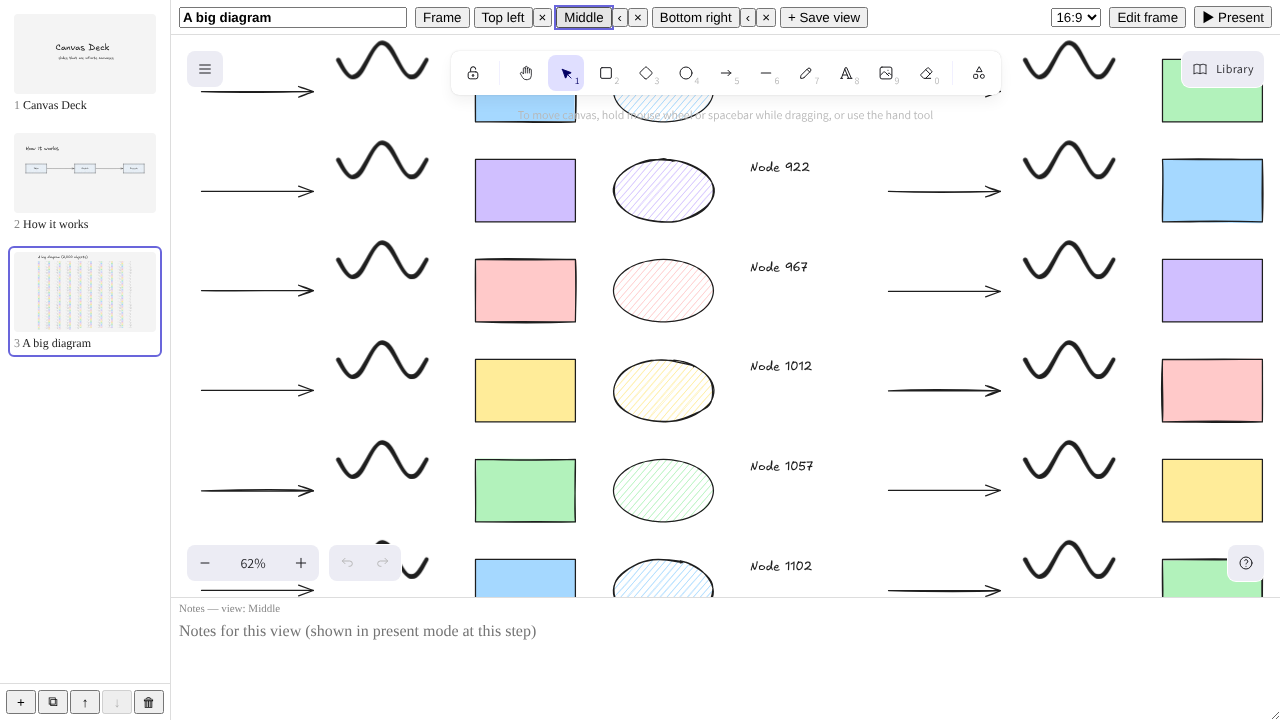
- Saved views: save what you see as a step. Present mode flies to each view in order.
- Speaker notes per slide, and per saved view.
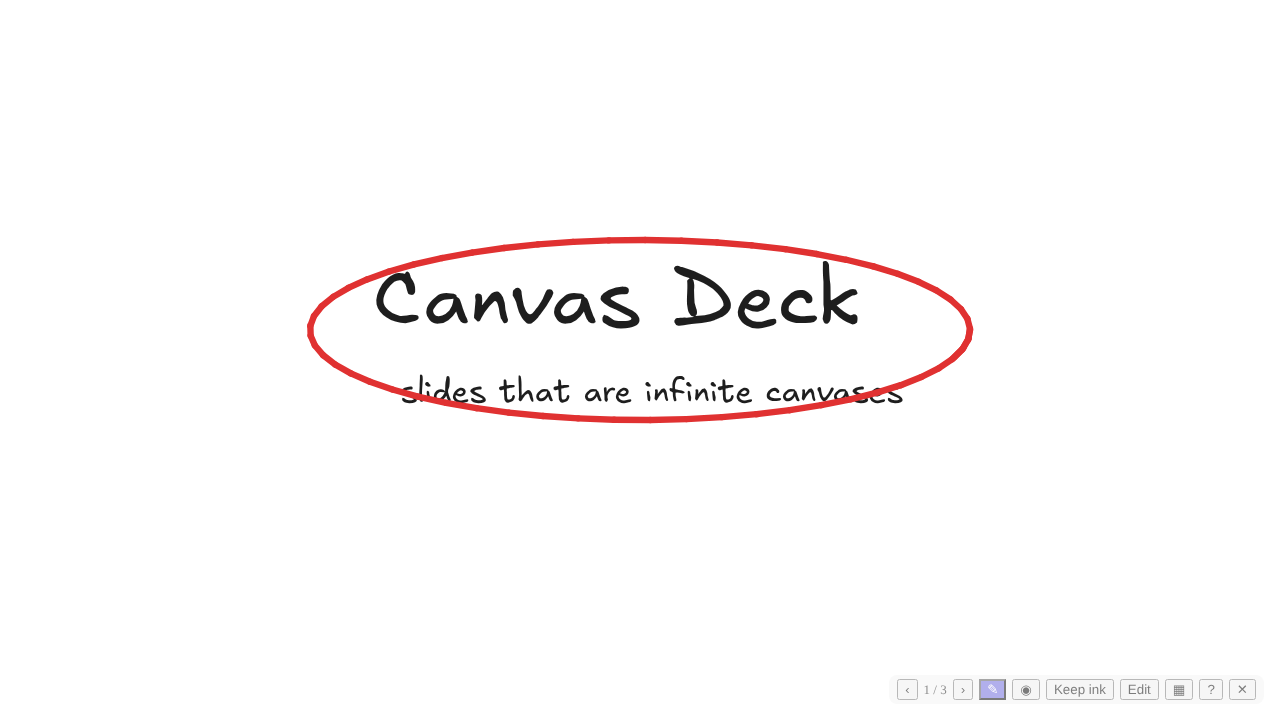
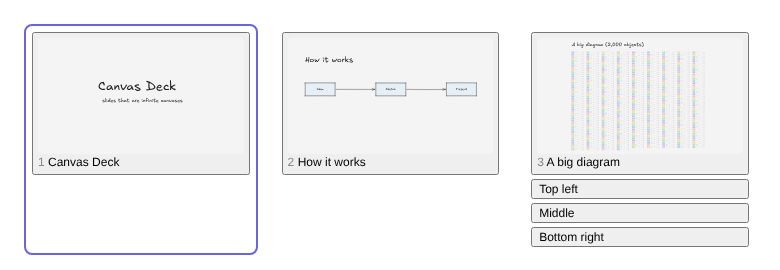
- Present mode: keys to step, show notes, draw with a pen, use a laser pointer, keep the ink on the slide, and open a grid of all slides and views.
- Links: make any object jump to another slide or view when clicked in present mode.
- Live note embeds: drop a note on the canvas and it shows the note's current content.
- Code cards: HTML, CSS and JS that run live on the slide, and stay interactive in present mode.
- Live web embeds: YouTube, Vimeo, CodePen or any https page, playable and scrollable in present mode.
- Vault images: insert images from the vault. Renames are followed.
- Templates: save a slide as a template and start new slides from it.
- PDF export: one page per start frame, optionally one per saved view, optionally with speaker notes.
- HTML export: one file that presents the deck in any browser, with speaker notes and live embeds.
- Offline fonts: the hand-drawn fonts ship inside the plugin and are written to its folder on first load.
- Should work on mobile (touch and pen), but not tested on a real device yet.
Screenshots
Taken in the browser test harness, so they use plain styles instead of your Obsidian theme.
| Present mode with the pen | Saved views on a 2,000-object slide |
|---|---|
 |  |
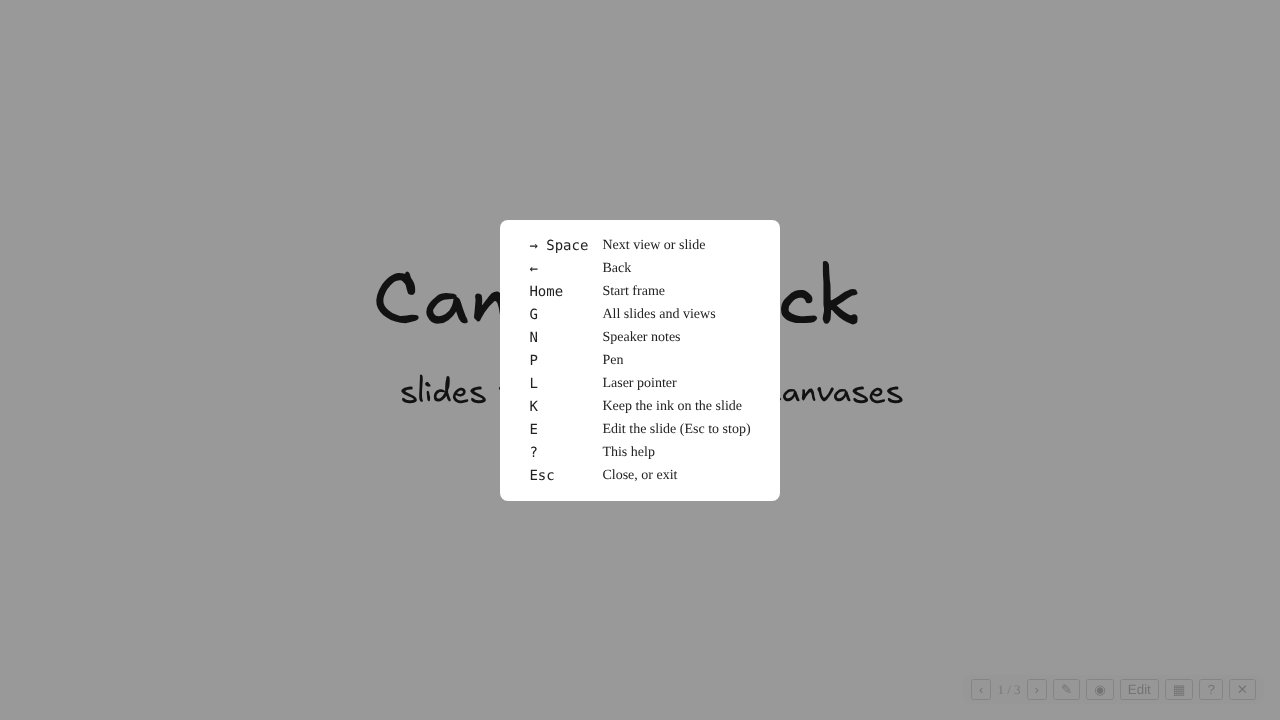
| All slides and views (G) | Keys (?) |
 |  |
Install
The plugin is not in the community plugin store yet, and there is no BRAT setup. Install it by hand:
- Build it (see Development), or download
main.js,styles.cssandmanifest.jsonfrom the latest GitHub release. - Copy those three into
<vault>/.obsidian/plugins/canvas-deck/. The fonts come withmain.js. - In Obsidian, go to Settings > Community plugins and enable Canvas Deck.
Usage
Run New deck from the command palette or click the ribbon icon. New demo deck makes a deck with example slides.
- Left: the slide list. Click to open, double-click to rename, drag or use ↑/↓ to reorder.
- Middle: the canvas. Draw anywhere, inside or outside the start frame.
- Top: the aspect menu, Edit frame, + Save view, and the saved views. Click a view to fly to it.
- Bottom: speaker notes. After you click a view, the box edits that view's notes. Click Frame to go back to the slide notes.
- To embed a note, drag it from the file explorer onto the canvas, or run Insert note. In the editor, click it to select and click again to open it. In present mode one click leaves present mode and opens the note.
- To add a code card, run Insert code card. To edit it, click its link icon, or select it and run Edit code card. In the editor, click the middle of a card to use it; in present mode it works right away. Cards run in a sandbox: scripts run, but they have no access to the vault or Obsidian.
- To embed a web page, run Insert web embed and paste a URL. YouTube, Vimeo and CodePen links load their player. In the editor, click the middle of the embed to use it. In present mode it takes clicks and scrolls right away. A URL pasted onto the canvas also becomes an embed.
- To link, select objects and run Link selection to slide or view. You can also type
#cdeck:<slideId>or#cdeck:<slideId>/<viewId>in Excalidraw's link box. - The template folder is set in the plugin settings.
Commands
| Command | What it does |
|---|---|
| New deck | Make an empty deck note |
| New demo deck | Make a deck with example slides |
| Present deck from current slide | Start present mode here |
| Present deck from start | Start present mode at slide 1 |
| Go to start frame | Fly back to the start frame |
| Save current view | Save what you see as a step |
| Insert vault image | Pick an image from the vault |
| Insert note | Pick a note to embed live |
| Insert code card | Add a live HTML/JS card |
| Edit code card | Edit the selected card's source |
| Insert web embed | Embed a web page by URL |
| Link selection to slide or view | Make the selection a link |
| Save slide as template | Save the current slide to the template folder |
| New slide from template | Add a slide from a template |
| Export deck to PDF | Save <deck>.pdf next to the note |
| Export deck to HTML | Save <deck>.html next to the note |
| Open deck as markdown | Show the raw note |
| Open note as deck | Go back to the deck view |
Present mode keys
| Key | Action |
|---|---|
| → ↓ Space Enter PageDown | Next view or slide |
| ← ↑ Backspace PageUp | Back |
| Home | Start frame of this slide |
| N | Speaker notes (the current view's notes if it has some) |
| P | Pen |
| L | Laser pointer |
| K | Keep the ink on the slide (otherwise it goes when you leave the slide) |
| G | Grid of all slides and views, to jump to |
| E | Edit the slide with the full tools (Esc to stop) |
| ? | Show all keys |
| Esc | Close the grid or tool first, then exit |
Drag and scroll to move freely while presenting.
HTML export
<deck>.html steps through the same start frames and views. Keys: → ↓ Space Enter PageDown next, ← ↑ Backspace PageUp back, Home start frame, N notes, F full screen. A click or tap on the right or left half also steps. Each page is a picture, so there is no free pan or zoom. Note embeds (as they were at export), code cards and web pages show on top of it. Web pages need the network. After a click inside an embed, click the slide once so the keys work again.
How decks are stored
A deck is a markdown note with canvas-deck: 1 in its frontmatter. Each slide is a ## heading, then its speaker notes as plain text, then a %%cdeck <slideId> block that holds the canvas data as one line of JSON:
---
canvas-deck: 1
---

## First slide

Speaker notes for this slide.

%%cdeck a1b2c3
{"version":1,"frame":{...},"views":[...],"elements":[...],"images":{...}}
%%
The %% comment hides the data in reading view. Titles and notes stay searchable. View notes live inside the slide data.
Network and data use
- Network: web embeds load the pages you add. Fonts not bundled with the plugin (Chinese, Japanese, Korean) load from the Excalidraw CDN. Nothing else is sent anywhere.
- Vault: the plugin lists vault files only for the image and note pickers, and reads or writes only decks, the images and notes on them, exports and templates.
- Clipboard: copy and paste on the canvas use the system clipboard, as in Excalidraw.
- Local storage and dynamic code: Excalidraw may keep editor preferences in local storage, and its font tools build some code at runtime. The plugin's own data uses Obsidian's APIs.
- Code cards run your HTML and scripts in a sandboxed frame that cannot reach the vault or Obsidian.
Development
npm ci
npm run build   # main.js, styles.css and fonts/
npm run dev     # watch build
npm test        # unit tests (vitest)
Browser tests use Playwright against a test page that runs the canvas outside Obsidian:
npm run harness    # open the test page at http://localhost:5199
npm run test:e2e   # run the Playwright tests
If Playwright's own browser is not installed, set CHROMIUM_PATH to a Chromium or Chrome binary.
To update the README screenshots in docs/screens, run SHOTS=1 npx playwright test readme-shots.
Planning docs written while building it are in .claude/visions, .claude/specs and .claude/plans.
Checking speed in Obsidian
- Run New demo deck and open slide 3 (2,000 objects).
- Open dev tools (Ctrl+Shift+I), then Rendering > Frame Rendering Stats.
- Pan, zoom, and present through the saved views.
- For mobile, run
app.emulateMobile(true)in the console and repeat.
Releasing
To release, bump version in manifest.json, package.json and versions.json, and merge to main. The Release workflow creates the GitHub release for that version.
Known limits
- Not in the community plugin store yet.
- Chinese, Japanese and Korean text has no offline hand-drawn font. It loads from the web, and uses a system font when offline.
- Tested mostly in the browser test page, less in Obsidian itself.
main.jsis about 9 MB, mostly Excalidraw. Obsidian Sync Standard does not sync files over 5 MB, so install the plugin on each device.- Web embeds: sites that forbid framing (X-Frame-Options or CSP frame-ancestors) show a blank box. After you click into an embed in present mode, move the pointer off it to step with the keys again.
License
MIT. See LICENSE.
For plugin developers
Search results and similarity scores are powered by semantic analysis of your plugin's README. If your plugin isn't appearing for searches you'd expect, try updating your README to clearly describe your plugin's purpose, features, and use cases.