Party🎉
approvedby shap-po
An implementation of party.js. Create confetti, sparkles, and even custom effects in your notes!

Installation • Usage • Documentation


Party🎉
An implementation of the party.js library for the Obsidian.
Features
- Create confetti and sparkles effects
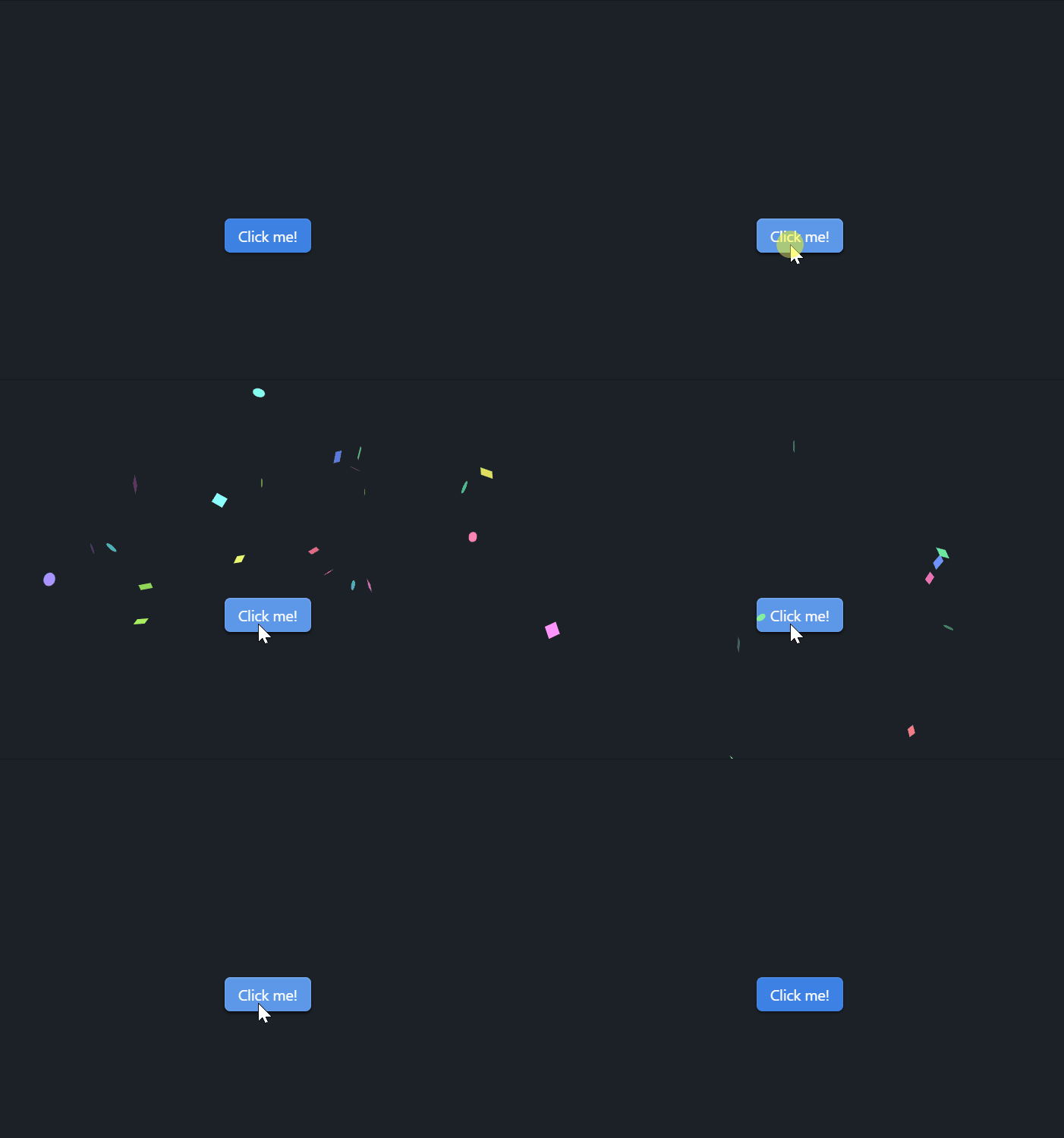
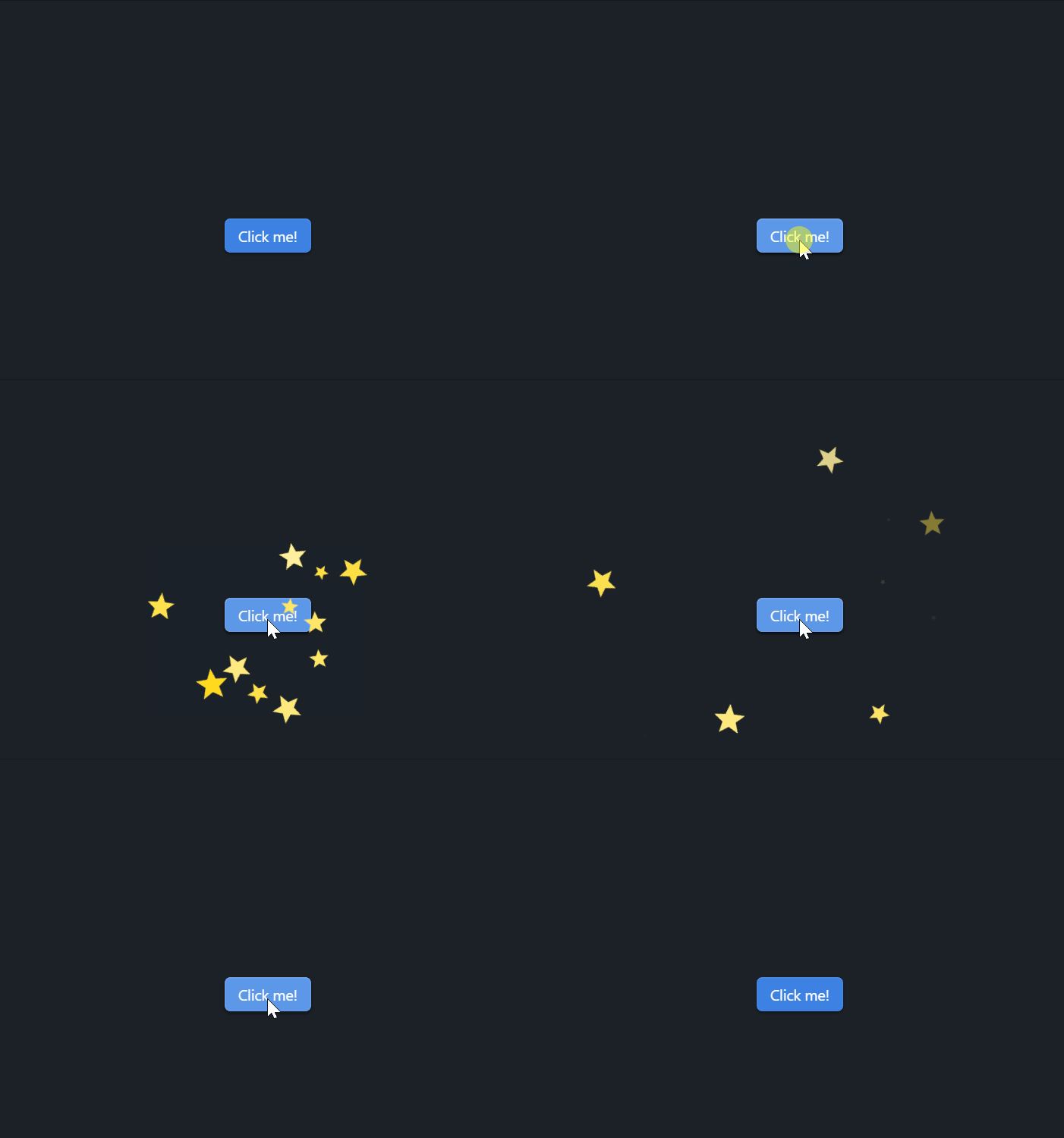
- Add effects to checkboxes (also supports dataview tasks and a tasks plugin)


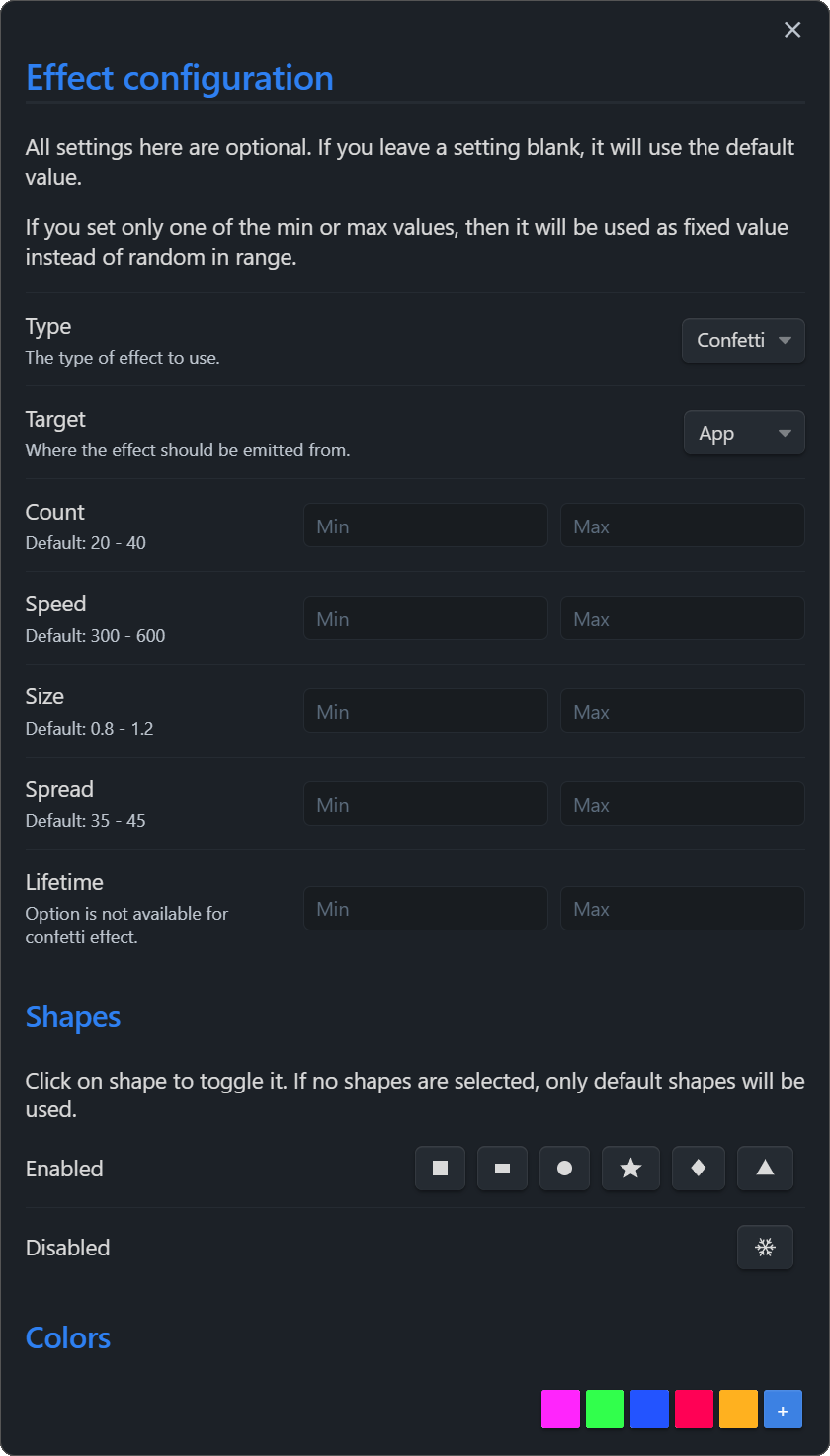
- A lot of customization options
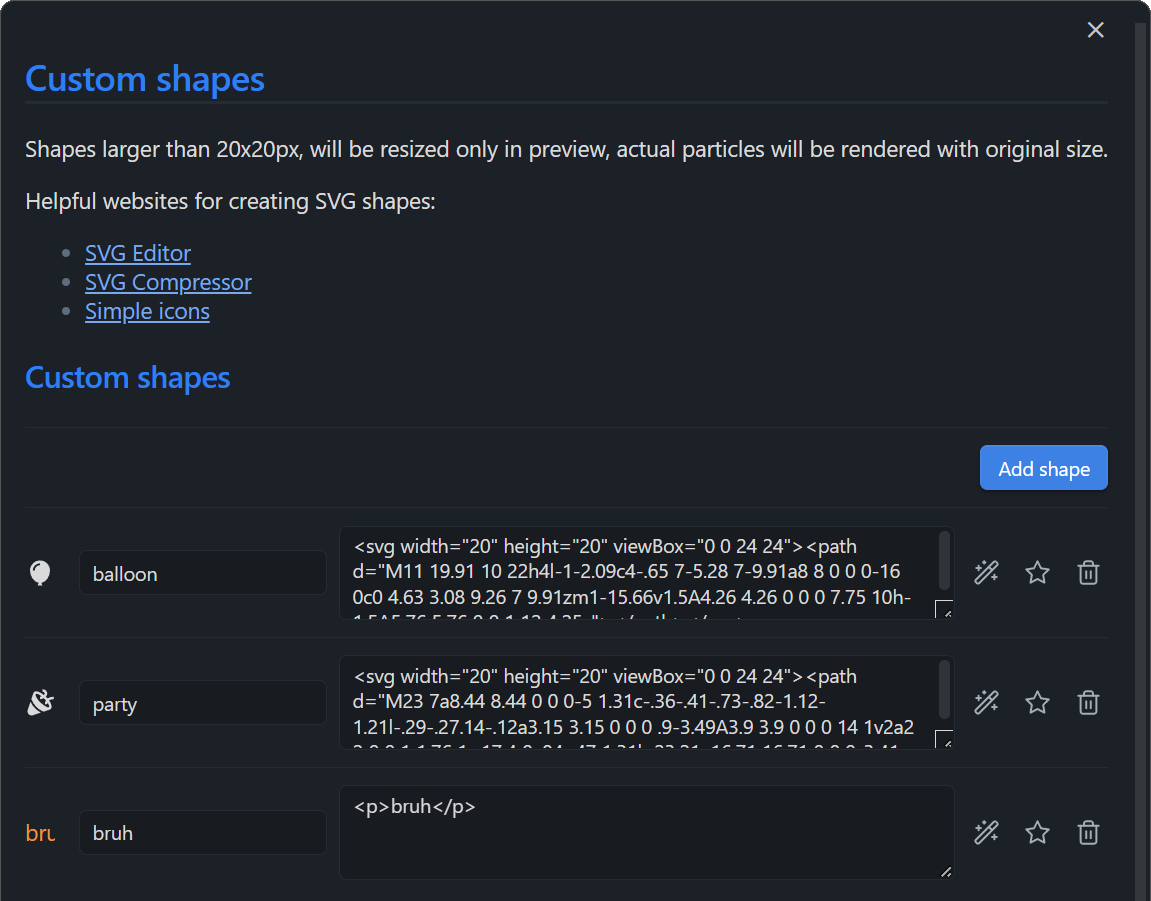
- Custom shapes
-
Kanban compatibility
-
What else do you want? (I'm open to suggestions!)
Installation
Search for the "Party🎉" in the Obsidian plugin list.
Manual Installation
- Go to Releases and download the latest release
- Enable plugins in the Obsidian settings
- Extract the contents of the zip file to obsidian plugins folder
- You should have a folder named "obsidian-party", containing "main.js" and "manifest.json" files
- Restart Obsidian and enable the plugin in the plugin list
Manual build
- Clone the repository
- Run
npm ioryarnto install dependencies npm run devto build the plugin
Examples
Checkbox effects
- Open plugin settings
- Select effect type
- Enjoy!
Custom elements / API
Either add a confetti or sparkles class for an element, or make use of all features of the party module, which can be accessed through window.party!
Also, you'd better to not spam particles, because it can cause performance issues.
Simple confetti button
<button class="confetti">Click me!</button>
Click me! (This button will launch confetti on click if you have this plugin enabled)
DataView JS support
```dataviewjs
const buttonMaker = (text) => {
  const btn = this.container.createEl('button', {"text": text});
  btn.addEventListener('click', async (evt) => {
    evt.preventDefault();
    party.confetti(evt); // <---- creating confetti
    party.sparkles(evt); // <---- creating sparkles
  });
  return btn;
}

dv.table(["File", "Button"],
	dv.pages('"Dataview"')
    .map(t => [
      t.file.link,
      buttonMaker("Let's start the party!")
    ]
  )
)
```
Custom shapes
Any HTML code can be used as a shape. For example, you can use an SVG image as a shape.
<svg viewBox="0 0 2 2" width="10" height="10"><circle cx="1" cy="1" r="1"/></svg>
Put the code in the "Shape HTML" field in the custom shapes section of the plugin settings, give it a name and you're good to go! Now you can select custom shapes in the "Shapes" field of the effect settings.
For plugin developers
Search results and similarity scores are powered by semantic analysis of your plugin's README. If your plugin isn't appearing for searches you'd expect, try updating your README to clearly describe your plugin's purpose, features, and use cases.