Sparklines
pendingby Dinu Gherman
Render inline sparklines, converting code blocks to SVG.
Sparklines Plugin for Obsidian








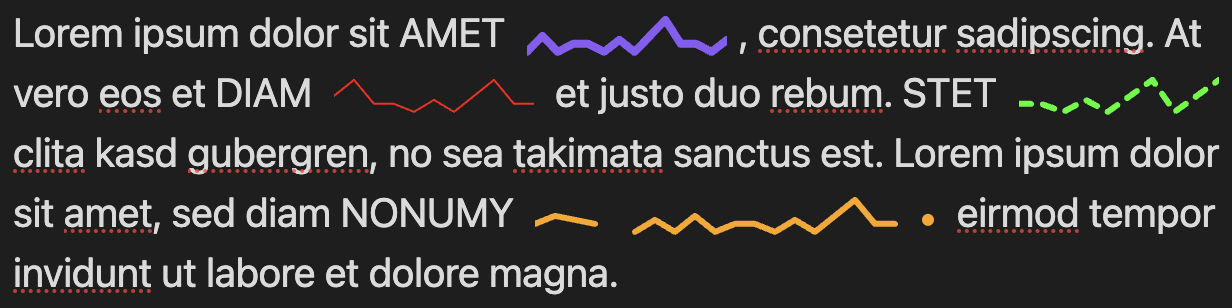
This is an Obsidian plugin to render inline sparklines as SVG in Markdown notes in paragraphs, tables and other contexts. The numeric values can be literal numbers inside code blocks or be pulled from frontmatter properties (bases and dataviews planned). Many examples are available in the example vault in this repository (after installing the plugin there, manually).
Installation
This plugin has been submitted as a community plugin, the review is pending. Until accepted you need to install it manually as described below.
- Install dependencies and build the plugin:
npm install
npm run build
- Copy the following files to your Obsidian vault's plugins folder:
main.jsmanifest.jsonstyles.css
# Example: copy to your vault
cp main.js manifest.json styles.css /path/to/your/vault/.obsidian/plugins/sparkline/
- Enable the plugin in Obsidian: Settings > Community plugins > Sparkline Inline
Syntax
Use inline code blocks with the following syntax:
`sparkline: [<data>] <options>`
Data can be either:
- Literal numbers:
[1 2 3 4 5]or[1, 2, 3, 4, 5] - Frontmatter reference:
[@key]or[@frontmatter:key]
Options (all optional, placed after the brackets):
| Option | Description | Default |
|---|---|---|
color="<value>" | Stroke color (CSS format) | Obsidian accent color |
width=<n> | SVG width in pixels | 100 |
line-width=<n> | Line thickness | 1.0 |
view-height=<n> | ViewBox height | 20 |
padding=<n> | Vertical padding | 2.0 |
cap=<value> | Line cap style: butt, round, square | round |
join=<value> | Line join style: miter, round, bevel | round |
dash="<pattern>" | Dash pattern (e.g., "5,3") | solid line |
The stroke options also accept SVG attribute names: linecap, line-cap, stroke-linecap, linejoin, line-join, stroke-linejoin, dasharray, dash-array, stroke-dasharray.
The default color uses Obsidian's accent color (--interactive-accent), which matches your theme settings.
Examples in Obsidian
Literal data:
A simple trend: `sparkline: [1 2 3 4 5]`

Stock prices: `sparkline: [100 95 102 98 110] color="green" width=150`

Temperature data: `sparkline: [72, 75, 71, 68, 70] color="blue" line-width=2`

Activity graph: `sparkline: [3 1 4 1 5 9 2 6] color="#ff6600" width=200`

With gaps: `sparkline: [3 1 4 none 5 9 2 6] color="#ff6600" width=200`

Dashed line: `sparkline: [1 2 3 4 5] dash="5,3"`

Square caps: `sparkline: [1 2 3 4 5] cap=square join=bevel`
Dynamic data from frontmatter:
---
stats: 10, 25, 15, 30, 20
temperatures: 72, 75, 71, 68, 70
---

My stats: `sparkline: [@stats] color="blue"`

Temperatures: `sparkline: [@temperatures] color="orange"`
Use comma-separated numbers as text - this displays correctly in Obsidian's Properties editor without warnings.
Data Sources
| Source | Syntax | Status |
|---|---|---|
| Literal | [1 2 3] | Supported |
| Frontmatter (short) | [@key] | Supported |
| Frontmatter (explicit) | [@frontmatter:key] | Supported |
| Bases | [@bases:table#view:column] | Planned |
| Dataview | [@dataview:query] | Planned |
These render as inline SVG graphics that scale with your text. The example vault in the repository contains many examples for sparklines inside notes with different contexts, that show numeric values from literals, or frontmatter properties.
Testing with the CLI Tool
The repository includes a standalone CLI tool at src/sparkline.ts for testing sparkline generation without running Obsidian:
# Basic usage
npx ts-node src/sparkline.ts 1 2 3 4 5

# With options
npx ts-node src/sparkline.ts 1 2 3 4 5 --width 200 --color blue --line-width 2.0

# Show help
npx ts-node src/sparkline.ts --help
This outputs the raw SVG string, useful for debugging or integrating into other tools.
For plugin developers
Search results and similarity scores are powered by semantic analysis of your plugin's README. If your plugin isn't appearing for searches you'd expect, try updating your README to clearly describe your plugin's purpose, features, and use cases.