by jiuxianzai
Select text to open a formatting toolbar with bold, links, callouts, block conversion, and configurable plain-text copy.
Octavo Toolbar
English | 简体中文
A selection toolbar for Obsidian: select text, pause, and a formatting toolbar appears above the selection. It also includes a configurable Copy as plain text action that strips Markdown syntax before writing to the clipboard.
A companion plugin for Octavo, but it works with any theme.
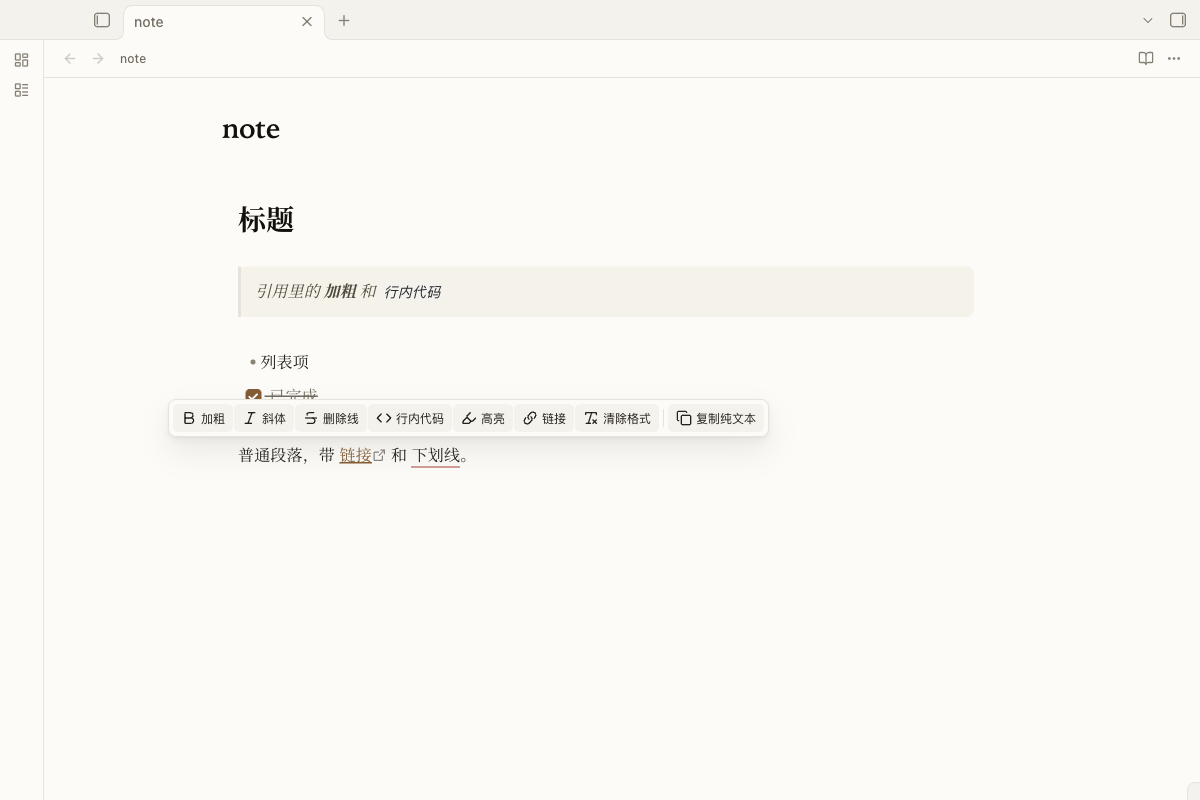
Features
| Group | Buttons | Default | Behavior |
|---|---|---|---|
| Inline | Bold, italic, strikethrough, inline code, highlight, link, clear formatting | On | Obsidian core commands such as editor:toggle-bold and editor:insert-link |
| Inline | Underline (<u>…</u>) | Off | Built-in fallback; reuses a compatible marker plugin's command if installed |
| Blocks | H1–H3, bullet list, numbered list, blockquote, code block, task | Off | Core commands such as editor:set-heading-1 and editor:toggle-blockquote |
| Callouts | One Callout button that opens a type menu (note, tip, important, warning, caution, example, quote) | Off | Adds, removes, or changes > [!type] around the selected block |
| Copy | Copy as plain text | On | Filters Markdown syntax according to the settings below |
Button labels are shown by default. You can turn them off in settings for a more compact toolbar.
Copy as plain text
Select text and click Copy as plain text in the toolbar. You can also use:
- Command palette:
Octavo Toolbar: Copy as plain text - Editor context menu: Copy as plain text
- With no selection, the current line is copied
All filters are enabled by default. You can turn each one off in Settings → Octavo Toolbar → Copy as plain text:
| Filter | Removes |
|---|---|
| Frontmatter | YAML frontmatter at the top of the note |
| Blockquotes | Leading > markers, including nested > > |
| Callout headers | > [!note]-style headers, keeping the title and body |
| Headings | Leading # / ## … markers |
| Emphasis | **bold**, *italic*, ~~strikethrough~~, ==highlight== markers |
| Code | Backticks and fenced code block markers, keeping the code content |
| Lists | -, 1., - [ ] markers, keeping indentation and text |
| Links / images | [text](url) → text; wiki links and aliases → text |
| Tables | Table pipes and the separator row; cells are joined with spaces |
| HTML | <u>, <br>, <span> tags, keeping the text |
| Math | $…$ / $$…$$ delimiters, keeping the formula |
| Footnotes | [^1] markers and footnote definitions, keeping the note text |
| Horizontal rules | Lines made of ---, ***, or ___ |
| Obsidian comments | %%…%% comments |
Example: remove blockquotes only. Turn off every filter except Blockquotes. The leading > is removed while **bold**, # headings, list markers, and other syntax stay as written.
Content inside fenced code blocks and inline code is protected from the inline filters, so code such as a * b or <tag> is not altered.
Usage
Select text and pause for about 200 ms (configurable). The toolbar appears above the selection. Press Esc or click elsewhere to dismiss it.
The toolbar only appears in Live Preview and Source mode. On mobile, Obsidian already provides a native formatting toolbar, so this plugin is desktop-only.
Settings
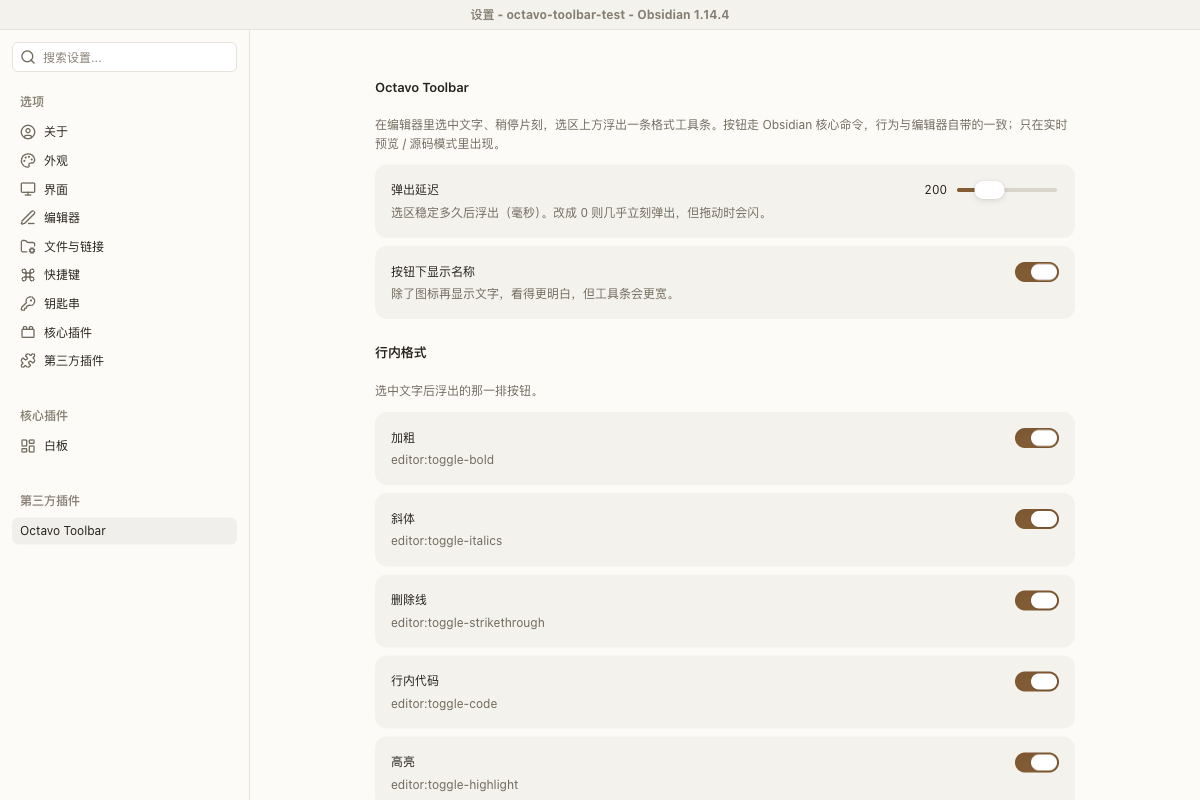
Settings → Octavo Toolbar:
- Popup delay: how long the selection must be stable before the toolbar appears (0–800 ms).
- Show button labels: show text next to icons. Enabled by default.
- Per-button toggles: inline, block, callout, and copy groups.
- Copy as plain text: 14 filters, all enabled by default.
Installation
From the Community plugins directory (after approval)
Settings → Community plugins → Browse, search for Octavo Toolbar, install, and enable it.
Manual installation
<vault>/.obsidian/plugins/octavo-toolbar/
├── main.js
├── manifest.json
└── styles.css
Place the whole octavo-toolbar folder in the path above, restart Obsidian (or reload it from Settings → Community plugins), then enable the plugin.
Compatibility and privacy
- Obsidian 1.5.0+, desktop only (
isDesktopOnly: true). - No network requests, telemetry, ads, or self-updates.
- Reads the current editor selection and writes to the system clipboard. It does not access files outside the active editor.
- Works with any theme. The plugin ships its own
styles.cssand uses Octavo theme variables when available.
Development
There is no build step. main.js and styles.css are the source and the final artifacts. manifest.json contains the plugin metadata, and versions.json maps releases to the minimum Obsidian version.
License
MIT.
For plugin developers
Search results and similarity scores are powered by semantic analysis of your plugin's README. If your plugin isn't appearing for searches you'd expect, try updating your README to clearly describe your plugin's purpose, features, and use cases.