Open Notes Graph Highlight
approvedby 4Cjyxbq25Cb
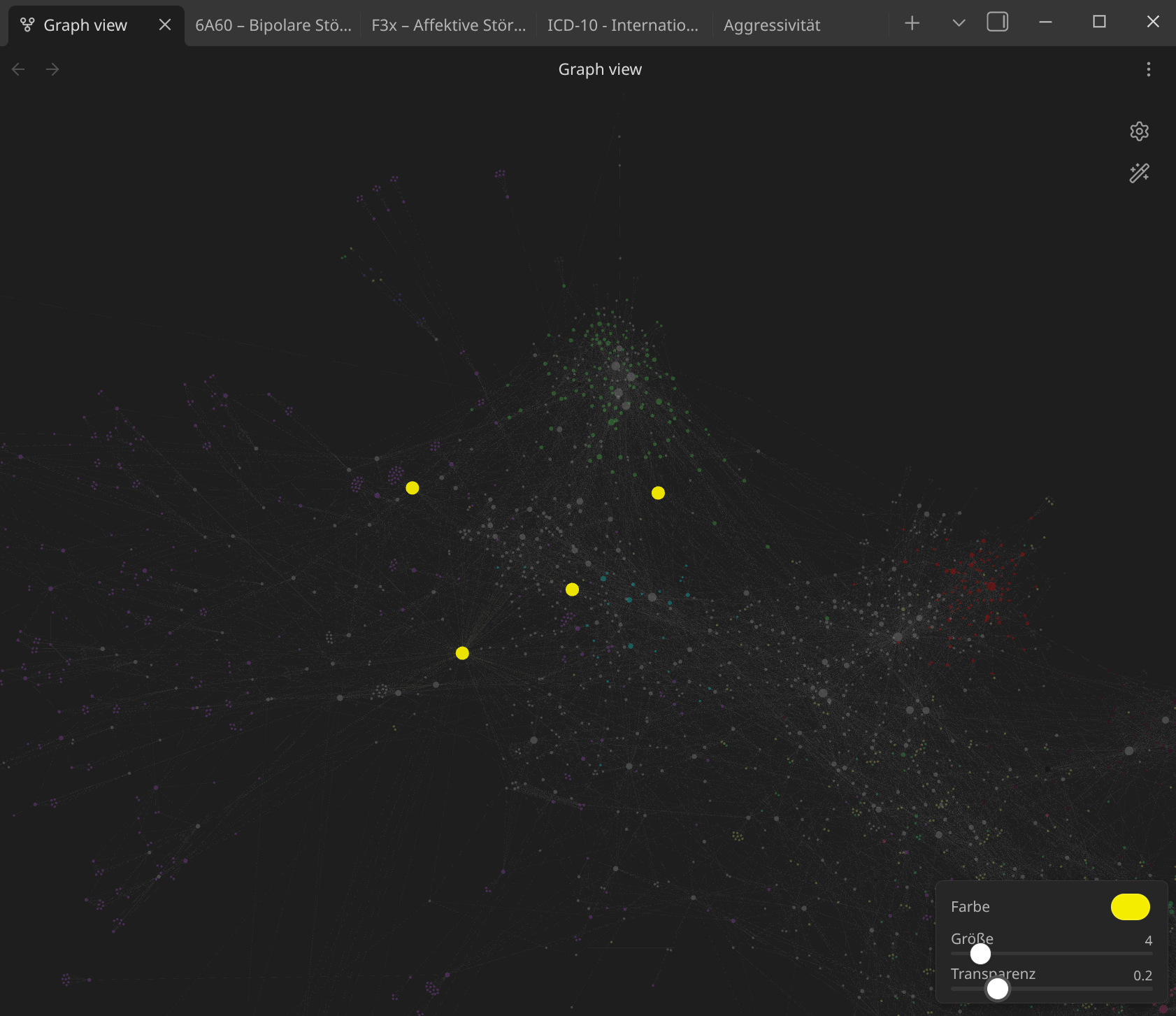
Highlights currently open notes in the graph view — custom color, enlarged size, and dimming of other nodes. Includes an in-graph control panel. - This plugin has not been manually reviewed by Obsidian staff.
Open Notes Graph Highlight
An Obsidian plugin that visually highlights currently open notes in the graph view.
Features
- Color highlight — open notes appear in a custom color
- Size boost — open notes are enlarged to a fixed size, independent of link count
- Dim other nodes — non-open notes are faded out so open notes stand out
- Highlight linked notes (optional) — notes directly linked to an open/pinned note are tinted in the same color at reduced opacity, so you can spot neighbors without confusing them for open notes
- Highlight edges (optional) — edges connecting to an open/pinned note are tinted in that note's color, the same effect Obsidian applies when you hover a node in the graph
- Workspace scope (optional) — pick any saved workspace and highlight the notes it has open, without loading it and disturbing your current layout
- In-graph control panel — adjust color, size, and opacity directly in the graph view without opening settings
Installation
Via Community Plugins (recommended)
- Open Obsidian Settings → Community Plugins
- Disable Safe Mode if prompted
- Click Browse and search for Open Notes Graph Highlight
- Click Install, then Enable
Manual installation
- Download
main.jsandmanifest.jsonfrom the latest release - Create a folder
open-notes-graph-highlightinside your vault's.obsidian/plugins/directory - Copy both files into that folder
- Reload Obsidian and enable the plugin in Settings → Community Plugins
Usage
- Open the Graph View
- Open one or more notes in Obsidian
- The open notes will immediately appear highlighted in the graph
A small control panel appears in the bottom-right corner of the graph view for quick adjustments.
Settings
| Setting | Description | Default |
|---|---|---|
| Scope | Which notes count as open: all panels, the active panel only, or a saved workspace | All panels |
| Workspace | Which saved workspace to read (only shown in workspace scope) | active workspace |
| Highlight color | Color used to highlight open notes | #e06c75 (red) |
| Node size | Fixed visual size of open notes (normal nodes: ~2–3) | 8 |
| Dim opacity | Opacity of non-open nodes (0 = invisible, 1 = normal) | 0.15 |
All settings are also accessible directly in the graph view via the control panel.
Workspace scope
With Scope → Saved workspace, the plugin reads the layout of a workspace saved by Obsidian's Workspaces core plugin and highlights the notes stored in it. The workspace is not loaded — your current layout, and the graph you are looking at, stay exactly as they are. Notes pinned inside that workspace keep the pinned color, just as they do in the live scopes.
This scope needs the Workspaces core plugin to be enabled (Settings → Core plugins). If it is off, or no workspace has been saved yet, the picker says so and no notes are highlighted.
Compatibility
- Obsidian 1.4.0 and later
- Works on desktop and mobile
License
MIT
For plugin developers
Search results and similarity scores are powered by semantic analysis of your plugin's README. If your plugin isn't appearing for searches you'd expect, try updating your README to clearly describe your plugin's purpose, features, and use cases.