Open with Natural Language Dates
approvedby charliecm
Open a daily note using natural language. Requires "Natural Language Dates" plugin to work.
Obsidian Open with Natural Language Dates
An Obsidian plugin that adds a command that lets you quickly open a daily note using natural language. It requires the Natural Language Dates plugin to be enabled.
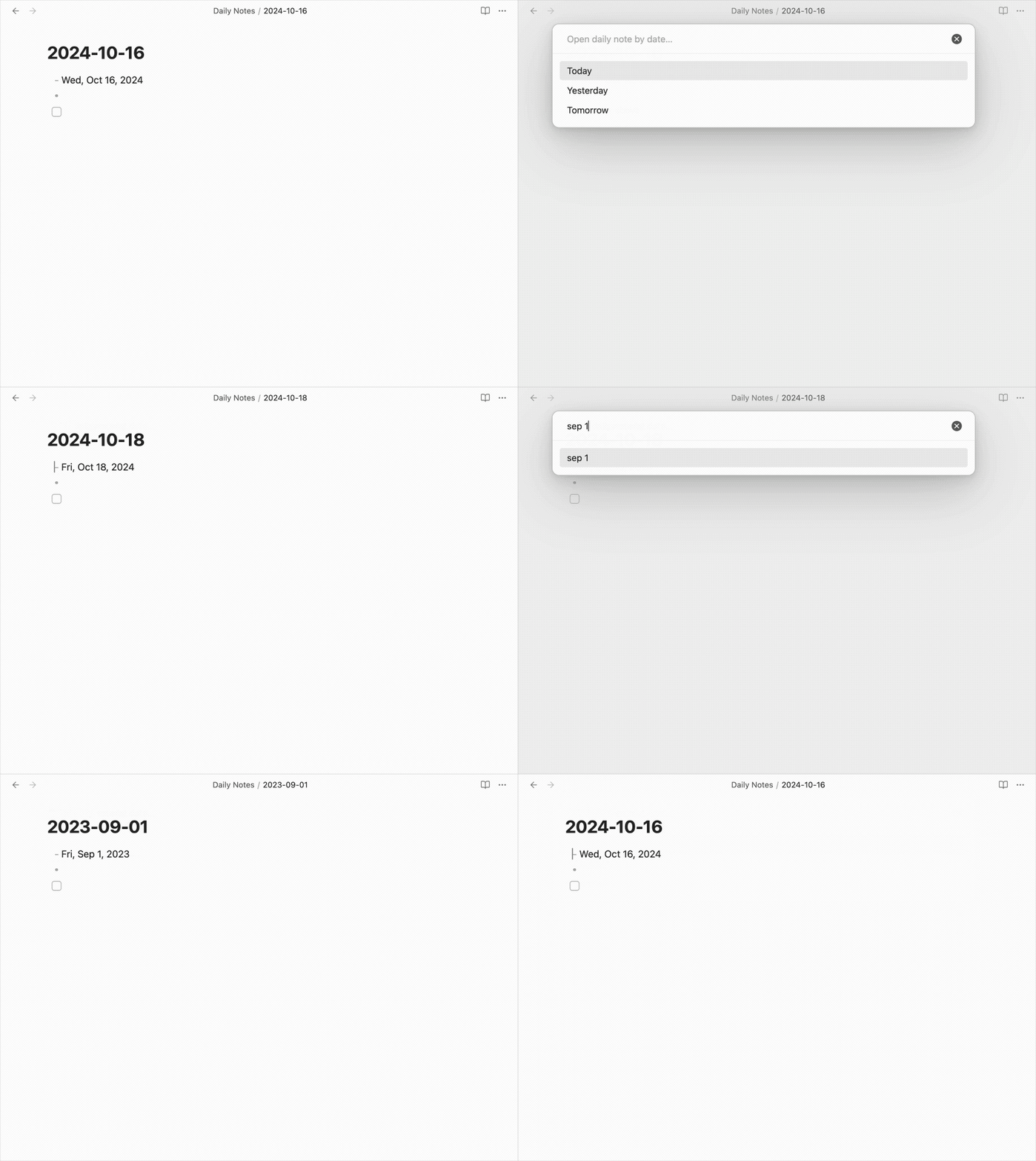
I wrote this plugin because I needed a faster way to open a daily note without needing to use a calendar or remember the exact file name. This is useful if you're trying to recall something or want to add to a future daily note. Thanks @argenos for writing Natural Language Dates, which inspired this plugin.
How to Install
From inside Obsidian…
- Go to Settings → Community plugins.
- Disable Safe mode.
- Click Browse, search for Line Commands, and click Install.
- Click the toggle button to enable the plugin.
For manual installation, download this repo and copy over main.js and manifest.json to your vault: VaultFolder/.obsidian/plugins/obsidian-open-with-nldates/.
Development
- Clone this repo.
yarnto install dependencies.yarn devto start compilation in watch mode.bash install-built.sh /path/to/your/vault -dto create symbolic links of built files to your vault for quick development.
Release
- Run
yarn build. - Run
npm version [patch/minor/major]to bump version inmanifest.jsonandversions.json. - Add changes in
CHANGELOG.md. - Add a new version tag and push it.
git tag -a 1.0.1 -m "1.0.1" git push origin 1.0.1 - Go to “Releases” in GitHub and edit the latest release (created by GitHub Actions). Insert the changelog texts in the description and ensure
main.jsandmanifest.jsonare attached. - Click “Publish release”.
Support
If you really like this plugin and want to support its development, please consider buying me a coffee 🙂 Thanks!

For plugin developers
Search results and similarity scores are powered by semantic analysis of your plugin's README. If your plugin isn't appearing for searches you'd expect, try updating your README to clearly describe your plugin's purpose, features, and use cases.