Pegasus Media Tracker
approvedby Pegasus
Feature-rich yet simple tracker for all types of media. Comics, games, books, manga, comics, shows, whatever you put your heart into. - This plugin has not been manually reviewed by Obsidian staff.
Pegasus Media Tracker
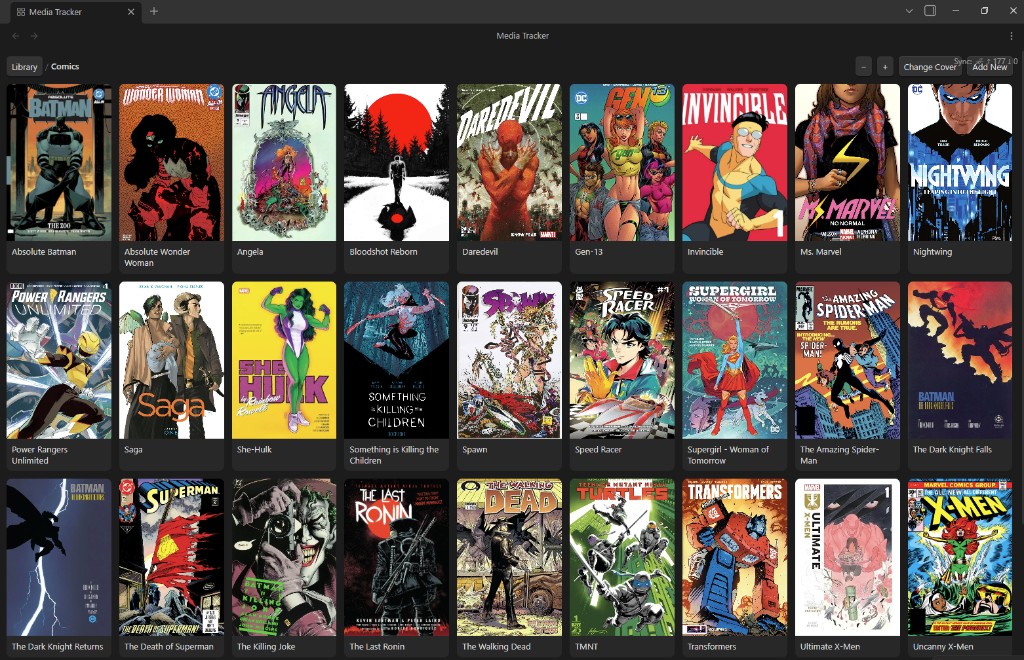
Agnostic media tracker. Each folder is collections. Notes are items. One card grid for comics, manga, shows, or anything else with the same shape.
Install from Settings → Community plugins → Browse, or from the Community directory listing.
Sponsor
If this plugin helps you, you can support development here:
Features
- Card grid — folders are collections, notes are items. Nested collections are allowed.
- Covers — from
cover:on the note, an embed, an image in the folder, orassets/covers/. png, jpg, webp, avif, gif, bmp, svg. Vault-root image dumps move intoassets/covers/. - Read — on series issues, toggles
done. Green when read. Hidden on libraries (library root, Comics, Covers Collection, and other top-level folders). Per-folderaction:can relabel the button (e.g. Watched). - Add New — on a library or parent collection, creates a child folder plus
Cover.md. - Add Next — in a series folder, creates the next numbered note, cloning however you already number (
#16→#17,5→6,.6→.7,v6→v7). - Change Title — display name on
Cover.mdfor a collection. Hidden on the library root. Does not rename the folder. - Change Cover — open
Cover.mdto paste/drop an image, or write a vault path / wikilink intocover:. - Zoom — − / + or Ctrl/Cmd + scroll. Integer columns that snap to the pane. Saved.
- Navigation — click to drill in, breadcrumb to go up, mouse back / forward like a browser. Opening a note is not a history step.
- Homepage by default — optional. When on, the library grid opens when Obsidian starts. Off unless you turn it on in settings.
- Ribbon and commands — ribbon Open Pegasus Media Tracker, command palette Open library and Add next item.
Install
In Obsidian:
- Settings → Community plugins: turn Restricted mode off.
- Browse, search Pegasus Media Tracker, install, and enable it.
If you already installed this as media-tracker from this repo, remove that folder (or rename it to pegasus-media-tracker) and install from Browse. Obsidian treats the old folder as a different plugin.
Manual / from source
Obsidian only loads three files. The folder name must match the plugin id: pegasus-media-tracker.
-
Build (from this repo):
npm install
npm run build
npm run devalso writesmain.jsand is fine if you leave the watcher running. -
Copy these files into the vault:
<vault>/.obsidian/plugins/pegasus-media-tracker/main.js
<vault>/.obsidian/plugins/pegasus-media-tracker/manifest.json
<vault>/.obsidian/plugins/pegasus-media-tracker/styles.css
Do not copy
src/,node_modules/, or the git repo into that folder. Obsidian will ignore them. -
Reload the app (
Ctrl+R/Cmd+R), then enable Pegasus Media Tracker in the installed-plugin list.
If the plugin is missing after a reload, the folder is named wrong, manifest.json is not next to main.js, or Restricted mode is still on.
Develop against a vault
Either copy main.js after each build, or clone/symlink this repo to <vault>/.obsidian/plugins/pegasus-media-tracker/ and run npm run dev there so Obsidian picks up rebuilds. Reload the plugin (or the app) after the first build.
Open the grid
After it is enabled:
- Left ribbon: the grid icon (Open Pegasus Media Tracker), or
- Command palette (
Ctrl+P/Cmd+P): Open library
Settings for this plugin are under Settings → Pegasus Media Tracker. Homepage by default is off unless you turn it on.
If the grid is empty
The default library folder is Media. If your vault is the library (for example Comics/ and Manga/ at the vault root), set Library folder to Vault root.
If Media does not exist, the view says so. Create folder makes it; it does not create a note until you press Add New or Add Next again.
Use the grid
- Click a collection card to drill in.
- Mouse back / forward (side buttons) goes to the previous / next collection you opened. Opening a note is not a history step. The breadcrumb still works.
- Click an item title (or the card) to open the note.
- Click Read (or your label) to set
done: trueon an issue in a series folder. Libraries (library root, Comics, Covers Collection, and other top-level folders) do not show Read. The button stays Read and turns green. Click it again to cleardone. - On a parent folder (library root, Comics, anything with subcollections), Add New asks for a name and creates that folder plus
Cover.mdinside it.:and other characters that Windows forbids in paths are kept as the card title; the folder name is slugged (Supergirl: Woman of Tomorrow→Supergirl - Woman of Tomorrow). Use Add New or Change Title for a colon in the title. Renaming the folder in the file tree cannot contain:. - Change Title sets
title:onCover.mdfor the current collection. It is hidden on the library root. The folder path does not change. - Change Cover on the current folder ensures
Cover.md, then either opens it (paste or drop an image) or lets you type a vault path / wikilink to writecover:on that note. - On a series folder, Add Next creates the next numbered note. It takes the highest trailing number among sibling notes and reuses that file's prefix:
X-Men #16→X-Men #17,Saga 5→Saga 6,.6→.7,v6→v7. If nothing is numbered yet, you get{folder name} #1. - − adds a column (smaller cards); + removes one (larger cards). The grid snaps so a row of cards meets the pane edges. The column count is saved.
The grid opens as a tab in the main workspace. Command palette Add next item follows the same Add New / Add Next rule as the toolbar, for the open grid folder, or for the folder of the active note if the grid is closed.
A Not synchronized / invalid-path banner under files comes from Self-hosted LiveSync (or Obsidian Sync), not this plugin. Configure ignore rules and allowed paths there. Pegasus Media Tracker does not move LiveSync’s status UI.
Vault layout
Collections can nest. Mixed folders are allowed: subfolders are collection cards, markdown notes are item cards.
Media/                          ← default library folder
  Comics/
    X-Men/
      Cover.md
      X-Men #1.md
      X-Men #16.md
  Manga/
    Death Note/
      Death Note #1.md
  Shows/
    Good Girls/
      Season 1/
        Good Girls S01 #1.md
A note named Cover inside a collection folder is the cover / action note for that collection. It is not shown as an item card. Add New creates Cover.md. Older vaults may still use a note named like the folder (X-Men/X-Men.md); that still counts and is hidden from the grid. If a collection has no cover of its own, the grid uses a matching file in assets/covers/, then the first child collection's cover, then the first child's item cover.
Folders named assets or covers (any case) are skipped in the grid so attachment files are not a collection. Other folders, including one named Covers Collection, are real collections. Images dropped at the vault root are moved into assets/covers/.
Frontmatter
Item note:
---
cover: "[[covers/xmen-1.jpg]]"
done: false
---
cover may be a wikilink, a vault path, or an http(s) URL. Image files include png, jpg, jpeg, gif, webp, bmp, svg, and avif. If cover is missing, the plugin uses the first embedded image in the note, then the first image file in the same folder. No covers are downloaded from the internet.
Collection folder note (optional):
---
title: "Supergirl: Woman of Tomorrow"
action: Watched
cover: "[[covers/good-girls.jpg]]"
---
title is the card and breadcrumb label. If it is missing, the folder name is used. action overrides the button label for items in that folder only.
Settings
| Setting | Default | Meaning |
|---|---|---|
| Library folder | Media | Only this folder is scanned. Vault root scans the whole vault. |
| Homepage by default | off | Opens the library grid when Obsidian starts. |
| Action label | Read | Button text on item cards. A collection folder note can override this with an action property. |
| Grid columns | 6 | How many cards per row (clamped so cards stay at least ~110px). Changed from the − / + buttons. |
Commands
| Command | What it does |
|---|---|
| Open library | Opens or focuses the grid view in the main workspace |
| Add next item | Add New or Add Next, matching the open folder |
Repository
| Path | Role |
|---|---|
src/main.ts | Plugin lifecycle (load, ribbon, settings, view) |
src/library.ts | Vault folders → collection / item nodes |
src/naming.ts | Next numbered title (clones # / space / . / v / …) |
src/cover.ts | Cover from frontmatter, embeds, folder images, or first child |
src/actions.ts | Toggle done, create the next note or collection |
src/settings.ts | Settings tab |
src/commands.ts | Command palette |
src/ui/ | Grid view and cards |
manifest.json | Plugin id pegasus-media-tracker |
styles.css | Grid layout |
PLAN.md | Engineering plan |
Release artifacts (not committed): main.js from npm run build or npm run dev.
npm install
npm run dev      # watch, writes main.js
npm run build    # typecheck + production bundle
Requires Node 18+. No extra runtime dependencies; Obsidian APIs only.
License
MIT. See LICENSE.md. Copyright (c) 2026 Lucas Perez (GitHub: kuarahy).
Please keep this attribution in documentation and other user-facing notices:
Pegasus Media Tracker by Lucas Perez (@kuarahy)
https://github.com/kuarahy/pegasus-media-tracker
For plugin developers
Search results and similarity scores are powered by semantic analysis of your plugin's README. If your plugin isn't appearing for searches you'd expect, try updating your README to clearly describe your plugin's purpose, features, and use cases.