SteamGridDB Image Embedder
pendingby abduznik
Embeds images from SteamGridDB based on the note title.
Obsidian SteamGridDB Image Embedder
This Obsidian plugin allows you to easily search for game images on SteamGridDB and embed them directly into your notes. It supports interactive selection of both the game and the specific image you want to use.
Features
- Search SteamGridDB: Find game images by name.
- Interactive Selection: Choose the correct game from search results and then select your preferred image from a list of available grids.
- Direct Embedding: Embed the selected image into your active Obsidian note.
- Templater Integration: Automate image embedding when creating notes from templates.
How to Use
1. Get Your SteamGridDB API Key
Before using the plugin, you need to obtain an API key from SteamGridDB:
- Go to SteamGridDB Profile Preferences.
- Generate and copy your API key.
- In Obsidian, go to Settings -> Community Plugins, and enable "SteamGridDB Image Embedder" and paste your API key into the "SteamGridDB API Key" field.
2. Using the "Search SteamGridDB" Command
This command is ideal for manually searching and embedding images into any note.
- Open the note where you want to embed an image.
- Open the Obsidian Command Palette (
Ctrl/Cmd + P). - Type "SteamGridDB" and select the command "Search SteamGridDB".
- A modal will appear, pre-filled with the current note's title. This is used as the search term for SteamGridDB.
- Another modal will show a list of games matching your search. Select the correct game.
- A final modal will display available images for the selected game. Choose the image you want to embed.
- The selected image will be embedded into your note at the current cursor position.
3. Using with Templater (Automated Embedding)
This method allows you to automatically trigger the image embedding process when creating a new note from a template.
-
Ensure the plugin is installed and configured with your API key.
-
Edit your Templater template file (e.g.,
Gaming Backlog Template.md). -
Add the following line in your template where you want the image to be embedded (e.g., after your note title):
<%*
// ... existing template code ...

// Call the interactive command to embed SteamGridDB image
await app.commands.executeCommandById('steamgriddb-embedder:embed-steamgriddb-image-for-note');

// ... rest of your template code ...
%>
Example
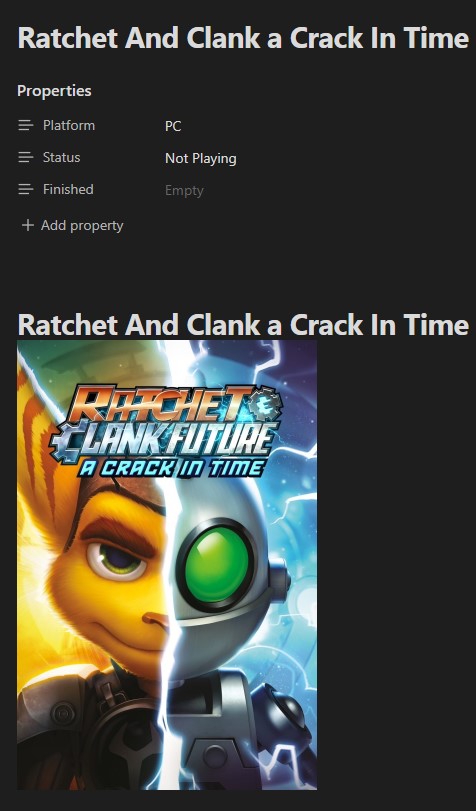
Gaming Backlog Template.mdsnippet:<%* const title = tp.file.title; const urlTitle = title.trim().replace(/\s+/g, "+"); tR += `---\nPlatform: PC\nStatus: Not Playing\nFinished: \n---\n\n# ${title}\n\n`; // Call the new command after the title await app.commands.executeCommandById('steamgriddb-embedder:embed-steamgriddb-image-for-note'); tR += `\n## Notes:\n-\n`; %>Example of embedded image after using Templater:
-
When you create a new note using this template, the interactive modals for game and image selection will appear, and the chosen image will be embedded.
Installation
Minimum Requirements
- Obsidian v0.15.0 or higher.
- A SteamGridDB API Key.
- Node.js and npm (if building from source).
Method 1: Manual Installation
- Download
main.jsandmanifest.jsonfrom the plugin's GitHub releases page (or from the plugin directory if you have access). - Navigate to your Obsidian vault's plugins folder:
YourVault/.obsidian/plugins/. - Create a new folder named
obsidian-steamgriddb. - Place
main.jsandmanifest.jsoninside theobsidian-steamgriddbfolder. - In Obsidian, go to Settings -> Community Plugins, and enable "SteamGridDB Image Embedder".
Method 2: From Source (for Developers)
- Clone the repository:
git clone https://github.com/your-repo/obsidian-steamgriddb.githttps://github.com/your-repo/obsidian-steamgriddb.gitwith the actual repository URL if available.) - Navigate into the plugin directory:
cd obsidian-steamgriddb - Install dependencies:
npm install - Build the plugin:
This will compilenpm run buildmain.tsintomain.js. - Copy the
obsidian-steamgriddbfolder (containingmain.jsandmanifest.json) into your Obsidian vault's plugins folder:YourVault/.obsidian/plugins/. - In Obsidian, go to Settings -> Community Plugins, and enable "SteamGridDB Image Embedder".
For plugin developers
Search results and similarity scores are powered by semantic analysis of your plugin's README. If your plugin isn't appearing for searches you'd expect, try updating your README to clearly describe your plugin's purpose, features, and use cases.