Arcadia Connect
pendingby Arcadia Studio
Personal CRM: @-mention contacts in notes, log interactions, manage a deal pipeline, and get AI-powered follow-up suggestions.
Arcadia Connect
A personal CRM layer for Obsidian. Link people across your notes with @-mentions, log interactions, visualize a deal pipeline, and get AI-powered follow-up suggestions — all without leaving your vault.



Features
Free (All Users)
| Feature | Description |
|---|---|
| @-mention autocomplete | Type @ in any note to link a person. Live dropdown, CodeMirror 6 |
| People Panel | Searchable sidebar listing all contacts with sort options |
| Hover profile cards | Mini card pops up on @-mention hover in reading view |
| Person note creation | Create structured contact notes from the panel or command palette |
| Interaction logging | Log calls, emails, meetings, and notes directly to contact notes |
| Follow-up reminders | Hourly check with Obsidian notices for overdue and due-today follow-ups |
| Timeline view | Chronological feed of all interactions across every contact |
| Pipeline / Deal board | Kanban board by deal stage with deal value totals and move-stage controls |
| AI follow-up suggestions | BYOK: bring your Anthropic or OpenAI key for AI-powered next-action suggestions |
Premium
Premium features require a license key from arcadia-studio.lemonsqueezy.com.
| Feature | Description |
|---|---|
| Advanced analytics | Relationship health scores, contact frequency charts |
| CSV import / export | Bulk-load contacts from any CRM or spreadsheet |
| Organization views | Group contacts by company with org-level deal tracking |
| Birthday and date reminders | Configurable alerts for key relationship dates |
| Expanded profile sidebar | Full relationship metadata, tags, and relationship history |
Screenshots
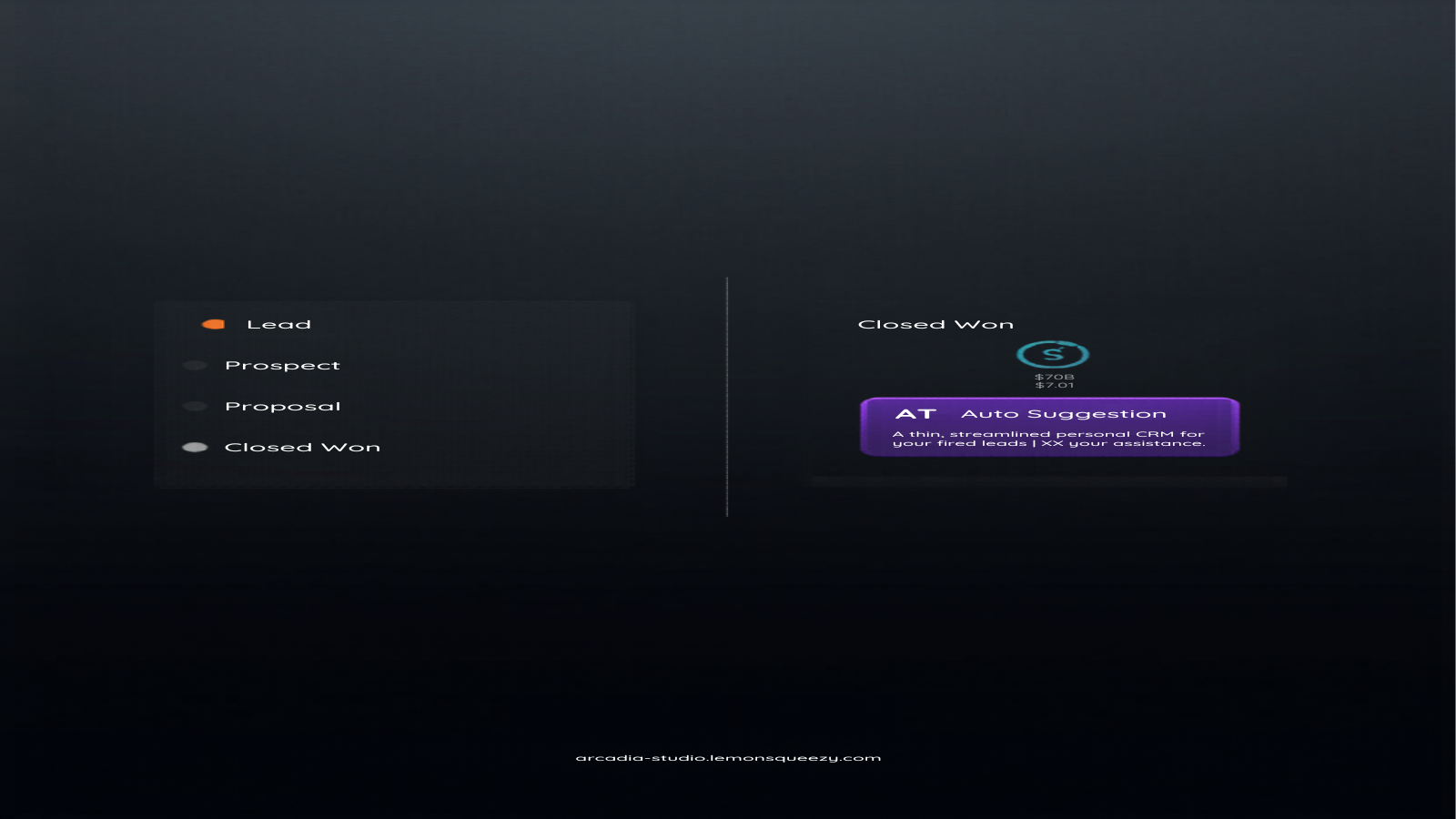
Installation
From Obsidian Community Plugins (Recommended)
- Open Obsidian Settings
- Go to Community Plugins and disable Safe Mode
- Click Browse and search for Arcadia Connect
- Click Install, then Enable
Manual Installation
- Download
main.js,manifest.json, andstyles.cssfrom the latest release - Create the folder
.obsidian/plugins/arcadia-connect/in your vault - Copy the three files into that folder
- Open Obsidian Settings → Community Plugins → enable Arcadia Connect
Quick Start
1. Configure Your People Folder
Settings → Arcadia Connect → People folder — set the path where contact notes will be stored (e.g., People/).
2. Create Your First Contact
- Click the 👤 ribbon icon to open the People Panel → + New
- Or: Command palette → Create Person Note
Each contact note uses structured frontmatter:
file-role: crm-contact
last-contact: 2026-03-30
next-follow-up: 2026-04-15
follow-up-status: pending
deal-stage: prospect
deal-value: 5000
organization: Acme Corp
role: VP of Sales
email: contact@example.com
3. Mention People in Notes
Type @ in any note to trigger the autocomplete. Select a name to insert an internal link. In reading view, mentions render as clickable links with a hover profile card.
4. Log Interactions
- Hover any contact in the People Panel → + Log
- Or: Command palette → Log Interaction
- Or: Click + Log on any Pipeline card
Choose interaction type (Call, Email, Meeting, Note), write a summary, and optionally set the next follow-up date. The entry is appended to the contact's ## Interaction Log section and last-contact is updated automatically.
5. Timeline View
Click the 🕐 ribbon icon. All interactions across all contacts, newest first, bucketed by Today / Yesterday / This Week / This Month / Earlier. Filter by contact name using the search box.
6. Pipeline View
Click the ⬛ ribbon icon. Contacts are grouped into 6 Kanban columns by deal-stage:
- Lead → Prospect → Proposal → Negotiation → Closed Won → Closed Lost
Each column shows total deal value. On each card, use the Move to... dropdown to change stage (updates frontmatter instantly), or + Log to record an interaction.
7. AI Follow-Up Suggestions
- Settings → Arcadia Connect → AI Enrichment — add your Anthropic or OpenAI API key
- Open any contact note
- Command palette → AI: Suggest Follow-up for Active Contact
The AI reads the contact's profile and last 20 interaction log entries, then returns a suggested action, reasoning, and optional draft message. Hit Append to note to save the suggestion directly to the contact file.
Keys are stored locally in your vault settings and are never sent to Arcadia servers. You call the AI provider directly.
CRM Frontmatter Reference
| Field | Values | Description |
|---|---|---|
file-role | crm-contact | Marks the note as a contact |
last-contact | YYYY-MM-DD | Date of most recent interaction |
next-follow-up | YYYY-MM-DD | Scheduled follow-up date |
follow-up-status | pending / done / snoozed | Follow-up state |
deal-stage | lead / prospect / proposal / negotiation / closed-won / closed-lost | Pipeline stage |
deal-value | number | Deal value in dollars |
organization | string | Company or organization name |
role | string | Job title or role |
email | string | Email address |
phone | string | Phone number |
tags | list | Obsidian tags |
Premium License
Enter your license key at Settings → Arcadia Connect → License key and click Validate.
Get a license at arcadia-studio.lemonsqueezy.com.
Commands
| Command | Description |
|---|---|
| Open People Panel | Open the contacts sidebar |
| Create Person Note | Create a new contact note |
| Mention Person | Insert @ trigger to activate autocomplete |
| Open Interaction Timeline | Open the timeline view |
| Open Deal Pipeline | Open the Kanban pipeline |
| Log Interaction | Open the interaction logger |
| AI: Suggest Follow-up for Active Contact | Run AI analysis on the open contact note |
Development
git clone https://github.com/Arcadia-Studio/obsidian-arcadia-connect.git
cd obsidian-arcadia-connect
npm install
npm run dev        # watch mode
npm run build      # production build
npx tsc --noEmit   # typecheck
About Arcadia Studio
Arcadia Studio builds productivity tools for the Obsidian ecosystem.
For plugin developers
Search results and similarity scores are powered by semantic analysis of your plugin's README. If your plugin isn't appearing for searches you'd expect, try updating your README to clearly describe your plugin's purpose, features, and use cases.