AtLine AI
pendingby Erges Mema
Ask any LLM questions about your notes inline using custom triggers.
AtLine AI for Obsidian
Ask any LLM questions about your notes inline using custom triggers.
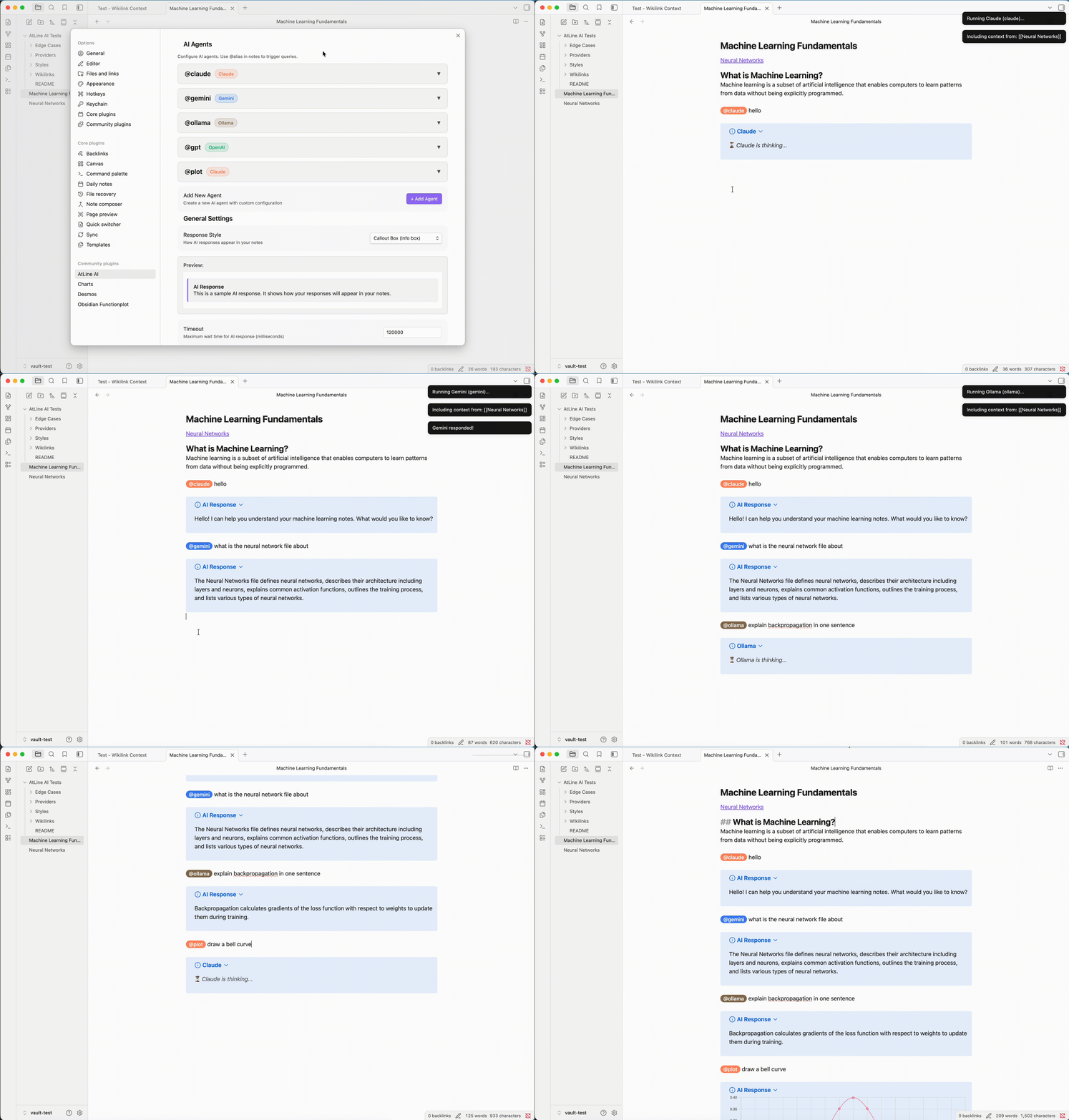
Set a hotkey in Settings → Hotkeys → AtLine AI to trigger a response (e.g. Cmd+Enter on Mac).
Desktop only. This plugin uses Node.js APIs and is not available on Obsidian Mobile.
Quickstart
- Install the plugin (see Installation)
- Choose your connection method:
- API mode: Go to Settings → AtLine AI → API Keys and add your API key (Anthropic, OpenAI, or Google)
- CLI mode: Install the CLI tool (e.g.,
npm install -g @anthropic-ai/claude-code) and authenticate
- Set a hotkey: Settings → Hotkeys → search "AtLine AI" → assign your preferred shortcut
- In any note, type:
@claude What is this note about? - Press your hotkey
The AI response appears inline below your question.
Features
- Multiple AI providers: Claude, Google Gemini, Ollama (local models), OpenAI, and a dedicated chart/plot agent
- Flexible connection modes: Use CLI tools or direct API keys — no CLI required for API mode
- Streaming responses: See AI responses appear in real-time as they are generated
- Linked notes context: Automatically include
[[wikilinked]]notes as context for the AI - Inline responses: Answers appear directly in your note as blockquotes, callouts, plain text, or code blocks
- Customizable agents: Create multiple agents with different providers and system prompts
- Configurable hotkey: assign any shortcut via Settings → Hotkeys
- Works alongside other typing plugins without conflicts
Installation
Via BRAT (recommended for beta testing)
- Install the BRAT plugin from the Obsidian community plugins
- Open BRAT settings and click Add Beta Plugin
- Enter:
https://github.com/ergesmema/obsidian-atline-ai - Enable AtLine AI in Settings → Community Plugins
Manual installation
- Download the latest release and extract it into your vault's
.obsidian/plugins/folder - Enable the plugin in Settings → Community Plugins
Requirements
- Obsidian v0.15.0 or higher
- Desktop only (Windows, macOS, Linux)
Choose CLI or API mode per provider:
| Provider | CLI mode | API mode |
|---|---|---|
| Claude | Claude CLI (npm install -g @anthropic-ai/claude-code) | Anthropic API key |
| Gemini | Gemini CLI (requires Node.js 20+) | Google AI API key |
| OpenAI | Codex CLI | OpenAI API key |
| Ollama | Ollama running locally (http://localhost:11434) | — |
| Plot | Uses whichever provider the @plot agent is configured with | — |
API mode requires no CLI installation — just add your API key in settings.
Usage
Basic usage
- Open any note in Obsidian
- Type an agent trigger followed by your question:
@claude What is the main topic of this note? @gemini Summarize this section @ollama Explain this concept @gpt Help me rewrite this paragraph @plot Draw a bar chart: Q1=120, Q2=95, Q3=140, Q4=200 - Press your configured hotkey (set in Settings → Hotkeys → AtLine AI)
- The AI reads your note and responds inline
The plugin searches up to 20 lines above your cursor to find the nearest @agent trigger, so you can place your cursor anywhere after the query.
Command palette
- Place your cursor on or below a line with an agent query
- Open the command palette (Cmd/Ctrl+P)
- Run AtLine AI: Run AI agent on current line
Configuration
Go to Settings → AtLine AI to configure:
- AI agents: Create and customize multiple agents with different providers and system prompts
- Connection mode: Choose CLI or API mode per agent
- API keys: Add your Anthropic, OpenAI, or Google AI API keys
- Include linked notes: Automatically include
[[wikilinked]]notes as context - Response style: Choose how responses are displayed — blockquote, callout, plain, code, or custom
- Hotkey: Choose your preferred keyboard shortcut
- Timeout: Maximum wait time for AI responses (default: 2 minutes)
- Ollama settings: Configure Ollama base URL and model
- CLI paths: Configure paths to Node.js and CLI executables
Configuring agents
Each agent has:
- Alias: The trigger word (e.g.,
claude,gemini,gpt, or any custom word) - Provider: Which AI service to use
- Connection mode: CLI or API
- Model: Which model to use (e.g.,
claude-sonnet-4-20250514,gpt-4o) - System prompt: Custom instructions for how the AI should behave
- Include linked notes: Whether to include
[[wikilinked]]notes as context
Troubleshooting
Plugin not responding
- Check Obsidian's developer console (Cmd/Ctrl+Shift+I) for errors
- Verify the appropriate CLI is installed for your provider
- For Ollama: ensure Ollama is running at the configured base URL
Claude / Gemini / OpenAI not working
If using API mode:
- Verify your API key is entered correctly in Settings → AtLine AI → API Keys
- Use the Test button next to your API key to verify it works
- Check that your API account has credits or quota available
If using CLI mode:
- Verify CLI is installed:
which claude,which gemini, orwhich codex - Check that you are authenticated with the CLI
- Test the CLI independently in your terminal
- For Gemini CLI: Requires Node.js version 20 or higher
- Check CLI paths in settings: Go to Settings → AtLine AI → CLI Paths and ensure all paths are correct
- Default paths use system PATH (e.g.,
node,claude). For custom installations, use absolute paths:- Homebrew:
/usr/local/bin/node - NVM:
~/.nvm/versions/node/v20.x.x/bin/node
- Homebrew:
Ollama not working
- Verify Ollama is running:
curl http://localhost:11434/api/tags - Check that the model name in settings matches an installed model
- Verify the base URL in settings is correct
Timeout errors
- Increase the timeout value in plugin settings
- Check your internet connection (for Claude/Gemini/OpenAI)
- For local models (Ollama): check system resources
Network and privacy
This plugin can send note content to external AI services depending on which provider you use:
| Provider | Service | Privacy policy |
|---|---|---|
| Claude (API mode) | Anthropic API | anthropic.com/privacy |
| Gemini (API mode) | Google AI API | ai.google.dev/terms |
| OpenAI (API mode) | OpenAI API | openai.com/policies/privacy-policy |
| Ollama | Localhost only | No data leaves your machine |
| CLI mode (any) | Routed through the respective CLI tool | See provider above |
What is sent: the content of your active note, any [[wikilinked]] notes you have enabled for context, and your query. No data is collected by this plugin itself.
To keep your notes private, use Ollama with a local model.
Roadmap
v1.2 - Context enhancements
- Selection-only mode (AI only sees highlighted text)
- Folder-wide context option
- Conversation history within a note
v1.3 - Response improvements
- Edit and regenerate responses
- Save favourite prompts/templates
v1.4 - More providers
- Mistral AI support
- Custom API endpoints
Have a feature request? Open an issue!
Contributing
Contributions are welcome! You can:
- Suggest features: Open an issue or join Discussions
- Report bugs: Include steps to reproduce and error messages from the developer console
- Submit code: See CONTRIBUTING.md for guidelines
License
MIT
For plugin developers
Search results and similarity scores are powered by semantic analysis of your plugin's README. If your plugin isn't appearing for searches you'd expect, try updating your README to clearly describe your plugin's purpose, features, and use cases.