PlantUML Integrator
pendingby fangface
Render PlantUML code blocks and .puml embeds with dependency-aware cache invalidation.
Obsidian PlantUML Integrator
An Obsidian plugin that renders PlantUML diagrams and is ready for Community Plugins publication.
Features
- Render PlantUML code blocks (
plantuml,puml) in Markdown preview. - Render
.pumlembedded files. - Cache include dependency trees and auto re-render when included files are modified.
- Right-click each rendered diagram to clear cache and re-render only that diagram.
- Select rendering mode: remote server endpoint or local PlantUML server.
Code block rendering image

Render Modes
Server mode (default)
Uses a remote PlantUML-compatible HTTP endpoint (e.g. kroki.io).
Configure PlantUML server URL in settings (default: https://kroki.io/plantuml/svg).
Local jar mode
Runs a local PlantUML PicoWeb server and sends requests to it.
This mode does not invoke java directly from the plugin; you must start the server yourself.
Why? Due to platform security constraints, Obsidian plugins cannot spawn external processes. Instead, the plugin communicates with a running PlantUML server via HTTP.
Starting the local server:
java -jar "<path-to-plantuml.jar>" -picoweb
The server listens on port 8080 by default.
Start the local server automatically at user login:
You can register the PlantUML PicoWeb command as a per-user startup entry so it is launched when you sign in.
Windows (HKCU Run):
$runKey = 'Registry::HKEY_CURRENT_USER\Software\Microsoft\Windows\CurrentVersion\Run'
$javaCommand = 'javaw.exe'
$javaExe = (Get-Command $javaCommand -ErrorAction SilentlyContinue | Select-Object -First 1 -ExpandProperty Source)
if (-not $javaExe) { $javaExe = $javaCommand }
$jarPath = 'C:\path\to\plantuml.jar'
$command = '"' + $javaExe + '" -jar "' + $jarPath + '" -picoweb'
New-Item -Path $runKey -Force | Out-Null
Set-ItemProperty -Path $runKey -Name 'PlantUML PicoWeb' -Value $command
macOS (LaunchAgent):
mkdir -p ~/Library/LaunchAgents
cat > ~/Library/LaunchAgents/com.user.plantuml.picoweb.plist <<'EOF'
<?xml version="1.0" encoding="UTF-8"?>
<!DOCTYPE plist PUBLIC "-//Apple//DTD PLIST 1.0//EN" "http://www.apple.com/DTDs/PropertyList-1.0.dtd">
<plist version="1.0">
   <dict>
      <key>Label</key>
      <string>com.user.plantuml.picoweb</string>
      <key>ProgramArguments</key>
      <array>
         <string>/usr/bin/java</string>
         <string>-jar</string>
         <string>/path/to/plantuml.jar</string>
         <string>-picoweb</string>
      </array>
      <key>RunAtLoad</key>
      <true/>
      <key>KeepAlive</key>
      <true/>
   </dict>
</plist>
EOF
launchctl load ~/Library/LaunchAgents/com.user.plantuml.picoweb.plist
Linux (systemd user service):
mkdir -p ~/.config/systemd/user
cat > ~/.config/systemd/user/plantuml-picoweb.service <<'EOF'
[Unit]
Description=PlantUML PicoWeb server

[Service]
ExecStart=/usr/bin/java -jar /path/to/plantuml.jar -picoweb
Restart=on-failure

[Install]
WantedBy=default.target
EOF
systemctl --user daemon-reload
systemctl --user enable --now plantuml-picoweb.service
Check whether the login startup registration is active:
Windows:
(Get-ItemProperty -Path 'Registry::HKEY_CURRENT_USER\Software\Microsoft\Windows\CurrentVersion\Run' -Name 'PlantUML PicoWeb').'PlantUML PicoWeb'
macOS:
launchctl list | grep com.user.plantuml.picoweb
Linux:
systemctl --user status plantuml-picoweb.service
Remove the login startup registration:
Windows:
Remove-ItemProperty -Path 'Registry::HKEY_CURRENT_USER\Software\Microsoft\Windows\CurrentVersion\Run' -Name 'PlantUML PicoWeb'
macOS:
launchctl unload ~/Library/LaunchAgents/com.user.plantuml.picoweb.plist
rm ~/Library/LaunchAgents/com.user.plantuml.picoweb.plist
Linux:
systemctl --user disable --now plantuml-picoweb.service
rm ~/.config/systemd/user/plantuml-picoweb.service
systemctl --user daemon-reload
Replace the Java executable and JAR path with values that match your environment.
Plugin settings:
Settings screen image
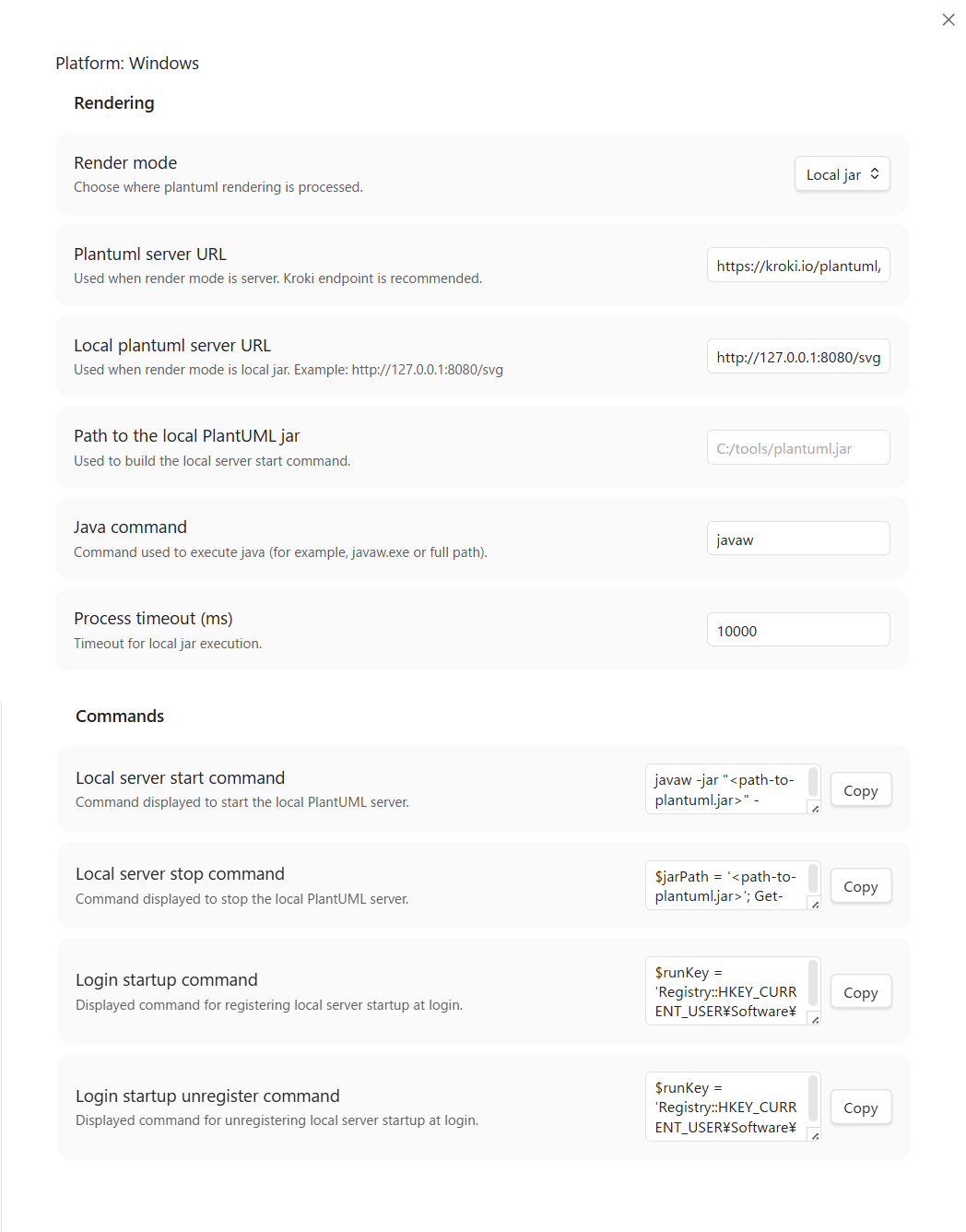
| Setting | Description | Default |
|---|---|---|
| Render mode | Choose where plantuml rendering is processed. | Server |
| Plantuml server URL | Used when render mode is server. Kroki endpoint is recommended. | https://kroki.io/plantuml/svg |
| Local plantuml server URL | Used when render mode is local JAR. Example: http://127.0.0.1:8080/svg | http://127.0.0.1:8080/svg |
| Path to the local plantuml jar | Used to build the local server start command. | (empty) |
| Java command | Command used to execute java (for example, javaw.exe or full path). | javaw.exe |
| Process timeout (ms) | Timeout for local jar execution. | 10000 |
| Local server start command | Copy this command to start the local plantuml server. | Auto-generated from Java command and Path to the local plantuml jar |
| Local server stop command | Copy this command to stop the local plantuml server. | Platform-specific auto-generated value |
| Login startup command | Displayed command for registering local server startup at login. | Platform-specific auto-generated value |
| Login startup unregister command | Displayed command for unregistering local server startup at login. | Platform-specific auto-generated value |
Convenience feature: Right-click any rendered diagram and select Copy local server start command to copy the javaw.exe -jar ... command to the clipboard.
If the server is not running, the plugin shows the start command in the error message.
Build
-
Install dependencies:
npm install -
Build:
npm run build
Development
Watch mode:
npm run dev
Copy manifest.json, main.js, and styles.css to your Obsidian vault plugin folder.
Lint
Run lint checks:
npm run lint
Run lint checks with auto-fix:
npm run lint:fix
npm run lint:fix only applies ESLint auto-fixes and does not update version files.
Community Plugin Release
- Verify
manifest.jsonfields:id,name,author,description, andversion. - Run
npm run lint:fix. - Run
npm run lint. - Run
npm run version:patchfor fix releases. This command updatespackage.json,package-lock.json,manifest.json, andversions.jsontogether. - Run
npm run buildto generatemain.js. - Create a GitHub Release with the same tag as the
manifest.jsonversion (for example,0.1.0). - Attach the following 3 files as release assets:
manifest.jsonmain.jsstyles.css
- Submit a registration PR to the Obsidian community plugin list repository.
GitHub Actions (Release ZIP)
- Workflow file:
.github/workflows/release-zip.yml - Trigger (manual):
workflow_dispatch - Trigger (automatic):
release.published - Output ZIP:
${id}-${version}.zipcontainingmanifest.json,main.js,styles.css, andversions.json - Output destination: uploaded as a workflow artifact
- Release behavior: automatically attached to the GitHub Release when triggered by release publish
Version Bump Checklist
- Run
npm run version:patch - Verify the updated version in
manifest.jsonandversions.json npm run build- Create a git tag and GitHub Release
Support the Project
If you find this plugin helpful, consider sponsoring the project:

For plugin developers
Search results and similarity scores are powered by semantic analysis of your plugin's README. If your plugin isn't appearing for searches you'd expect, try updating your README to clearly describe your plugin's purpose, features, and use cases.