GitHub Copilot Integration
pendingby go2engle
Integrate GitHub Copilot for AI-powered text generation and assistance.
GitHub Copilot Integration


GitHub Copilot Integration is an Obsidian plugin that integrates GitHub Copilot with Obsidian, allowing you to chat with your documents, generate notes, rewrite text, and more using AI directly from your vault.
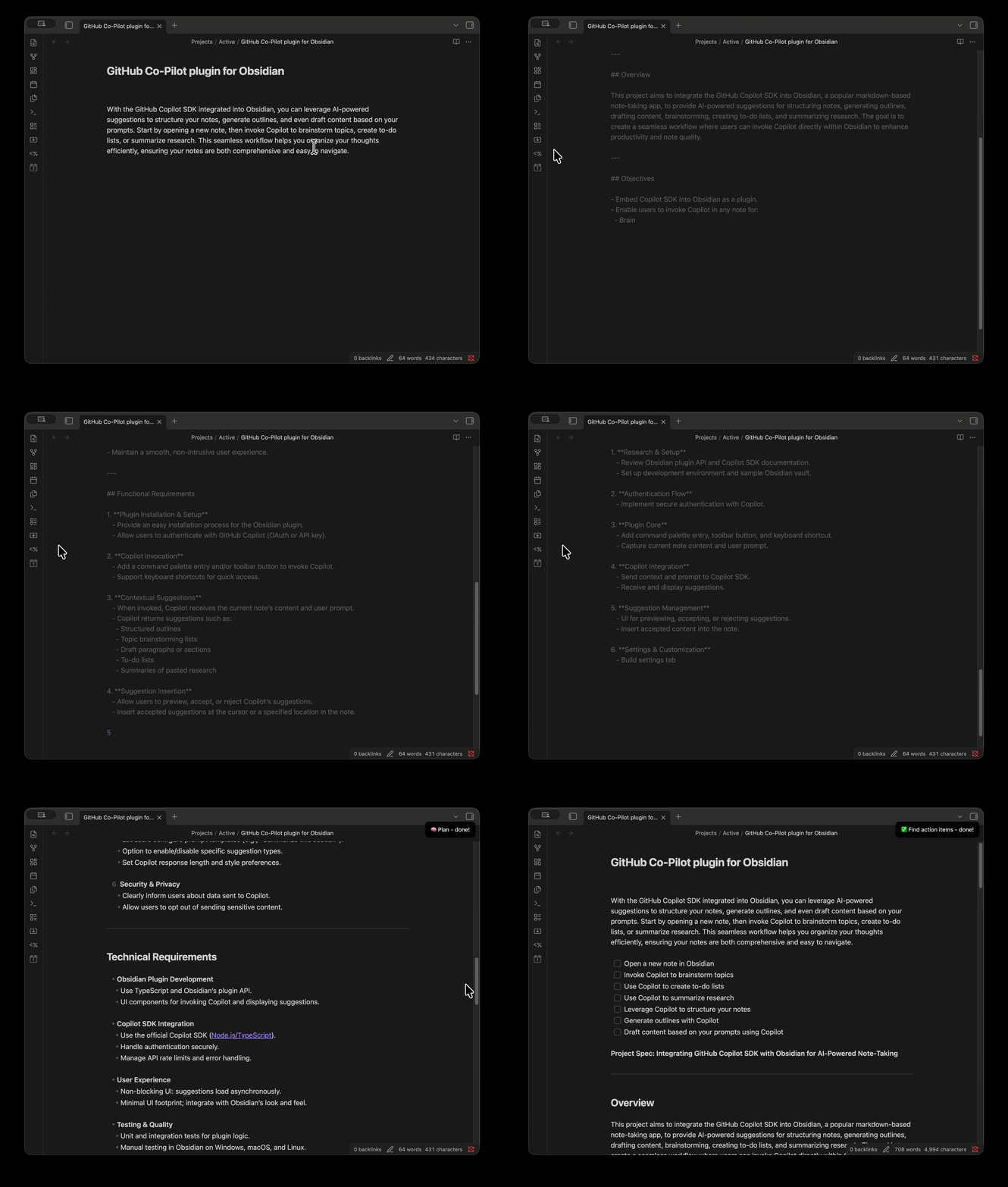
Features
- 💬 Chat Interface: Interactive sidebar chat with your documents
- Real-time streaming responses
- Automatic document context inclusion
- Persistent conversation history
- Copy or insert AI responses directly into your documents
- Native Obsidian theming support
- ✏️ Inline Edit: Select text and trigger the inline edit command to get a floating input popup — type instructions and have Copilot append or replace content directly in your document
- 📋 Send to Chat: Right-click selected text to send it as context to the Copilot Chat sidebar, then ask follow-up questions about it
- Action Palette: Quick access to all AI actions via fuzzy search (Cmd+P → "Action Palette")
- Streaming Output: See AI-generated text appear in real-time with a visual indicator
- 8 Built-in Actions:
- 🪄 General help — Professional editing for readability and flow
- ✍️ Continue writing — Continues text in the same tone/style
- 🍭 Summarize — Concise summary of key points
- 📖 Fix spelling and grammar — Proofreads and corrects
- ✅ Find action items — Extracts tasks/to-dos as clickable checkboxes
- 🔄 Rewrite selection — Improves clarity, grammar, and style
- 💻 Generate code — Generates code in a fenced code block from a description
- 🧠 Plan — Generates a detailed project spec from provided context
- Fully Customizable: Edit or create new actions with custom prompts in Settings
- Cross-Platform: Works on macOS, Windows, and Linux
Requirements
- Obsidian Desktop (v1.0.0+)
- Latest version of GitHub Copilot CLI installed and accessible from your system PATH
- Install:
npm install -g @github/copilot(npm) orwinget install GitHub.Copilot(Windows) - Update:
copilot updateornpm update -g @github/copilot - Verify:
copilot --version(should be v0.0.409 or newer)
- Install:
- Active GitHub Copilot subscription
- GitHub Copilot CLI authenticated:
copilot login
How to Use
Getting Started
- Install: Place the plugin folder in your vault's
.obsidian/pluginsdirectory, or install from the Community Plugins browser (after approval). - Enable: Go to Settings → Community Plugins → Enable GitHub Copilot Integration.
Using the Chat Interface
- Open Chat: Click the message icon (💬) in the left ribbon, or use the command palette (Cmd+P / Ctrl+P) and search for "Open chat".
- Ask Questions: Type your question or request in the input field and press Enter (Shift+Enter for newline).
- Automatic Context: The chat automatically includes the content of your active document as context.
- Insert Responses: Hover over any AI response and click "Insert into document" to add it to your active note.
- New Conversation: Click the "+" button in the chat toolbar to start a fresh conversation.
- Abort Streaming: Press Escape to stop an in-progress response.
Using Inline Edit
- Select Text: Highlight the text you want to edit (or place your cursor where you want new content).
- Trigger: Open the command palette and search for "Inline edit", or bind it to a hotkey for quick access.
- Describe Your Edit: A floating input box appears above your selection — type what you want (e.g., "convert to bullet list", "add error handling", "translate to Spanish").
- Choose Mode: Toggle between Append (adds content after selection) and Replace (replaces selection) using the buttons below the input.
- Submit: Press Enter or click "Go". The AI response streams directly into your document.
Send Selection to Chat
- Select Text: Highlight text in your document.
- Right-Click: A context menu appears with "Send to Copilot Chat".
- Ask Questions: The chat sidebar opens with your selection attached as context (shown as a chip above the input). Type your question and send.
Using Quick Actions
- Action Palette: Press Cmd+P (or Ctrl+P), type "Action Palette", and select an action.
- (Optional) Set a Hotkey: For quick access, bind the Action Palette to a keyboard shortcut. Go to Settings → Hotkeys, search for "Action Palette", and assign a keybind (e.g., Cmd+M / Ctrl+M).
- Direct Commands: Each action is also available as a standalone command in the command palette.
- With Selection: Select text before running an action to rewrite/transform it. For summarization and action items, results are appended after your selection.
- Without Selection: Run an action to generate new content at your cursor.
Installation (Developers)
- Clone this repository.
- Run
mv copy-to-obsidian.sh.sample copy-to-obsidian.shand update theOBSIDIAN_PLUGIN_DIR=variable to point to yourgithub-copilot-integrationdirectory inside the plugins folder within your Obsidian vault. - Run
npm installto install dependencies. - Run
npm run buildto build the plugin and copy files to your Obsidian plugins folder automatically. - (Optional) Run
npm run devto watch for changes and auto-copy files on every modification. - You can also run
bash ./copy-to-obsidian.shto copy files manually.
Technical Details
This plugin uses the official @github/copilot-sdk for TypeScript/Node.js. Key features:
- CopilotClient: Manages the connection to GitHub Copilot CLI
- Session Management:
- Persistent sessions for chat conversations (one session per thread)
- Isolated sessions for quick actions
- Streaming Support: Real-time text generation using
assistant.message_deltaevents - Chat Architecture:
- Native Obsidian
ItemViewintegration for sidebar panel - Persistent conversation history stored in plugin data
- Automatic document context injection
- CodeMirror 6 decorations for inline streaming (actions)
- MarkdownRenderer for formatted chat messages
- Native Obsidian
- Model Configuration: Configurable model selection (gpt-4o, claude-sonnet-4.5, etc.)
- Error Handling: Proper cleanup and error recovery for interrupted requests
The SDK automatically handles:
- CLI process lifecycle (start, restart, stop)
- Authentication with GitHub Copilot
- Message formatting and protocol communication
- Streaming chunk buffering and delivery
License
MIT
Disclaimer: This entire plugin was vibe coded using GitHub Copilot. Use at your own risk!
For plugin developers
Search results and similarity scores are powered by semantic analysis of your plugin's README. If your plugin isn't appearing for searches you'd expect, try updating your README to clearly describe your plugin's purpose, features, and use cases.