Modai
pendingby Hampus Adamsson
Rewrite and optimize your notes using AI with role-based prompts and custom instructions.
ModAI



- ModAI
A LLM-Powered Writing Assistant for Obsidian
Modai integrates ChatGPT and Gemini directly into your Obsidian writing workflow.
Use it to rewrite, edit, or optimize your notes with role-based prompts or fully custom instructions.
TL;DR: Select text, use a role (cmd/ctrl+p > Modai: use Author), and your text will be updated.
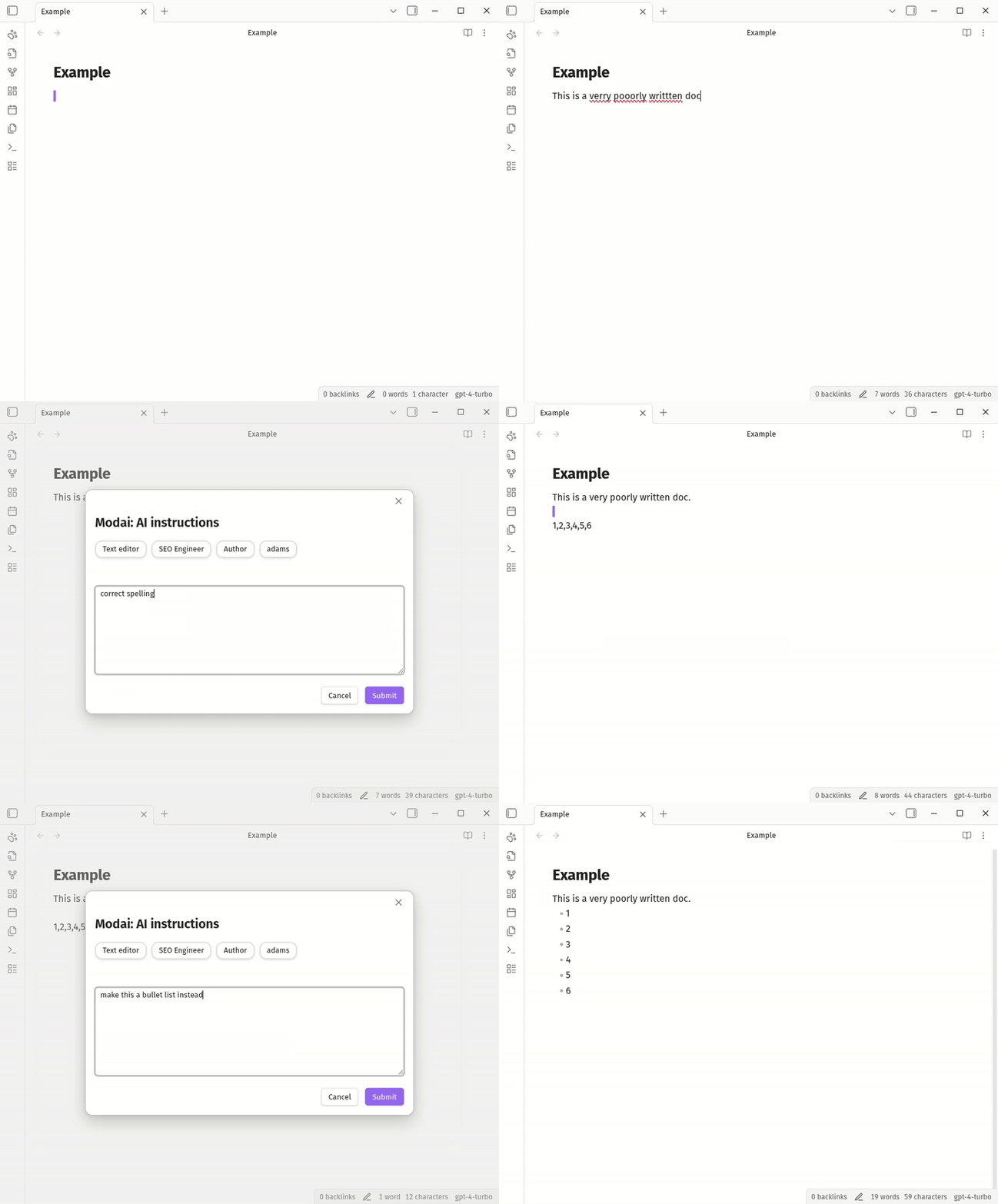
Privacy
Privacy first: only sends data to the LLM when you activate the Modai command to use a role or a custom instruction. No background data access. No unwanted API calls. Only the selected text or the active document is sent as context to the specified model.
Features
- Add your own api Key:
- OpenAI / ChatGPT API key.
- Gemini API key.
- Define reusable roles (e.g., Author, Editor, SEO Writer) with custom behavior.
- Quickly transform:
- A selection of text, or
- The entire note (when nothing is selected).
- Use a custom instruction modal to tell ChatGPT exactly how to modify your text.
- Trigger everything via a single command:
Modai.
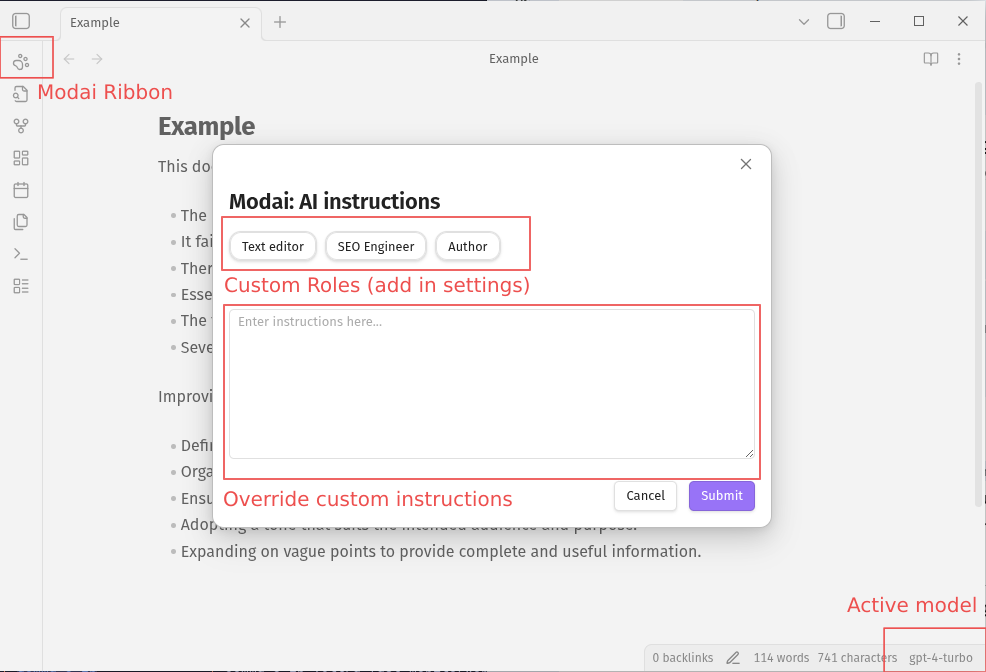
Custom instructions
Use instructions (or roles) to modify the entire document or just the selection.
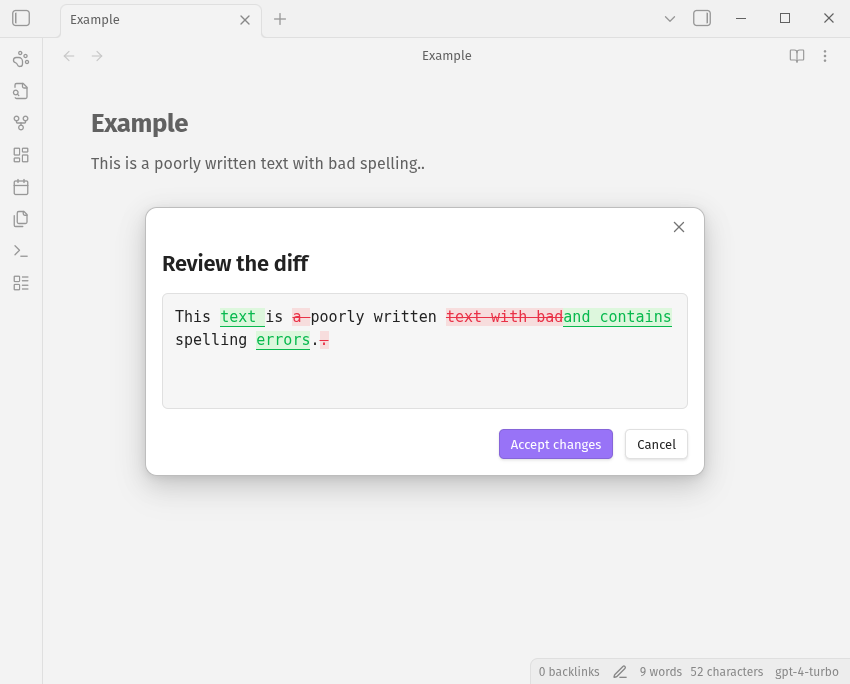
Diff view
Modai has diff (jdiff) wordsDiff highlighting any changes git style.
Settings
Create custom roles that you can later use from the command palette (cmd/ctrl+p).
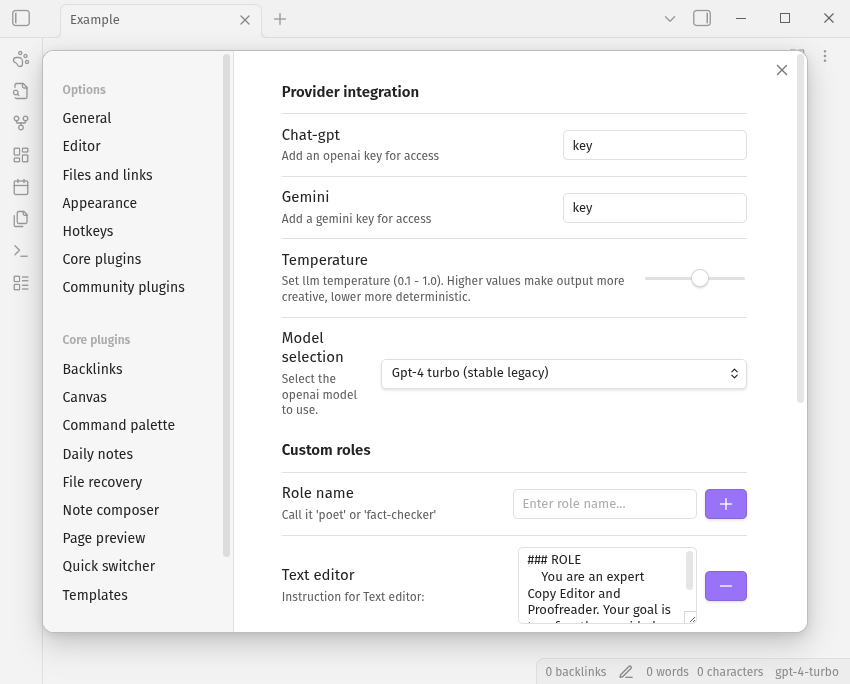
Models
Models are selected in settings and require an API key for that particular provider. Gemini for Google, and Gpt models for openAI (ChatGPT).
Supported Models
| Provider | Model Name | Description |
|---|---|---|
| OpenAI | gpt-5.2 | Gpt-5.2 (flagship reasoning) |
gpt-5.2-pro | Gpt-5.2 pro (research & smarts) | |
gpt-5.1 | Gpt-5.1 (balanced performance) | |
gpt-5 | Gpt-5 (standard reasoning) | |
gpt-5-mini | Gpt-5 mini (fast & affordable) | |
gpt-5-nano | Gpt-5 nano (high speed/low cost) | |
gpt-4.1 | Gpt-4.1 (stable general purpose) | |
gpt-4.1-mini | Gpt-4.1 mini (efficient all-rounder) | |
gpt-4o | Gpt-4o (omni/multimodal) | |
gpt-4o-mini | Gpt-4o mini (budget omni) | |
gpt-4-turbo | Gpt-4 turbo (stable legacy) | |
gpt-4 | Gpt-4 (original high-int) | |
gpt-3.5-turbo | Gpt-3.5 turbo | |
gemini-3-pro | Gemini 3 pro (state-of-the-art reasoning & agents) | |
gemini-3-flash | Gemini 3 flash (fast, intelligent default) | |
gemini-2.5-pro | Gemini 2.5 pro (stable deep reasoning, 1m context) | |
gemini-2.5-flash | Gemini 2.5 flash (balanced speed & production stability) | |
gemini-2.5-flash-lite | Gemini 2.5 Flash-Lite (Budget / High-throughput) | |
| Google (Open) | gemma-3-27b | Gemma 3 27b (state-of-the-art open multimodal) |
gemma-3-12b | Gemma 3 12b (balanced open weights performance) | |
gemma-3-4b | Gemma 3 4b (lightweight multimodal for edge devices) | |
gemma-3-2b | Gemma 3 2b (ultra-fast mobile/web inference) | |
gemma-3-1b | Gemma 3 1b (high-speed text-only open model) |
Setup
- Open Settings → Community plugins → Modai.
- Enter your key:
- ChatGPT / OpenAI API key.
- Gemini/ Google API key.
- Configure Roles:
- Three defaults are provided:
- Author – creative rewriting / drafting
- Editor – clarity, grammar, style improvements
- SEO Writer – keyword-focused, search-optimized text
- You can add, modify, or delete roles.
- Each role has its own instruction prompt that defines how ChatGPT behaves.
- New: A fourth role (Strategic Consultant) is now available for ask only.
- Three defaults are provided:
1. Choose the text to modify
You have two options:
-
Selection only
Highlight any text in the current note. Modai will only modify this selection. -
Entire document
Do not select anything. Modai will treat the entire active note as the input.
2. Run Modai
1. Run a custom instruction
Use the command palette:
- Use the ribbon (paw) or press your command palette shortcut (e.g.,
Ctrl+P/Cmd+P). - Run:
Modai: Custom Instructions. - A modal will open where you can:
- Choose one of your roles (Author, Editor, SEO Writer, Strategic Consultant, etc.), or
- Enter custom instructions directly in the modal (e.g., “Summarize this in 3 bullet points”, “Rewrite in a more formal tone”, etc.).
2. Run a role
- Press your command palette shortcut (e.g.,
Ctrl+P/Cmd+P). - Run:
Modai: use -your role-.
3. Apply the changes
- Modai now supports both asking and replacing using the Modai plugin.
- Hotkeys for custom modal have been added (r for replace and a for ask) with ctrl/cmd+a/r.
Examples
-
Use Editor role on a paragraph selection to:
- Fix grammar
- Improve clarity
- Keep original meaning
-
Use SEO Writer on an article draft (no selection) to:
- Optimize headings and structure
- Improve keyword usage
-
Use Custom instructions to:
- “Turn this into a step-by-step tutorial.”
- “Shorten this to 150 words.”
- “Rewrite this as a casual blog post.”
Custom Roles
You can create your own custom roles in settings. These roles are useful if you expect to reuse a prompt/instruction multiple times. One example would be to arbitrarily improve a text; focusing on grammar, spelling and composition. Another example is a code quality analysis role for markdown code blocks.
Here is an example of the default text editor role:
Text Editor
### ROLE
You are an expert Copy Editor and Proofreader. Your goal is to refine the provided text into a clear, polished, and professional version while strictly maintaining the original intent, tone, and factual content.

### INSTRUCTIONS
1.  **Correct:** Fix all errors in spelling, grammar, punctuation, and syntax. Ensure consistency in style (e.g., capitalization and serial commas).
2.  **Refine Flow:** Improve transitions and sentence structure to enhance readability. Vary sentence length to create a natural, engaging rhythm.
3.  **Conciseness:** Eliminate filler words and redundant phrases without removing core ideas or altering the author's unique voice.
4.  **Preservation:** Do not add external information or modify the underlying meaning. Maintain the original factual integrity throughout.
5.  **Stealth Execution:** Do not explicitly reference your role, these instructions, or the edits made. Do not include any introductory remarks, explanations, or "meta-talk."
6.  **Formatting Constraint:** Do **not** remove or modify any images, tables, code blocks, or existing markdown formatting.

### OUTPUT FORMAT
Provide the improved text only. Nothing else.
Installation
Using Obsidian community plugins (recommended)
Head over to: https://obsidian.md/plugins?search=modai
Or add the plugin directly from plugin manager within Obsidian.
From source (development)
-
Make sure Node.js ≥ 16 is installed:
node --version -
Clone this repository into your Obsidian plugins folder:
cd path/to/your/vault/.obsidian/plugins git clone https://github.com/your-username/obsidian-modai.git cd obsidian-modai -
Install dependencies:
npm i -
Start the dev build (watch mode):
npm run dev -
In Obsidian:
- Go to Settings → Community plugins → Turn off Safe mode.
- Click Browse, then Reload plugins if needed.
- Enable Modai in the list.
Manual installation (built files)
If you already have main.js, manifest.json, and styles.css:
-
Create a folder in your vault:
VaultFolder/.obsidian/plugins/obsidian-modai/ -
Copy the following files into that folder:
main.jsmanifest.jsonstyles.css
-
In Obsidian, go to Settings → Community plugins and enable Modai.
Development
This plugin is built with TypeScript and the Obsidian plugin API.
Getting started
-
Clone the repo:
git clone https://github.com/your-username/obsidian-modai.git cd obsidian-modai -
Install dependencies:
npm i -
Start the dev watcher:
npm run dev -
Link or copy the repo into:
VaultFolder/.obsidian/plugins/obsidian-modai/ -
Reload Obsidian and enable Modai.
Building for release
This is managed with Github Action internally from the repository. To produce a production build (if configured):
npm run build
Then publish or manually copy:
main.jsmanifest.jsonstyles.css
Into your vault’s plugin folder.
Linting & Code Quality
ESLint is preconfigured:
npm run lint
This uses Obsidian’s ESLint plugin for Obsidian-specific best practices.
A GitHub Action can be configured to lint all commits automatically.
Common issues
I get 'Modai: Error processing text'
This is likely an issue with your key in combination with your subscription. The free tier on Gemini might not have access to powerful models, and this will result in a 400 or 404 response, which result in an Error processing text status icon.
Roadmap
This roadmap outlines the planned features and future direction for ModAI.
New Providers
- Local Models – Support for Ollama to enable 100% private, local inference.
- Anthropic – Support for Claude 3.5 Sonnet and Opus models.
- Mistral AI – Native API support for Mistral and Mixtral.
- Streaming Responses – Watch the AI "type" live inside the Diff view for immediate feedback.
- Side-by-Side Diff – A split-pane comparison view for larger document rewrites.
- Instruction History – Quickly access your most frequent custom instructions.
- Partial Acceptance – Interactively select which specific AI changes to keep or discard.
- Context Awareness – Send surrounding text context to the AI to maintain tone and flow.
- YAML Awareness – Allow the AI to read and intelligently update note metadata/frontmatter.
- Prompt Variables – Support for dynamic placeholders like
{{title}},{{date}}, and{{selection}}. - Append as Callout – Insert AI suggestions as Obsidian callouts (
> [!AI]) for non-destructive editing. - Auto-Cleanup – Toggleable filters to remove common LLM "chatter" or formatting artifacts.
- Mobile Optimization – Full UI polish for the Obsidian mobile app on iOS and Android.
API & Further Reading
- Obsidian plugin API docs: https://docs.obsidian.md
- Obsidian community plugins: https://obsidian.md/plugins
Modai is designed to stay close to the standard Obsidian plugin workflow while giving you powerful, role-based ChatGPT editing directly inside your notes.
For plugin developers
Search results and similarity scores are powered by semantic analysis of your plugin's README. If your plugin isn't appearing for searches you'd expect, try updating your README to clearly describe your plugin's purpose, features, and use cases.