Color Table Cells
pendingby Kazi Aidah Haque
Color your table cells through rules or simple right-click actions.
Color Table Cells
Color any table cell in Obsidian. Supports both manual coloring and automatic rules based on text, numbers, and regex.
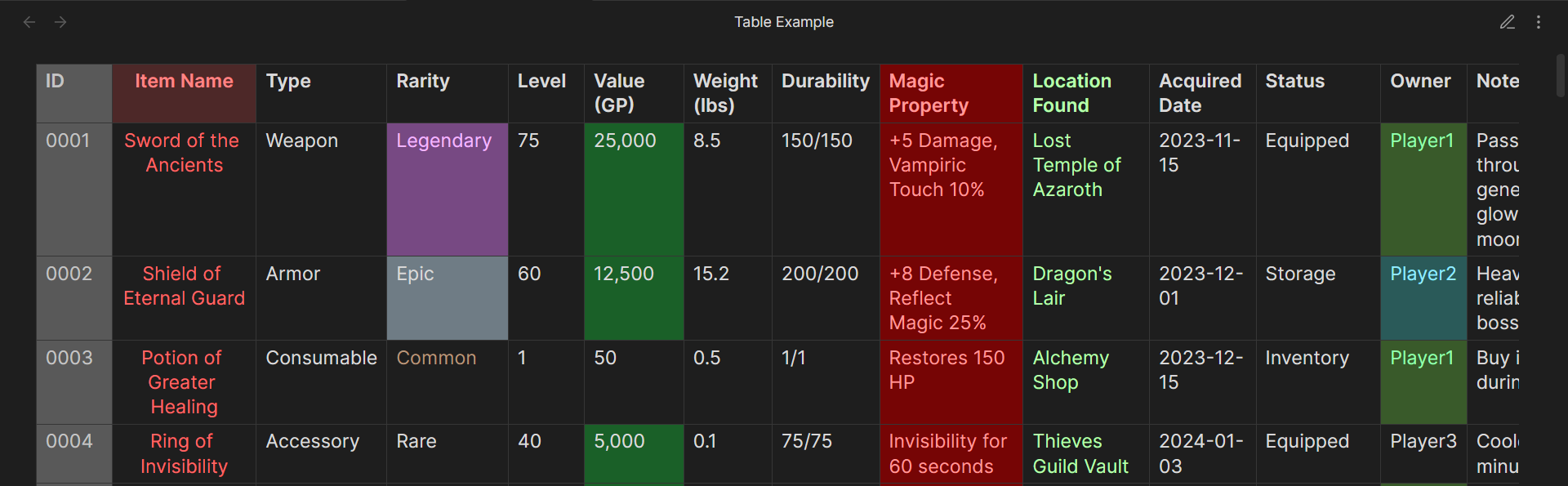
By default, colors appear in Reading Mode. You can enable coloring in Live Preview Mode from settings.
Manual Coloring
- Switch to Reading Mode
- Right click- any table cell
- Pick a background or text color
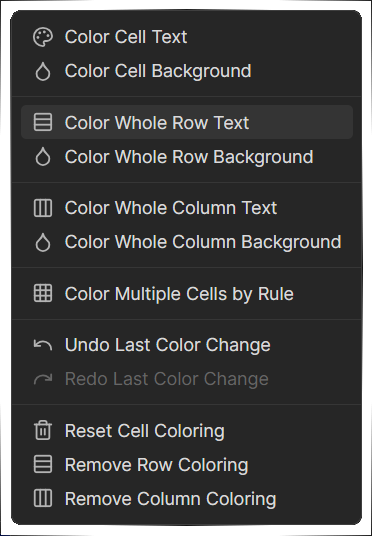
Currently, the manual coloring is a bit unstable, and the coloring does not always apply properly across views. The rule based coloring works much more reliably.
For best experience, I'd recommend not introducing manual colors in a rule-based coloring table.
Automatic Coloring with Rules
Rules let you color cells, rows, or entire columns automatically based on what they contain.
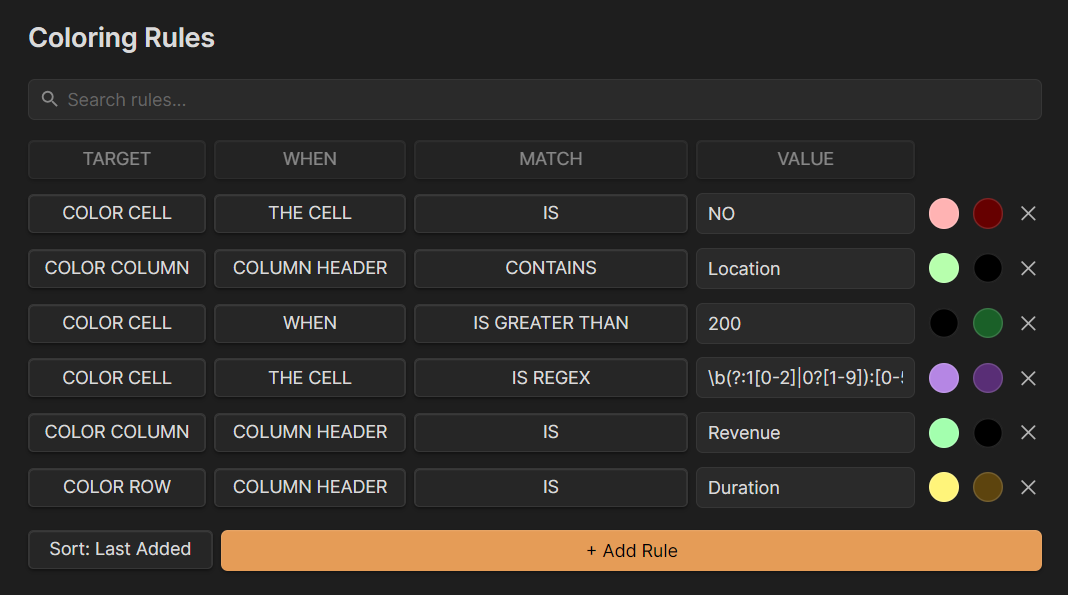 No more manual formatting for large tables!
Simple Rules
A simple rule uses a single condition of these properties:
TARGET What gets colored
- Color cell
- Color row
- Color column
WHEN Where the plugin checks
- Any cell
- All cells
- No cell
- First row
- Column header
MATCH How the comparison works
- Is
- Is not
- Is Regex
- Contains
- Does not contain
- Starts with
- Ends with
- Does not start with
- Does not end with
- Is empty
- Is not empty
- Is greater than
- Is less than
- Is greater than or equal to
- Is less than or equal to
VALUE What it looks for: text, number, or regex pattern
COLOR Your background and text color (Null by Default).
Example To highlight all cells that contain URGENT:
- Target: Color cell
- When: Any cell
- Match: Contains
- Value: URGENT
- Color: Red background, white text
Advanced Rules
Advanced rules let you stack multiple conditions together. The conditions you set (Any, All, or None) must match before the rule applies.
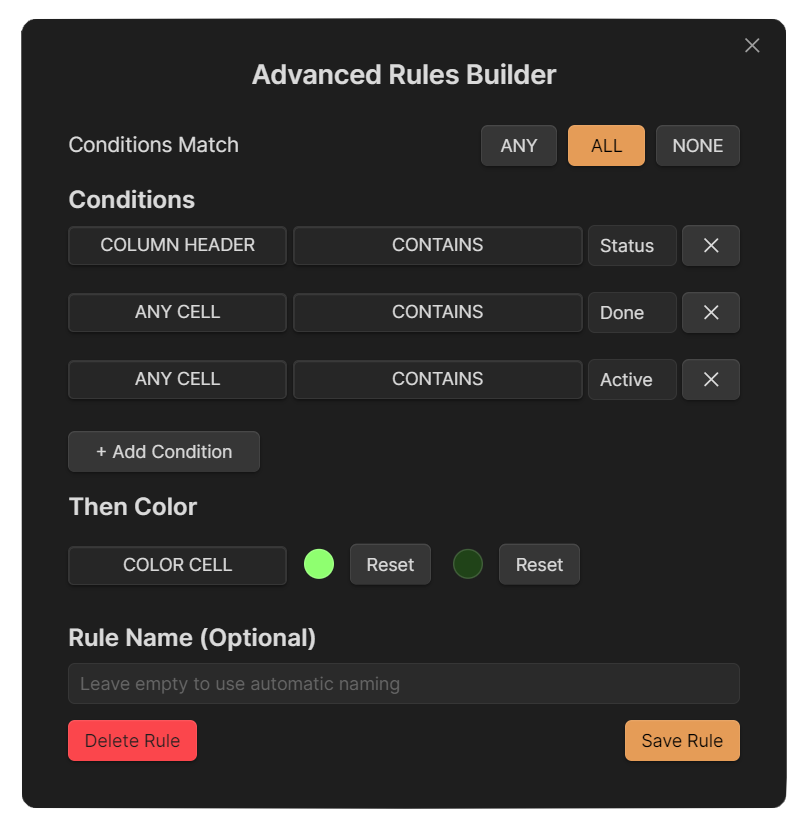
Example Color a cell green only when:
- It contains a number
- The number is greater than 100
Refreshing Table Colors
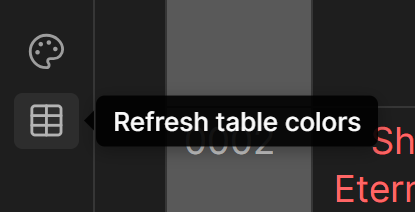
Changes you make in the plugin settings apply immediately. If you ever see outdated colors due to Obsidian not updating the table view, you can force a refresh using the table colors refresh button in the ribbon or the status bar icon.
Installation
This plugin is currently NOT in Obsidian Community Plugins.
For manual installation, download the main.js, styles.css and manifest.json files from Releases and create a folder with the name "color-table-cells" in your vault/.obsidian/plugins/ folder and put the files there.
Mobile Support
Yes. Everything works on Obsidian Mobile. Manual coloring and rule based coloring both apply normally.
Cool Stuff
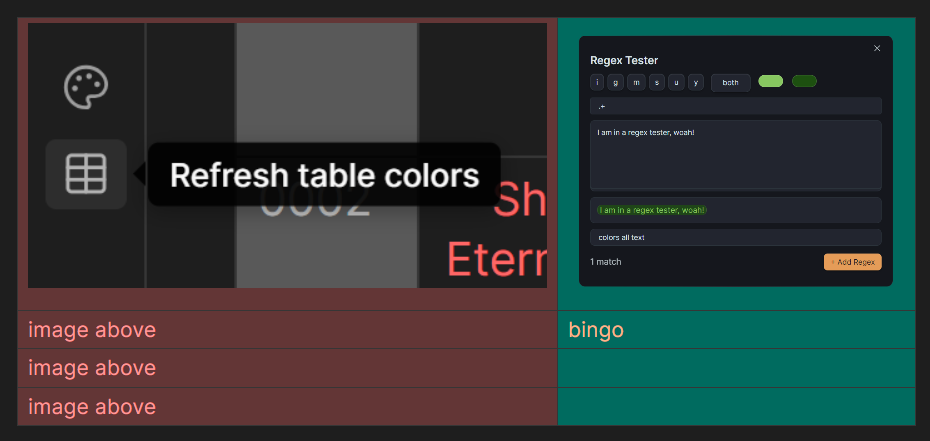
Allows image embed / hyperlink as the match for column headers for coloring too!
For plugin developers
Search results and similarity scores are powered by semantic analysis of your plugin's README. If your plugin isn't appearing for searches you'd expect, try updating your README to clearly describe your plugin's purpose, features, and use cases.