Tasks Overview
pendingby Lucas Berta
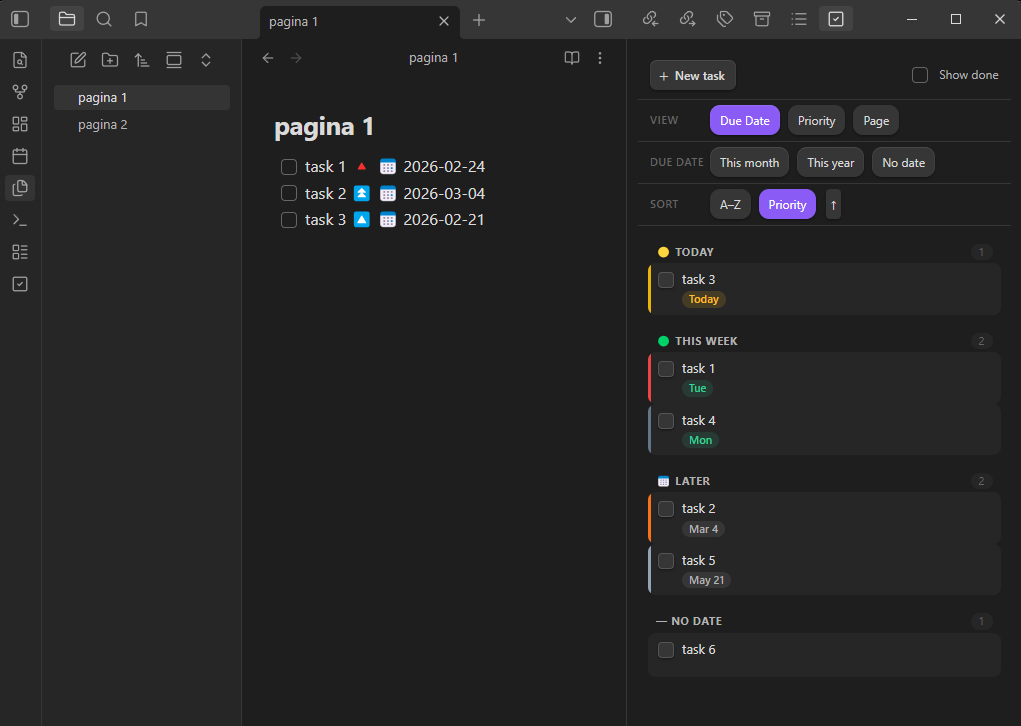
A beautiful board view for the Tasks plugin. Organize your tasks by due date, priority, or page — with filters, sorting, and inline editing.
Tasks Overview
A beautiful, minimal board view for Obsidian Tasks.
Instead of scattered task queries across your notes, Tasks Overview gives you a live sidebar panel that aggregates every task in your vault and lets you slice them however you need.
Features
- Three view modes — organize by Due Date, Priority, or Page (source note)
- Due date filters — quickly scope to This Month, This Year, or tasks with No Date (combine freely)
- Two sort options — alphabetical (A–Z) or by priority, both ascending and descending
- Inline task editing — click ✎ to open the Tasks edit modal pre-populated with the task's existing fields (requires Tasks ≥ 7.21.0)
- Inline task completion — check off tasks directly from the board; done date is written back automatically
- Create new tasks —
+button opens a modal to set description, priority, due date, and which note to save to - Show/hide completed — toggle done tasks on or off without leaving the board
- Auto-refresh — board updates automatically whenever your vault changes
- Fully theme-aware — uses Obsidian CSS variables, looks great with any theme
Requirements
- Obsidian Tasks plugin installed and enabled
- Obsidian 1.4.0 or later
- For inline editing with pre-populated fields: Tasks ≥ 7.21.0
Installation
From the Community Plugin Store (recommended)
- Open Obsidian Settings → Community Plugins
- Click Browse and search for Tasks Overview
- Click Install, then Enable
Manual installation
- Download
main.jsandmanifest.jsonfrom the latest release - Create the folder
<your-vault>/.obsidian/plugins/tasks-overview/ - Copy both files into that folder
- Go to Settings → Community Plugins and enable Tasks Overview
Usage
Click the check-square icon in the left ribbon, or run the command Tasks Overview: Open Tasks Overview from the command palette.
View modes
| Mode | Groups tasks by |
|---|---|
| Due Date | Overdue / Today / This week / Later / No date |
| Priority | Highest → High → Medium → Normal → Low → Lowest |
| Page | Source note (click the note name to open it) |
Filters
The Due date filter row lets you show only tasks due this month, this year, or with no date. Multiple filters combine with OR — enabling "This month" and "No date" shows tasks from either group.
Sorting
Choose A–Z (alphabetical) or Priority (highest first). Click the active button again or the arrow to flip direction.
Creating tasks
Click + New task or run Tasks Overview: Create new task from the command palette. Fill in description, priority, due date, and which note to append to. The task is saved with a ➕ YYYY-MM-DD created date.
Editing tasks
Hover any task card and click the ✎ icon. If Tasks ≥ 7.21.0 is installed, the full Tasks edit modal opens pre-populated with all fields. Otherwise, the source file opens at the task's line.
Task format
Tasks Overview reads the standard Tasks plugin emoji format:
- [ ] Write the report 🔼 📅 2024-03-15 ➕ 2024-01-01
- [ ] Urgent thing 🔺
- [x] Done task ✅ 2024-01-20
- [ ] Recurring 🔁 every week 📅 2024-01-22
Development
git clone https://github.com/lucasberta/tasks-overview
cd tasks-overview
# The plugin is a single compiled file — edit main.js directly
# or set up a build pipeline of your choice
To test locally, symlink the project folder into your vault's plugins directory:
ln -s $(pwd) /path/to/vault/.obsidian/plugins/tasks-overview
Then reload Obsidian.
License
MIT — see LICENSE
For plugin developers
Search results and similarity scores are powered by semantic analysis of your plugin's README. If your plugin isn't appearing for searches you'd expect, try updating your README to clearly describe your plugin's purpose, features, and use cases.