Tasker
pendingby Chinmay K
A comprehensive task management plugin with Todoist-like interface, project organization, and time tracking.
Tasker
A comprehensive task management plugin for Obsidian with a clean, Todoist-inspired interface.
Installation
Install from Obsidian's Community Plugins (recommended):
- Open Settings → Community Plugins
- Browse and search for "Tasker"
- Click Install, then Enable
Features
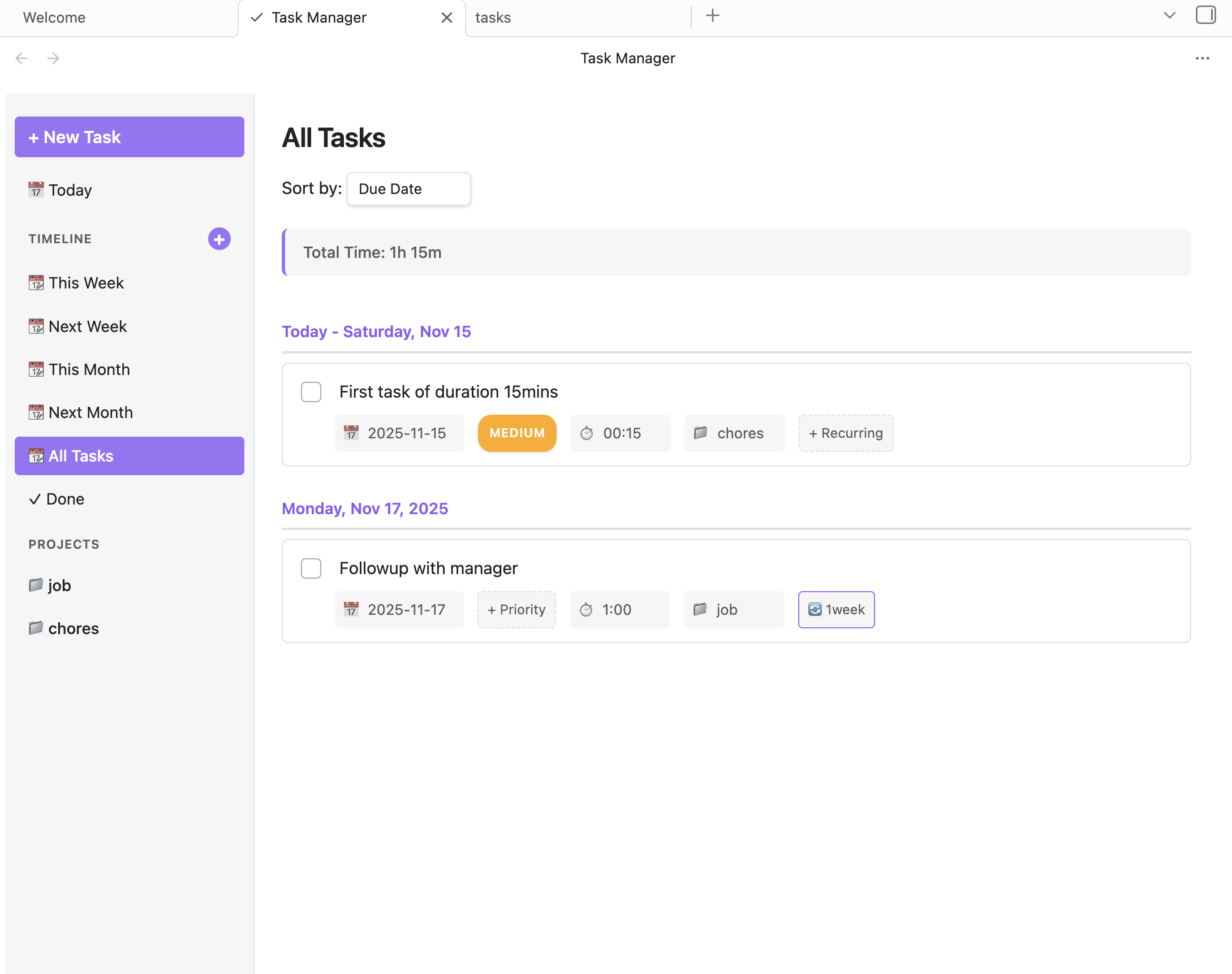
All Tasks View
View and manage all your tasks in one place with project organization, priorities, and timeline filters.
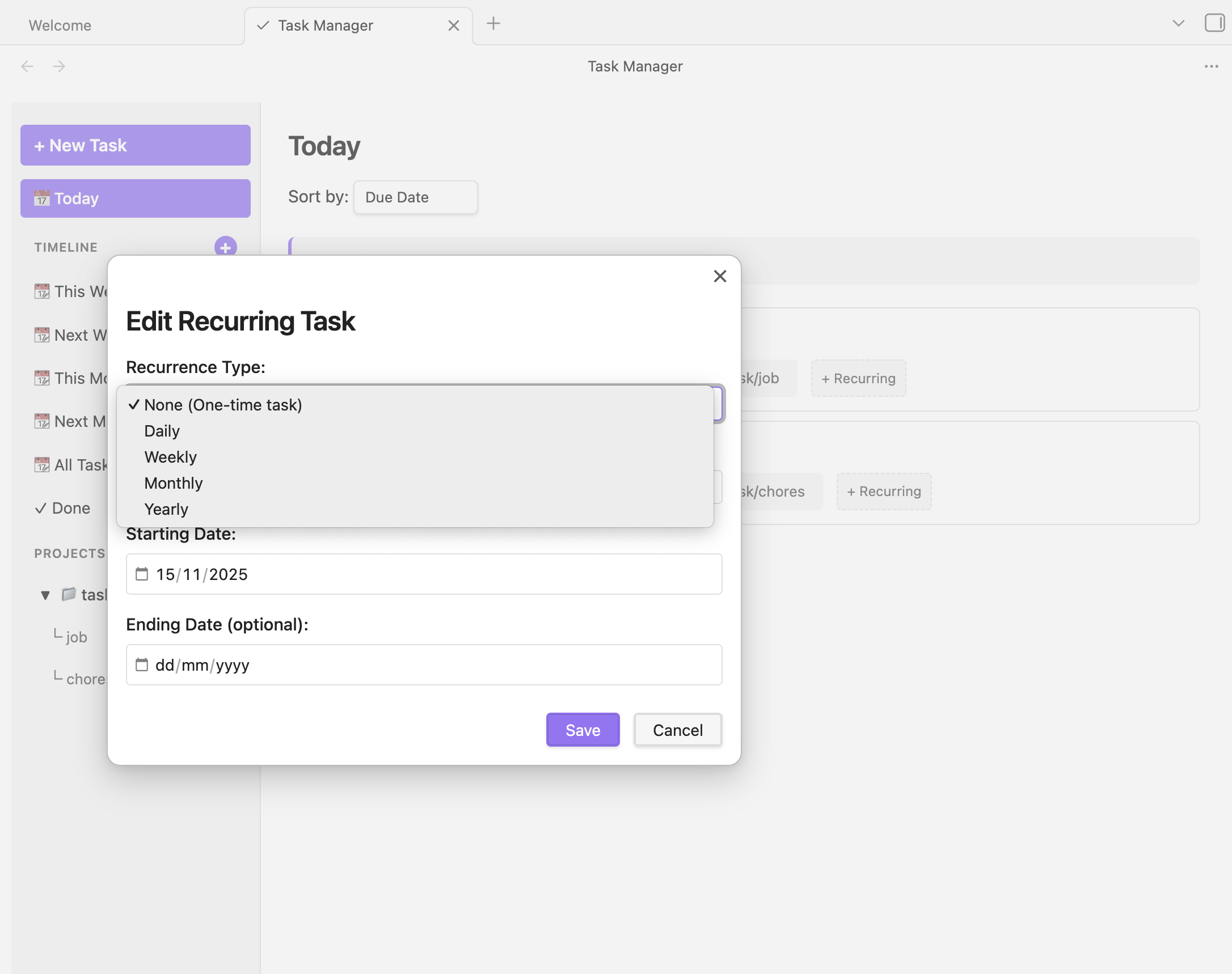
Recurring Tasks
Set up daily, weekly, or monthly recurring tasks with custom patterns and automatic next occurrence generation.
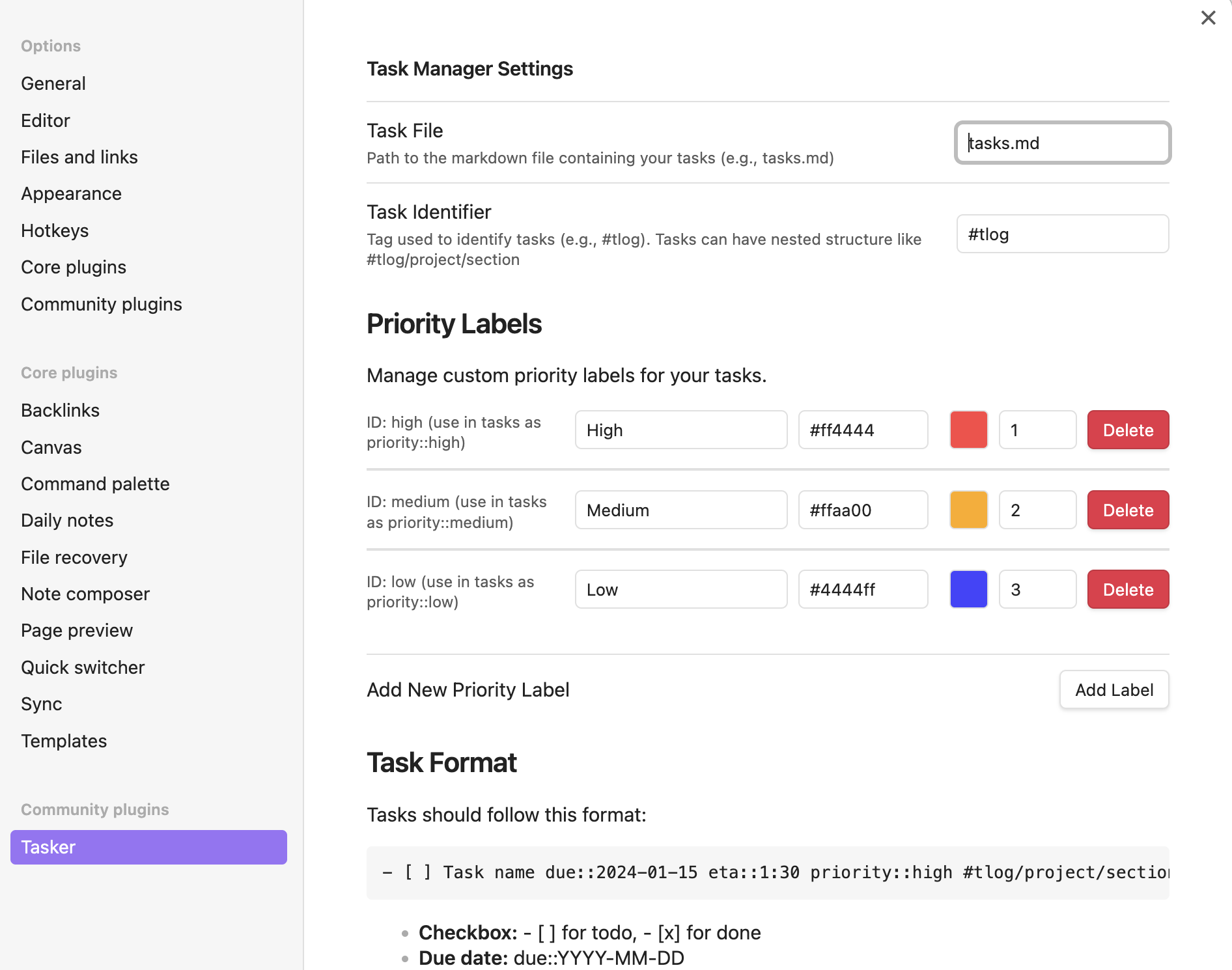
Settings
Configure task file location, identifier tags, and customize priority labels with colors.
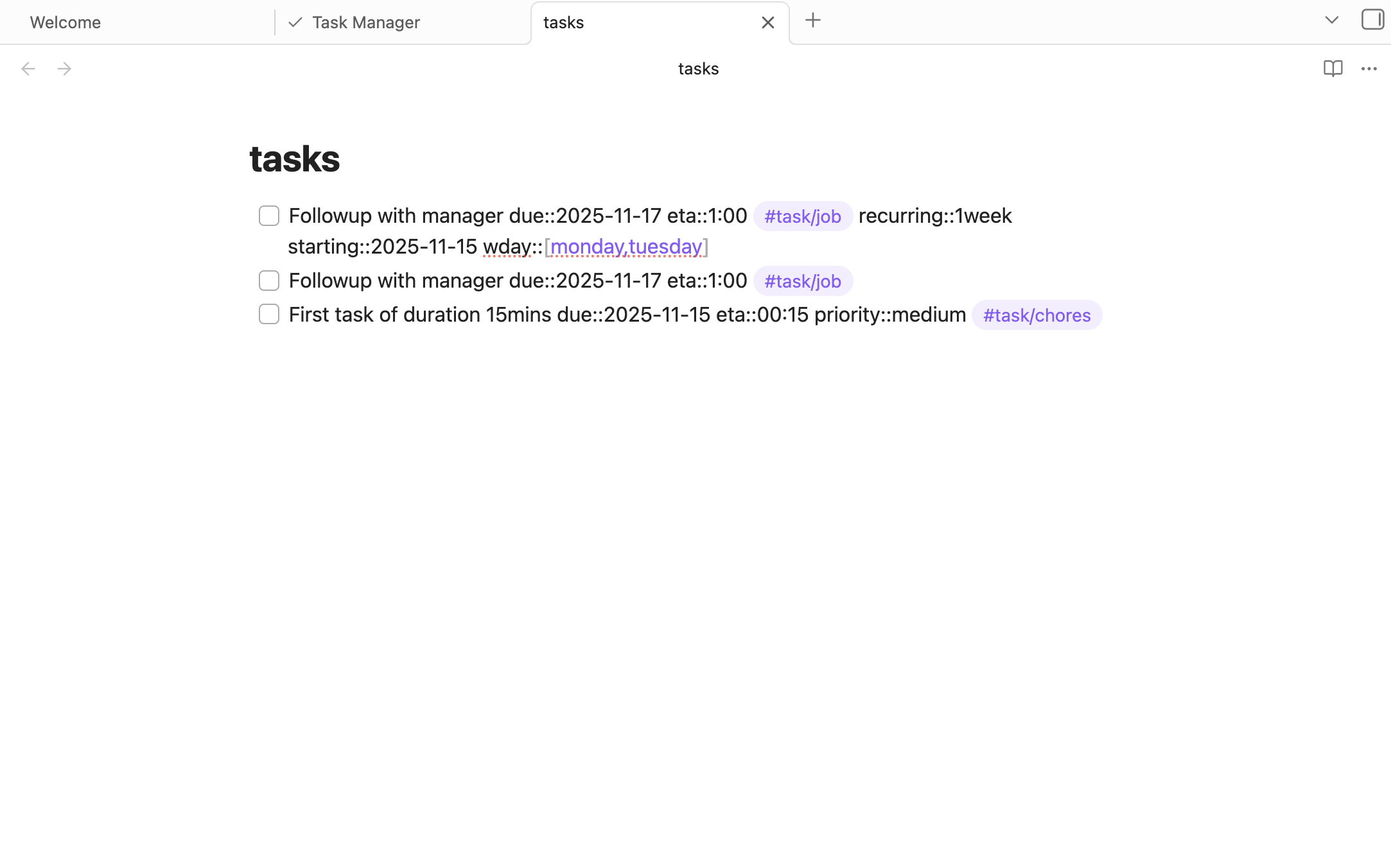
Task Format
Tasks are stored as markdown with metadata for due dates, time estimates, priorities, and projects.
Task Format
Tasks use markdown checkboxes with metadata:
- [ ] Task name due::2024-01-15 eta::1:30 priority::high #tasker/work/dev
- [ ] Another task due::2024-01-16 eta::0:45 #tasker/personal
- [x] Completed task due::2024-01-14 #tasker/chores
Metadata Fields
- due::YYYY-MM-DD - Due date
- eta::H:MM - Estimated time
- priority::label-id - Priority label
- #tasker/project/section - Project organization
- recurring::Nday|week|month - Recurring pattern
Core Features
- Task Management: Create, edit, complete, and delete tasks
- Project Organization: Nested projects and sections
- Timeline Views: Today, Upcoming, This Week, Next Week, This Month, Next Month, All Tasks
- Priority Labels: Custom labels with colors
- Time Tracking: Estimated time (ETA) with cumulative summaries
- Recurring Tasks: Daily, weekly, monthly patterns with custom schedules
- Internal Links: Link tasks to notes using
[[Note Name]]syntax - Sorting: By due date, priority, project, or name
- Mobile Support: Fully responsive with touch interactions
- Inline Editing: Double-click to edit, click to modify metadata
Usage
Opening Tasker
- Click the checkmark icon in the left ribbon, or
- Command palette:
Ctrl/Cmd + P→ "Open Task Manager"
Creating Tasks
- Click "+ New Task" button (desktop) or "+" button (mobile)
- Tasks inherit context from current view (project, due date)
Editing Tasks
- Task name: Double-click to edit
- Due date: Click to change
- ETA: Click to modify
- Priority: Click badge to change
- Project: Click tag to update
Deleting Tasks
- Desktop: Hover task → three-dot menu → Delete
- Mobile: Long-press task for 1 second → Confirm delete
Changelog
See CHANGELOG.md for version history.
Support
- GitHub Issues: Report bugs or request features
- Forum: Obsidian Community
Privacy
- No telemetry or tracking
- No external network requests
- All data stays in your vault
- Open source (MIT License)
License
MIT License - Copyright (c) 2025 Chinmay K
See LICENSE for details.
Author
Created by Chinmay K
For plugin developers
Search results and similarity scores are powered by semantic analysis of your plugin's README. If your plugin isn't appearing for searches you'd expect, try updating your README to clearly describe your plugin's purpose, features, and use cases.