Vault Git Sync
pendingby Maximilian Gierschmann
Sync vault notes with a GitHub repository using scheduled Git commits, merges, and pushes.
Vault Git Sync
Vault Git Sync is a desktop-only Obsidian plugin for syncing an existing vault repository with GitHub over HTTPS. It watches saved vault activity, creates a commit when needed, fetches and merges remote changes, pushes the configured branch, and lets you inspect Git history and file diffs without leaving Obsidian.
Highlights
- Automatic sync after a configurable idle window following saved edits
- Manual sync and pause/resume commands
- Automatic commit creation with configurable commit message templates
- Git history sidebar with commit detail and changed-file drill-down
- Per-file diff view for inspecting a selected commit
- Optional notifications for commit, merge, push, and error events
- Automatic detection of the current branch and origin remote
- Markdown conflict preservation when auto-merge is enabled
Screenshots
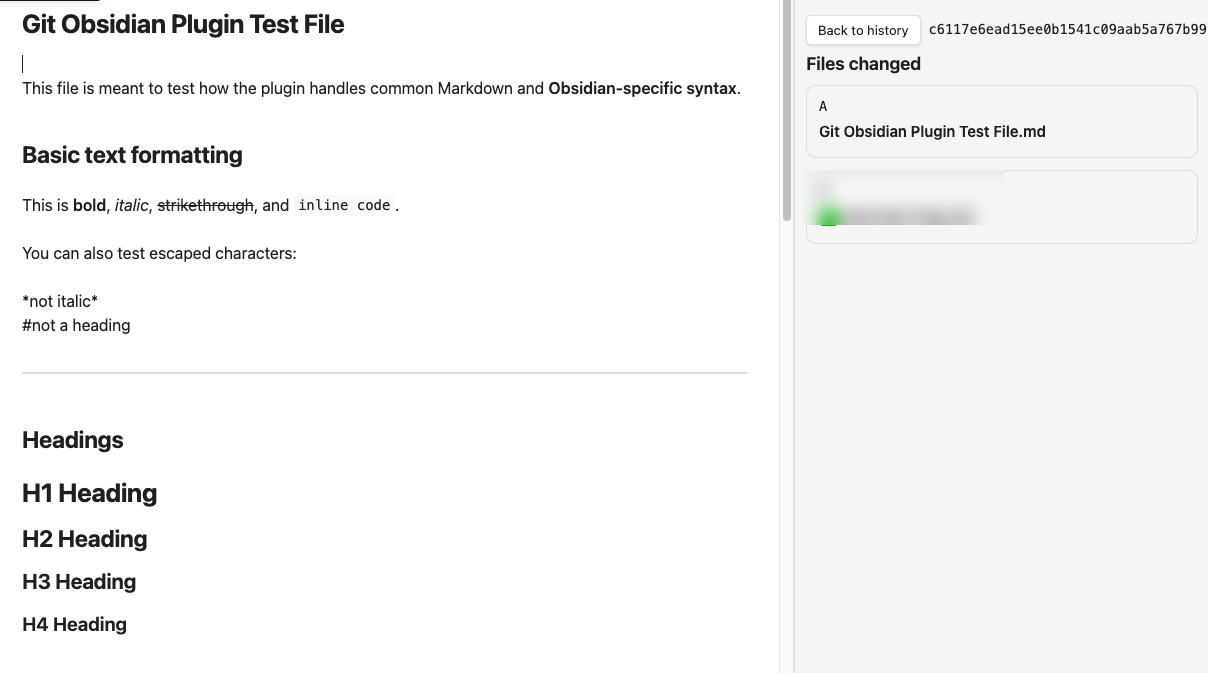
Commit detail view in the Git history sidebar.
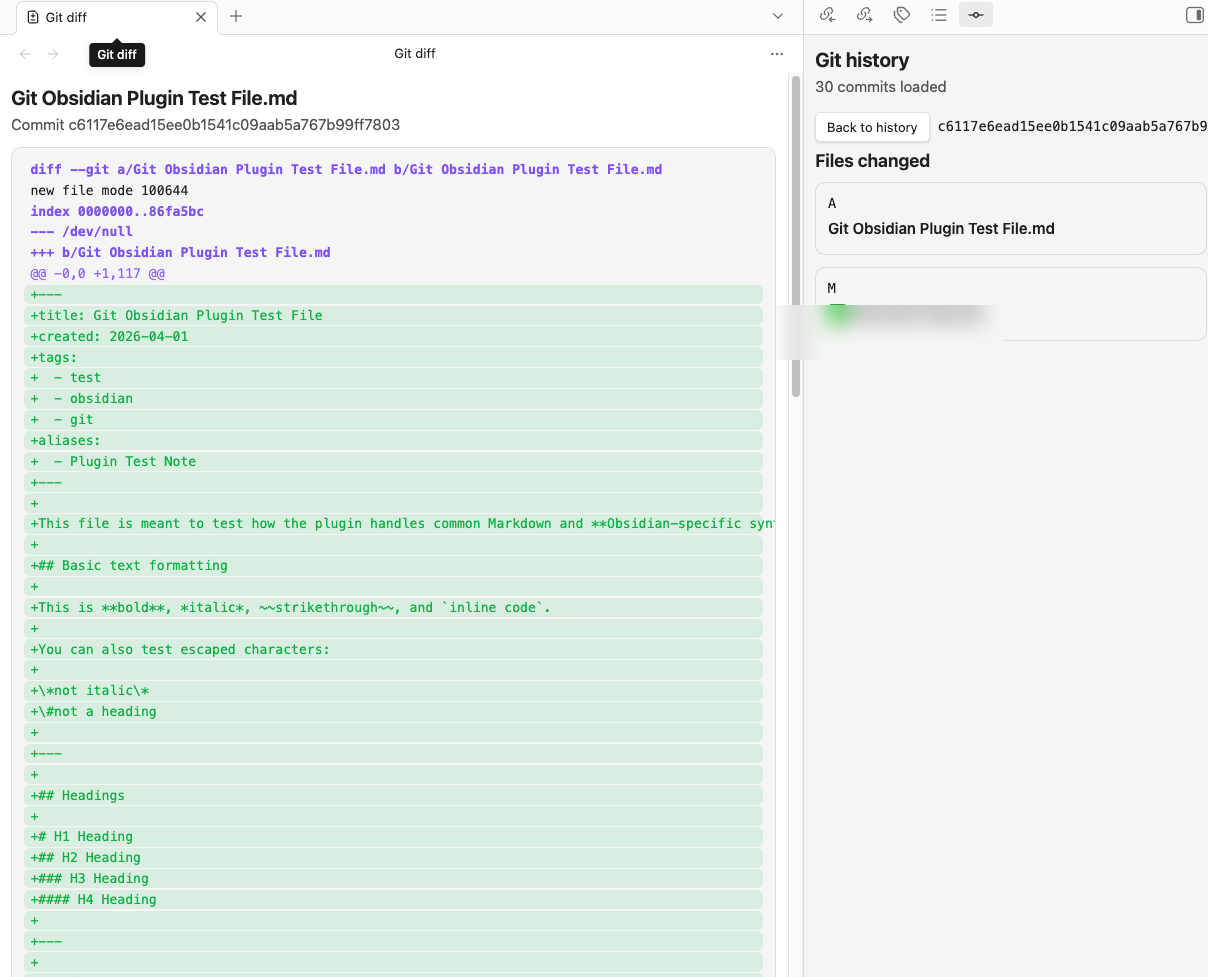
Per-file diff view opened from a selected commit.
Requirements
- Obsidian desktop
gitinstalled and available on the system path- A vault whose root folder is already a Git repository
- A GitHub HTTPS repository remote
- A GitHub username and personal access token with repository access
Build
npm ci
npm run build
This produces the plugin bundle in main.js and uses the checked-in manifest.json and styles.css files for installation.
Install In An Obsidian Vault
Create the plugin folder inside your vault:
mkdir -p "<VaultPath>/.obsidian/plugins/vault-git-sync"
Copy the built plugin files into it:
cp manifest.json "<VaultPath>/.obsidian/plugins/vault-git-sync/"
cp main.js "<VaultPath>/.obsidian/plugins/vault-git-sync/"
cp styles.css "<VaultPath>/.obsidian/plugins/vault-git-sync/"
Then open Settings -> Community plugins, reload plugins or restart Obsidian, and enable Vault Git Sync.
Install In An iCloud Vault On macOS
If your vault lives in iCloud Drive, the path is usually under:
$HOME/Library/Mobile Documents/iCloud~md~obsidian/Documents/<VaultName>
Example:
mkdir -p "$HOME/Library/Mobile Documents/iCloud~md~obsidian/Documents/Notes/.obsidian/plugins/vault-git-sync"
cp manifest.json "$HOME/Library/Mobile Documents/iCloud~md~obsidian/Documents/Notes/.obsidian/plugins/vault-git-sync/"
cp main.js "$HOME/Library/Mobile Documents/iCloud~md~obsidian/Documents/Notes/.obsidian/plugins/vault-git-sync/"
cp styles.css "$HOME/Library/Mobile Documents/iCloud~md~obsidian/Documents/Notes/.obsidian/plugins/vault-git-sync/"
Reload community plugins or restart Obsidian after copying the files.
Development Install
For local development, symlink the repo into the vault plugin directory so rebuilt files are picked up without manual copying:
ln -s "/absolute/path/to/git-obsidian" "<VaultPath>/.obsidian/plugins/vault-git-sync"
Rebuild after source changes:
npm run build
Reload community plugins or restart Obsidian after each rebuild.
Configuration
syncIntervalMinutes: Minutes to wait after the last saved vault change before automatic sync runs.autoCommit: Create a commit automatically when local changes are detected before sync.autoMerge: Merge remote changes automatically and preserve supported note conflicts when possible.notifyOnError: Show a notice when sync fails or configuration blocks Git operations.notifyOnCommit: Show a notice when the plugin creates an automatic sync commit.notifyOnMerge: Show a notice when the plugin resolves and completes a merge.notifyOnPush: Show a notice when the plugin pushes changes to the remote branch.commitMessageTemplate: Template for automatic commit messages.githubUsername: GitHub username used for HTTPS authentication and the{{gitUser}}placeholder.githubToken: GitHub personal access token stored in plugin data so unattended sync can run.remoteUrl: GitHub HTTPS repository URL. Embedded credentials are rejected.branch: Checked-out branch the plugin will sync against.
Supported commit template placeholders:
{{datetime}}{{gitUser}}{{userName}}{{fileName}}{{filename}}
Commands
Sync notes with Git nowPause or resume automatic Git syncOpen Git history
How Sync Works
- The plugin waits for saved vault activity, then schedules sync for the configured interval.
- If the repository is dirty and
autoCommitis enabled, it stages all changes and creates a commit from your template. - It fetches the configured GitHub branch over HTTPS.
- It fast-forwards or merges
FETCH_HEAD. - If merge conflicts remain in supported note files, it preserves both versions in the note content and finishes the merge commit.
- It pushes
HEADto the configured branch.
Notes And Limitations
- Desktop only.
- GitHub HTTPS remotes only. SSH remotes and embedded credentials are rejected.
- The vault root must also be the Git repository root.
- The plugin does not initialize or clone repositories.
- Copying new plugin files into
.obsidian/pluginsdoes not reload the running plugin automatically. - The plugin operates on saved files on disk. Unsaved editor changes are not visible to Git yet.
- The GitHub token is stored in Obsidian plugin data so unattended sync can run. Use a least-privilege token.
- The history view displays commit author names and email addresses reported by Git.
Disclosures
- Requires a GitHub account, a GitHub personal access token, and a local
gitexecutable. - Makes outbound HTTPS requests to GitHub when fetching and pushing.
- Reads and writes files inside the current vault repository through local Git operations, including staging, committing, merging, and conflict preservation for supported note files.
- Does not include telemetry, ads, payments, or closed-source components.
License
This project is licensed under the MIT License. See LICENSE.
Development
npm test
npm run lint
npm run build
For plugin developers
Search results and similarity scores are powered by semantic analysis of your plugin's README. If your plugin isn't appearing for searches you'd expect, try updating your README to clearly describe your plugin's purpose, features, and use cases.