Priority Matrix
pendingby MurtazaHere
Create and manage priority matrix notes with auto detection of tasks from your vault.
Priority Matrix Obsidian Plugin
Create and manage priority matrix notes with auto detection of tasks from your vault. A plugin made for Obsidian
Features
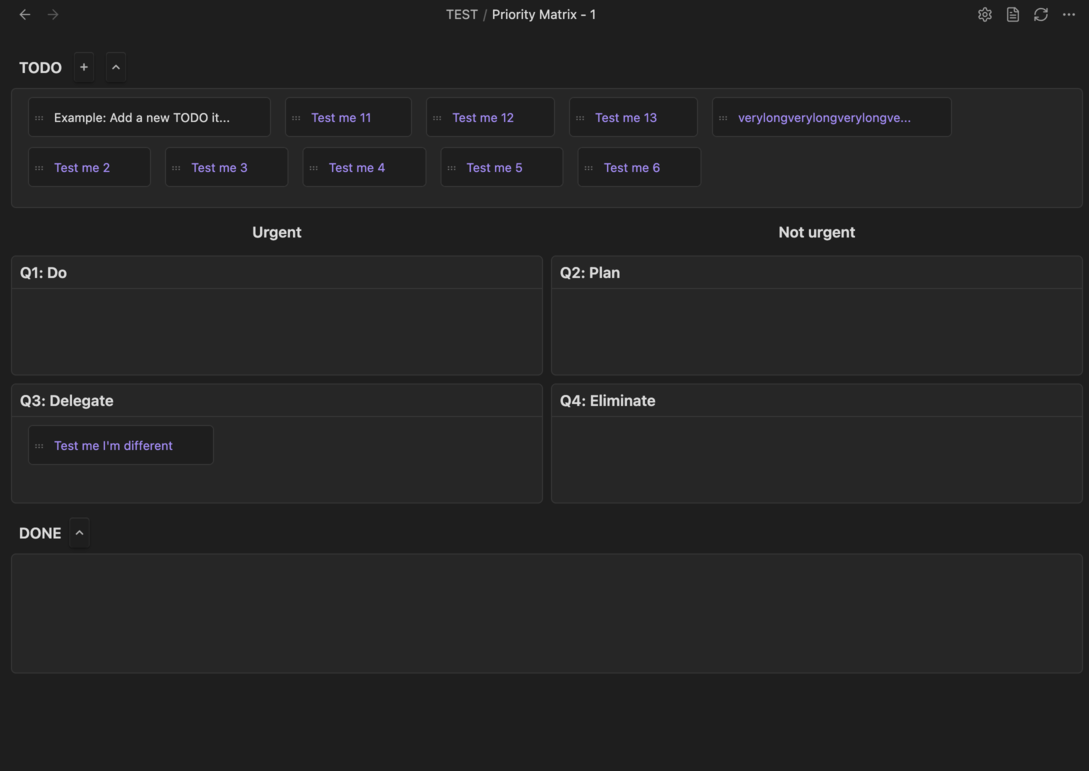
- Matrix View: Visualize your tasks in a 2x2 priority matrix (Urgent/Important, Urgent/Not Important, Not Urgent/Important, Not Urgent/Not Important)
- Automatic TODO Sourcing: Automatically scans your vault for tasks tagged with
#TODOand displays them in the matrix, or you can add your own tag to scan - Drag-Drop Tasks from your obsidian explorer: If there are tasks outside of your specified folder that you want to explicitly add, you can
- Interactive Task Management: Drag and drop tasks between quadrants to reprioritize, mark tasks as done, and manage your workflow
- Custom Matrix Notes: Create new priority matrix notes with a single command
- Auto-Switch View: Automatically opens files with "priority matrix" in the name in matrix view
- Flexible Configuration: Customize scan paths, TODO tags, and behavior settings
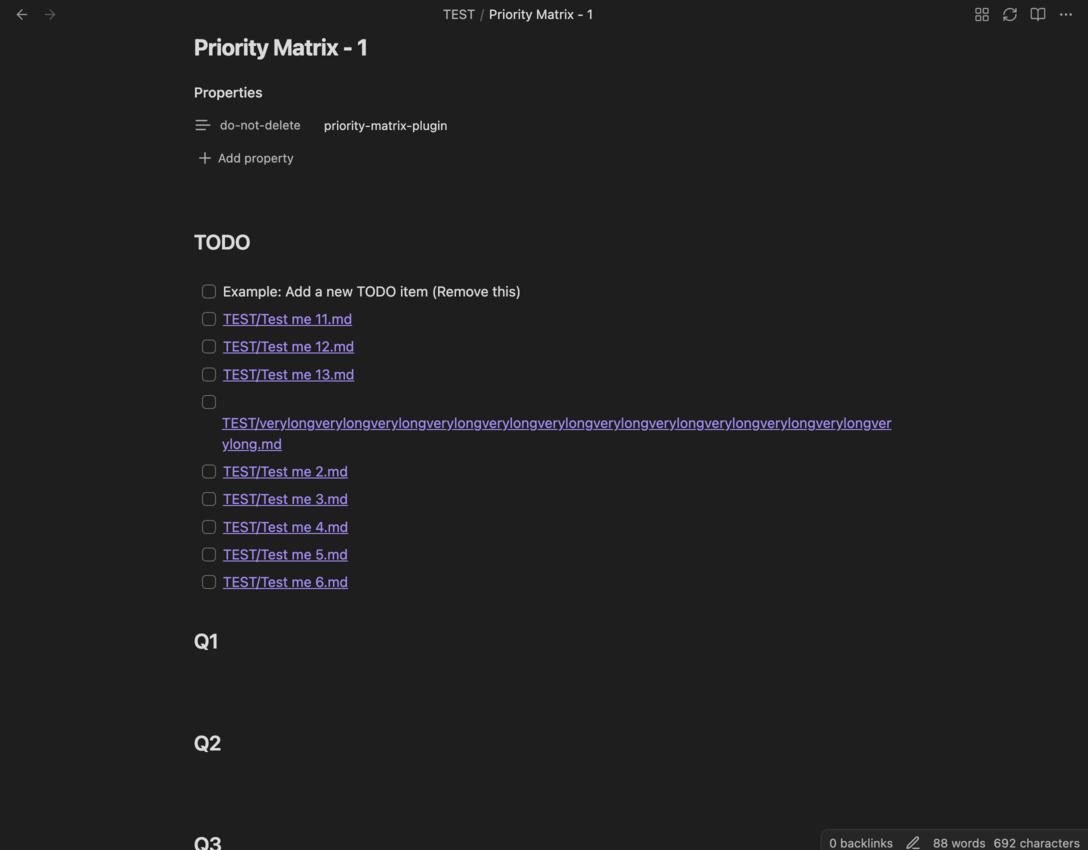
- Markdown Integration: Matrix notes are stored as markdown files, fully compatible with Obsidian's native features
Installation
(Not yet released there)
From Obsidian Community Plugins
- Open Settings → Community plugins
- Make sure Safe mode is off
- Click Browse and search for "Priority Matrix"
- Click Install, then Enable
Manual Installation
- Download the latest release from the GitHub repository
- Extract the zip file and copy the
main.js,manifest.json, andstyles.cssfiles to your vault's.obsidian/plugins/priority-matrix/folder - Reload Obsidian
- Enable the plugin in Settings → Community plugins
Usage
Creating a Priority Matrix Note
- Right-click on a folder in the file explorer and select New priority matrix note
Alternatively, you can:
- Open the command palette (
Ctrl+P/Cmd+P) - Run Create priority matrix note
- A new note with the matrix template will be created in the current folder
Working with the Matrix
- Customise Settings: Customize the folder to scan, change your tag to scan, add exempted notes
- View Tasks: Tasks from your vault tagged with
#TODOwill automatically appear in the matrix on refresh. Or simply press the refresh icon - Move Tasks: Drag tasks between quadrants to reprioritize them
- Mark as Done: Move tasks to the Done bank to mark them as complete
- Edit Tasks: Click on tasks to edit them directly in their source files
- Switch Views: Toggle between matrix view and markdown view using the view switcher
Matrix Quadrants
The Eisenhower Matrix organizes tasks into four quadrants:
- Q1 (Urgent & Important): Do these tasks immediately
- Q2 (Not Urgent & Important): Schedule time for these tasks
- Q3 (Urgent & Not Important): Delegate these if possible
- Q4 (Not Urgent & Not Important): Consider eliminating these tasks
Configuration
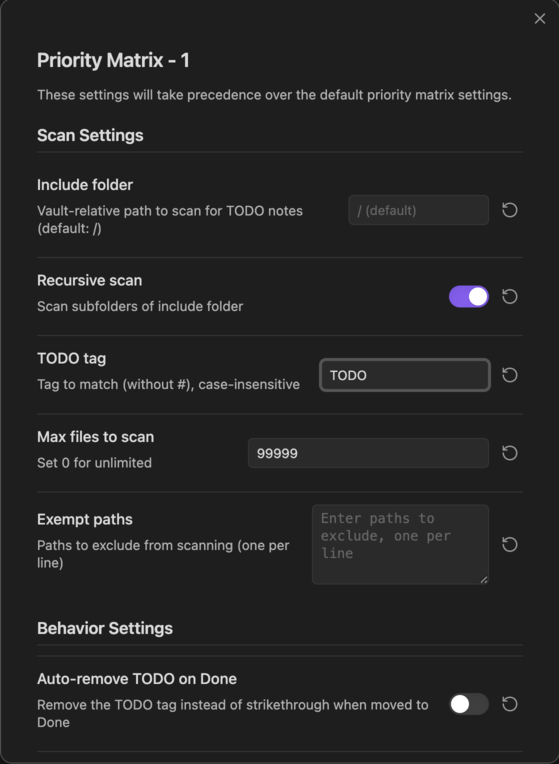
Access plugin settings via Settings → Priority Matrix. Priority Note specific settings is where you can specify individual note settings.
Scan Settings
- Include folder: Vault-relative path to scan for
#TODOnotes (default:/for entire vault) - Recursive scan: Enable to scan subfolders of the include folder
- TODO tag: Tag to match (without
#), case-insensitive (default:TODO) - Max files to scan: Limit the number of files to scan (set to
0for unlimited)
Behavior Settings
- Auto-remove TODO on Done: Remove the
#TODOtag when a task is moved to Done (instead of strikethrough) - Strikethrough TODO on Done: Replace
#TODOwith~~#TODO~~when moved to Done (disabled if auto-remove is enabled)
Requirements
- Obsidian v0.15.0 or higher
- No additional dependencies required
Troubleshooting
Tasks Not Appearing
- Ensure your tasks are tagged with
#TODO(or the tag you configured in settings) - Check that the Include folder setting includes the path where your TODO notes are located
- Verify that Recursive scan is enabled if your TODOs are in subfolders
- Check the Max files to scan setting isn't limiting the scan
- Make sure property [do-not-delete:priority-matrix-plugin] has not been removed
Matrix View Not Opening
- Files with "priority matrix" in the name will automatically open in matrix view
- Ensure the file contains a priority matrix code block or frontmatter
Plugin Not Loading
- Verify the plugin is enabled in Settings → Community plugins
- Check that
main.js,manifest.json, andstyles.cssare in the correct folder:.obsidian/plugins/priority-matrix/ - Try reloading Obsidian (
Ctrl+R/Cmd+R)
Contributing
Contributions are welcome! Please feel free to submit a Pull Request. For major changes, please open an issue first to discuss what you would like to change.
License
This project is licensed under the MIT License - see the LICENSE file for details.
Support
For issues, feature requests, or questions:
- Open an issue on the GitHub repository
- Check existing issues and discussions for solutions
For plugin developers
Search results and similarity scores are powered by semantic analysis of your plugin's README. If your plugin isn't appearing for searches you'd expect, try updating your README to clearly describe your plugin's purpose, features, and use cases.