OSINT Copilot
pendingby Probe Point Analytics
OSINT investigation plugin for SOC analysts and threat researchers to organize, analyze, and visualize intelligence data.
OSINT Copilot for Obsidian
A comprehensive OSINT investigation plugin for Obsidian that helps SOC analysts and threat researchers organize, analyze, and visualize intelligence data. Manage entities, relationships, timelines, and geographic data—all within your Obsidian vault.

Table of Contents
- Features Overview
- Installation
- Getting Started
- User Guide
- Settings
- Troubleshooting
- Privacy & Security
Features Overview
🆓 Free Features (No License Required)
- Entity Graph View - Visualize relationships between entities
- Timeline View - Track events chronologically
- Location Map View - Geographic visualization of addresses
- Entity Management - Create and organize entities (Person, Company, Location, etc.)
- Relationship Mapping - Connect entities with typed relationships
- Geocoding - Convert addresses to coordinates with automatic fallback
🔐 AI-Powered Features (License Key Required)
- Entity Extraction - Automatically extract entities from text
- Report Generation - Generate OSINT reports from your notes
- Dark Web Investigations - Search and analyze dark web content
- Vault Q&A - Ask questions about your vault content
- Smart Entity Recognition - AI-powered entity classification
Installation
Option A — BRAT (Recommended)
The easiest way to install OSINT Copilot in an existing vault:
- Install BRAT: Settings → Community plugins → Browse → search "BRAT" → Install → Enable
- Add OSINT Copilot: Settings → BRAT → Add Beta Plugin
- Paste the URL:
https://github.com/Probe-Point-Analytics-LLC/Obsidian-OSINT-Copilot-plugin - Enable the plugin: Settings → Community Plugins → OSINT Copilot → Enable
BRAT will automatically keep the plugin up to date.
Option B — Pre-configured Template (Best for New Users)
Download our template vault which comes with the plugin pre-installed and an example investigation:
git clone --recursive https://github.com/Probe-Point-Analytics-LLC/OSINT-Copilot-Obsidian-Template.git
Then open the cloned folder as a vault in Obsidian.
Alternatively, download the ZIP from the template repository and extract it.
Option C — Manual Install
- Download
main.js,manifest.json, andstyles.cssfrom the latest release - Create a folder:
.obsidian/plugins/Obsidian-OSINT-Copilot-plugin/ - Copy the three files into that folder
- Restart Obsidian
- Enable in Settings → Community Plugins → OSINT Copilot
Verify Installation
- You should see the OSINT Copilot icon in the left ribbon
- Click the icon to open the chat interface
- The plugin is ready to use!
Updating the Plugin
- BRAT users: Updates are automatic
- Template / Manual users:
cdinto the plugin folder and rungit pull origin main, then restart Obsidian
Getting Started
New to Obsidian? (2-minute orientation)
OSINT Copilot takes advantage of Obsidian, a powerful local-first knowledge base. Here is a quick primer:
| Term | What it means |
|---|---|
| Vault | The folder on your computer where your notes live. Obsidian reads/writes files inside this folder. |
| Note | A Markdown (.md) file in your vault. |
| Community plugins | Optional add-ons you can install in Obsidian to add features (like OSINT Copilot). |
| Command Palette | A search box in Obsidian that lets you run commands. |
Where to find things in Obsidian:
- Settings: click the gear icon (usually bottom-left).
- Community plugins: Settings -> Community plugins.
- Command Palette: press
Ctrl + P(Windows/Linux) orCmd + P(macOS).
First Steps
Once installed, you'll see the OSINT Copilot tools in the left sidebar:

The plugin provides three main modes accessible from the chat interface:
- 📊 Report - Generate OSINT reports
- 🕵️ Dark Web - Investigate dark web content
- 🔍 Lookup - Search and analyze entities

Example: Investigating Lukoil
Throughout this guide, we'll use a real-world example: investigating Lukoil, a Russian oil company. This demonstrates how OSINT Copilot helps you organize complex investigations.
User Guide
Entity Management
Entities are the building blocks of your OSINT investigations. They represent people, companies, locations, events, and other objects of interest.
Supported Entity Types
OSINT Copilot supports the FollowTheMoney (FTM) schema, which includes:
- Person - Individuals
- Company - Corporations and businesses
- Organization - Non-profit organizations, government agencies
- Address - Physical locations
- Event - Incidents, meetings, transactions
- Vehicle - Cars, ships, aircraft
- BankAccount - Financial accounts
- CryptoWallet - Cryptocurrency wallets
- UserAccount - Online accounts
- Document - Files, reports, evidence
- RealEstate - Properties and land
- Passport - Travel documents
- Sanction - Sanctions and restrictions
Creating Entities
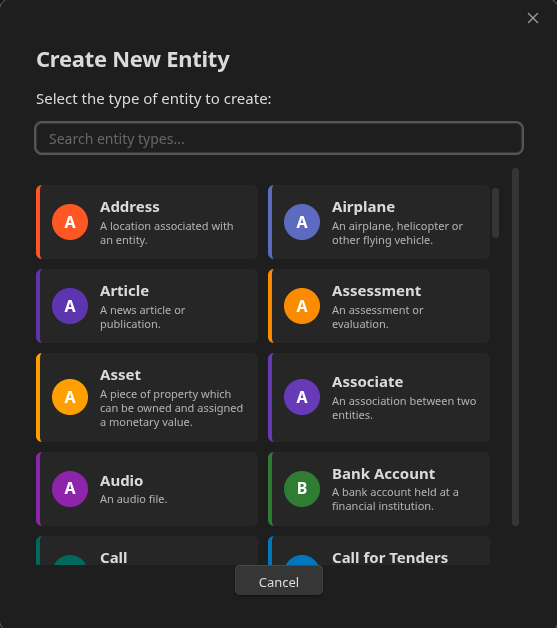
Method 1: Manual Creation via Graph View
- Click the Graph View icon in the left ribbon
- Click the "+ Create Entity" button
- Select the entity type (e.g., "Company")
- Fill in the entity properties
Method 2: AI-Powered Entity Extraction
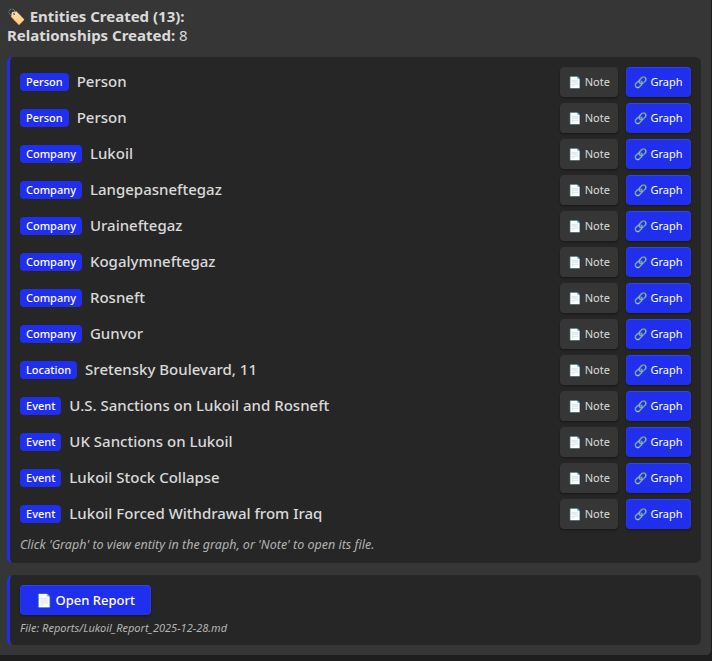
- Open the OSINT Copilot chat
- Enable Entity Generation mode (toggle at the bottom)
- Paste text containing entity information
- The AI will automatically extract and create entities
Editing Entities
Entities are stored as markdown files in your vault (default: OSINTCopilot/ folder). Each entity has:
- Frontmatter - Structured metadata (ID, type, properties)
- Properties Section - Key-value pairs
- Relationships Section - Links to related entities
- Notes Section - Free-form analysis
Example: Lukoil Company Entity
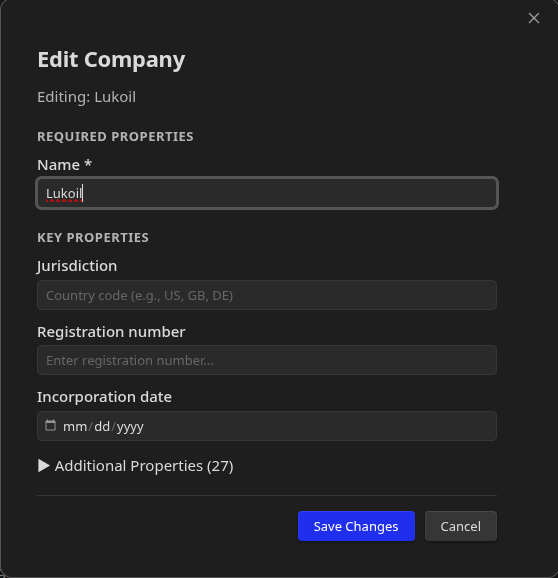
The entity form shows:
- Required fields - Always visible (e.g., name, country)
- Featured fields - Commonly used properties
- Optional fields - Collapsed by default, expandable for detailed data
Relationship Mapping
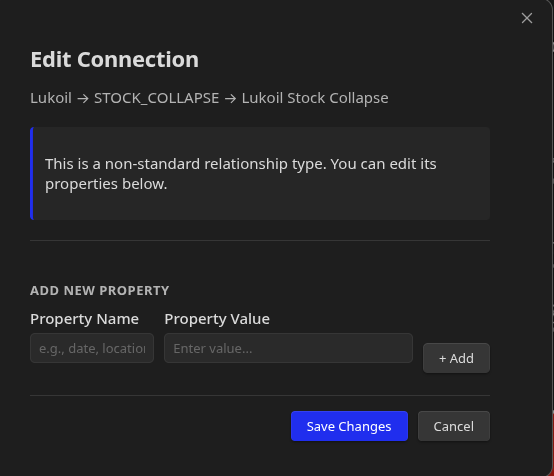
Relationships connect entities to show how they're related. OSINT Copilot uses the FollowTheMoney relationship schema for standardized intelligence mapping.
Creating Relationships
Method 1: Manual Creation
- Open an entity note (e.g., a Person)
- Click "Edit Entity"
- Scroll to the Relationships section
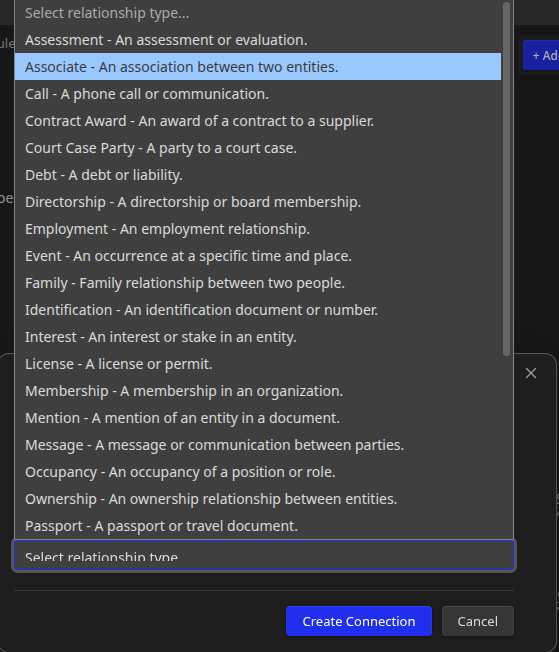
- Click "+ Add Relationship"
- Select the relationship type and target entity
Method 2: AI-Generated Relationships
When using Entity Generation mode, the AI automatically creates relationships between extracted entities.
Relationship Types
The plugin supports FollowTheMoney relationship types:
Person → Company:
director_of- Board member or directorshareholder_of- Equity holderbeneficial_owner_of- Ultimate beneficial owneremployee_of- Employee or contractoradvisor_to- Consultant or advisor
Company → Company:
subsidiary_of- Parent-subsidiary relationshippartner_of- Business partnershipsupplier_to- Supply chain relationshipclient_of- Customer relationship
Entity → Location:
registered_in- Legal registrationoperates_in- Business operationsrelated_to- General association
Person ↔ Person:
associate_of- Professional or personal associationfamily_of- Family relationshipalias_of- Alternative identity
And many more - The full FTM schema includes dozens of relationship types for comprehensive intelligence mapping.
AI-Powered Features
AI features require a valid license key. These features use advanced language models to automate intelligence gathering and analysis.
Setting Up AI Features
- Open Settings → OSINT Copilot
- Enter your License Key
- Click "Test Connection" to verify
- Once verified, all AI features are enabled
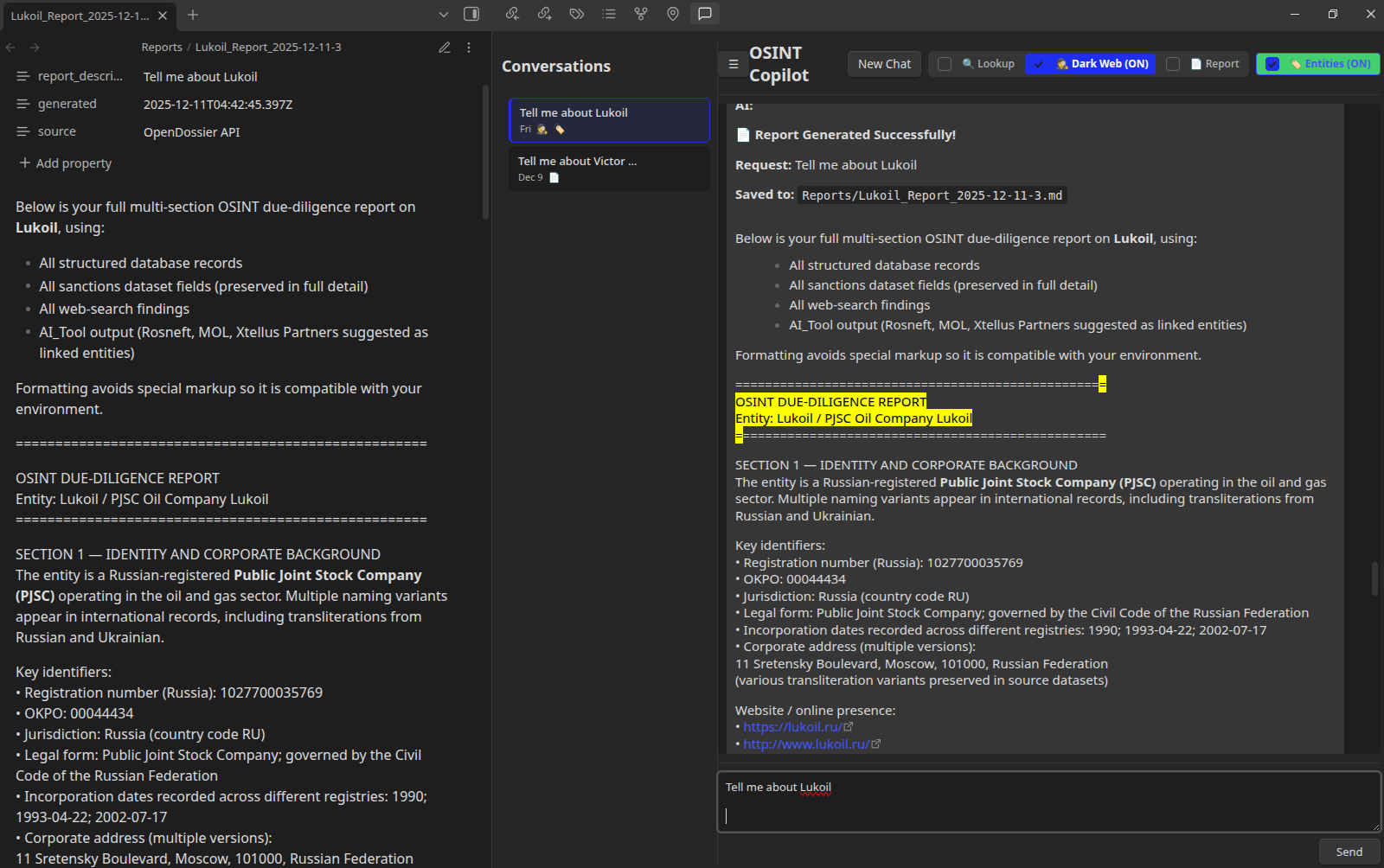
Report Generation
Generate comprehensive OSINT reports from your notes and entities.
How to use:
- Open the OSINT Copilot chat
- Enable 📊 Report mode
- Enter your investigation target (e.g., "Lukoil")
- The AI will:
- Search your vault for relevant information
- Extract entities and relationships
- Generate a structured report
- Save it to your Reports folder
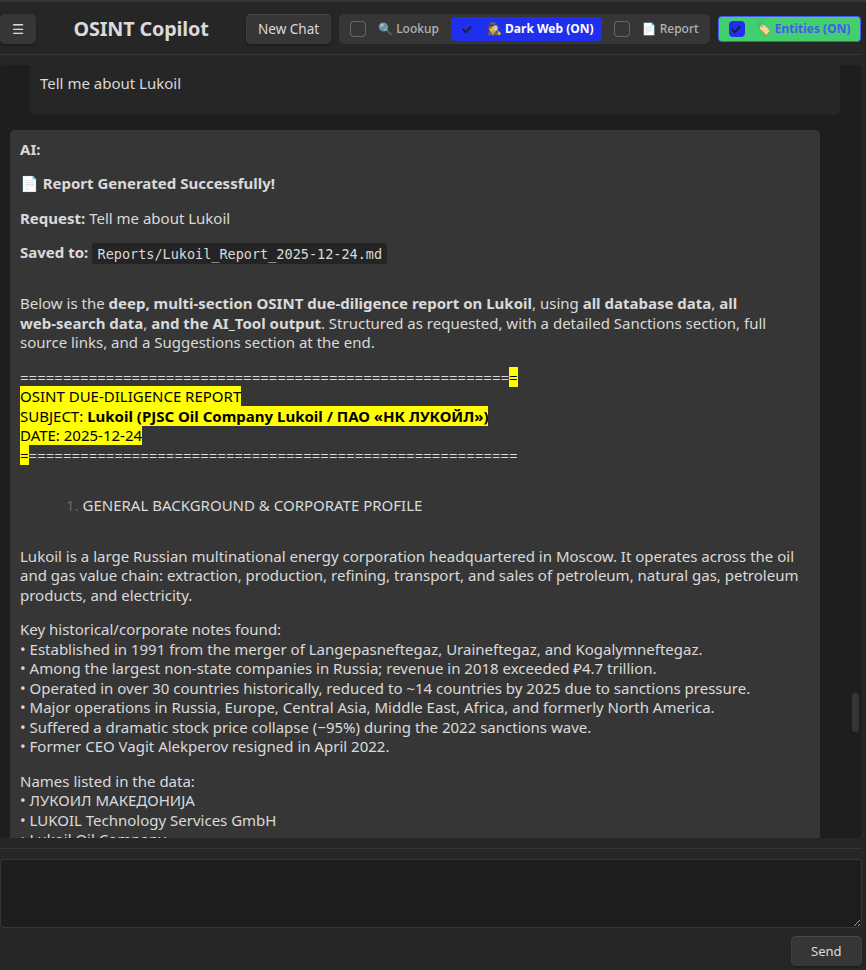
The generated report includes:
- Executive summary
- Entity profiles
- Relationship analysis
- Timeline of events
- Source citations
Entity Extraction
Automatically extract entities from unstructured text.
How to use:
- Open the OSINT Copilot chat
- Enable Entity Generation mode (toggle at bottom)
- Paste text (e.g., news article, report, document)
- The AI will:
- Identify entities (people, companies, locations, etc.)
- Extract properties (names, addresses, dates, etc.)
- Create entity notes in your vault
- Establish relationships between entities
Example: Paste a news article about Lukoil, and the AI will extract:
- Company: Lukoil
- People: CEO, board members
- Locations: Headquarters, operations
- Events: Mergers, sanctions, incidents
- Relationships: Ownership, employment, partnerships
Dark Web Investigations
Search and analyze dark web content for threat intelligence.
How to use:
- Open the OSINT Copilot chat
- Enable 🕵️ Dark Web mode
- Enter your search query
- The AI will:
- Search dark web sources
- Analyze findings
- Extract relevant intelligence
- Present results with source attribution
Use cases:
- Leaked credentials
- Threat actor profiles
- Malware analysis
- Data breach investigations
Vault Q&A
Ask questions about your vault content and get intelligent answers.
How to use:
- Open the OSINT Copilot chat
- Ask a question (e.g., "What do we know about Lukoil's operations in Moldova?")
- The AI will:
- Search your vault for relevant notes
- Analyze the content
- Provide a comprehensive answer
- Show source notes with clickable links
Example questions:
- "Who are the key executives at Lukoil?"
- "What sanctions have been imposed on Lukoil?"
- "What locations are associated with Lukoil?"
Visualization Tools
Visualization tools are completely free and work without a license key. They help you understand complex relationships and patterns in your intelligence data.
Entity Graph View
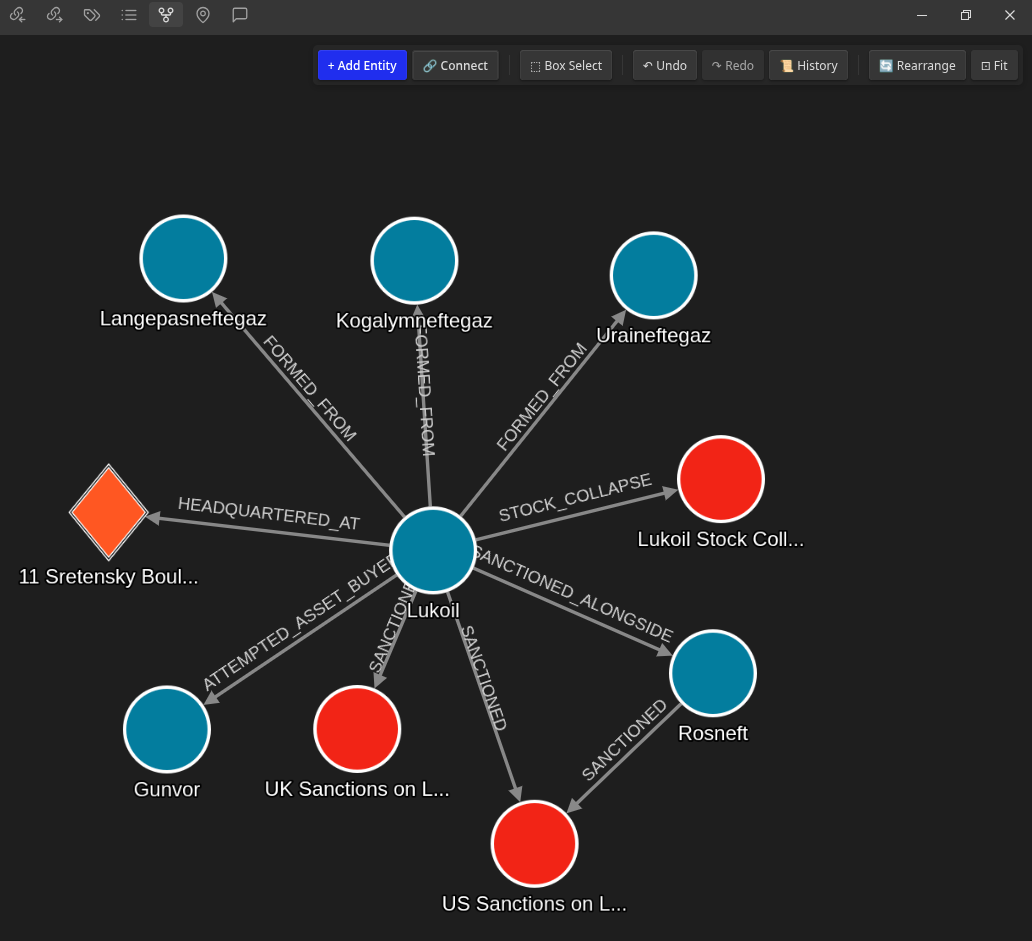
Visualize entities and their relationships as an interactive network graph.
How to use:
- Click the Graph View icon in the left ribbon (or use Command Palette: "Open Entity Graph")
- The graph displays:
- Nodes - Entities (colored by type)
- Edges - Relationships (labeled with type)
- Interactive controls - Zoom, pan, filter
Features:
- Color-coded entities - Different colors for Person, Company, Location, etc.
- Relationship labels - See how entities are connected
- Click to open - Click any entity to open its note
- Filter by type - Show/hide specific entity types
- Search - Find specific entities in the graph
Example: The Lukoil investigation graph shows:
- Lukoil (Company) at the center
- Connected executives (Person)
- Subsidiary companies (Company)
- Operating locations (Address)
- Related events (Event)
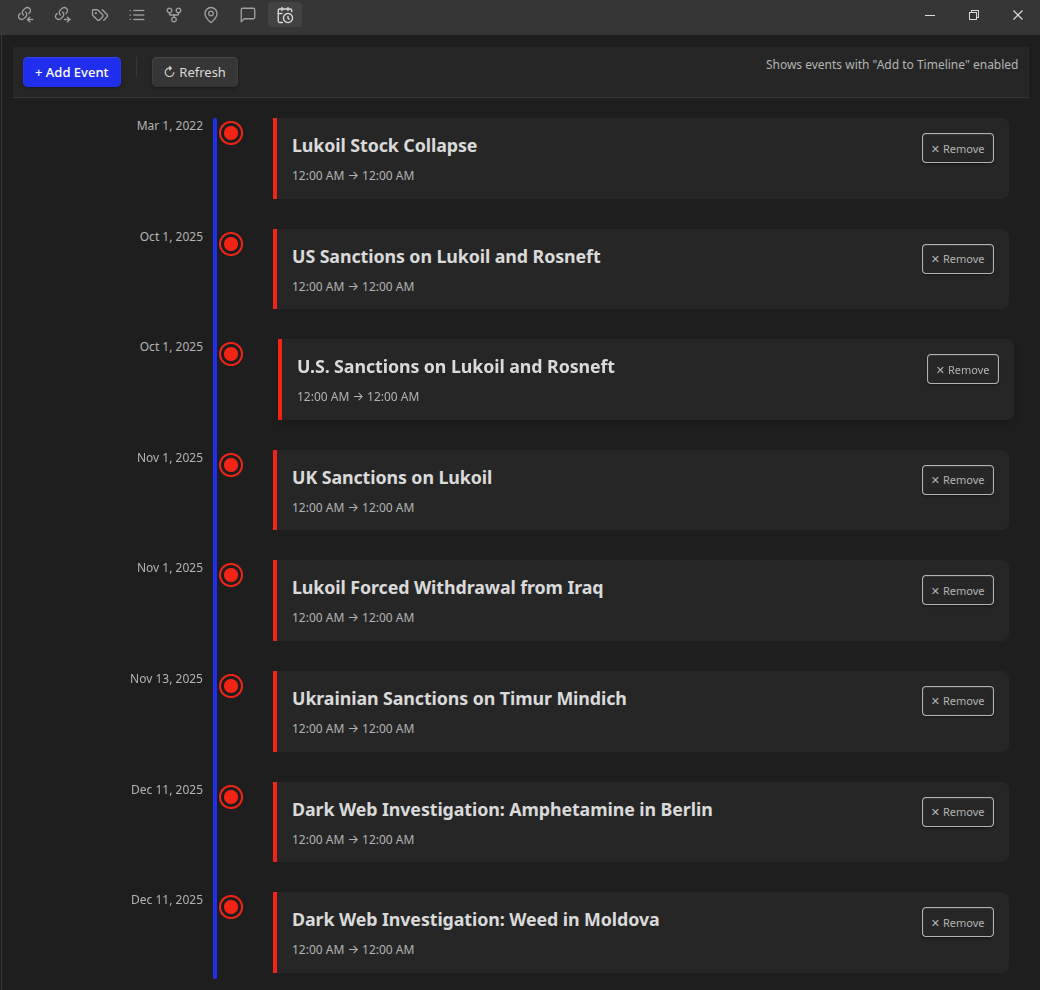
Timeline View
Track events chronologically to understand the sequence of activities.
How to use:
- Click the Timeline View icon in the left ribbon (or use Command Palette: "Open Timeline")
- The timeline displays:
- Events - Sorted by date
- Entity associations - Which entities are involved
- Interactive navigation - Scroll through time
Use cases:
- Track company milestones
- Investigate incident timelines
- Analyze threat actor activity
- Monitor sanction events
Example: Lukoil timeline might show:
- 1991: Company founded
- 2014: Crimea annexation involvement
- 2022: EU sanctions imposed
- 2023: Subsidiary restructuring
Location Map View
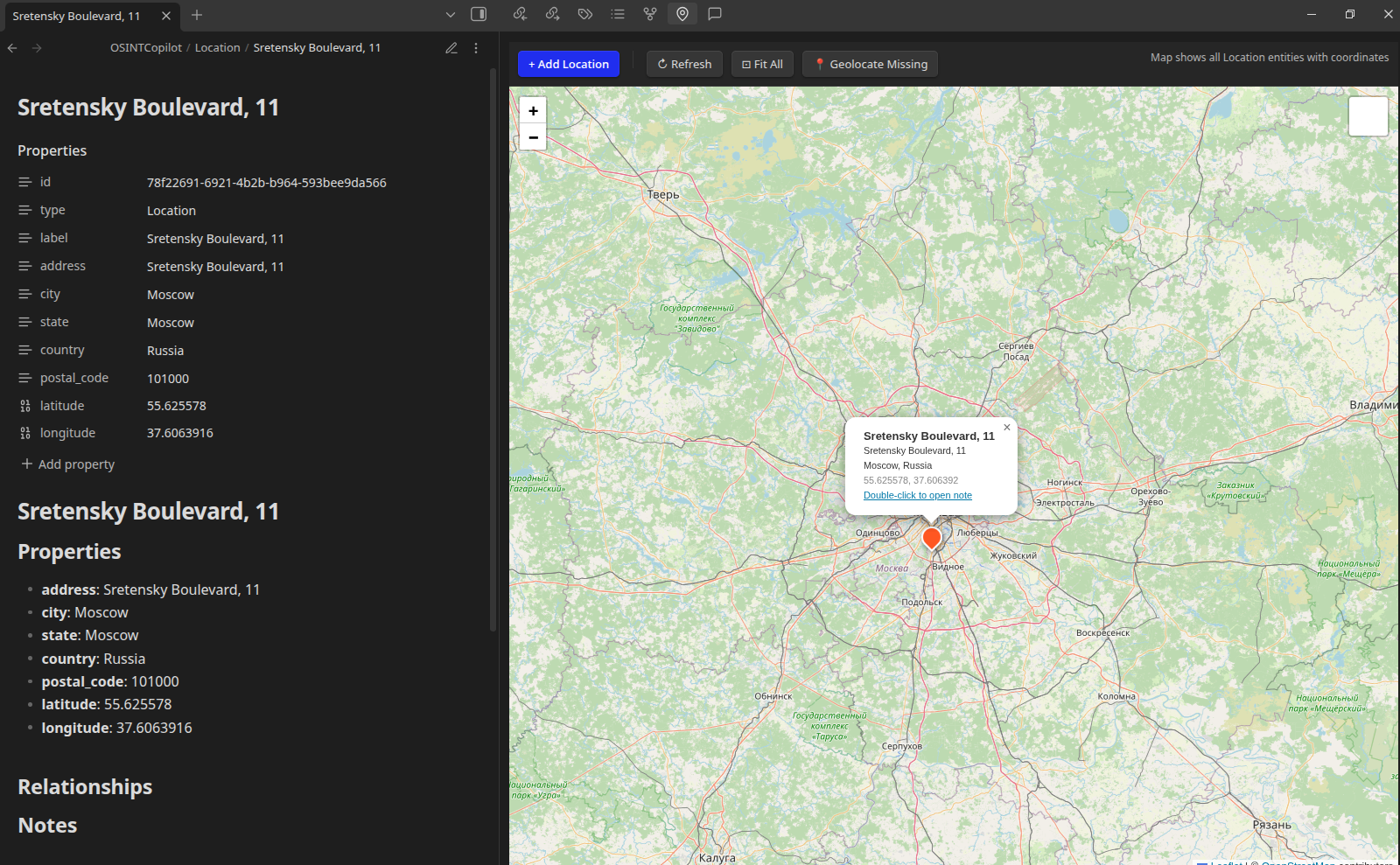
Visualize geographic data on an interactive map.
How to use:
- Click the Map View icon in the left ribbon (or use Command Palette: "Open Location Map")
- The map displays:
- Markers - Entities with geographic coordinates
- Popups - Click markers to see entity details
- Interactive map - Zoom, pan, explore
Features:
- Automatic geocoding - Convert addresses to coordinates
- Multi-language support - Handles international addresses
- Fallback geocoding - If exact address fails, shows city/country
- OpenStreetMap - Free, open-source mapping
Example: Lukoil map might show:
- Headquarters in Moscow, Russia
- Refineries across Europe
- Retail stations in multiple countries
- Offshore operations
Geocoding & Location Intelligence
OSINT Copilot includes a powerful geocoding service that converts addresses to geographic coordinates, enabling map visualization and spatial analysis.
How Geocoding Works
The plugin uses the Nominatim geocoding service (OpenStreetMap) to convert addresses to latitude/longitude coordinates.
Features:
- ✅ Multi-language support - Handles addresses in any language (Cyrillic, Arabic, Chinese, etc.)
- ✅ Special character handling - Properly encodes international characters (ş, ă, ñ, etc.)
- ✅ Graceful fallback - If exact address fails, automatically tries simpler queries
- ✅ Free service - No API key required
Geocoding an Address
Method 1: Automatic Geocoding
When creating a Location/Address entity with address fields, the geocoding happens automatically.
Method 2: Manual Geocoding
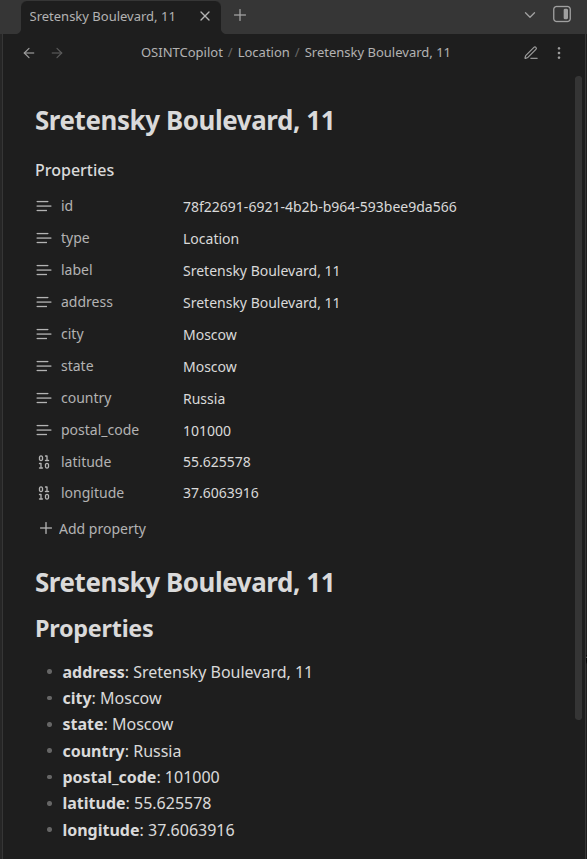
- Open a Location entity note
- Click "Edit Entity"
- Fill in address fields (address, city, country)
- Click "📍 Geolocate Address"
- The plugin will:
- Try the full address
- If that fails, try without building number
- If that fails, try just street and city
- If that fails, try city and country
- If that fails, try just the city
- Coordinates are automatically populated
Geocoding Fallback Strategy
The geocoding service uses a smart fallback strategy to handle difficult addresses:
Example: Moldovan Address
Original: str. Şevcenco, nr. 81/11, Tiraspol, Moldova
Fallback sequence:
- Try full address:
str. Şevcenco, nr. 81/11, Tiraspol, Moldova - Remove building number:
str. Şevcenco, Tiraspol, Moldova - Remove street prefix:
Şevcenco, Tiraspol, Moldova - City and country:
Tiraspol, Moldova✓ Success - Just city:
Tiraspol
The service automatically uses the most specific result that succeeds.
Supported Address Formats
The geocoding service recognizes common address patterns:
- Building numbers:
nr. 81/11,#45,123 - Street prefixes:
str.,strada,st.,rue,calle - International formats: Romanian, Russian, Arabic, Chinese, etc.
Troubleshooting Geocoding
Address not found:
- Check spelling of city and country
- Try removing building numbers or street prefixes
- Use English transliteration if available
- For disputed territories (e.g., Transnistria), use the broader region
Special characters not working:
- The plugin handles UTF-8 automatically
- If issues persist, try the ASCII equivalent (e.g., "Sevcenco" instead of "Şevcenco")
Rate limiting:
- Nominatim has usage limits (1 request per second)
- The plugin automatically waits between requests
- If you see rate limit errors, wait a few seconds and try again
Settings
Configure OSINT Copilot to match your workflow and requirements.
Accessing Settings
- Open Obsidian Settings (⚙️)
- Navigate to Community Plugins → OSINT Copilot
Available Settings
| Setting | Description | Default | Required |
|---|---|---|---|
| License Key | Your OSINT Copilot license key for AI features | Empty | For AI features only |
| Entity Base Path | Folder where entity notes are stored | OSINTCopilot | No |
| Report Output Directory | Folder for generated reports | Reports | No |
| Conversation Folder | Folder for chat conversation history | .osint-copilot/conversations | No |
| Max Notes | Maximum notes to include in AI context | 15 | No |
| System Prompt | Default prompt for vault Q&A | "You are a vault assistant..." | No |
| Graph API URL | API endpoint for AI features | https://api.osint-copilot.com | For AI features only |
| Enable Graph Features | Toggle visualization features on/off | Enabled | No |
Recommended Settings for SOC Analysts
For Team Collaboration:
- Set
Entity Base Pathto a shared folder (e.g.,Intelligence/Entities) - Set
Report Output DirectorytoReports/OSINT - Enable version control (Git) for your vault
For Privacy-Focused Work:
- Keep
Enable Graph FeaturesON (works locally, no data sent) - Only enable AI features when needed
- Review
System Promptto ensure no sensitive data is included
For Large Investigations:
- Increase
Max Notesto 20-30 for more context - Organize entities in subfolders (e.g.,
OSINTCopilot/Lukoil/,OSINTCopilot/Sanctions/)
Troubleshooting
Common Problems (Fast Fixes)
| Problem | Fix |
|---|---|
| Cannot find Community plugins | Go to Settings -> Community plugins and turn off Safe mode. |
| Plugin not listed in Browse | Use the manual installation method (or install via the template). |
| Plugin doesn't appear after manual install | Ensure the folder is named .obsidian/plugins/Obsidian-OSINT-Copilot-plugin/ and contains main.js directly inside. Restart Obsidian. |
| "Invalid License key" / Features locked | Ensure you copied the License Key exactly from osint-copilot.com/dashboard with no spaces. Verify your plan hasn't run out of credits. |
| AI analysis / Reports seem incomplete | The source material may lack sufficient detail. Try using the Entity extraction mode on raw text directly. |
| Entities aren't linking / appearing in Graph | Verify the "Entity Base Path" setting matches where your entities are saved. Refresh the Graph View. |
Common Issues and Solutions
"License key required" Notice
Problem: You see a notice that a license key is required for AI features.
Solution:
- Open Settings → OSINT Copilot
- Enter your license key in the "License Key" field
- Click "Test Connection" to verify
- If you don't have a license key, visualization features (Graph, Timeline, Map) still work for free
Geocoding Fails for Specific Address
Problem: Clicking "📍 Geolocate Address" fails or returns no results.
Solution:
- Check address spelling - Ensure city and country are spelled correctly
- Simplify the address - Try removing building numbers or street prefixes
- Use English names - For international locations, try English transliteration
- Check for typos - Example: "Moldov" should be "Moldova"
- Wait and retry - If rate-limited, wait 2-3 seconds and try again
Example fixes:
- ❌
str. Şevcenco, nr. 81/11, Tiraspol, Moldov(typo in country) - ✅
str. Şevcenco, nr. 81/11, Tiraspol, Moldova - ✅
Tiraspol, Moldova(simplified)
Entities Not Appearing in Graph View
Problem: Created entities don't show up in the Entity Graph.
Solution:
- Refresh the graph - Close and reopen the Graph View
- Check entity folder - Ensure entities are in the correct folder (Settings → Entity Base Path)
- Verify frontmatter - Open the entity note and check that frontmatter includes
type:andid: - Check file format - Entity notes must be
.mdfiles with proper YAML frontmatter
Example valid frontmatter:
---
id: "abc123-def456-ghi789"
type: Company
label: "Lukoil"
---
AI Features Not Working
Problem: Report generation, entity extraction, or dark web search fails.
Solution:
- Verify license key - Settings → OSINT Copilot → Test Connection
- Check internet connection - AI features require internet access
- Review error message - Check the chat for specific error details
- Try again - Temporary API issues may resolve on retry
- Contact support - If persistent, report the issue with error details
"No relevant notes found" in Vault Q&A
Problem: Asking questions returns "No relevant notes found."
Solution:
- Use broader search terms - Try more general keywords
- Reindex vault - Command Palette → "Vault AI: Reindex vault"
- Check vault content - Ensure your vault contains markdown files with relevant content
- Verify note format - Notes should be standard markdown files (not canvas, PDF, etc.)
Timeline View Shows No Events
Problem: Timeline View is empty or missing events.
Solution:
- Create Event entities - Timeline only shows entities of type "Event"
- Add date properties - Events need a
dateorstartDateproperty - Check date format - Use ISO format:
YYYY-MM-DD(e.g.,2023-05-15) - Refresh the view - Close and reopen Timeline View
Example Event entity:
---
id: "event-001"
type: Event
label: "Lukoil Sanctions Imposed"
date: "2022-03-15"
---
Map View Shows No Locations
Problem: Location Map is empty or missing markers.
Solution:
- Create Address/Location entities - Map only shows entities with coordinates
- Add coordinates - Use the "📍 Geolocate Address" button to add lat/lon
- Check coordinate format - Latitude and longitude should be decimal numbers
- Refresh the view - Close and reopen Map View
Example Location entity with coordinates:
---
id: "loc-001"
type: Address
label: "Lukoil Headquarters"
city: "Moscow"
country: "Russia"
latitude: 55.7558
longitude: 37.6173
---
Plugin Not Loading
Problem: OSINT Copilot doesn't appear in the plugin list or fails to load.
Solution:
- Check installation - Verify
main.js,manifest.json, andstyles.cssare in the plugin folder - Enable the plugin - Settings → Community Plugins → Toggle OSINT Copilot ON
- Restart Obsidian - Close and reopen Obsidian
- Check console - Open Developer Tools (Ctrl+Shift+I) and check for errors
- Reinstall - Delete the plugin folder and reinstall from scratch
Privacy & Security
OSINT Copilot is designed with privacy and security in mind.
Data Storage
- Entity notes - Stored locally in your Obsidian vault as markdown files
- License key - Stored securely via Obsidian's data API (encrypted)
- Conversation history - Stored locally in
.osint-copilot/conversations/ - No cloud sync - Unless you explicitly enable Obsidian Sync or use Git
Data Transmission
Free Features (No Data Sent):
- ✅ Entity Graph View - Runs entirely locally
- ✅ Timeline View - Runs entirely locally
- ✅ Location Map View - Only sends geocoding requests to OpenStreetMap (public API)
AI Features (Data Sent to API):
- ⚠️ Report Generation - Sends relevant note excerpts to API
- ⚠️ Entity Extraction - Sends user-provided text to API
- ⚠️ Dark Web Search - Sends search query to API
- ⚠️ Vault Q&A - Sends relevant note excerpts to API
What is NOT sent:
- ❌ Your entire vault
- ❌ Notes not relevant to the query
- ❌ License key (only used for authentication header)
- ❌ Personal information (unless explicitly in notes)
Security Best Practices
- Review before sending - Check what text you're sending to AI features
- Use local features - Graph, Timeline, and Map work without internet
- Redact sensitive data - Remove PII before using AI features
- Enable encryption - Use Obsidian's vault encryption if needed
- Audit conversations - Review
.osint-copilot/conversations/periodically - Secure your vault - Use strong passwords and 2FA for cloud sync
Compliance
- GDPR - No personal data is collected by the plugin itself
- Data retention - Conversation history is stored locally; delete manually if needed
- Third-party APIs - AI features use external APIs (see API provider's privacy policy)
- Open source - Code is available for security audits
Geocoding Privacy
The geocoding service uses Nominatim (OpenStreetMap):
- Sends address queries to
https://nominatim.openstreetmap.org - No authentication required
- Subject to Nominatim's usage policy and privacy policy
- Requests include a User-Agent header:
OSINTCopilot/1.0
License
PROBE POINT ANALYTICS SRL - SOURCE AVAILABLE LICENSE
- See LICENSE file for details.
Credits
Built with inspiration from:
- obsidian-copilot-plugin - AI integration patterns
- obsidian-smart-connections - Vault indexing
- OpenSanctions/FollowTheMoney - Entity schema and relationship types
- Nominatim/OpenStreetMap - Geocoding service
Support
For issues, feature requests, or questions:
- GitHub Issues - Report bugs or request features
- Documentation - Check this README for guidance
- Community - Join the Obsidian community forums
Changelog
Recent Improvements
Geocoding Enhancements:
- ✅ Multi-language address support (Cyrillic, Arabic, Chinese, etc.)
- ✅ Graceful fallback for difficult addresses
- ✅ Automatic retry with simpler queries
- ✅ Special character handling (ş, ă, ñ, etc.)
- ✅ Support for international address formats
Entity Management:
- ✅ FollowTheMoney schema integration
- ✅ Featured/optional property organization
- ✅ Improved entity forms with collapsible sections
- ✅ Better relationship management
Visualization:
- ✅ Enhanced graph view with filtering
- ✅ Timeline view for event tracking
- ✅ Interactive map with geocoding
Made with ❤️ for OSINT analysts and threat researchers
For plugin developers
Search results and similarity scores are powered by semantic analysis of your plugin's README. If your plugin isn't appearing for searches you'd expect, try updating your README to clearly describe your plugin's purpose, features, and use cases.