Portals
pendingby samaraliwarsi
Pin folders and tags as customizable tabs with icons, colors, and folder notes for easier navigation.
Portals for Obsidian





Portals enhances your Obsidian file navigation by letting you pin any folder or tag as a customizable tab, a Portal into your selected folder trees. Add icons to Tabs, background colors, gradients and rearrange them to suit your workflow.
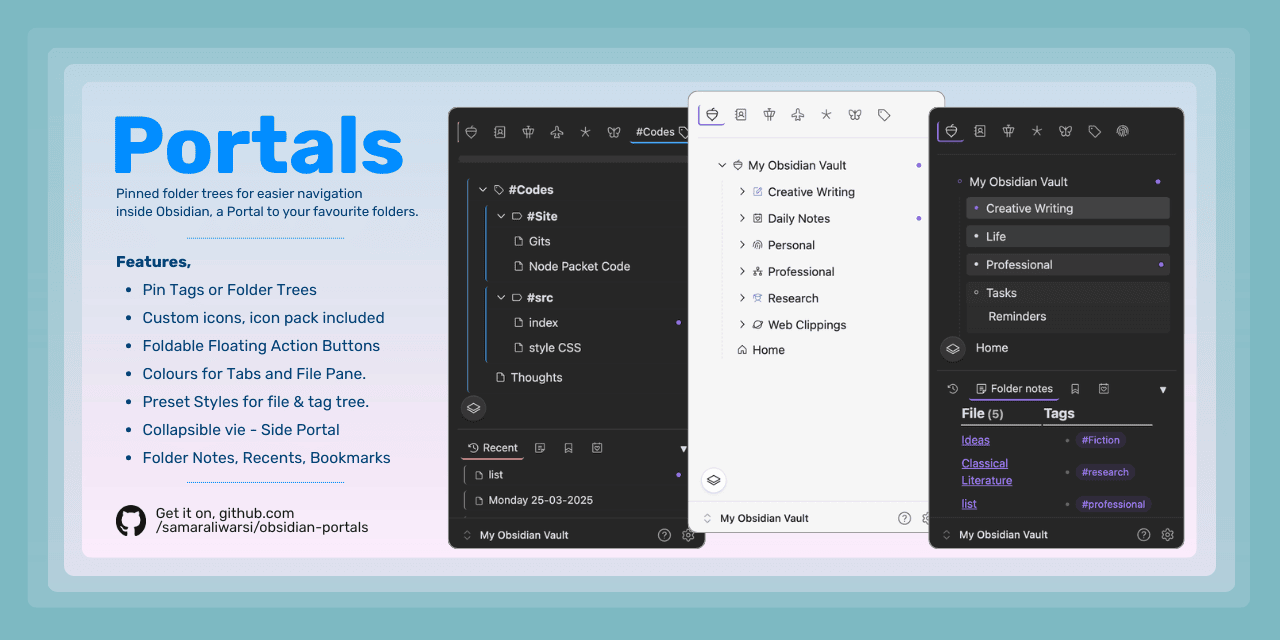
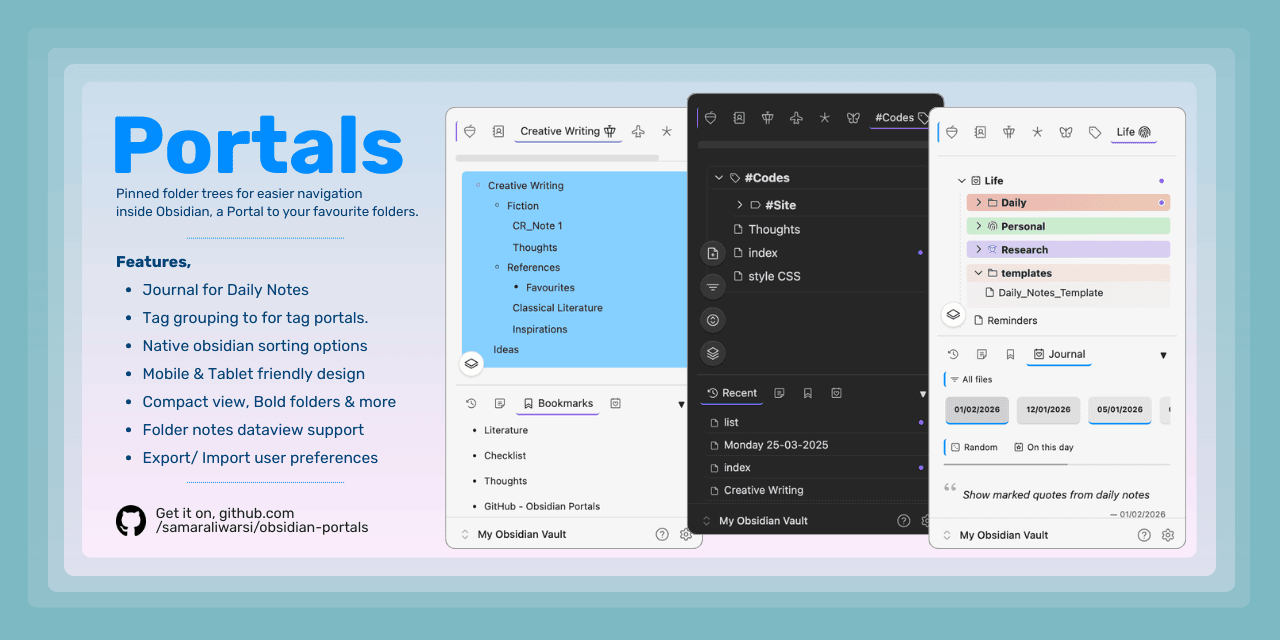
✨ Features
- Pin any folder or tag – Turn your most‑used folders and tags into tabs at the top of the file pane.
- Custom icons & colors – Choose from hundreds of icons from the Phosphor set for the tabs and set any background color with an opacity slider. Option to use gradients. Control tab and file pane colors separately.
- Styles - Folder trees or Tag grouped lists in each portal tab can be styled with several predefined styles such. The styles available are
Default,Minimal,Boxed,Portals,Shades&Hues. - Tag Grouping - Use existing tags in listed files to enabled grouped view in tag list for, delivering a better layout for tag portal tabs.
- Complete context menus – Right‑click files or folders to get the same menu as the default file explorer.
- Foldable floating action buttons – Quick‑create notes, folders, collapse all subfolders, and change sort order. Floating buttons are foldable on
Right Click/Long Pressfor those wanting a cleaner folder pane view. - Native sorting – Choose how files are sorted (by name, creation time, or modification time, ascending/descending). Your choice is saved between sessions.
- Side Portal - A modular, collapsable, resizable pane for new views and more ways to access content. Toggle it on in settings to find options inside. Side Portal has tabs containing, Bookmarks, Recent Files, Folder Notes and Journal. To use Side Portal, at least one tab is required to be on in settings. Side portal can be turned off on mobile to help smaller screen devices.
- Folder Notes – Each folder can have an associated note (markdown file with the same name). The note can be displayed in a side panel, and folders with a note are marked with a small dot. Global toggle to enable/disable folder notes. Folder notes can be used without side portal as well.
- Recents - Live update recent files list from across the vault.
- Bookmarks - Bookmark your favourite files or web links from Obsidian web viewer.
- Journal - A viewing and marking tool for Daily Notes. Mark your favourite quotes on your daily notes to display them in Journal. You can also mark your daily notes files.
- Safe deletion – Files are moved to Obsidian’s
.trashfolder, if such are the preferences set by user in obsidiansettings. - Mobile friendly – Responsive design that works on small screens. Tested on Android (more platforms coming).
- Export/Import settings – Backup your tab configuration or transfer it to another vault using json files from
Settings.
[!Note] Please make sure to backup your data file after a full setup of your preferences, color & icon choices. You can backup by copying the file
.obsidian/Plugins/Portals/data.jsonto safe location. You can also export the same viaSettingsand later import it. Make sure to backup before any plugin updates for safe measure.
⚙️ Installation
Using BRAT (Beta Reviewers Auto-update Tester)
- Install the BRAT plugin from the Obsidian community plugins (if you haven’t already).
- Open BRAT settings and click Add Beta plugin.
- Enter the repository URL:
https://github.com/samaraliwarsi/obsidian-portals. - Click Add Plugin – BRAT will download and enable the latest release.
Manual installation
- Download the latest release from the releases page.
- Extract the files into your vault’s
.obsidian/plugins/obsidian-portals/folder. - Enable the plugin in Obsidian settings.
🚀 Usage
Creating a tab
- First installation - use Ribbon menu to enable Portals view.
- Open Settings → Portals.
- Under Folders, Sub-folders or Tags, toggle on any folder/tag you want to appear as a tab.
- Optionally, click Choose icon to pick an icon from the Phosphor library, and use the color picker + opacity slider to set a background color.
- You can also pin the entire vault as a Portal Tab – it stays pinned to the left of the tab bar.
Managing tabs
- Drag tabs left/right to reorder.
- The active tab is highlighted and shows the folder/tag name. This can be changed from settings to display name on all.
- Hover over an inactive tab to see a tooltip with its name.
- For Side Portal choose the tabs you want in settings.
- Side Portal can be turned off for mobile devices.
Folder Notes
- Each folder can have an associated folder note – a markdown file with the same name as the folder (case‑insensitive).
- For non‑root folders, use the folder’s context menu to Create folder note or Open folder note.
- For the vault root, and also for any folder, create a note manually with the same name as your vault (e.g.,
MyVault.md). The root folder note is not created automatically via context menu. - The Folder Notes side portal (bottom of the file pane) displays the content of the folder note for the currently active portal.
- Folder Notes in side portal have a cache for performance improvements. This can accommodate 10 tabs with folder notes. Any further tabs will also support folder notes but the cache is valid for the most recent 10 used.
- An accent color highlight is used to show folders that have a folder note (including the root). This can be turned off from settings.
- Cmd/Ctrl + click on a folder (in the tree) opens its folder note in a new editor tab.
- Settings let you globally enable/disable folder notes and control whether they appear in the file tree.
Floating action buttons
Four collapsible floating buttons appear at the bottom‑left of the file panel. They can be folded, unfolded using the Right-Click or Long press on mobile. The collapse button works even in the folded state with Left-Click/ Tap on mobile. The four buttons are,
- New note – creates an untitled note in the current folder tab.
- New folder – creates a new folder in the current folder tab.
- Sort – opens a menu to change the sort order (Name A→Z / Z→A, Created oldest/newest, Modified oldest/newest). The choice is saved.
- Collapse all – collapses all subfolders while keeping the current tab’s root folder expanded.
Drag & drop
- Drag files onto folders to move them. This is not supported only on desktop. Use context menu 'Move to' to move files/ folders between portals on other devices.
Accessibility
- Recent Files, Bookmarks to improve file access.
- Journal provides a sneak peak into the Daily Notes. Journal is designed to work with the core Daily Notes plugin and may not work with community Daily Notes plugins that work outside of core plugin system. Journal supports date formats of DD-MM-YYYY and MM-DD-YYYY.
- Replace the file explorer using settings to make Portals the default explorer every time you start Obsidian. Default explorer is still available using obsidian tab header.
- Active files that are open in editor tabs show an accent coloured dot next to them in file/ tag tree and Recents on the right side. Same applies to the entire folder chain of the file open in the active tab of the editor.
Personalisation
- Use custom icons for any file or folder of your choices. The user saved icon preferences are logged into the data file at
.obsidian/Plugins/Portals. Users can also export the same using settingsExportbutton at the end of the list. - Colors chosen for each tab can be use to highlight the tab as well as the background of the file tree of that portal tab. With
Shadesstyle, the background can be used to color the folder gradations in 1st level folders of each portal tab. - Compact Tree is available for users with large vaults or for those who wish for a packed file/ tag tree appearance. Compact view works with all available styles.
- Bold folder names can be turned on from settings to further add a visual differentiator between files and folders/ tab groups.
- Non-markdown files can show a extension badge at the right hand side for visual separation. This can be turned on from settings.
- Seven predesigned styles to display folder, tag trees. Choose your favourite style based on your theme and design choices.
⚙️ Settings
- Replace file explorer – If enabled, Portals will open in the left sidebar on startup (the original file explorer is still there on a different tab of left sidebar).
- Compact Tree View - Reduce spacing to display more items in a single view of a file/ tag tree. This doesn't apply to recents or bookmarks.
- Styles - Choose a visual theme for file/ tag tree, recents and bookmarks. Works with compact mode.
- Background color style – Choose how tab background colors are applied: Gradient (fades from solid to transparent), Solid, or None.
- Tab colors – Toggle whether tabs use their assigned background color.
- Bold folder names - Make folder/group names bold in a tree.
- Show inactive tab names - Inactive tab names can be turned on. It's off by default.
- Enable folder notes – Global toggle for the folder notes feature. When disabled, folder notes are treated as normal files (always visible), the side panel shows a notice, and folder‑note context menu items are removed.
- Show folder notes in file tree – When folder notes are enabled, this controls whether they appear in the tree. If disabled, they are hidden.
- Highlight folder notes - If enabled, folders with folder notes will have their icons highlighted by accent color.
- Pin vault root – Pins the vault root as the first tab (always on the left). You can customize its icon and color separately.
- Sort defaults – Choose the default sort method and order for new vaults (users can still change it via the floating button).
- Side Portal – Enable or disable the bottom panel with additional tabs (Recent, Folder Notes, Bookmarks). You can also choose which tabs appear. Side Portal can be disabled on mobile for theme compatibility. For perfect compatibility use theme Baseline.
- Journal Folder - set a specific folder to read for daily notes. Leave empty if its based on the default core daily notes plugin. Compatibility outside the core plugin has not been tested fully.
- Quote Delimiter - Choose the syntax in markdown that will be used by journal side portal to read the daily notes. Default delimiter is set to == i.e. the default obsidian highlight.
- Backup / Restore – Export your entire settings to a JSON file, or import from a previously saved file.
- Clean up Dead Portals - If you delete a folder that was assigned as a Portal Tab, use settings to clean up the remnants from the display.
🧑💻 Development
Clone the repository, install dependencies, and build:
git clone https://github.com/samaraliwarsi/obsidian-portals.git
cd obsidian-portals
npm install
npm run build
The built main.js and styles.css will be in the root folder. Copy them into your test vault’s .obsidian/plugins/obsidian-portals/ directory.
📝 License
This project is licensed under the MIT License. See the LICENSE file for details.
For plugin developers
Search results and similarity scores are powered by semantic analysis of your plugin's README. If your plugin isn't appearing for searches you'd expect, try updating your README to clearly describe your plugin's purpose, features, and use cases.