Mobile
pendingby Justice Vellacott
Mobile-optimized UX enhancements with floating action button, context-aware toolbars, and gestures.
Mobile
A mobile-optimized UX enhancement plugin for Obsidian that provides a floating action button (FAB) and context-aware toolbars.
Ask me for mobile friendly features
Gestures
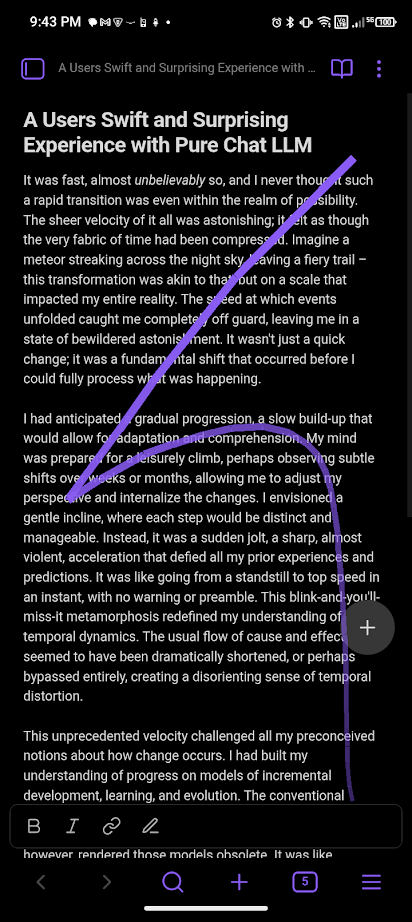
Gestures are the heart of this plugin. You can create completely custom gestures to trigger any command in Obsidian.
- Draw a gesture: Drag the Floating Action Button (FAB) to draw a shape.
- Assign a command: When you release the FAB, if the gesture is not recognized, you will be prompted to assign a command to it.
- Execute: Next time you draw the same shape, the assigned command will be executed.
Gestures are matched based on the shape, so you can draw them at any size or speed.
Features
Customizable Floating Action Button (FAB)
- Tap: Executes a primary command (default: Create new note).
- Long-press: Executes a secondary command (default: Open command palette).
- Gestures: Drag the button to draw shapes and trigger any command.
- Smart positioning: Anchors to the active editor leaf, ensuring it doesn't overlap navigation elements.
 |  |  |  |
|---|
Context-Aware Toolbars
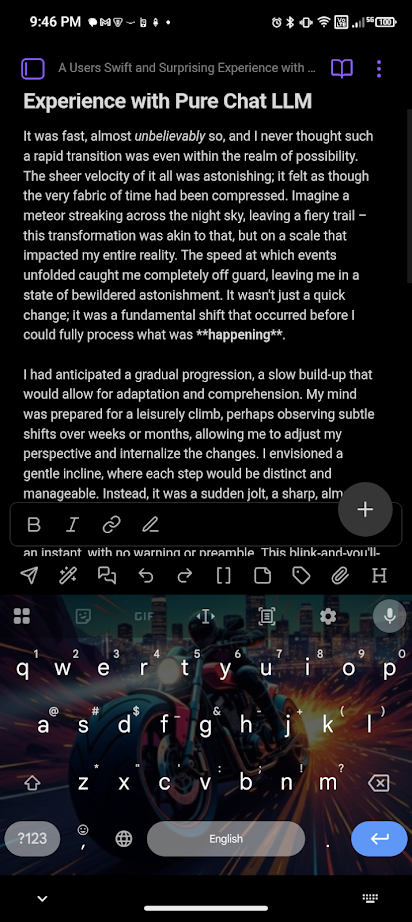
Dynamic toolbars that adapt based on your cursor position and selection:
| Context | Description |
|---|---|
| Selection | Text is selected |
| List | Cursor in bullet/ordered list |
| Task | Cursor in task list item |
| Heading | Cursor in heading |
| Code Block | Cursor in code block |
| Table | Cursor in table |
| Blockquote | Cursor in blockquote |
| Link | Cursor on a link |
| Default | Fallback when no other context matches |
Toolbar Features
- Two-section settings: Define toolbars in a library, then bind them to contexts.
- Auto-concatenation: Multiple toolbars bound to the same context are automatically merged.
- Icon support: Use Lucide icons with custom override capability.
- Horizontal scrolling: Scrolls when too many buttons to fit.
- Editor focus preservation: Keyboard stays open when using toolbar buttons.
- Contextual command availability: Toolbar buttons automatically hide when commands are unavailable based on current context.
- Smart layout: Toolbar automatically expands to full width when FAB is hidden, otherwise maintains 86px right padding to prevent overlap.
- Swipe-to-expand: Smooth gesture to expand toolbar and show multiple rows of commands (swipe up 30px).
Tablet Mode
- Force Tablet UI: Toggle to force the tablet interface on mobile phones.
- Keep in tablet mode: Command to toggle this mode.
Mobile Search
A dedicated search view optimized for mobile devices:
- Sticky search input: Always visible at the top of the results.
- Infinite scrolling: Efficiently loads results as you scroll (10 initial, 50 per batch).
- File previews: Shows a preview of the file content with caching for performance.
- Date display: Shows file modification date at the bottom corner of each preview (relative time for recent files).
- File context menu: Long-press/right-click on a result card for quick actions (open in new tab, open to the right, delete, copy file path).
- Smart keyboard handling: Automatically dismisses the keyboard when scrolling results.
- Auto-focus: Automatically focuses the search input when the sidebar opens.
- Smart focus: Automatically regains focus when scrolling back to the top of the results list.
- Performance optimizations: File list updates only when drawer is open or focused, with smart file system event listeners (create, delete, rename, modify) to reduce battery usage.
- Reliable results: Race condition fixed to prevent empty search results on initial open or when reopening with text.
- Selection mode: Long-press/right-click on any result card to enter selection mode for bulk operations
- Selection command bar: Cancel button, dynamic Select All/Deselect All toggle, selection counter, and three-dot menu for bulk actions
- Visual indicators: Selected cards show accent-colored border, checkmark badge, and highlighted background
- Plugin extensibility: Triggers
files-menuevent for multiple files andfile-menufor single file, allowing plugins to add custom actions - Smart interactions: Tap cards to toggle selection, long-press shows menu with appropriate actions based on selection count
- Dynamic Select All button: Button text changes to "Deselect all" when all files are selected, providing clear feedback
- Auto-exit: Selection mode automatically exits when no files are selected
- Lazy-load support: Selected files show proper UI even when rendered later during scrolling
- Open Tabs: Option to display your currently open tabs for quick navigation.
- Folder selection mode: Press Backspace on an empty search input to toggle between file and folder selection modes. Exiting folder mode with backspace clears the current folder filter.
Tabs View
A dedicated view to manage your open tabs:
- List view: Displays a list of all open tabs for quick navigation.
- Enhanced UI: Tabs display icons matching their content and include a close button (X) for quick closing.
- Quick access: Use the "Open tabs" command to instantly open the view.
Sidebar Navigation
- Swipe Past Side Split: Switch between sidebar tabs (e.g., File Explorer, Search, Backlinks) by swiping from the edge of the screen when the sidebar is open.
- Visual Feedback: Shows an overlay with icons and titles for available sidebar tabs.
Tab gestures
Enhance your tab management in the mobile tab switcher:
- Swipe right: Close a tab instantly.
Note: Start the swipe from the middle of the tab for reliable detection. - Drag and drop: Reorder tabs by dragging one tab onto another.
Note: Start dragging from the middle of the tab (not the edges) to avoid missed drags.
Installation
Brat
- Install BRAT from the Community Plugins in Obsidian.
- Open the command palette and run
BRAT: Add a beta plugin for testing. - Enter the URL of this repository:
https://github.com/TheJusticeMan/obsidian-mobile-plugin. - Click Add Plugin.
- Enable the plugin in Settings → Community Plugins.
Configuration
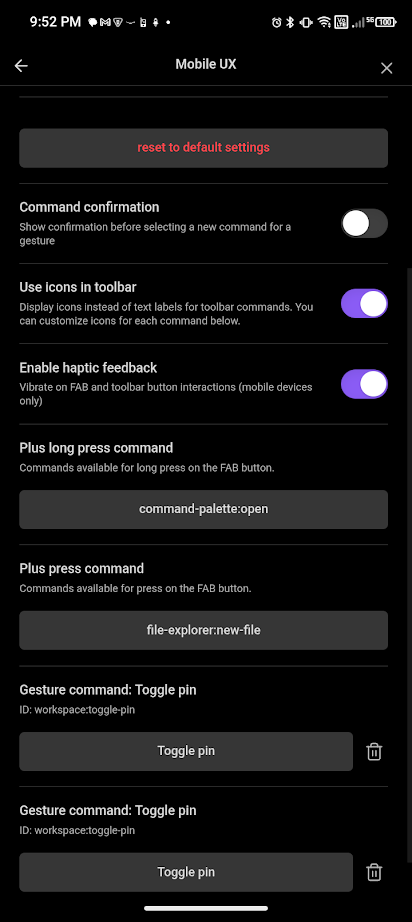
Settings
| Setting | Description |
|---|---|
| Show toolbars | Show context-aware toolbars at the bottom of the screen |
| Show built-in toolbar | Show Obsidian's built-in mobile toolbar at the bottom of the screen |
| Show FAB | Show the FAB button at the bottom right of the screen |
| Show tabs in search | Display open tabs when using the mobile search view |
| Tab reordering | Enable drag and drop to reorder tabs in the tab bar |
| Command confirmation | Show confirmation before selecting a new command for a gesture |
| Use Icons | Toggle between icon and text display in toolbars |
| FAB long press | Select command to execute when the FAB is long-pressed |
| FAB press | Select command to execute when the FAB is pressed |
| FAB record start | Select command to execute when FAB is held in recording mode |
| FAB record stop | Select command to execute when FAB is released in recording mode |
| Enable haptic feedback | Vibrate on FAB and toolbar button interactions |
| Gesture Commands | Manage your created gestures (rename, reassign, delete) |
| Reset to default | Restore all settings to their original defaults |
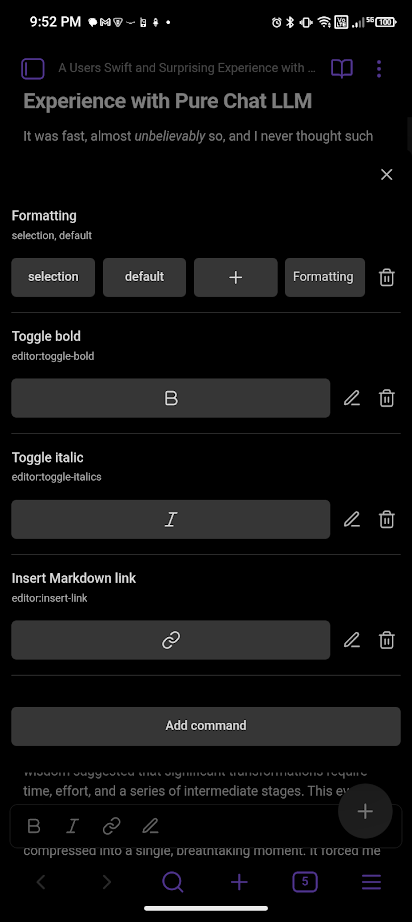
Toolbar Library
Create reusable toolbars with custom command sets:
- Click Add Toolbar.
- Give it a name (e.g., "Formatting").
- Add commands by their ID (e.g.,
editor:toggle-bold). - Optionally set custom icons for each command.
Context Bindings
Bind toolbars to editing contexts:
- Click Add Binding.
- Select a context type (Selection, List, Table, etc.).
- Select a toolbar from your library.
- Multiple bindings to the same context are auto-concatenated.
Commands
General Commands
| Command | Description |
|---|---|
Toggle wake lock | Keeps the screen awake while editing |
Toggle Keep in tablet mode | Force tablet UI on phones |
Plus press | Executes the command configured for FAB press |
Plus long press | Executes the command configured for FAB long press |
Open mobile plugin settings | Opens the settings modal for this plugin |
Open settings editor view | Opens the settings as a dedicated editor view |
Open Mobile Search | Opens the mobile-optimized search view |
Editor Navigation Commands
Precise cursor movement commands for mobile editing:
| Command | Icon | Description |
|---|---|---|
Up | arrow-up | Move cursor up one line |
Down | arrow-down | Move cursor down one line |
Left | arrow-left | Move cursor left one character with line wrapping |
Right | arrow-right | Move cursor right one character with line wrapping |
Selection Commands
Selection Expand
Expand your selection to word boundaries:
| Command | Icon | Description |
|---|---|---|
Expand down | chevrons-down | Extend selection to next word boundary or line end |
Expand up | chevrons-up | Extend selection backward to previous word boundary |
Selection Contract
Shrink your selection:
| Command | Icon | Description |
|---|---|---|
Shrink down | chevron-down | Deselect text from the end |
Shrink up | chevron-up | Deselect text from the start |
Smart Selection
Intelligent text selection commands:
| Command | Icon | Description |
|---|---|---|
Select word | text-cursor | Select word at cursor (finds next word if on whitespace) |
Select sentence | type | Select sentence at cursor (bounded by .!?) |
Select line | minus | Select entire line including newline |
Select all | file-text | Select entire document |
Progressive Selection
Single command for incremental selection expansion:
| Command | Icon | Description |
|---|---|---|
Select more | maximize-2 | Progressively expands selection: nothing → word → sentence → line → all |
Development
Prerequisites
- Node.js v16 or higher
- npm
Setup
# Clone the repository
git clone https://github.com/TheJusticeMan/obsidian-mobile-plugin.git

# Install dependencies
npm install

# Build for development (watch mode)
npm run dev

# Build for production
npm run build
Project Structure
src/
├── main.ts                     # Plugin entry point
├── settings.ts                 # Settings tab and interfaces
├── components/
│   └── SortableList.ts         # Reusable drag-and-drop list component
├── features/
│   ├── cursor-commands.ts      # Cursor & selection commands
│   ├── fab.ts                  # Floating Action Button manager (moved)
│   ├── sidebar-swipe.ts        # Swipe Past Side Split / sidebar navigation
│   ├── tab-gestures.ts         # Tab gestures and tab switcher logic
│   ├── tablet-mode.ts          # Keep-in-tablet-mode helpers
│   └── toolbar.ts              # Context-aware toolbar logic
├── utils/
│   ├── gesture-handler.ts      # Gesture recognition and handling
│   └── InsertMultipleAttachments.ts # Bulk-attachment helper
└── views/
    ├── SearchLeaf.ts           # Mobile search view
    └── TabsLeaf.ts             # Tabs view and tab management
License
Author
Support
If you encounter any issues or have feature requests, please open an issue on GitHub.
For plugin developers
Search results and similarity scores are powered by semantic analysis of your plugin's README. If your plugin isn't appearing for searches you'd expect, try updating your README to clearly describe your plugin's purpose, features, and use cases.