Real Calendar
pendingby wiktor-wytch
File-based calendar with embedded calendar support.
Real Calendar

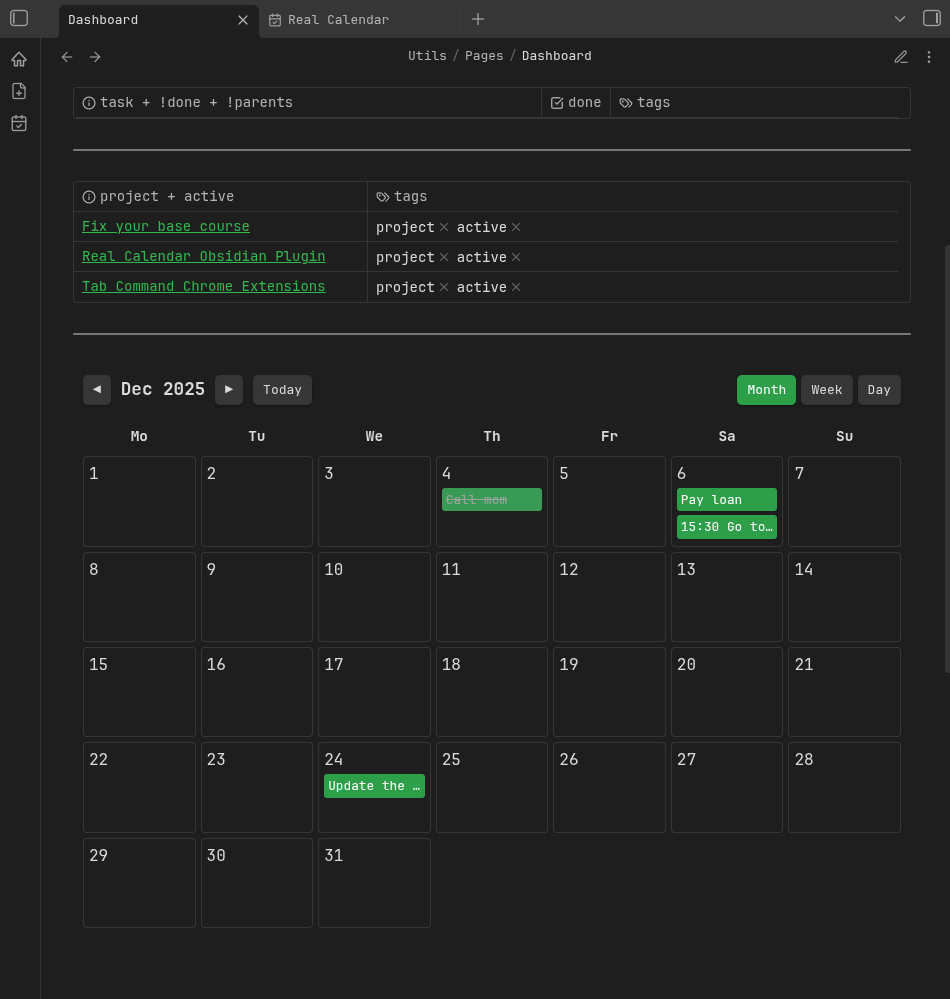
A powerful calendar plugin for Obsidian that displays events from markdown files with frontmatter. View your events in month, week, or day views, create events easily, and embed calendars anywhere in your notes.
Features
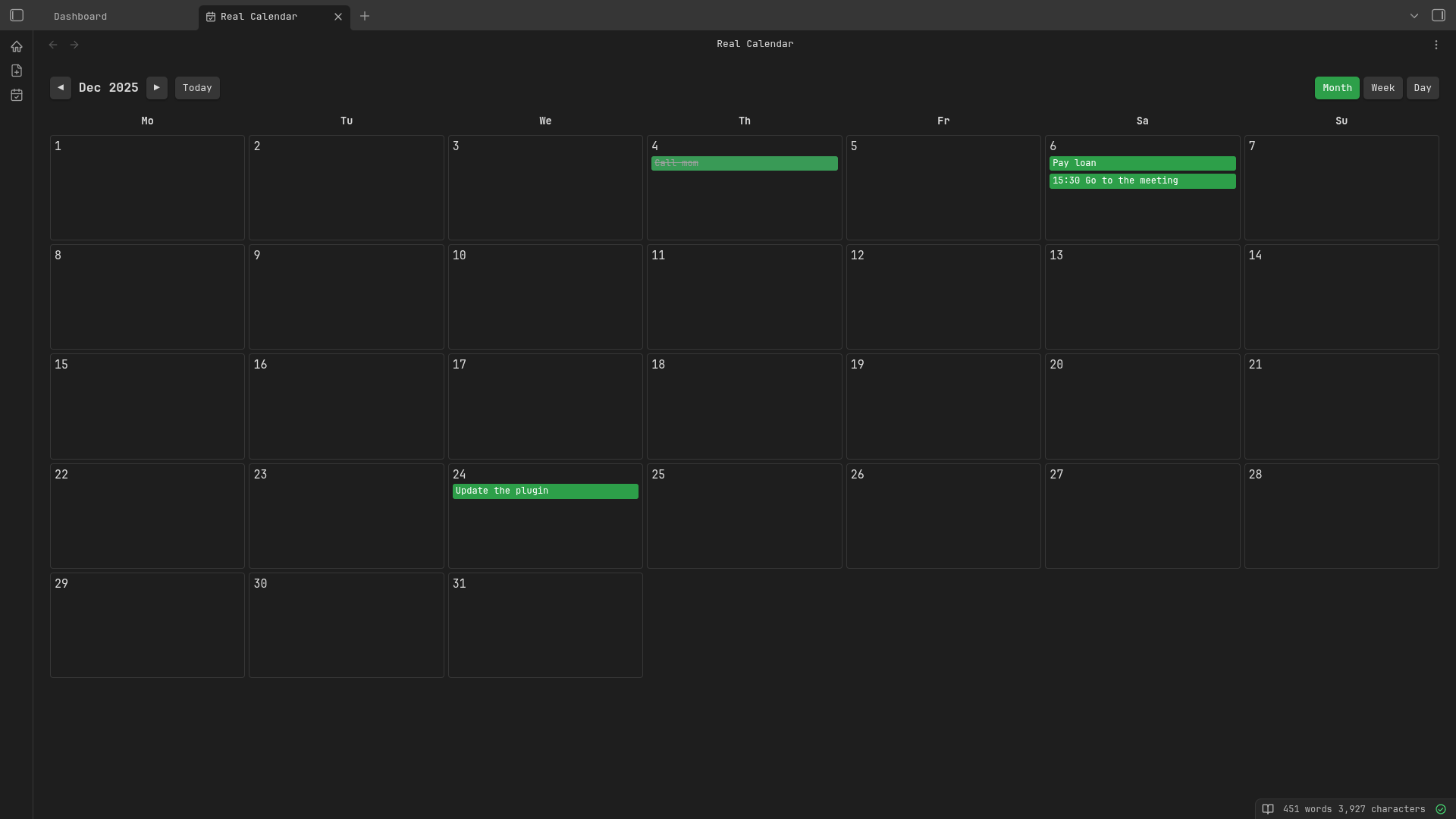
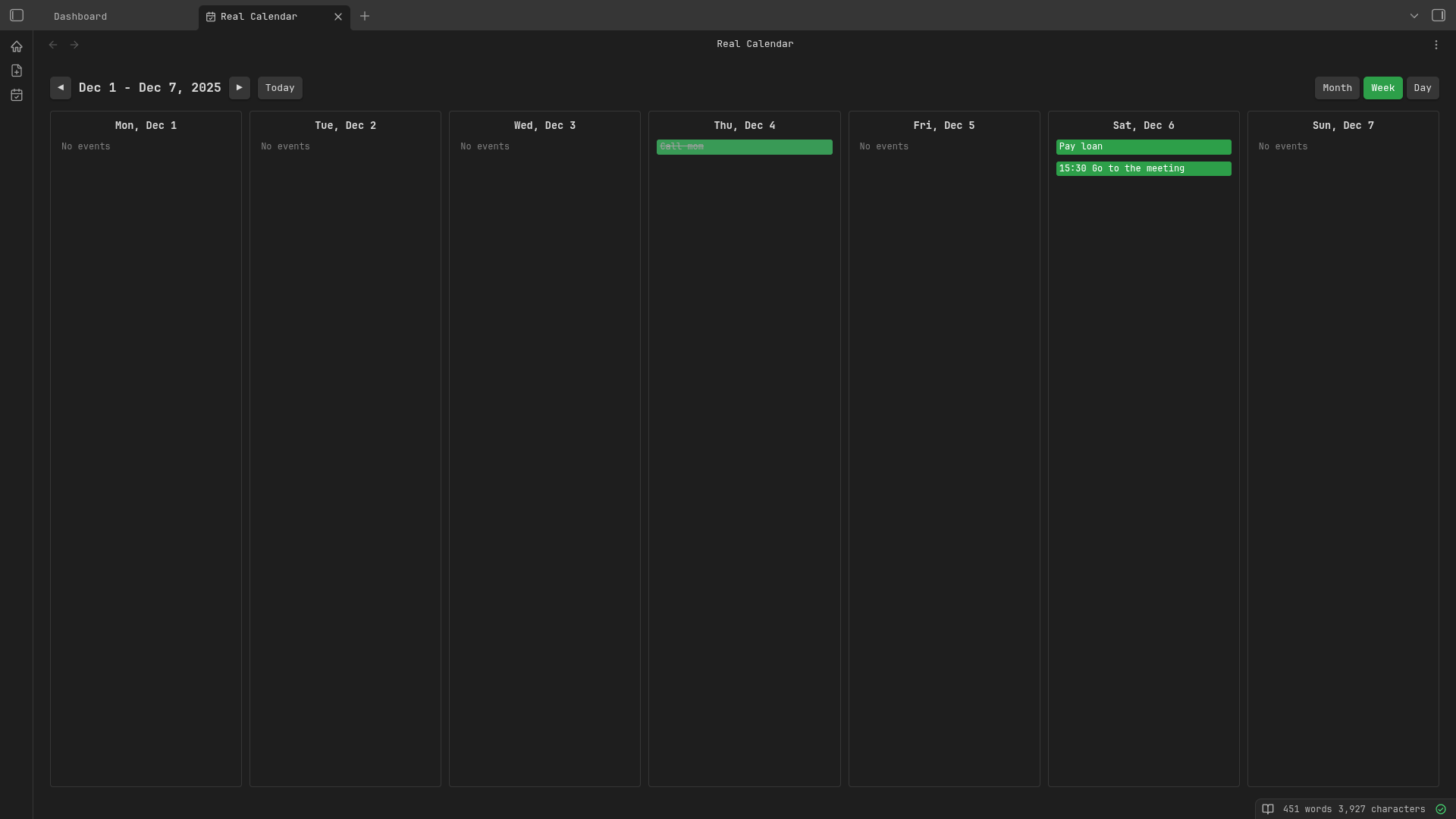
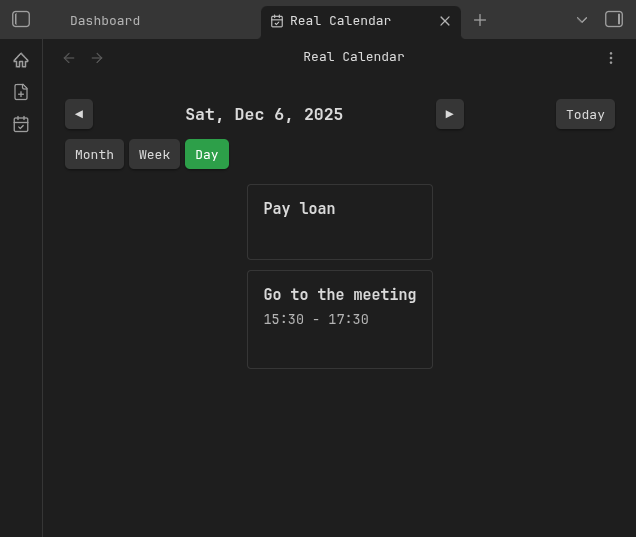
- 📅 Multiple View Modes: Switch between month, week, and day views
- ➕ Easy Event Creation: Create events via command or modal dialog
- 📝 Event Management: Track event completion, times, and dates
- 🎨 Embedded Calendars: Embed calendars in any note using code blocks
- ⚙️ Customizable: Configure event folders, week start day, and frontmatter fields
- 🔄 Real-time Updates: Automatically syncs with file changes
- 📱 Mobile Compatible: Works on desktop and mobile Obsidian apps
Installation
From Obsidian Community Plugins
- Open Obsidian Settings
- Go to Community plugins
- Search for "Real Calendar"
- Click Install and then Enable
Manual Installation
- Download the latest release from GitHub Releases
- Extract the files to your vault's
.obsidian/plugins/real-calendar/directory - Reload Obsidian or restart the app
Quick Start
Creating Your First Event
- Open the command palette (
Ctrl/Cmd + P) - Run "Real Calendar: Create new event"
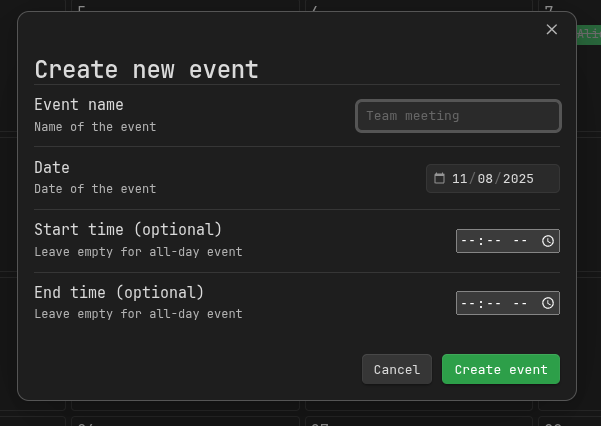
- Fill in the event details:
- Event name
- Date (YYYY-MM-DD)
- Start time (optional, HH:MM format)
- End time (optional, HH:MM format)
- Click Create Event
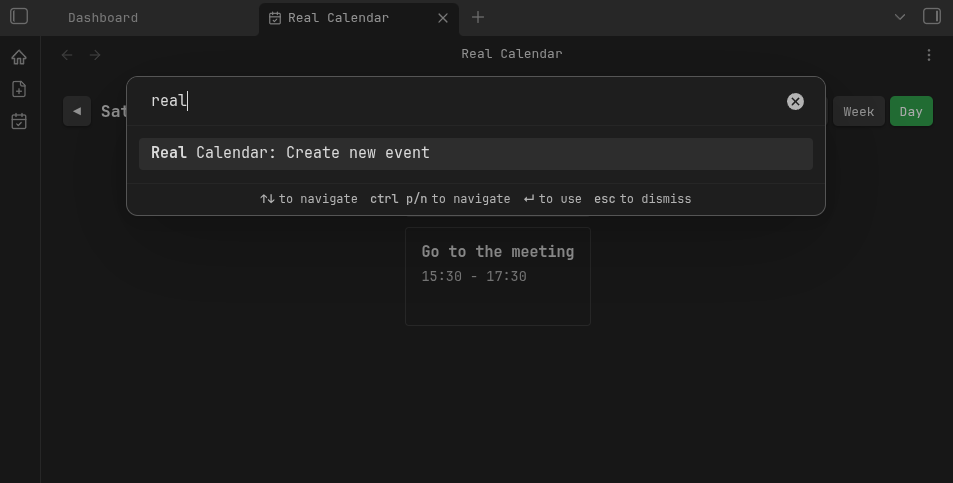
Create event modal in dark theme showing date and optional time pickers.
Opening the Calendar View
- Click the calendar icon in the ribbon
- Or open the command palette and search for "Real Calendar"
Usage
Event File Format
Events are markdown files with frontmatter. Create a file with the following structure:
---
tags: event
date: 2025-12-25
startTime: "14:00"
endTime: "15:30"
done: false
---
Required Fields
tags: event- Must include theeventtagdate- Date in YYYY-MM-DD format
Optional Fields
startTime- Start time in HH:MM format (use quotes:"14:00")endTime- End time in HH:MM format (use quotes:"15:30")done- Set totrueto mark as completed
Embedding Calendars
Embed calendars in any note using a code block:
```real-calendar
view: month
showCompleted: false
folder: projects/events
```
Embed Options
view- Calendar view mode:month,week, orday(default:month)showCompleted- Show completed events:trueorfalse(default: uses plugin setting)folder- Filter events to a specific folder path (default: all folders)
Settings
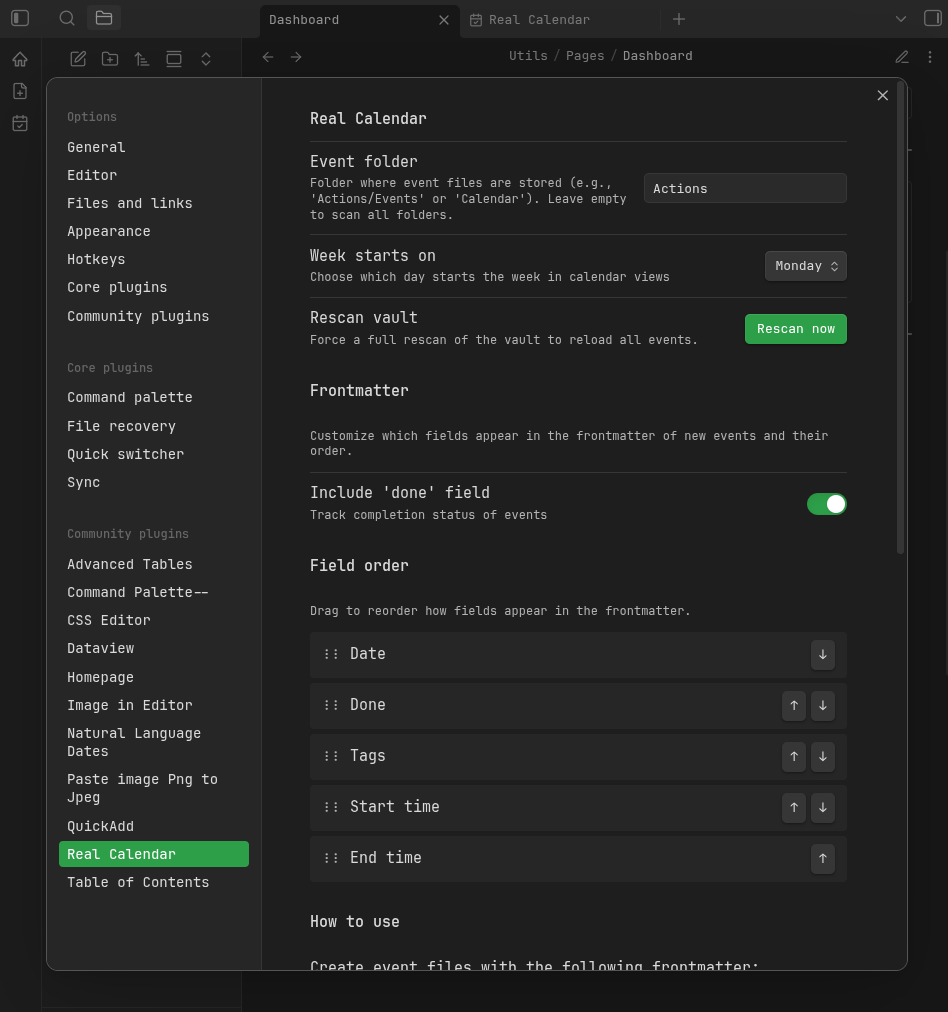
Access settings via Settings → Real Calendar.
General Settings
- Event folder: Specify a folder to scan for events (leave empty to scan all folders)
- Week starts on: Choose Sunday or Monday as the first day of the week
- Show completed events: Toggle to show/hide completed events globally
- Default view: Set the default view mode when opening the calendar
Frontmatter Customization
- Include 'done' field: Toggle whether to include the
donefield in new events - Field order: Drag and drop to reorder frontmatter fields
View Modes
Month View
See all events for the current month in a traditional calendar grid layout.
- Click events to open the corresponding file
- Right-click events to move to trash
Week View
View events for the current week in a horizontal layout.
- See all 7 days side-by-side
- Easy to spot time conflicts
- Perfect for weekly planning
Day View
Focus on a single day with a detailed event list.
- See all events for the selected day
- Displays event times and status
- Clean, focused interface
Event Status Indicators
Events are color-coded for quick visual reference:
- 🟢 Upcoming: Events in the future
- 🔴 Overdue: Events that have passed (not completed)
- ✅ Completed: Events marked as done
Workflow Tips
Embedding Workflows
- Embed a calendar in your daily note template
- Create project-specific calendars using folder filtering
- Use different views for different purposes (month for overview, day for focus)
Troubleshooting
Events Not Showing
- Check that your files have the
tags: eventin frontmatter - Verify the date format is YYYY-MM-DD
- Ensure files are in the configured event folder (if set)
- Use the "Rescan vault" button in settings
Calendar Not Updating
- Events update automatically when files change
- If needed, manually refresh by clicking the calendar icon again
- Use "Rescan vault" in settings for a full refresh
Build Issues
If you're building from source:
npm install
npm run build
Development
Building from Source
git clone https://github.com/wiktor-wytch/real-calendar.git
cd real-calendar
npm install
npm run build
Development Mode
npm run dev
This will watch for changes and rebuild automatically.
Support
- 🐛 Bug Reports: GitHub Issues
- 💡 Feature Requests: GitHub Discussions
- 📧 Contact: GitHub Profile
License
This project is licensed under the MIT License.
Star this repo if you find it useful!
For plugin developers
Search results and similarity scores are powered by semantic analysis of your plugin's README. If your plugin isn't appearing for searches you'd expect, try updating your README to clearly describe your plugin's purpose, features, and use cases.