PlugiGroups allows you to order plugins into groups and manage them.
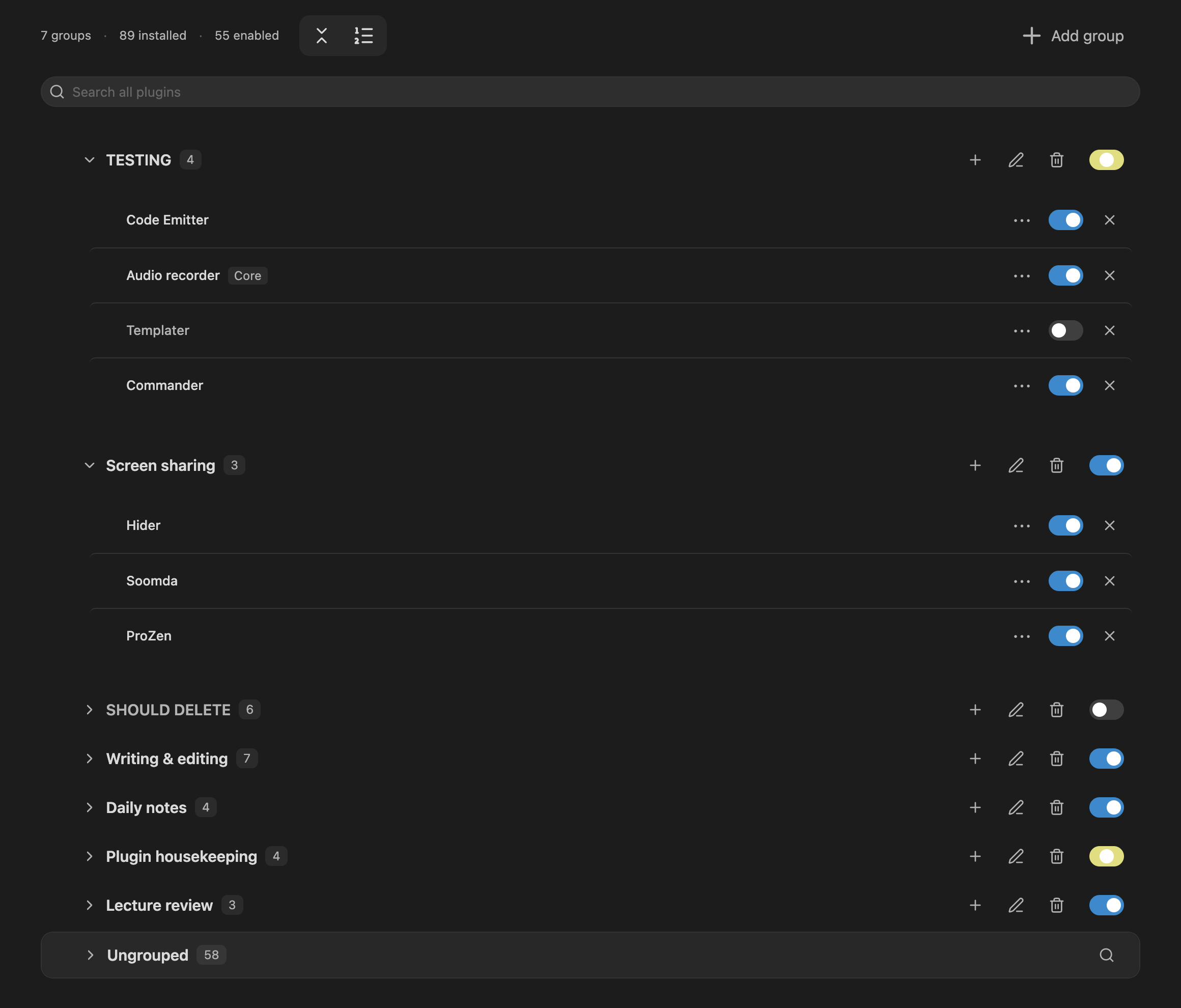
Using PlugiGroups
Open PlugiGroups from the ribbon or command palette, in a tab or a separate window.
Hover over a plugin row or focus its controls to see its description, version, and author below its name. Enable Always show plugin descriptions in settings to keep that information visible.
- Organize: Create, rename, and reorder groups. Add plugins by dragging them, using Move to on the Ungrouped section, or selecting + Add plugin on the target group.
- Plugin order: Drag a plugin above or below another plugin within a group. The insertion line shows its new position, and each group remembers its own order, or choose to order them alphabetically.
- Multiple groups: Plugins belong to one group by default. Enable Allow plugins in multiple groups in settings to assign them to several.
- Find: Search all plugins by name or ID, or search only Ungrouped—plugins not assigned to any group.
- Manage: Enable or disable individual plugins or whole groups. Each plugin offers quick access to its settings, plus other typical resources, just like the native Obsidian menu.
- Remove: Deleting a group keeps its plugins installed and preserves any other group memberships.
Plugin controls
- Use a plugin's switch to enable or disable it. A group's switch controls all installed plugins in that group.
- Click a plugin to open its settings. Plugins without a settings page open in Core plugins or Community plugins, according to their type.
- Each community plugin's ⋯ menu links to its details and community page, plus settings, hotkeys, and donation links when available. You can also reveal its local folder or uninstall it.
PlugiGroups stays enabled if you switch off a group that contains it.
CLI support
Manage groups, toggle plugins, and read or replace your group structure through Obsidian’s CLI.
See the CLI reference for commands and examples.
Mobile support
PlugiGroups does not work on mobile yet.
For plugin developers
Search results and similarity scores are powered by semantic analysis of your plugin's README. If your plugin isn't appearing for searches you'd expect, try updating your README to clearly describe your plugin's purpose, features, and use cases.