by theluckystrike
Read and edit Markwhen timelines on phones and tablets without a change to the file format.
Pocket Markwhen
Read a Markwhen plan as a vertical timeline. Open a .mw file, or put an mw code block in a Markdown note. Pocket Markwhen shows event dates, ranges, tags and heading groups. The source editor saves the original file format. It does not convert your plan to a separate database.
The free tools cover a single file or embedded block. Pro adds a view of selected files, named filters and a Markdown list export. A GitHub account is needed for Pro. Reading a plan and editing its source do not need an account.
Features
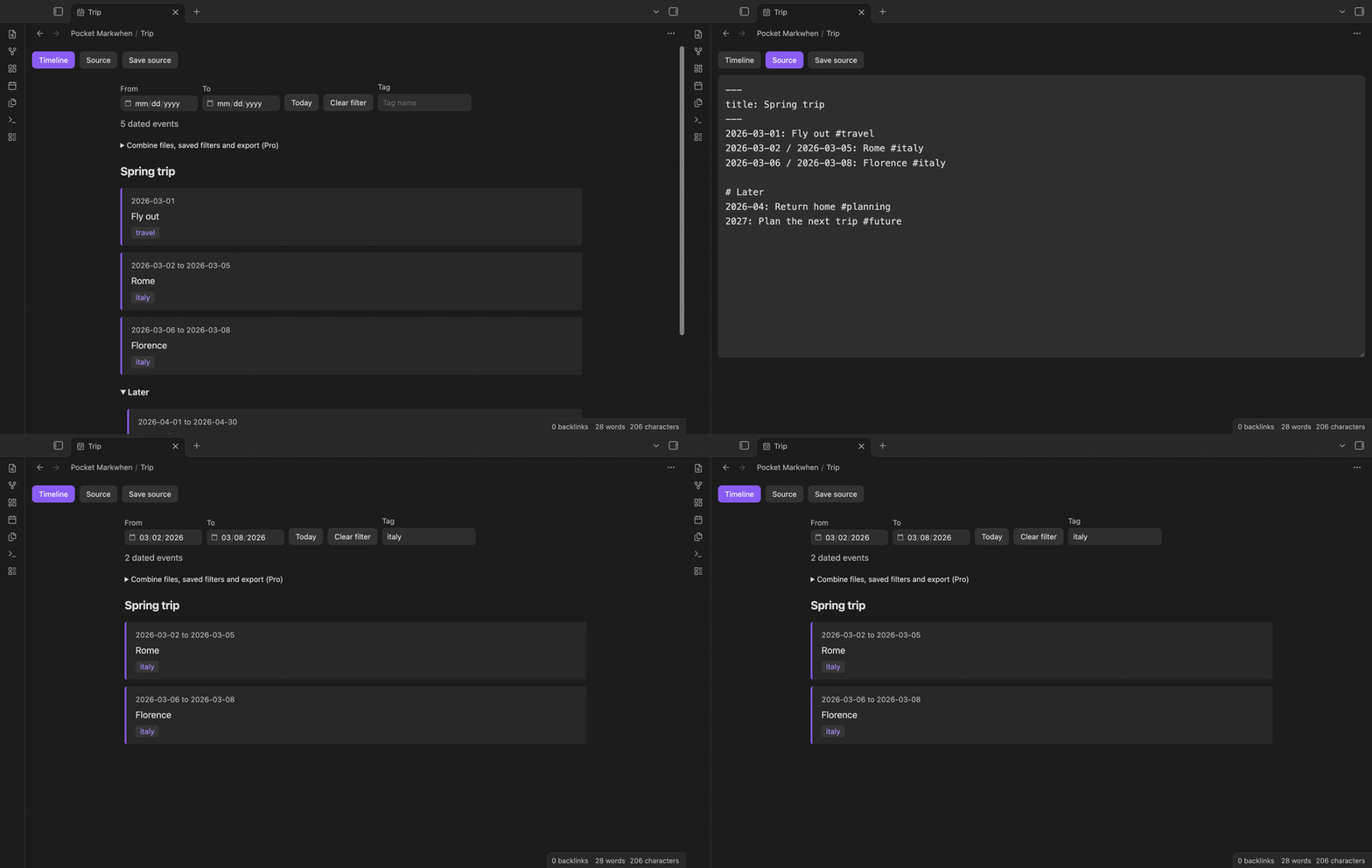
Vertical timeline
Open a .mw file to see dates above event text. A one-day event shows one date. A month or year shows its first and last day. A whole-day range uses an inclusive last day, so March 2 through March 5 ends on March 5. The parser keeps an exclusive end internally. Tags appear as separate chips beside the event text.
Source editor
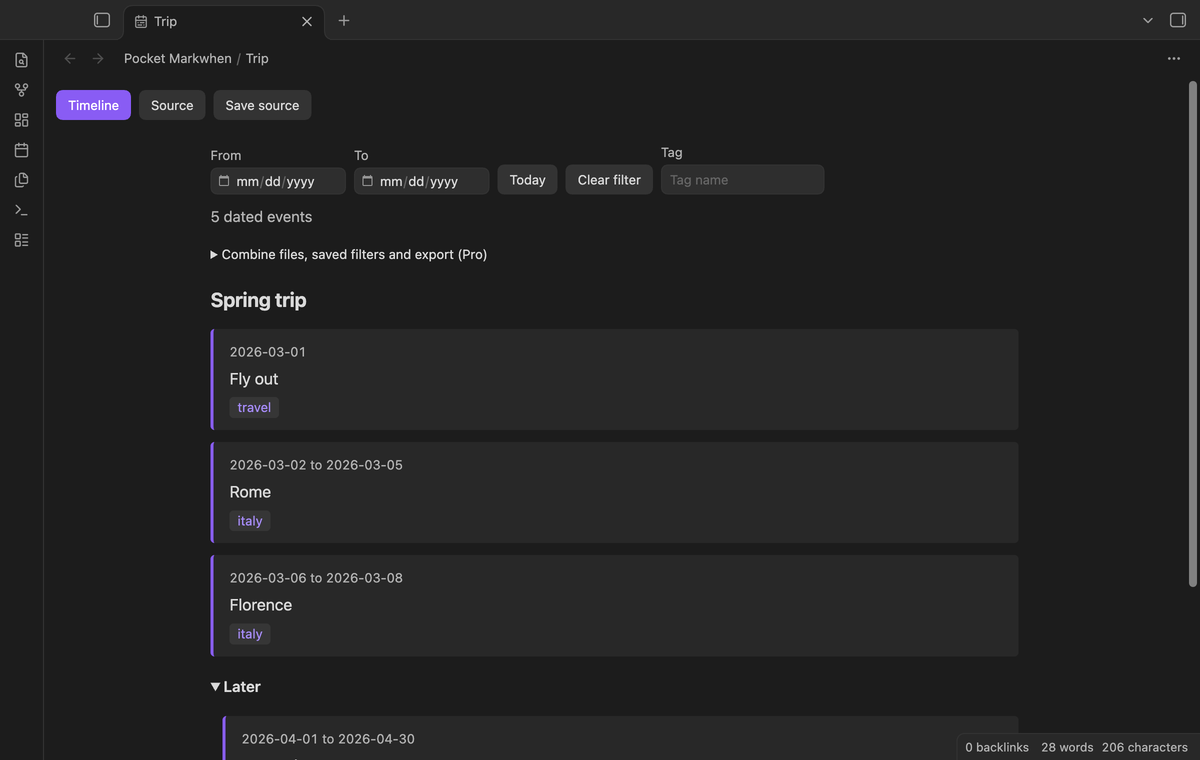
Select Source to edit the text in a plain text area. Select Timeline to read the changed plan. Edits request the normal Obsidian file save. Save source also writes pending edits when you need a direct save. The plugin keeps header text, blank lines and event syntax in the source string. A file with Windows (CRLF) line endings keeps them after an edit, and a file that you only open is not written again.
Embedded timelines
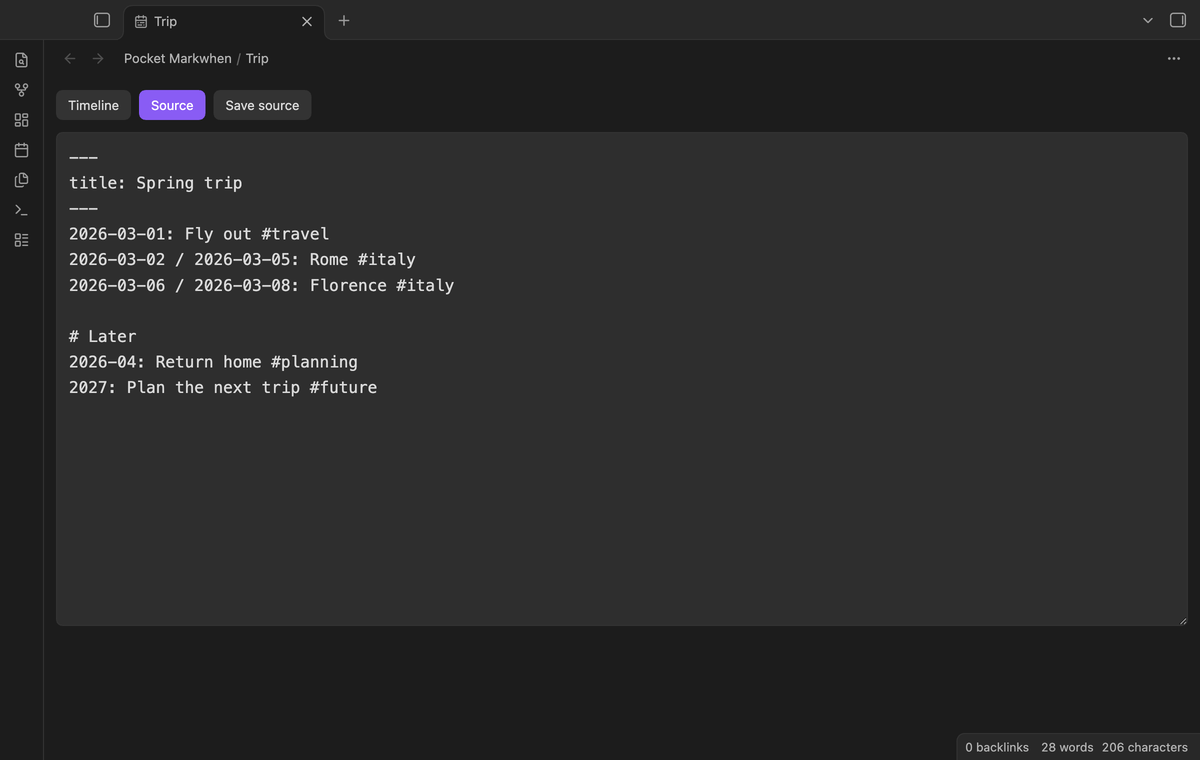
Use a fenced code block with the language mw in a note. Reading mode renders the block with the same timeline component as the file view. Edit the block in the note editor. The embedded view reads the block; it does not provide a second source editor inside the preview.
Heading groups
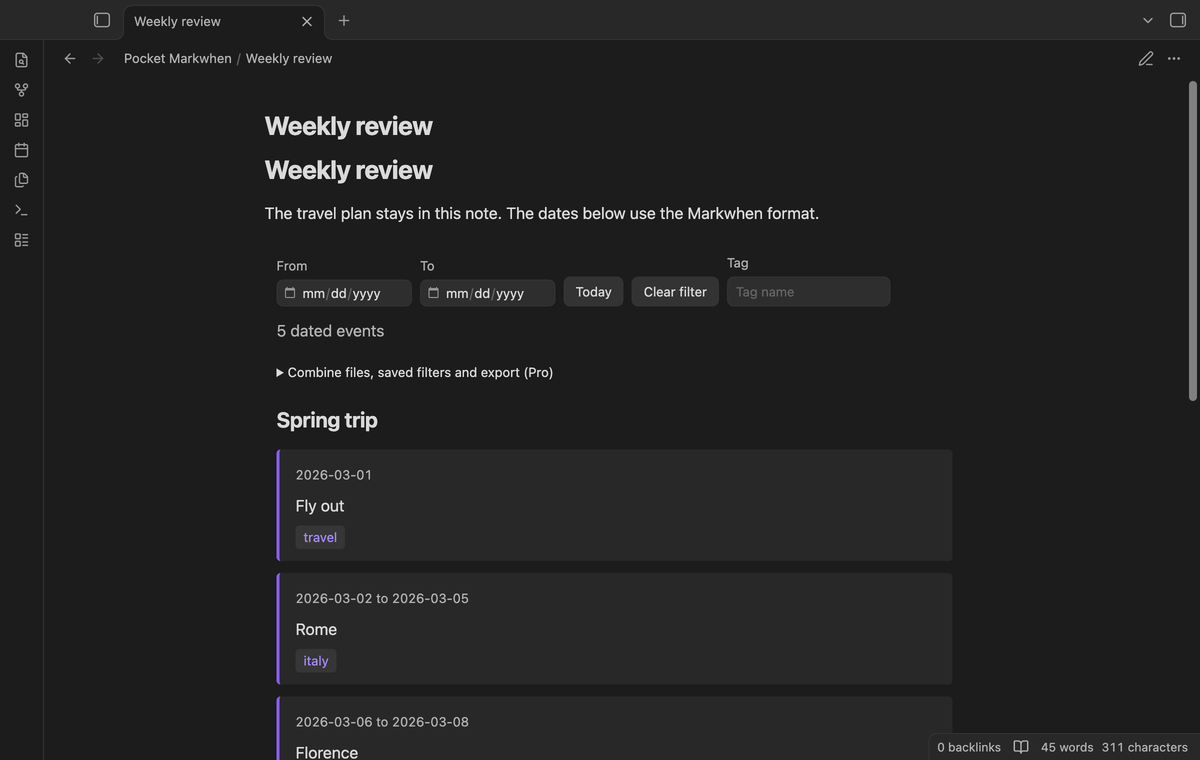
Markdown headings divide the plan into groups. Select a group heading to collapse or expand its events. Nested headings make nested groups. A top-level event stays outside a later heading group. The list keeps source order rather than moving a grouped event into a different section by date.
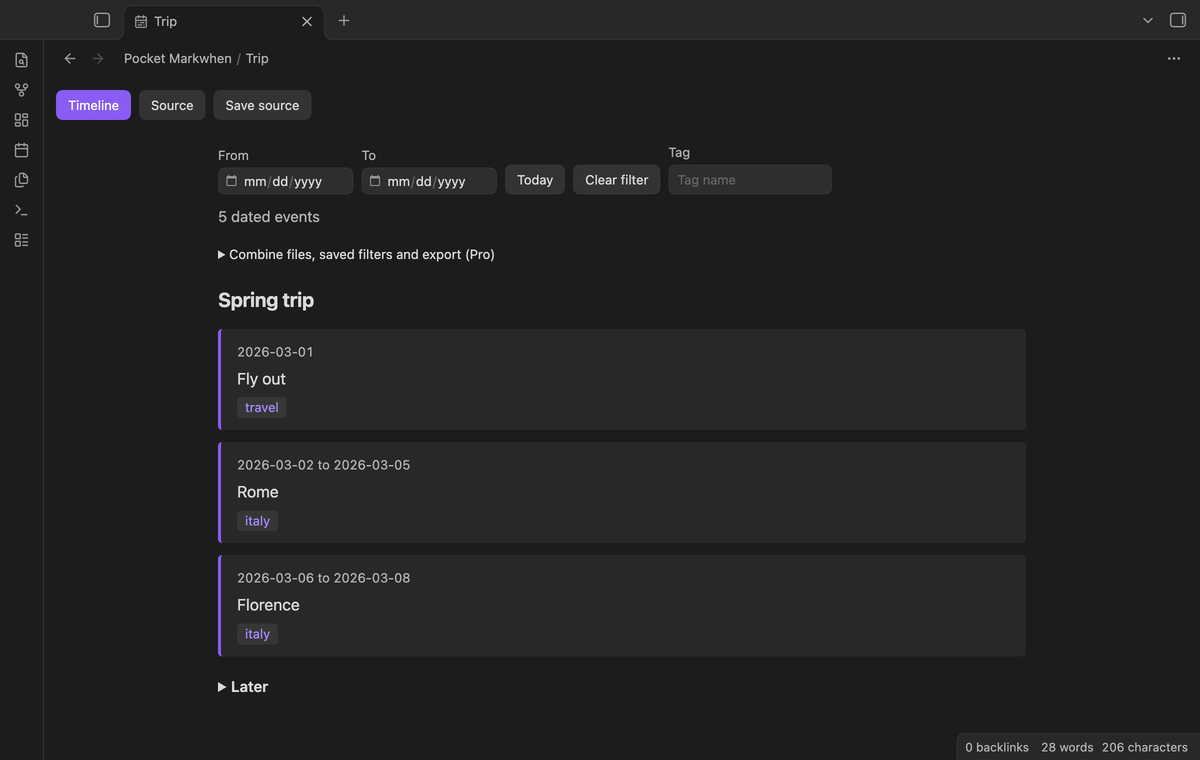
Date and tag filters
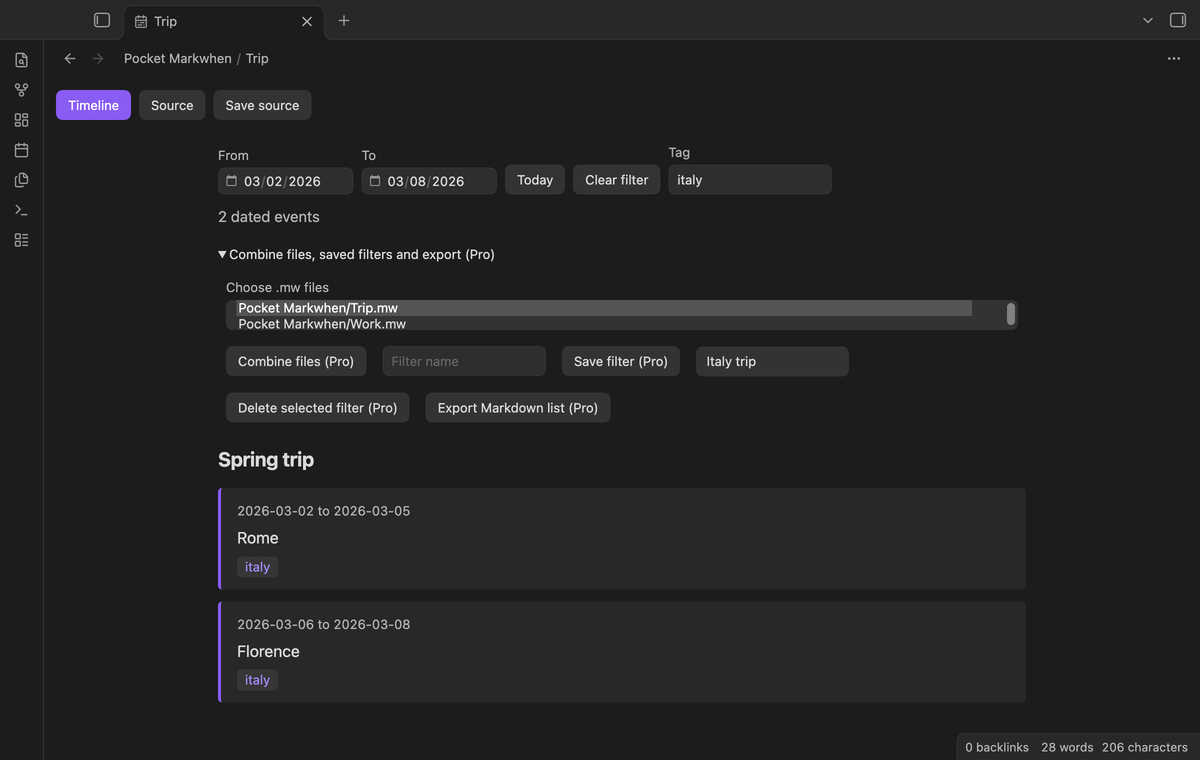
Set From and To to limit the visible events. Ranges that overlap the chosen dates stay visible. A range that ends before From is hidden. Leave either field blank for an open boundary. The Tag field matches one tag, with or without a leading hash. Upper and lower case match. Clear filter removes the dates and tag from this view.
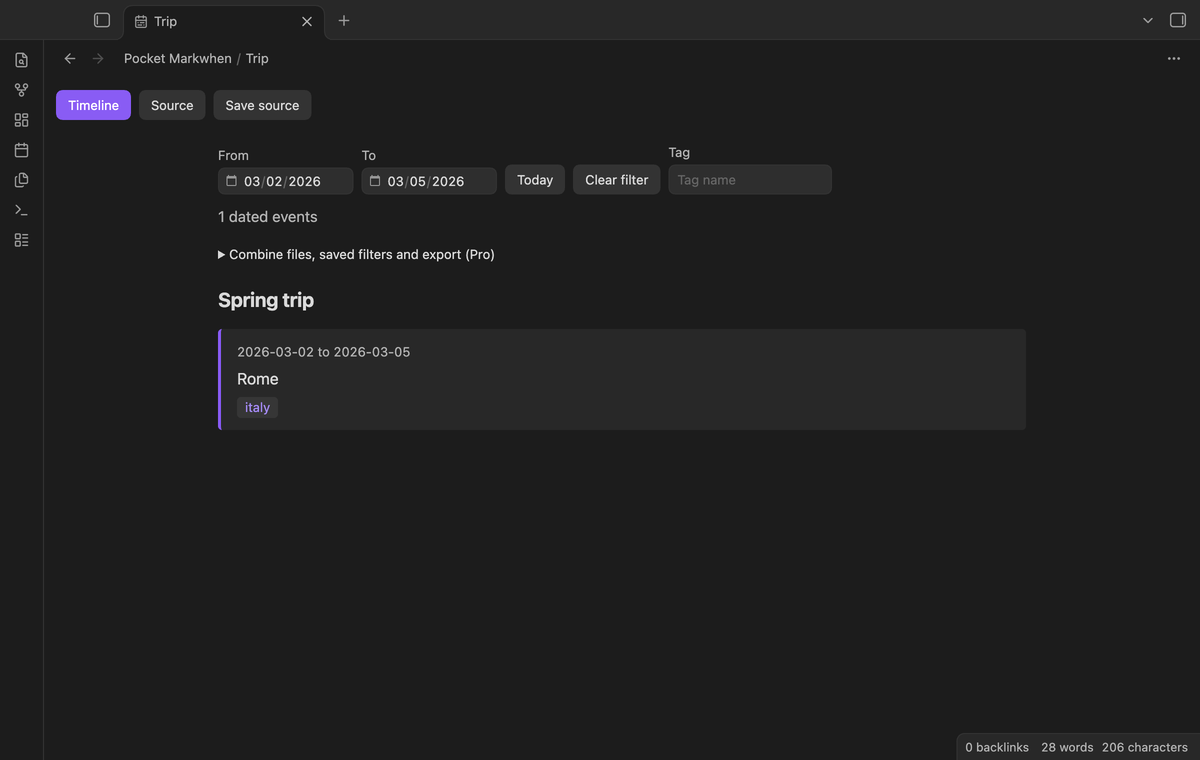
Today
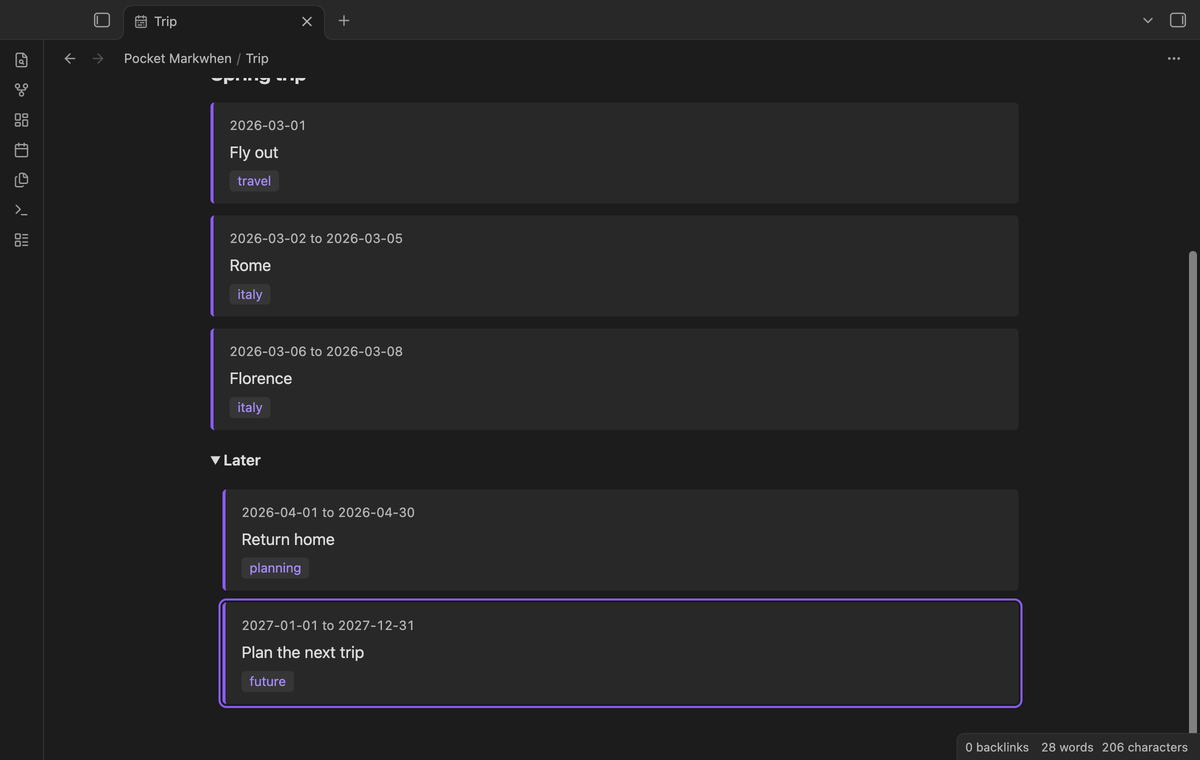
Today selects the event with the earliest start date on or after the current local day. It opens the containing heading groups, scrolls to the row and gives it focus and an outline. It uses the current filter. If the filter has no future event, a status message explains the result.
Combine files (Pro)
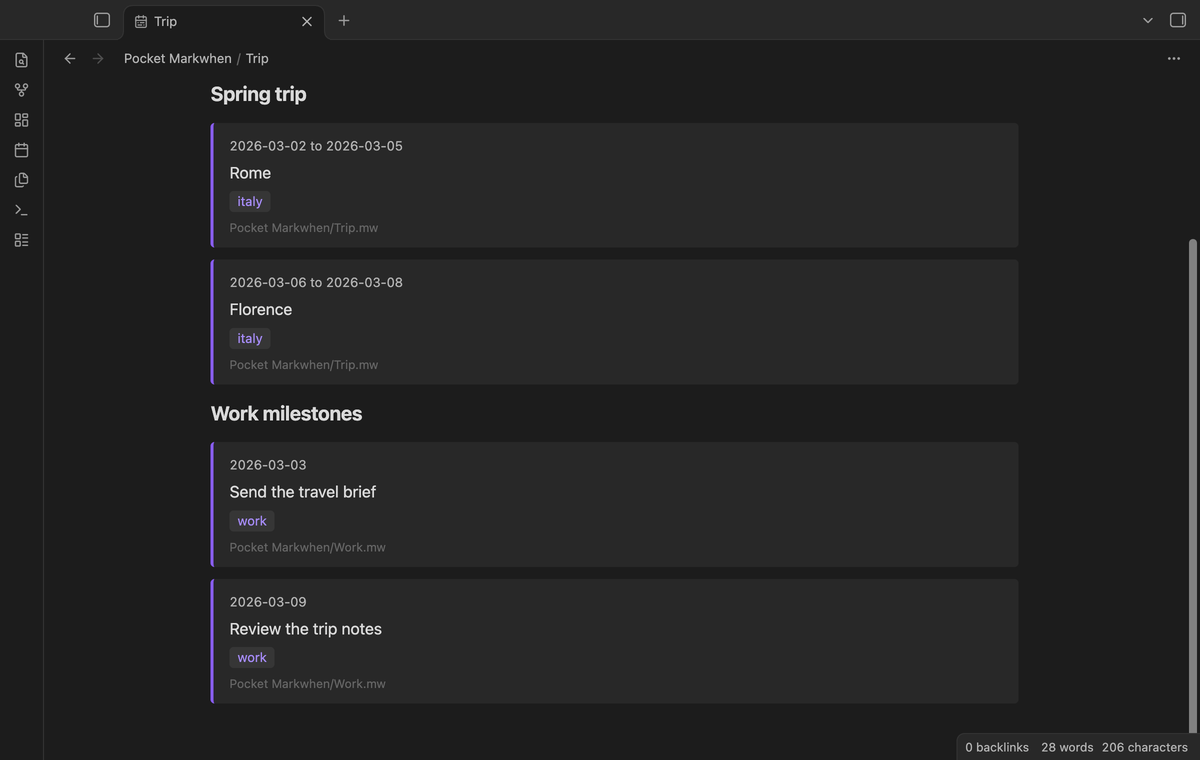
Open the Pro section, select additional .mw files and select Combine files. The selected files appear below the current plan. Rows show the source paths so you can see which file holds an event. This view reads the selected sources from the vault. It does not merge their text on disk. Signing out removes the additional files from the view. When you delete or rename a combined file, the view removes its events.
Save named filters (Pro)
Set dates and a tag, enter a filter name and select Save filter. Load the name from the saved-filter menu to use it again. Saving the same name replaces its prior values. Delete selected filter removes that saved entry. These entries stay in the plugin data for this vault.
Export Markdown list (Pro)
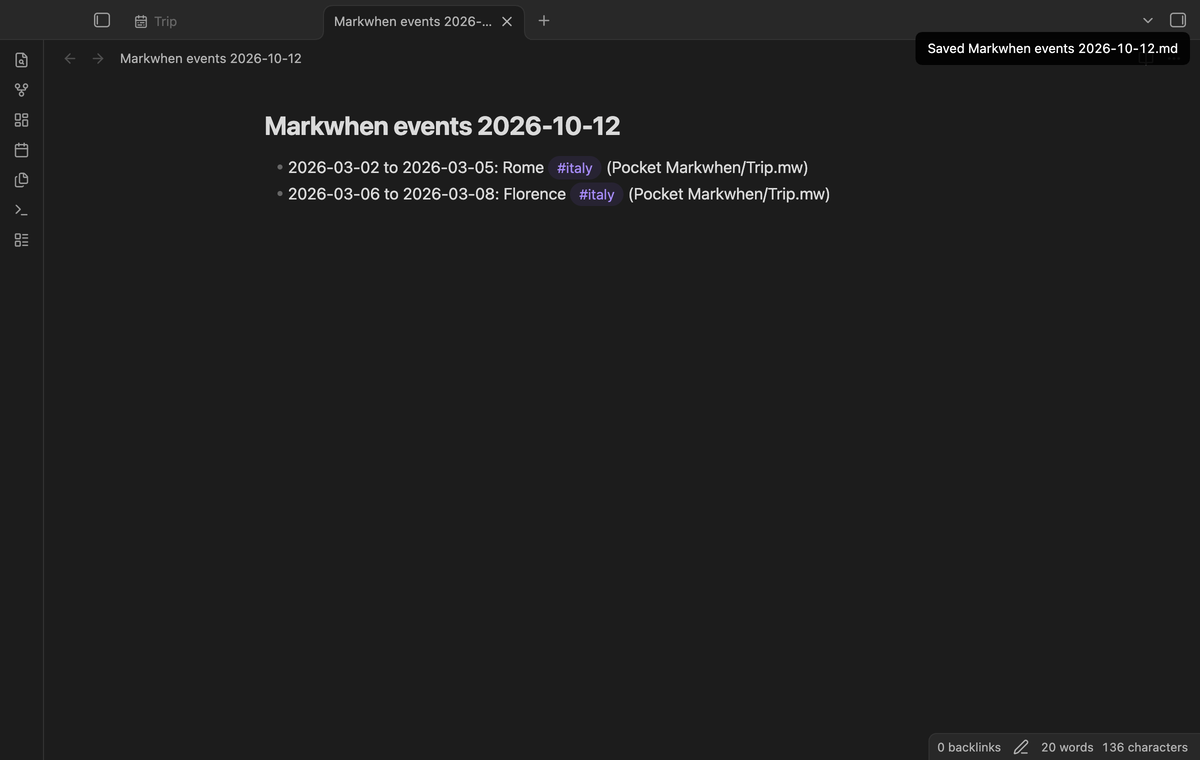
Export Markdown list writes the visible events to a new note in the vault root. The name includes the local date and a number if that name exists. The list includes date labels, text, tags and source paths. Export leaves the timeline sources in place. It reports a status notice with the output path.
Install
This source tree is prepared for a community release by the publisher. For a manual install, copy main.js, manifest.json and styles.css from a release into .obsidian/plugins/pocket-markwhen/ in a test vault. Enable the plugin in Community plugins. It needs Obsidian 1.13.4 or later.
Usage
Start with a short plan:
---
title: Trip
---
2026-03-01: Fly out
2026-03-02 / 2026-03-05: Rome #italy

# Later
2026-04: Return home
2027: Plan the next trip
Save this text as trip.mw. Open the file from the file list. If another plugin has registered .mw, Pocket Markwhen shows a notice during load. Open the file with that view, then run Open current file as Markwhen timeline from the command palette. Embedded blocks remain available when the file extension has another owner.
The timeline displays event first-line text as plain text. HTML in that text does not create page elements. Images, links, task controls and supplemental description blocks are not rendered as interactive Markdown. Edit those details in Source. The bundled Markwhen parser, version 1.2.0, reads the syntax; this view does not expand repeating events into a calendar. The view runs the parser without its optional cache; the build omits that cache module.
Settings
The settings tab has the GitHub Sponsors controls and a description of local storage. A date or tag filter belongs to its open timeline panel. Switching from Source to Timeline creates a fresh panel. Use a saved name if you need to restore a filter after that switch or after reopening a file.
FAQ
Does this change my file format? Source edits save Markwhen text. Filters and combined views change the display. A Markdown export is a separate file.
What happens with no dates? Empty text and text without dated events show “No dated events.” A parse exception gives a short message that points to Source.
How are time zones handled? The parser uses the local zone unless the source header sets a zone. Date tests compare calendar parts. Timed events display local date and time text from the parser result. Today compares calendar start dates rather than time-of-day values.
What was not tested? The app tests ran on macOS. Linux CI and the light theme were not tested in this run. Physical phones and tablets, third-party themes, large vaults, repeating-event expansion, real GitHub sign in and real payments were not tested. The extension-conflict test simulates a prior registration; it does not install the Markwhen community plugin.
Payment, account and network
The core features are free. Pro features need a GitHub Sponsors sponsorship of theluckystrike: $5 a month or more, or $15 once. A total payment of $15 meets the payment requirement for Pro without further payment. Sign-in and the checks below still apply. Your notes stay readable and editable with or without Pro.
GitHub handles the payment. Sponsor at https://github.com/sponsors/theluckystrike. You need no account for the free features. Pro needs the GitHub account that sponsors.
Until you select "Sign in with GitHub" in the settings, Pocket Markwhen makes no network requests. Sign in uses the GitHub device flow. Pocket Markwhen sends its public client ID and the scope read:user to https://github.com/login/device/code and shows you a code. While you enter the code at https://github.com/login/device, it asks https://github.com/login/oauth/access_token every few seconds to check the sign-in status. The scope permits profile reads only. GitHub needs this access to show the sponsorship tier. It grants no repository scope and no write access.
After sign in, Pocket Markwhen sends one query to https://api.github.com/graphql. It checks if the signed-in account sponsors theluckystrike. It asks for the tier and the total payment to theluckystrike. The plugin reuses a successful check for 7 days. Failed checks can retry after 6 hours. Select Refresh to request an earlier check. It sends no note content, file names or other vault data, and it has no telemetry.
After a successful check, Pro can work offline for up to 14 days. Sign out or a negative sponsorship answer turns Pro off. The plugin stores the GitHub token through the secret storage API of Obsidian. It does not put the token in its saved settings or its local sponsorship data. The local storage of this device keeps your GitHub login, the tier and the time of the last check. Sign out clears the token. You can also revoke the access in your GitHub settings, under Applications.
Support
Report a reproducible problem in the publisher's support channel. Include the Obsidian version, plugin version and a small example with private details removed. For a save problem, keep a copy of the original .mw file before you reproduce it. The sample notes in docs/sample-notes/ can help separate a syntax problem from a view problem.
The publisher is theluckystrike at notemods.com. Pocket Markwhen uses the MIT license. It bundles @markwhen/parser 1.2.0 by Rob Koch under MIT, with its dependency notices in THIRD-PARTY-NOTICES.md.
For plugin developers
Search results and similarity scores are powered by semantic analysis of your plugin's README. If your plugin isn't appearing for searches you'd expect, try updating your README to clearly describe your plugin's purpose, features, and use cases.