by Ivan Semernyakov
Bring Groq and OpenRouter AI chat to Obsidian. Use vault notes as context, expand wikilinks, switch models with one click, and keep chat history in your vault.
PolyMind – Obsidian AI Chat






PolyMind is an AI chat plugin for Obsidian that brings your notes directly into AI conversations as context. Use Groq and OpenRouter models, switch between models with one click, work with [[wikilinks]], and keep your conversations alongside your vault.
PolyMind is designed for context-aware AI workflows without leaving Obsidian.
Screenshots
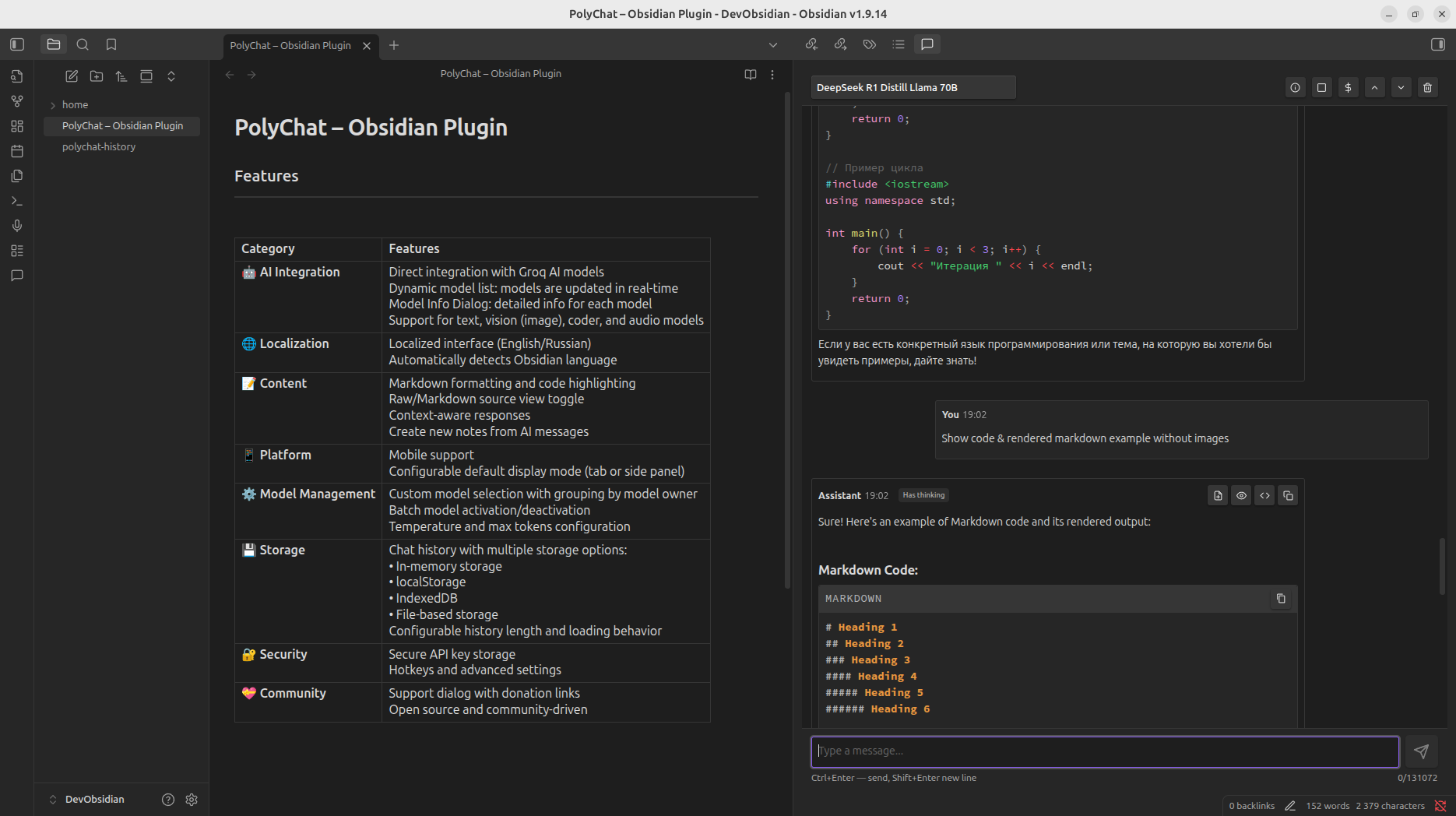
Main Interface
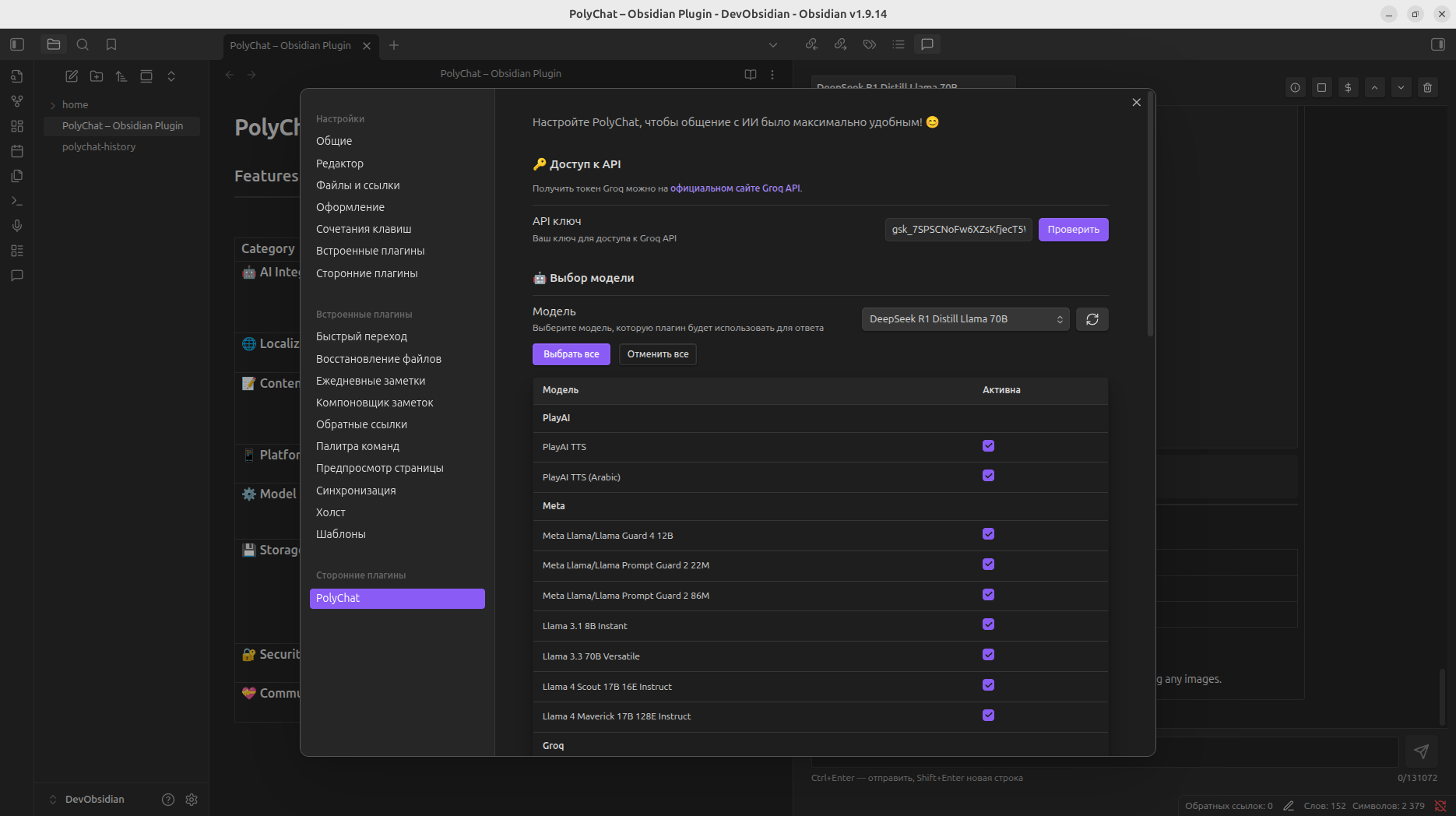
Settings Interface
Features
| Category | Features |
|---|---|
| 🤖 AI Integration | Groq and OpenRouter support Dynamic model discovery and refresh One-click model switching Model information dialog |
| 🧠 Note Context | Add notes from your vault as AI context Expand [[wikilinks]] into note contentInclude all open notes as context Configurable per-note character limits |
| 💬 Chat | Persistent conversation history Markdown rendering Code syntax highlighting Raw/Markdown source view |
| 📝 Obsidian Integration | Work directly inside your vault Create new notes from AI messages Use active and open notes as conversation context |
| ⚙️ Model Management | Model selection and grouping by provider/owner Dynamic model catalog Batch model activation/deactivation Temperature and maximum token configuration |
| 💾 Storage | Multiple history storage options: • In-memory storage • localStorage• IndexedDB • File-based storage Configurable history length and loading behavior |
| 📱 Platform | Desktop and mobile support Configurable display mode: tab or side panel |
| 🌐 Localization | English and Russian interface Automatic language detection based on Obsidian language |
| 🔐 Privacy | API keys and chat data remain on the local device No telemetry or external analytics |
| 💝 Community | Open source and community-driven Support dialog with donation links |
Note Context
The main feature of PolyMind is the ability to use your Obsidian vault as context for AI conversations.
Instead of copying information from your notes into a chat manually, PolyMind can add note content directly to the conversation context.
Wikilink context
When enabled, [[wikilinks]] in your message can be resolved to the corresponding notes and their content can be included in the AI context.
For example:
Explain the relationship between [[Project Alpha]] and [[Research Notes]].
PolyMind can expand the linked notes and provide their content to the selected AI model.
Open notes as context
You can also configure PolyMind to automatically include all currently open notes as context for each message.
This is useful when working with several related notes, research materials, projects, or documentation.
Context limits
To control the amount of information sent to the AI provider, PolyMind provides a configurable maximum character limit per note.
Set the limit to:
- a specific number of characters to restrict context size
0to include the entire note
AI Providers
PolyMind supports AI models through multiple providers.
Groq
Groq provides access to fast AI inference and a dynamically updated model catalog.
OpenRouter
OpenRouter provides access to models from multiple AI providers through a unified API.
The available models depend on the provider's current catalog and your provider configuration.
Model availability is provider-dependent and can change over time. PolyMind does not maintain a static list of available models.
Model Management
PolyMind does not ship with a fixed, hand-maintained model list.
Instead, the plugin requests the current model catalog from the configured provider and refreshes the available models when needed.
This means:
- new models can appear without a PolyMind release
- models can become unavailable or be removed by a provider
- model metadata may change over time
- the model list shown in PolyMind reflects the provider's current catalog
- different providers may expose different models and capabilities
Refreshing models
To refresh the model list:
- Open Obsidian Settings.
- Open PolyMind settings.
- Find the model configuration section.
- Click the refresh button next to the model selector.
- PolyMind fetches the current model catalog from the provider.
- Select the models you want to use.
Models can be grouped by provider or owner to make large model catalogs easier to navigate.
Project Status
PolyMind is actively developed and focuses on context-aware AI conversations inside Obsidian.
The current implementation supports:
- AI chat with Groq
- AI chat with OpenRouter
- Dynamic model discovery
- One-click model switching
- Note content as AI context
[[wikilink]]expansion- Open-note context
- Persistent chat history
- Markdown and code rendering
- Creating notes from AI responses
- Desktop and mobile usage
Multimodal capabilities
PolyMind's current workflows are primarily focused on text and code.
Although some providers may expose models with image, audio, or other multimodal capabilities, PolyMind does not currently guarantee support for all such model capabilities.
Provider model catalogs are therefore filtered according to the capabilities currently supported by the plugin.
Additional multimodal functionality may be introduced in future releases.
Installation
Community Plugins
- Open Obsidian Settings.
- Go to Community plugins.
- Make sure Community plugins are enabled.
- Click Browse.
- Search for PolyMind.
- Install the plugin.
- Enable PolyMind.
Configuration
After installing PolyMind:
- Open Obsidian Settings.
- Open PolyMind.
- Configure your AI provider.
- Enter the required API key.
- Select the models you want to use.
- Configure chat, note context, and history settings.
API keys
For Groq, obtain an API key from the Groq Console.
For OpenRouter, obtain an API key from OpenRouter.
API keys are stored locally in your Obsidian environment and are used to communicate directly with the configured provider.
Note context settings
The Note context settings control how Obsidian notes are included in AI conversations.
Available options include:
- Open chat on startup — automatically open the PolyMind chat when Obsidian starts.
- Expand
[[links]]in your message — resolve wikilinks in your message and include the referenced note content as context. - Include all open notes as context — append currently open notes to the context of each message.
- Max characters per note — limit how much content from each note is included. Set to
0to include the whole note.
Usage
- Open a note in Obsidian.
- Open PolyMind from the sidebar.
- Select an AI provider and model.
- Start a conversation.
- Add relevant notes to the conversation context using wikilinks or open-note context.
- Continue working with your vault without leaving Obsidian.
Example
Suppose your vault contains:
Projects/
├── Project Alpha.md
├── Project Beta.md
└── Meeting Notes.md
You can ask:
Compare [[Project Alpha]] and [[Project Beta]]
based on the latest [[Meeting Notes]].
With note context enabled, PolyMind can use the contents of these notes when generating the response.
Chat History
PolyMind supports persistent chat history with multiple storage backends.
Available storage options include:
- In-memory storage
localStorage- IndexedDB
- File-based storage
You can configure:
- the history storage method
- the maximum history length
- how much history is loaded when opening a conversation
The appropriate storage option depends on your workflow and the amount of conversation history you want to retain.
Display Modes
PolyMind can be displayed using different Obsidian layouts.
Depending on your configuration, the chat can open as:
- a dedicated tab
- a side panel
You can also configure whether the chat should open automatically when Obsidian starts.
Mobile Support
PolyMind supports Obsidian on mobile devices.
The interface is designed to work with the same vault and provider configuration across supported Obsidian platforms.
Test the Plugin with BRAT
You can install and test the latest development version of PolyMind using BRAT, the Beta Reviewers Auto-update Tool for Obsidian.
Steps
- Install BRAT from Obsidian Community Plugins.
- Open BRAT settings.
- Click Add Beta Plugin.
- Enter the repository URL:
https://github.com/semernyakov/polymind
- Confirm the installation.
BRAT will install the development version of PolyMind and can automatically update it when new versions are available.
Development
Clone the repository:
git clone https://github.com/semernyakov/polymind.git
cd polymind
Install dependencies:
npm install
Run the development build:
npm run dev
Build the plugin:
npm run build
Format the code:
npm run format
Run linting:
npm run lint
Contributing
Contributions are welcome!
Please read the Contributing Guide for information about the development workflow, code of conduct, and contribution process.
Security
For security issues, please read the Security Policy and report vulnerabilities responsibly.
🔐 Security Note: Your API keys are stored locally in your Obsidian environment and are used to communicate with the configured AI provider.
🛡️ Data Privacy: PolyMind does not collect or transmit your API keys or chat data to a PolyMind server. Conversations and plugin data are stored locally according to your configured storage options. API requests are sent directly to the AI provider you configure.
License
This project is licensed under the MIT License. See the LICENSE file for details.
Support
If you find PolyMind useful, you can support development via:
-
💰 YooMoney: Support via YooMoney
- Accepts transfers from Russia and other countries via bank cards
-
⭐ Star the repository: Add a star on GitHub
-
🐛 Report issues: Create an issue
Changelog
See CHANGELOG.md for the complete change history.
PolyMind — bring your Obsidian notes into the AI conversation.
For plugin developers
Search results and similarity scores are powered by semantic analysis of your plugin's README. If your plugin isn't appearing for searches you'd expect, try updating your README to clearly describe your plugin's purpose, features, and use cases.